

How to Make a PDF Searchable
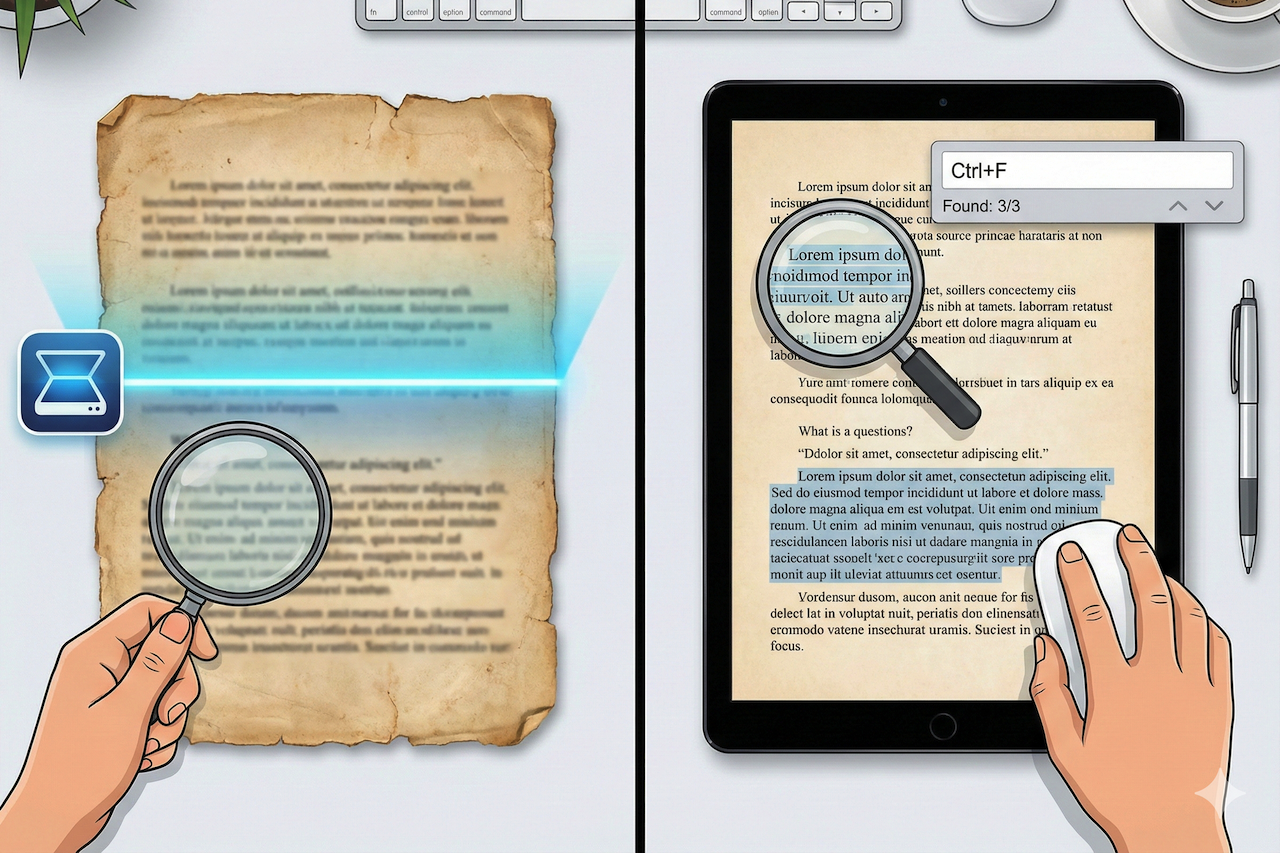
Have you ever tried searching for specific information in a PDF only to find that nothing happens when you press Ctrl+F? This frustrating situation occurs when you're working with a non-searchable PDF, which is essentially just an image of text rather than actual text that your computer can read. These files often come from scanned documents or photos saved as PDFs.
You can make a PDF searchable by using OCR (Optical Character Recognition), which converts image-based text in your document into machine-readable text. This process transforms your static PDF into an interactive document that lets you quickly find any word or phrase you need. You have several options, from free online tools to professional software such as Adobe Acrobat Pro DC.
Making your PDFs searchable saves you time and makes your documents more useful. Whether you're dealing with legal contracts, academic papers, or business reports, converting your PDFs into searchable files helps you work faster and access information more easily. The process takes just a few minutes and can dramatically improve how you manage your digital documents.
Key Takeaways
- OCR technology converts image-based PDFs into searchable documents by recognizing and converting text
- You can use free online tools or paid software such as Adobe Acrobat Pro DC to make PDFs searchable.
- Searchable PDFs save time and improve productivity by allowing instant text search and better document accessibility.
Understanding Searchable PDFs
A searchable PDF contains text that your computer can recognize and find, while a non-searchable PDF shows text as a flat image. This difference matters when you need to locate specific information quickly in your documents.
What Is a Searchable PDF?
A searchable PDF is a document that supports the Find command (Ctrl+F on Windows or Command+F on Mac) to locate specific words or phrases. The text in these files is machine-readable, meaning your computer recognizes each character as text rather than just an image.
You can create searchable PDFs in two ways. The first is by saving a document directly as a PDF from programs like Microsoft Word or Google Docs. The second method uses OCR (Optical Character Recognition) to convert scanned images into text that computers can read.
Some searchable PDFs are hybrid, combining searchable text with the original scanned image. This format lets you search for information while keeping the document's exact visual appearance.
Difference Between Searchable and Non-Searchable PDFs
Non-searchable PDFs store pages as flat images without any text data that your computer can detect. When you try to select text in these files, nothing happens because there's no actual text to select.
You can test if your PDF is searchable by pressing Ctrl+F (or Command+F) and typing a word you see on the page. If the search returns no results, you have a non-searchable PDF. Another way to check is by trying to highlight and copy text from the document.
Image-only PDFs and image-based PDFs are common types of non-searchable files. These usually come from scanning paper documents or taking screenshots without processing them through OCR software.
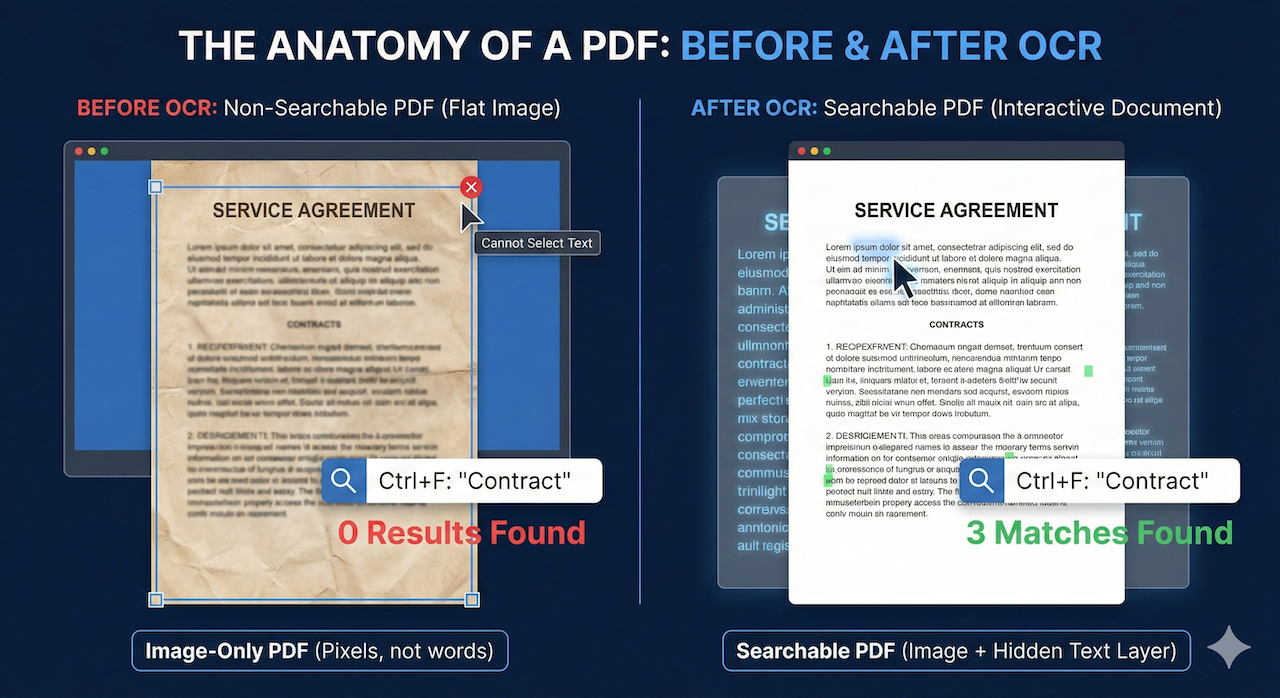
Image generated by Google Gemini.
Why Some PDFs Are Not Searchable
PDFs are often non-searchable for several common reasons:
- Scanned documents: Scanners capture pages as images rather than text, so the file looks readable but contains no searchable text layer.
- Older files: Many documents were created before OCR technology became standard and were never processed to recognize text.
- Photos, screenshots, or faxes: Files created from images typically lack searchable text unless OCR is applied.
- No text layer: Without OCR, the visible text remains part of a flat image, similar to words in a photograph that cannot be selected or searched.
How to Make a PDF Searchable
When you scan a paper document, your computer treats it as a flat image with no readable text. To make these image-based PDFs searchable, you need to convert them using OCR (Optical Character Recognition) technology.
Using OCR Software and Tools
OCR software analyzes the images in a PDF and converts the visible text into machine-readable text that can be searched, selected, and copied.
There are several types of OCR tools available. Mobile apps such as Adobe Scan work on both iPhone and Android devices and can process scanned documents into searchable PDFs. Desktop OCR software provides more control by scanning each page, identifying characters, and adding a searchable text layer over the original image.
Many OCR tools allow you to preserve the original document layout while adding searchable text beneath it. The PDF looks the same visually, but now responds to commands like Ctrl+F (or Command+F on Mac), allowing you to quickly find words or phrases.
Making a Searchable PDF With Adobe Acrobat
Adobe Acrobat Pro offers a built-in feature to make PDFs searchable.
- Open your document in the program, click Tools, and select Recognize Text from the menu.
- Choose Searchable Image as the output style. This keeps the original appearance of the document while adding a hidden text layer. Click OK to begin.
- The software will scan each page and convert image-based text into searchable text. This works best with documents that have clear, readable fonts and supports both single-page and multi-page PDFs.
- Once complete, verify the result by selecting text with your mouse. If you can highlight words, the PDF is searchable. You can also press Ctrl+F to search for specific words or phrases.
Online Methods to Make PDFs Searchable
There are several ways to make a PDF searchable without installing dedicated software:
- Online OCR tools: These allow you to upload a PDF through a web browser, process it online, and download a searchable version. They work on any device with internet access.
- Web-based OCR services: Some platforms such as SearchAblePDF.org offer PDF conversion to searchable formats by processing uploaded files on their servers and returning the converted document. Free usage may be subject to file size or usage limits.
- PDF-to-Word conversion: Converting a PDF to a Word document and then saving it back as a PDF can also make the text searchable, as the conversion process typically recognizes and extracts text automatically.
Benefits of online tools:
- No software installation needed
- Works on any computer or device
- Often free for basic use
- Quick processing time
These services keep your converted file searchable when you download it. Some websites also offer batch processing to convert multiple PDFs at once.
Verifying and Using Searchable PDFs
You need to confirm your PDF contains recognized text before you can search it effectively. Once verified, you can quickly locate information and update your searchable document.
How to Check If a PDF Is Searchable
You can quickly check whether a PDF is searchable using the following methods:
- Try selecting text: Click and drag your cursor across any visible text. If you can highlight and copy words, the PDF is text-based. If nothing happens, it’s likely an image-only file.
- Use the Select All command: Press Ctrl+A on Windows or Command+A on Mac. If the entire document highlights, the text is recognized and searchable.
- Test the Find function: Press Ctrl+F (or Command+F on Mac) and search for a word you see on the page. If results appear, the PDF is searchable.
Searching Within a PDF
Once you have a searchable PDF, you can quickly locate information within PDF files using the Find function:
- Open the search box: Press Ctrl+F on Windows or Command+F on Mac to activate the Find command.
- Enter your search term: Type the word or phrase you want to find. The PDF viewer will highlight each matching instance.
- Navigate results: Use the Next or Previous buttons to move through all occurrences in the document.
- Use advanced options if available: Some PDF readers support case-sensitive searches, whole-word matching, or partial-phrase searches for more precise results.
Editing and Saving a Searchable PDF
Once text recognition is complete, you can edit PDF text directly using compatible software such as Adobe Acrobat. Open the file, select the edit tool, and click on the text you want to modify.
When saving your changes, use the Save or Save As PDF option to preserve the searchable text layer. As long as the document is not flattened or converted back into an image, the text recognition will remain intact.
For long-term storage, you may consider saving searchable PDFs in PDF/A format. This archival format preserves text data and ensures documents remain searchable and accessible over time.
Conclusion
Non-searchable PDFs can slow down your workflow and make it difficult to access important information. By using OCR technology, you can convert image-based documents into searchable, editable files that are far easier to manage.
Whether you choose desktop software, mobile apps, or online tools, making PDFs searchable improves productivity, accessibility, and long-term document usability. With just a few steps, you can transform static scans into documents that work the way they should.
Featured Image generated by Google Gemini.
Related Articles
April 7, 2026
How to Convert Excel to PDF: 2026 Step-by-Step Guide
File formats are more important than most people think. You spend hours creating a spreadsheet, and then, once you send it, you find out the recipient doesn’t have Excel.
Read More
July 3, 2025
Why Professionals Use Online PDF to Word Converters for Fast Edits
Professionals deal with a wide range of documents every day. Many of these files come in PDF format. This format is ideal for sharing and viewing but not always perfect when qu...
Read More
July 1, 2025
Fast JPG to PDF Conversion: A Real Use Case
Whether you're applying for a job, submitting a visa application, or sending scanned forms to a client, chances are you've been told: “Please upload everything as a single PDF.” Bu...
Read More
Comments
Comments are available to signed-in users and are moderated to keep the discussion useful and respectful. Spam, automated submissions, and low-value promotional comments are removed. Outbound links may be approved when they are relevant and genuinely helpful to readers, but they are displayed as plain text rather than clickable hyperlinks.
No comments have been published yet.
Please sign in to submit a comment.