
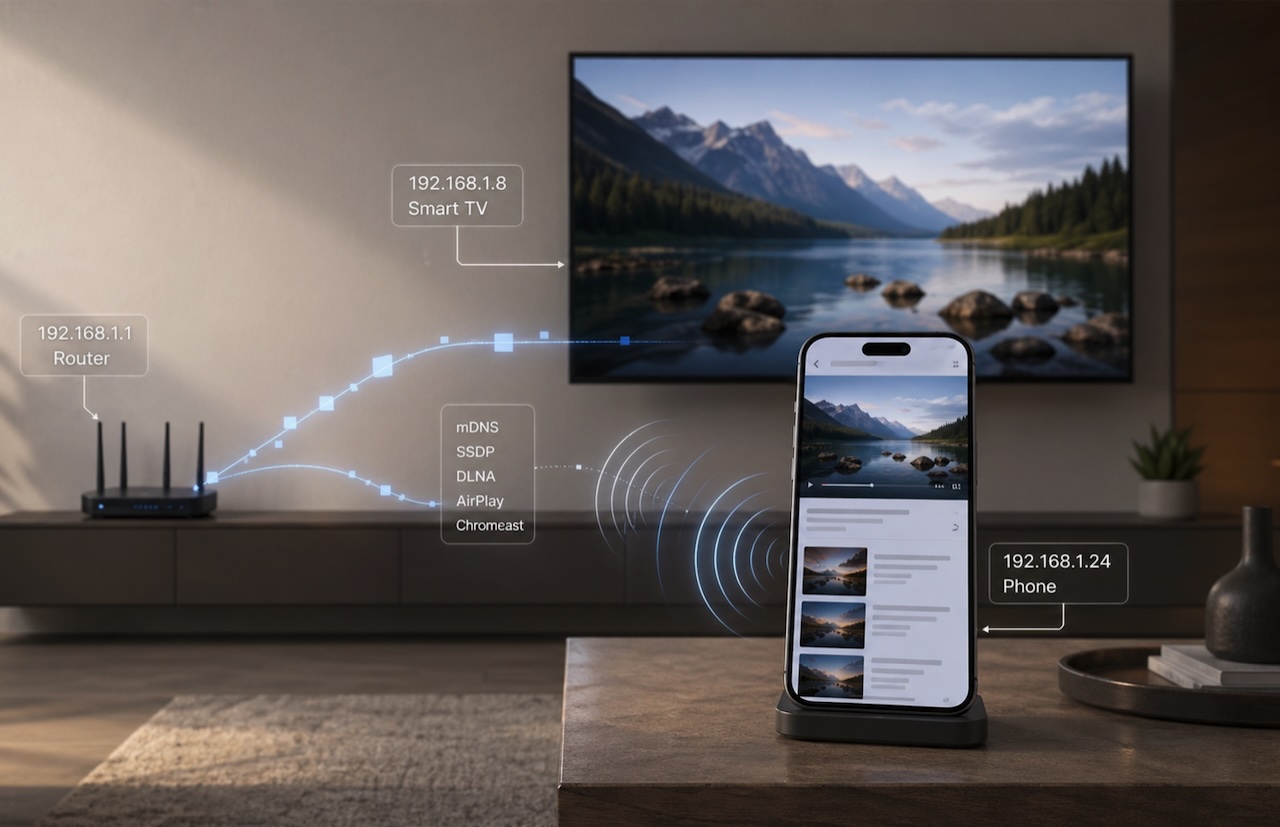
Tapping a cast button feels simple. You open a video on your phone, choose a nearby TV, and a few seconds later the video appears on the bigger screen. Behind that small button is a detailed network process involving local IP addresses, multicast discovery, receiver protocols, video stream detection, and device capability checks.
Understanding that process is useful for anyone who watches web video on a smart TV. It explains why a TV sometimes does not appear in the device list, why some videos cast smoothly while others fail, and why casting is usually more efficient than screen mirroring.
Casting Is Different From Screen Mirroring
Casting and screen mirroring are often confused, but they work in different ways.
Screen mirroring copies the phone’s full display and sends it to the TV in real time. Everything visible on the phone can appear on the television, including notifications, browser tabs, messages, and keyboard input. This is useful for presentations or showing photos, but it can use more battery because the phone must continuously capture, compress, and transmit its screen.
Casting is more targeted. Instead of sending the whole phone screen, the phone sends playback instructions, media metadata, or a playable video stream to a compatible receiver. The TV or streaming device handles the actual playback, while the phone acts more like a remote control.
For web video, casting is often the better experience because it reduces phone workload and keeps private phone activity off the TV.
Local IP Addresses Make Device Discovery Possible
Most home networks use private local IP address ranges such as 192.168.x.x, 10.x.x.x, or 172.16.x.x. These addresses are used inside the home network and are not directly exposed to the public internet.
When a phone looks for a nearby TV, it usually searches the local subnet for compatible receivers. A smart TV, streaming stick, media box, or browser-based receiver may announce itself over the local network. The phone listens for those announcements and builds a list of devices that can receive media.
This is why both devices usually need to be on the same trusted network. If the phone is on mobile data, a guest Wi-Fi network, a VPN, or a router segment with client isolation enabled, it may not be able to see the TV even if both devices have internet access.
The Discovery Protocols Behind the Cast Button
Different casting systems use different discovery methods.
AirPlay relies on Bonjour, Apple’s implementation of multicast DNS, or mDNS. mDNS is defined in RFC 6762 and commonly uses UDP port 5353 with the multicast address 224.0.0.251 for IPv4.
DLNA and UPnP devices commonly use SSDP, the Simple Service Discovery Protocol. SSDP typically uses UDP port 1900 and the multicast address 239.255.255.250. This allows media renderers, such as many smart TVs, to announce that they are available on the local network.
Chromecast and Google Cast also use local discovery mechanisms, including mDNS, so phones can locate nearby receivers without manually entering an IP address. Roku devices expose controls through ECP, the External Control Protocol, which works over HTTP on the local network. Fire TV integrations commonly use Amazon’s Fling SDK or app-specific receiver logic for app and media handoff.
The exact implementation varies by platform, but the pattern is similar: the phone sends or listens for discovery messages, identifies compatible receivers, then opens a local control channel to start playback.
What Happens When the Video Is on a Webpage
Web video casting adds another layer of complexity. A webpage is not just a video file. It may contain HTML, JavaScript, ads, embedded players, analytics scripts, subtitles, adaptive streams, and multiple media sources.
Before casting can begin, the casting app or browser has to identify the actual playable media. The video may be an MP4 file, a WebM file, an MKV file, an HLS stream, or a DASH stream. HLS streams use .m3u8 playlists and are common for live video and adaptive bitrate playback. DASH streams commonly use .mpd manifests.
Once the playable stream is detected, the app must determine whether the selected receiver can handle it. A modern smart TV may support MP4 with H.264, but not every TV supports the same audio codec, subtitle format, container, or adaptive streaming method. This is why one video may cast successfully while another fails, even on the same Wi-Fi network.
This is the architecture behind browser-based casting apps: detect the playable stream on the page, identify a compatible receiver on the local network, and hand off playback instructions rather than mirroring the full screen. CastBrowser is one example of this controller-based model, where the phone discovers receivers and manages playback while the TV handles the actual video stream.
For readers who want more technical background, this DLNA streaming roles and device-discovery flow explains how media controllers, renderers, and local network discovery work together.
Why Casting Can Save Battery
With screen mirroring, the phone does continuous work. It captures the screen, compresses the frames, transmits them over Wi-Fi, and often keeps the display active. That can increase battery drain and heat.
With casting, the phone usually does less work after playback starts. The receiver handles the video stream directly, while the phone sends control commands such as pause, seek, or stop. In many cases, the phone screen can turn off while playback continues on the TV.
This is why casting often feels smoother for long videos. The TV is doing the heavy media playback work, not the phone.
Privacy Considerations
Casting can be more private than screen mirroring because it does not expose the entire phone display. Notifications, messages, passwords, and app switches are less likely to appear on the TV.
However, casting is not privacy-free. The receiver may receive the media URL. The website hosting the video may receive a request from the TV or streaming device. The casting app may collect diagnostic data depending on its privacy policy. On shared networks, device names may also reveal information, such as a person’s name or room name.
Good habits include using trusted apps, reviewing permissions, avoiding sensitive pages while casting, and disconnecting from shared TVs when finished.
DRM-Protected Video Is a Special Case
Some videos are protected by DRM, or digital rights management. DRM controls where and how a video can be played. This is common with major subscription streaming services and premium video platforms.
If a video is DRM-protected, third-party casting browsers usually cannot extract and send the stream to a TV. In those cases, the official app or an approved receiver is normally required.
This is not a Wi-Fi problem. It is an access control rule set by the video provider.
Common Reasons Casting Fails
Most casting failures come from a small number of causes.
The phone and TV may be on different networks. A VPN may block local discovery. A router may have client isolation enabled. The phone may not have granted local network permission. The TV’s receiver feature may be disabled. The video may use a codec or stream type the TV cannot decode. Or the content may be DRM-protected.
The best troubleshooting path is to start with the network: confirm both devices are on the same Wi-Fi, disable VPN temporarily, restart the receiver, check local network permissions, and test a simple MP4 video before assuming the app or TV is broken.
The Hidden Network Conversation
A cast button hides a lot of plumbing: multicast packets moving across a subnet, receivers advertising their capabilities, devices negotiating formats, and a TV asking for a stream it can actually decode.
When it works, it feels effortless. When it does not, the cause is usually discoverable: network separation, blocked multicast traffic, unsupported formats, missing permissions, or protected content. Understanding the network conversation behind casting makes those problems easier to diagnose and helps users build a more reliable phone-to-TV setup.
Share this post
Leave a comment
All comments are moderated. Spammy and bot submitted comments are deleted. Please submit the comments that are helpful to others, and we'll approve your comments. A comment that includes outbound link will only be approved if the content is relevant to the topic, and has some value to our readers.
Comments (0)
No comment