
Quick Verdict
Overall Rating: 4.2 / 5
Ritridata is a solid data recovery tool for everyday users. It handles the most common data loss situations well. The scan-first, pay-later model is a real advantage. Pricing is very reasonable, especially the lifetime plan at $59.99.
Best for: Home users, photographers, students, and office workers who need a simple and affordable recovery tool.
Not ideal for: IT professionals who need advanced RAID or Linux support.
Pricing: Monthly $29.99 | Annual $39.99 | Lifetime $59.99 (one-time)
Losing files is one of the most stressful things that can happen on a computer. Maybe you deleted a folder by mistake. Maybe your SD card stopped working after a long day of shooting photos. Or maybe your Windows PC crashed, and now it will not start.
In most of these situations, the data is not actually gone. It just needs the right software to find it.
This software is a data recovery software that works on both Windows and Mac. It is a relatively new tool compared to older players like EaseUS or Recuva. But it has some features that make it worth a serious look, especially for regular users who need something that works without a steep learning curve.
In this review, we tested Ritridata on Windows. We tried multiple recovery scenarios, checked how the software behaves during scans, and reviewed the pricing to see whether the value holds up.
Note: We tested the Windows version. Some details may differ slightly on the Mac version. The review reflects independent testing of the publicly available version of the software.
What Is Ritridata?
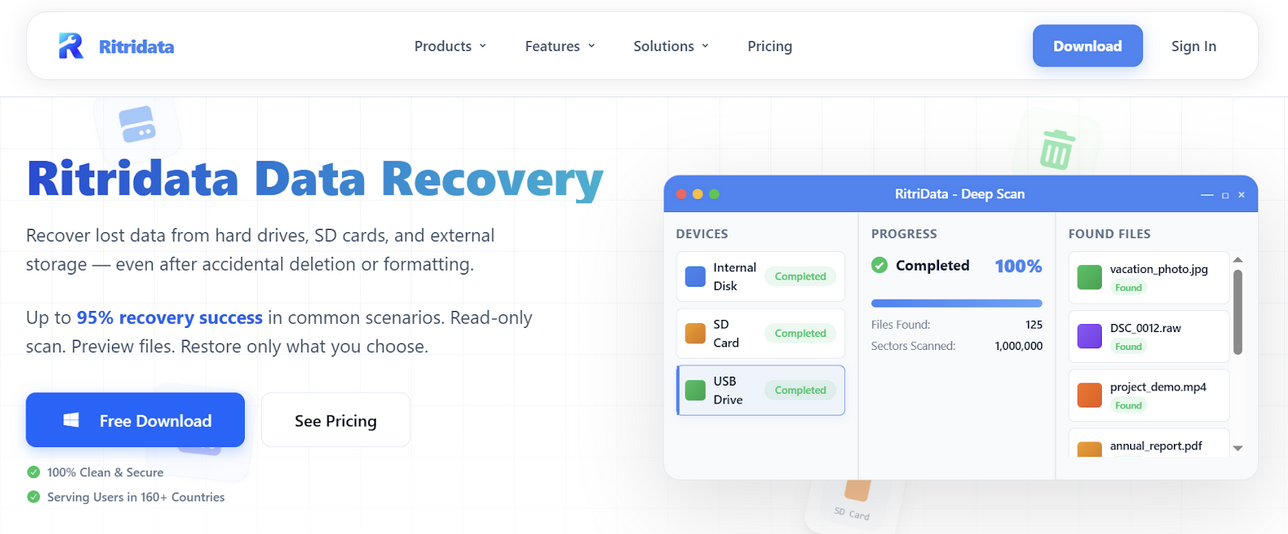
Ritridata is data recovery software that helps you recover lost, deleted, or inaccessible files from storage devices. It supports Windows 11, 10, 8, and 7 (64-bit), and macOS going back to older versions.
The company says it serves users in 160+ countries. The software is designed around one core idea: scan first, pay only if you find what you are looking for.
That means you can download the software, run a full scan, and preview the files it finds before spending any money. You only need to pay when you are actually ready to restore files.
This is important because most users do not know if their files are even recoverable until after they run a scan. This software removes that uncertainty before asking for payment.
Installation and Setup
Installation is quick and straightforward. You download the installer from ritridata.com, run it, and the software is ready in under two minutes. There is no bloatware or extra software bundled during installation.
When you open the software for the first time, it shows you a clean list of all detected storage devices on your system. Internal drives, external drives, USB drives, and SD cards all appear automatically. You do not need to configure anything before starting a scan.
The interface is simple. There are no confusing menus or settings to figure out. For a user who has never used data recovery software before, this is the right approach. You pick a drive, start a scan, and let the software do the work.
Tip: Install the recovery software on a different drive than the one you need to recover from. Installing software on the same drive you want to scan can overwrite recoverable data.
Key Features of Ritridata Data Recovery Software
Here is a breakdown of what the software can actually do, and how each feature works in practice.
Hard Drive Recovery (HDD and SSD)
This covers recovery from internal and external hard drives. When you delete a file or format a drive, the data is usually still there. The operating system marks that space as available. The software scans the drive to find that data before it gets overwritten.
It supports NTFS, FAT32, exFAT, APFS, and HFS+ file systems, which cover nearly every Windows and Mac drive you will encounter.
For SSD users, there is an important limitation worth knowing. SSDs with TRIM enabled can permanently erase deleted data much faster than traditional hard drives. If your SSD has TRIM enabled, recovery results may be limited or impossible. Ritridata is upfront about this in its FAQ, which shows honesty about what the software can and cannot do.
SD Card Recovery
This is one of the stronger use cases for this recovery tool. Photographers and videographers lose files from SD cards more often than they want to admit. A card appears empty, or files disappear after a camera error.
The software supports SD, SDHC, SDXC, and microSD cards. It also handles RAW image formats like CR2, NEF, and ARW, which is critical for anyone shooting in RAW on a DSLR or mirrorless camera.
Scanning SD cards tends to run faster than on large hard drives, typically taking a few minutes on smaller cards.
Recycle Bin Recovery
Even after you empty the Recycle Bin or use Shift+Delete, files are often still recoverable for a short time. The software scans for these recently removed files.
This works best when you act quickly. The longer you wait and continue using your computer, the more likely it is that new data will overwrite the space.
Crashed System Recovery
If your Windows PC will not start, the software lets you create a bootable USB drive from another computer. You boot the affected machine from that USB, and Ritridata scans the internal drive to find recoverable files.
This feature sets this application apart from basic free tools. Most free recovery tools require a working operating system. The bootable USB option means you can still recover data even in a worst-case scenario where your system will not launch.
Disk Image Recovery
The software also allows scanning from a disk image instead of scanning the original drive directly. This is useful when you want to restore from a backup or create a copy of a failing drive before attempting recovery.
Scanning a disk image rather than the original drive is considered best practice in serious data-loss situations. It protects the original storage device from any further issues during the scan process.
File Preview Before Recovery
This is one of the most important features in the software. Before you pay anything, you can preview the files during the scan. For photos and videos, you see actual thumbnails. For documents, you see the file name, type, and folder path.
This gives you real confidence before spending money. If the software found your files and they are intact, you know your purchase will be worth it.
Performance: What We Actually Tested
We tested the software through several common recovery scenarios to see how it performs in real situations.
Test 1: Accidentally Deleted Files
We deleted a folder containing mixed files, including Word documents, JPG photos, and a short MP4 video. We then ran a quick scan on the same drive.
The scan found the deleted files within two to three minutes on a quick scan. File names were intact, and folder structure was mostly preserved. The document and image files previewed correctly. The video was shown as recoverable, but the review was not available for that specific file.
Recovery worked without issues. All files were restored to a separate drive in their original state.
Test 2: Emptied Recycle Bin
We deleted several files, emptied the Recycle Bin, and immediately ran a scan. The scan located the deleted files. Again, file names were readable, and photos were previewable.
The key takeaway here is speed. We ran the scan immediately after deletion. If you wait hours or days and continue using the computer, results will vary.
Test 3: Formatted Drive
We performed a quick format on a USB drive that contained documents, photos, and a folder structure. We then ran a deep scan using Ritridata.
The deep scan took longer, around 15 to 20 minutes for the USB drive. The software recovered the majority of the files. Some files came back without their original folder structure, and a few had generic names instead of the original file names. This is expected behavior after a format and is consistent with how most data recovery tools handle this scenario.
Photos recovered well, including thumbnails visible during preview. Documents were also recovered cleanly in most cases.
Scan Speed Summary
| Scenario | Scan Type | Approx. Time | Result |
|---|---|---|---|
| Deleted files (HDD) | Quick Scan | 2-3 minutes | Good - files found intact |
| Emptied Recycle Bin | Quick Scan | 3-4 minutes | Good - files recovered |
| Formatted USB (32GB) | Deep Scan | 15-20 minutes | Mostly good - some names lost |
| Large external drive | Deep Scan | 30-40 minutes | Good - major folders restored |
Important: Recovery results depend heavily on how much you have used the drive after data loss. The sooner you scan, the better the results.
Supported File Types and Devices
Ritridata supports over 1,200 file types. Here are the most relevant categories for most users:
- Documents: DOC, DOCX, XLS, XLSX, PPT, PPTX, PDF, TXT, RTF, ODT
- Photos: JPG, PNG, HEIC, TIFF, BMP, PSD, and RAW formats, including CR2, NEF, ARW
- Videos: MP4, MOV, AVI, MKV, MTS, WMV, FLV, MPEG, AVCHD
- Audio: MP3, WAV, AAC, FLAC, OGG, AIFF, WMA
- Archives and email: ZIP, RAR, 7Z, PST, EML, MBOX
For storage devices, the software works with:
- Internal HDDs and SSDs
- External hard drives from brands like WD, Seagate, and Toshiba
- USB flash drives and portable SSDs
- SD, microSD, SDHC, SDXC, and CompactFlash cards
- Cameras and drones connected via USB or card reader
Pricing and Plans
The software offers three plans, all covering one Windows PC with unlimited file recovery:
| Plan | Price | Updates | Best For |
|---|---|---|---|
| Monthly | $29.99/month | 1 month | One-time emergency use |
| Annual | $39.99/year | 1 year | Regular users with ongoing needs |
| Lifetime | $59.99 (one-time) | Lifetime | Best overall value |
The lifetime plan is priced at $59.99 as a one-time purchase, allowing users to keep the software available for future recovery needs. Because data loss can occur unexpectedly, some users may prefer having a recovery tool installed in advance rather than purchasing it only when needed.
The monthly plan costs $29.99. This option may be suitable for users dealing with a single recovery situation, although the total cost is relatively high compared to the lifetime plan.
All plans include a free scan and file preview, a 7-day money-back guarantee, and 24/7 email support.
The software allows users to scan drives and preview recoverable files for free. Payment is only required if the user decides to restore the files.
Ritridata vs. Competitors
How does this software compare to the other well-known tools on the market?
| Feature | Ritridata | EaseUS | Disk Drill | Recuva |
|---|---|---|---|---|
| Free recovery limit | Preview only | 2GB free | 500MB free | Unlimited (basic) |
| Lifetime plan | $59.99 | Not available | ~$89 | Free |
| Mac support | Yes | Yes | Yes | No |
| Bootable USB | Yes | Yes | Yes | No |
| Preview before pay | Yes | Yes | Yes | Limited |
| RAW photo support | Yes | Yes | Yes | Limited |
| SSD recovery | Yes (TRIM limits) | Yes (TRIM limits) | Yes (TRIM limits) | Yes (TRIM limits) |
EaseUS is the most established tool in this space and has a large user base. It is slightly more expensive annually but has a long track record. If you want a tool backed by years of public reviews, EaseUS may feel like the safer option.
Disk Drill offers a similar feature set and is priced comparably at the lifetime level. It has a slightly more polished interface but is not dramatically different in performance.
Recuva is completely free but basic. It lacks a preview mode, has no Mac support, and cannot handle crashed systems. For simple Recycle Bin recovery on Windows it works, but for more complex recovery situations a full-featured recovery tool may be more suitable.
Overall, this software sits in a solid middle position in the market. It includes the core features most users need, a clean interface, and one of the more affordable lifetime pricing options among paid recovery tools.
Who Should Use Ritridata
Good fit for:
- Home users who want a simple tool they can figure out without reading a manual
- Photographers who regularly work with SD cards and RAW files
- Students who accidentally delete thesis documents or project files
- Office workers who need to recover formatted drives or emptied Recycle Bin files
- Anyone looking for a lifetime license at a fair price
Not a great fit for:
- IT professionals who need RAID recovery or enterprise-level features
- Users whose drive has physical damage, clicking sounds, or hardware failure
- Linux users (no Linux version available)
- Anyone who needs more than one device covered under a single license
Pros and Cons
Pros
- Free scan and preview before paying
- Read-only scan - zero risk to your data
- Very affordable lifetime plan ($59.99)
- Works on Windows and Mac
- Bootable USB for crashed systems
- Supports 1,200+ file formats, including RAW
- Clean and simple interface
- 7-day money-back guarantee
- 24/7 email support
Cons
- No truly free recovery (only preview)
- 1 device per license only
- TRIM limits SSD recovery
- Newer brand, fewer third-party reviews
- No Linux support
- No RAID recovery support
Final Verdict
Ritridata does what it says it does. For the most common data loss situations, including deleted files, formatted drives, emptied Recycle Bin, and crashed systems, it performs reliably. The interface is clean and easy to use. You do not need any technical knowledge to run a scan.
The scan-first approach is a notable aspect of the software. Users can verify whether their files are recoverable before making a purchase. Not all data recovery tools offer this option.
The lifetime plan costs $59.99 as a one-time purchase and provides ongoing access to the software. Compared with the monthly and annual plans, it offers the lowest long-term cost for users who may need data recovery more than once.
The main weaknesses are that it is a newer brand with fewer independent reviews, does not support Linux, and only covers one device per license. These are real limitations depending on your situation.
But for the average user at home or in an office, Ritridata data recovery software is a capable and fairly priced tool that is worth trying. And since the scan is completely free, users can run a free scan to determine whether their files are recoverable before purchasing.
Final Rating: 4.2 / 5
Start with the free scan. You only pay if you find what you are looking for.
This review was conducted independently. All testing was performed on the Windows version in March 2026.
 FAQs
FAQs
Yes. The program uses read-only scanning, which means it does not write anything to the drive you are scanning. Your existing data is not modified or put at risk during the scan process.
In many cases, yes. Files deleted with Shift+Delete or after emptying the Recycle Bin can often still be recovered, as long as new data has not overwritten the space they occupied. The sooner you scan after deletion, the better your chances.
Yes. The application has a dedicated Mac version that supports macOS Sonoma and earlier versions. It works with APFS and HFS+ file systems used on Mac systems.
There is no free version with file restoration. However, you can download the software, run a full scan, and preview all recoverable files at no cost. You only need to purchase a plan when you are ready to restore files.
A quick scan on a standard hard drive typically takes two to five minutes. A deep scan of a large drive can take 30 minutes to an hour or more, depending on the drive's size and condition. SD cards and USB drives scan faster.
A quick scan looks for recently deleted files using file system records. It is faster but may miss files from formatted or heavily damaged drives. A deep scan goes sector by sector and uses file signature detection to find files even when the file system structure is gone. Use a deep scan for formatted drives or more serious data loss.
No. The software is designed for logical data recovery only. If your drive shows physical damage, such as clicking sounds or motor failure, or is not detected by your computer at all, you need professional hardware recovery services. No software can recover from physical drive damage.
Yes, but with limitations. If your SSD has TRIM enabled (which is the default on most modern systems), deleted data may be quickly wiped at the hardware level. This limits what any recovery software can find on an SSD. For best results on SSD, scan immediately after data loss.
Share this post
Author

Leave a comment
All comments are moderated. Spammy and bot submitted comments are deleted. Please submit the comments that are helpful to others, and we'll approve your comments. A comment that includes outbound link will only be approved if the content is relevant to the topic, and has some value to our readers.
Comments (0)
No comment