
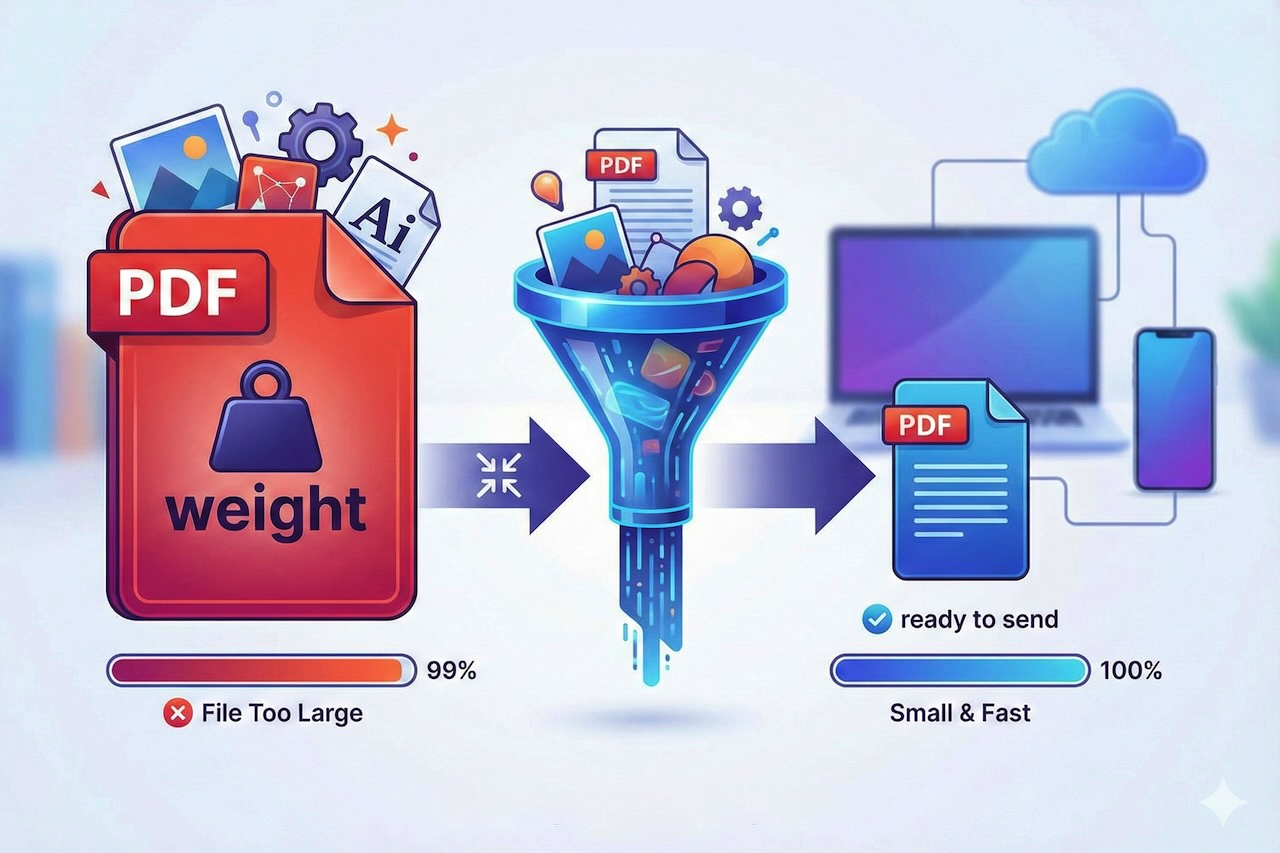
Sharing a PDF should feel effortless, not like transferring a massive archive. Yet PDFs often run into problems for a simple reason: file size.
An oversized PDF can exceed email attachment limits, fail upload requirements, or load slowly for recipients who are reviewing many documents in a short time. Whether you are submitting an application, sharing a report, or sending supporting documents, large PDFs create unnecessary friction.
A heavy file can block delivery before it ever reaches a reader. Many systems enforce strict size caps, and some inboxes automatically reject large attachments. Even when delivery succeeds, slow-loading files can frustrate recipients and reduce engagement.
Start by running your document through a free online PDF compressor and comparing the before-and-after size. The goal is practical optimization: a file that loads quickly, remains sharp, and preserves selectable text.
This guide walks through practical ways to compress and optimize PDFs for general use while keeping them readable, searchable, and compatible with automated systems.
Why PDF File Size Matters
PDFs are widely used because they preserve formatting across devices and operating systems. However, file size can grow quickly when documents include high-resolution images, embedded fonts, complex layouts, or scanned pages.
Smaller files help in several ways. First, many upload forms impose strict limits, often 2MB or 5MB. Second, email providers commonly restrict attachment size, and corporate filters may block large files automatically. Third, user experience matters: documents that open instantly are easier to review on both desktop and mobile.
Automated systems add another consideration. While many tools can process PDFs effectively, image-heavy layouts, scanned documents, or poorly compressed files can reduce readability. Compression done incorrectly may convert text into images, limiting searchability and automated parsing.
Quick Assessment: Check Your Current PDF Size
Before compressing, check the current file size:
- Windows: Right-click the PDF and open Properties to view the file size.
- macOS: Select the file and press Command + I (Get Info).
- Mobile devices: Open the file details in your file manager to see the size.
If your PDF is larger than expected, common causes include large images, scanned pages, embedded fonts, or export settings optimized for print quality. Identifying the source helps you choose the most effective optimization method.
Method 1: Using Online PDF Compressors
For quick optimization, a free online PDF compressor is often the fastest option, especially when the document is already finalized.
- Make a copy of the original file so you can revert if quality drops too much.
- Open a trusted browser-based compression tool and upload your PDF.
- Select a compression level if available. For text-heavy documents, medium compression is usually sufficient. For files with visuals, start with a light or recommended setting.
- Download the compressed file and compare file sizes. Aim for a noticeable reduction without sacrificing clarity.
- Review the file at higher zoom levels (125%–200%) to ensure text and graphics remain clean.
- Confirm text remains selectable. If text cannot be highlighted, the file may have been converted into images.
Online tools are effective for speed, but they cannot fix issues caused by oversized images or scanned source documents.
Method 2: Adjust Export Settings Before Creating the PDF
Often, the best compression happens before the PDF is generated:
- Microsoft Word: Use "Save As" or "Export to PDF" and select settings optimized for online use or minimum file size rather than print quality. Print-focused exports often embed large images unnecessarily.
- Google Docs: The default PDF export is usually efficient, but file size can still increase if large images or copied graphics are included. Reducing image size before export can significantly shrink the final PDF.
- Font selection: Using common, widely supported fonts reduces the need for font embedding, which can increase file size.
Method 3: Optimize Images and Remove Unnecessary Elements
Images are the most common cause of oversized PDFs. To reduce file size:
- Remove non-essential visuals: Review each visual element and remove anything that does not add clear value. Decorative shapes, background textures, icons, and large logos can inflate file size without improving clarity.
- Resize images before export: Adjust images to their actual display dimensions. A graphic shown at a small size does not need to be thousands of pixels wide.
- Use appropriate resolution: For most documents, image resolutions around 150–200 DPI are sufficient.
- Simplify design elements: Reduce layered graphics, transparency effects, and vector-heavy decorations. Cleaner layouts are easier to compress and easier to read.
Method 4: Split Large Documents When Appropriate
- If your document includes multiple sections, appendices, or visual-heavy pages, consider splitting it into multiple optimized files instead of combining everything into one large PDF.
- Keep the primary document compact and text-focused, and share supplementary materials as separate files or links when possible.
- Use clear, descriptive file names so recipients can easily identify each document and avoid upload or email issues.
- If a single document is required, reduce the number of image-heavy pages and focus on essential content.
Best Practices for Maintaining Readability
- Balance size and clarity: Effective PDF optimization should reduce file size without sacrificing readability.
- Use readable design choices: Choose clear fonts, strong contrast, and sensible font sizes to ensure text remains legible.
- Test across zoom levels and devices: Review the document at different zoom settings and on multiple devices. A file that looks acceptable at 100% but degrades when zoomed is often over-compressed.
- Prioritize text clarity: Favor crisp, readable text over aggressive size reduction. Simple layouts typically compress better and remain easier to read.
Common Mistakes to Avoid
- Repeated compression: Avoid compressing the same PDF multiple times, as repeated compression can degrade quality. Start from the original source file whenever possible.
- Image-only PDFs: Do not convert text-based documents into image-only PDFs unless absolutely necessary. Image-based files are harder to search, copy, and process automatically.
- Over-aggressive compression: Extreme compression settings can distort headings, remove fine lines, or make graphics indistinct. If your file is already close to the target size, lighter compression is usually sufficient.
- Problematic file names: Keep file names simple. Some systems reject special characters, so use letters, numbers, hyphens, or underscores.
Verifying PDF Quality Across Devices
- Review the optimized PDF as a recipient would, rather than as the creator.
- Open the file in a desktop PDF viewer, a browser, and on a mobile device.
- Check alignment, spacing, font rendering, and page breaks across views.
- Copy and paste a section of text into a plain text editor to confirm clean text structure.
- If issues appear, adjust compression settings or revisit the source document and export again.
Final Checklist
- The PDF is easy to upload and does not exceed common file size limits.
- The file opens quickly on both desktop and mobile devices.
- Text remains clear, readable, and selectable.
- The layout holds up across different viewers and screen sizes.
- The document is searchable and suitable for automated systems.
If each item above is met, the PDF is ready to share across email, uploads, and automated systems.
Featured Image generated by Google Gemini.
Share this post
Leave a comment
All comments are moderated. Spammy and bot submitted comments are deleted. Please submit the comments that are helpful to others, and we'll approve your comments. A comment that includes outbound link will only be approved if the content is relevant to the topic, and has some value to our readers.
Comments (0)
No comment