
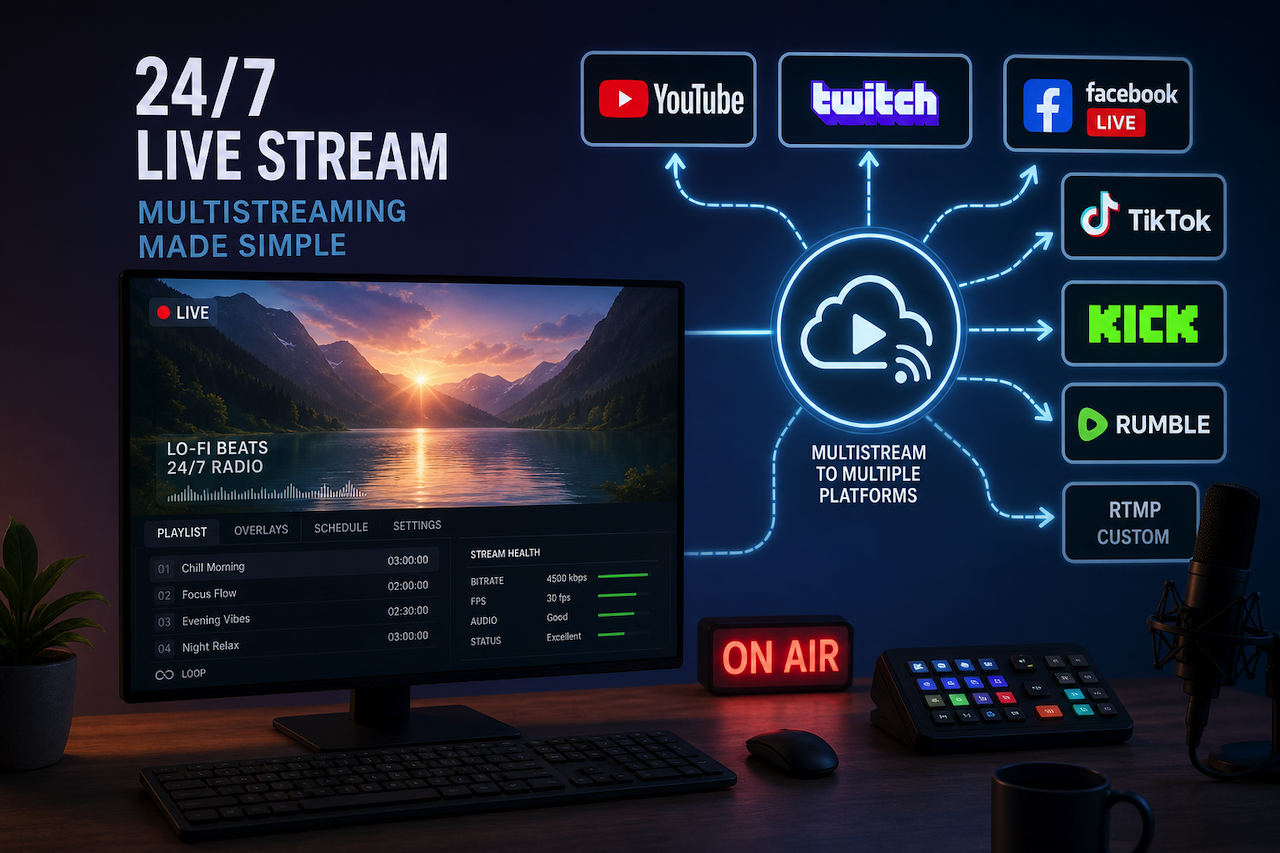
A 24/7 live stream lets recorded content keep working after it is published. Instead of relying on a single upload to catch viewers at the right time, you turn a playlist into a live channel that people can join whenever they open YouTube, Twitch, or another platform.
That is the main reason creators use pre-recorded live streams. A music channel can run a radio-style playlist all day. A church can keep sermons or worship music available between services. A podcast, webinar, or event replay can reach people who missed the original release.
The setup gets more useful when you add multistreaming. One stream can go to YouTube, Twitch, Facebook Live, TikTok, Kick, Rumble, or a custom RTMP destination simultaneously. RTMP is a common live-streaming protocol, and most platforms provide a stream URL and a stream key to send video to it.
TL;DR
A good stream needs three things: a stable streaming tool, a playlist that can run without manual control, and a clear plan for where the stream should go. YouTube is usually the main platform, but multistreaming helps you reach viewers who prefer Twitch, Facebook, TikTok, Kick, Rumble, or another RTMP destination.
For most creators, a cloud setup is easier than keeping OBS, a local computer, or a VPS running all day. A 24/7 live streaming platform, such as Upstream, lets you upload content, arrange the playlist, set the schedule, and keep the stream live without relying on a single machine at home.
What Is a 24/7 Live Stream with Pre-Recorded Videos?
A continuous live stream with pre-recorded videos is a live broadcast that includes content you have already recorded. It can be one long video, a looping playlist, a set of event replays, a music radio format, or a mix of video and audio files.
The important part is that viewers see it as a live stream. They can open the watch page, join the stream, chat if chat is enabled, and leave it running in the background. The creator doesn't need to be on camera the whole time.
This works best when the content makes sense as a continuous channel. Good examples include:
- Lo-fi, ambient, meditation, or radio-style music streams
- Sermons, services, talks, and religious programming
- Webinars, training sessions, and event replays
- Conference replays and event highlights
- Podcast episodes with branded visuals
- Educational playlists and study streams
- Gaming highlights or commentary loops
The mistake is treating a 24/7 stream like a dumping ground for random uploads. The stream still needs a clear theme. Viewers should understand what they are watching within a few seconds.
Why Stream to More Than One Platform?
Multistreaming matters because audiences are split across platforms. Some viewers spend their time on YouTube. Others use Twitch, Facebook, TikTok, Kick, or Rumble. A platform like Upstream can multistream to YouTube, Twitch, Facebook, TikTok, Kick, Rumble, and custom RTMP endpoints, so you don't have to choose one audience and ignore the rest.
For a 24/7 channel, this is a natural fit. The content, playlist, and stream layout are already prepared, so sending the same broadcast to another platform is usually a small extra step.
Think of multistreaming as distribution, not extra production. A music channel can keep YouTube as the main hub while also streaming to Twitch or Mixcloud. A church can send the same service to YouTube and Facebook. A podcast, webinar, gaming stream, or event replay can reach several platforms without rebuilding the broadcast for each one.
The key is to send the same stream to platforms where the same content makes sense. Multistreaming isn't for showing different videos on each platform. It sends the same live stream to multiple places at once.
Should You Use OBS, a VPS, or a Cloud Streaming Tool?
OBS can stream pre-recorded videos, and a VPS can run a stream from a remote server. Both can work. The question is whether you want to manage the moving parts yourself.
For short, supervised streams, local tools are fine. For long-running live streams, the better question is what happens at hour 18, day three, or in the middle of the night.
| Setup | Works best for | Main downside |
|---|---|---|
| OBS on your computer | Occasional streams you can watch closely | Your computer, power, and home internet have to stay stable |
| VPS or self-hosted server | Technical users who want full control | You manage server setup, monitoring, updates, and recovery |
| Cloud streaming platform | Long-running streams, scheduled replays, and multistreaming | It costs money, but it removes most local setup work |
For creators who want a managed setup, a browser-based platform is usually the cleaner path. You upload the media, build the playlist, add overlays or schedule rules, connect the platform, and let the stream run in the cloud.
That also means your computer doesn't have to stay online. You still control the stream, but the broadcast doesn't depend on one laptop staying awake all night.
How to Make a Continuous Live Stream on YouTube?
The cloud workflow is simple because the heavy work happens outside your computer. You still need to prepare the content, but you are not trying to keep local software alive for days.
The setup usually looks like this:
- Create a stream: Give it a clear title and decide what platform should be the primary destination.
- Upload your files: Add video, audio, background visuals, or other media that your stream will use.
- Build the playlist: Put files in order, loop the playlist, shuffle it, or create different blocks for different times of day.
- Add branding: Use overlays, logos, websites, widgets, lower thirds, or track information if the platform supports it.
- Connect to YouTube or another platform: You can use a direct connection where available, or paste the stream URL and stream key.
- Schedule or start the stream: Start right away, schedule it for later, or repeat it on a set cadence.
- Check stream health: Look for bitrate problems, content mistakes, platform warnings, or missing audio.
This is where 24/7 tools differ from simple video loopers. A basic looper can repeat one file. A stronger cloud workflow lets you manage playlists, overlays, scheduling, live control, and multiple destinations from the same place.
How Do You Multistream a Continuous Live Stream?
To multistream a continuous live stream, you start with one primary stream and then add the other platforms as extra destinations. Each platform provides a stream key, and the streaming tool broadcasts to each destination.
Some streaming platforms allow a single stream to be sent to multiple destinations, with setup typically based on adding RTMP keys in the multistreaming settings.
That matters because it keeps the workflow simple. You don't rebuild the broadcast for each platform. You build one playlist, one visual layout, and one schedule, then decide where that stream should appear.
A few rules make this cleaner:
- Use one primary platform as the main control point
- Only add platforms where the content fits
- Check each platform's stream duration rules before using it for continuous content
- Keep the bitrate conservative enough for all destinations
- Don't send the same content to multiple channels on the same platform unless you have a clear reason
Multistreaming is powerful, but it should still be intentional. More destinations aren't automatically better if the content, format, or platform rules don't match.
Who Benefits Most from This Setup?
The best fit is a creator or team with content that can keep working after it is recorded. A continuous live stream isn't right for every channel, but it can be very useful when the content has repeat value.
It works especially well for:
- Music channels that want a radio-style live stream
- Churches and religious organizations that want sermons, music, services, or meditations always available
- Educators with lessons, webinars, lectures, or study sessions
- Podcasters who want a live channel built from episodes or clips
- Event teams with conference replays, panels, or highlight blocks
- Brands with training videos, live announcements, or product launch content
- Agencies and publishers managing live programming for several clients
The strongest use case isn't "put everything online forever." It is turning the right content into a channel people can join at any time and return to regularly.
Conclusion
A 24/7 live stream is a practical way to give pre-recorded content more life. It keeps a channel active, reaches viewers in more time zones, and gives old videos a second job.
Multistreaming adds another layer. Instead of choosing a single platform, creators can stream the same live broadcast across several places where their audience already spends time.
The simplest workflow is usually cloud-based: upload the content, build the playlist, connect the platforms, set the schedule, and monitor the stream. For creators who want long-running live content without keeping a computer or server running all day, this setup makes the most sense.
Featured Image generated by ChatGPT.
Share this post
Leave a comment
All comments are moderated. Spammy and bot submitted comments are deleted. Please submit the comments that are helpful to others, and we'll approve your comments. A comment that includes outbound link will only be approved if the content is relevant to the topic, and has some value to our readers.
Comments (0)
No comment