
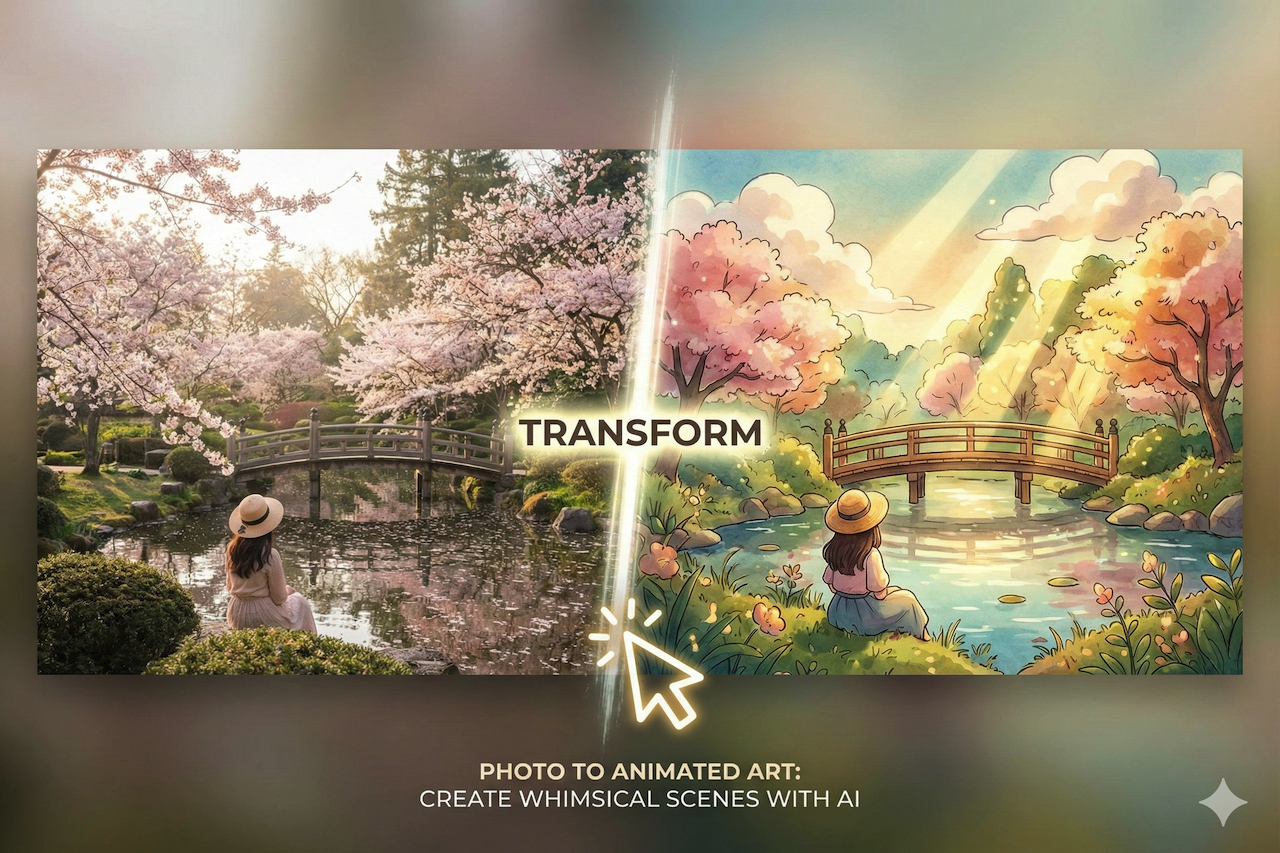
Have you ever looked at a beautiful landscape photo or a candid portrait and imagined it as a scene from a Studio Ghibli film? The whimsical, hand-painted feel of films like Spirited Away and My Neighbor Totoro has a special kind of magic. In 2026, you don’t need to be an artist to capture that vibe. With the right AI tools, you can turn everyday photos into warm, painterly Ghibli-inspired artwork directly in your browser—often.
Finding the right tool can be frustrating. Many editors promise great results but come with confusing interfaces, hidden paywalls, watermarks, or inconsistent output. This guide focuses on what actually matters: how to choose a reliable free AI image editor online, how to get better results from your source photos, and the exact steps to create Ghibli-style art without locking you into one brand.
What “Ghibli-Style” Usually Means in AI Photo Editing
Most AI “Ghibli-style” results share a few recognizable traits. You’re not just applying a filter; you’re aiming for a re-interpretation that feels illustrated.
- Soft, natural lighting: Gentle highlights and shadows instead of harsh contrast
- Painterly textures: Brush-stroke or watercolor-like surfaces, especially in skies and greenery
- Vibrant, harmonious colors: Rich but not neon
- Simplified edges: Fewer sharp photo-details, more “hand-drawn” contours
How to Choose a Good AI Ghibli-Style Photo Editor
A good free AI Ghibli style photo editor online should do more than apply a filter—it should re-interpret lighting, color, and texture in a way that feels illustrated rather than photographic. In 2026, there are many AI editors that can produce a Ghibli-like look. The best options tend to share these qualities:
- High-quality style transfer: It should re-render the scene convincingly, not just overlay a texture
- Simple workflow: Upload → choose style → generate → download
- Watermark-free output (or minimal limitations): Should still look usable
- Fast processing: Quick previews help you iterate and improve results
- Controls for refinement: Strength, detail, or “style intensity” sliders are a big plus
Tip: If a tool offers both “image-to-image” and “text prompt” inputs, use both. Image-to-image preserves your composition, while a short prompt helps steer the aesthetic.
How to Turn Your Photo into Ghibli-Style Art
Most AI tools follow the same process. Use these steps for nearly any editor that supports photo-to-art generation:
- Choose the right photo: Pick an image with clear lighting and a strong subject. Landscapes, streets, pets, and portraits work well.
- Upload your image: Use the tool’s image upload area (web-based tools usually support JPG/PNG/WEBP).
- Select a style preset: Look for “anime,” “storybook,” “painterly,” or “Ghibli-inspired” style options.
- Add a short guiding prompt (optional but helpful): Try something like: “warm Studio Ghibli-inspired watercolor background, soft light, painterly textures, gentle colors”.
- Adjust intensity/settings: Start moderate. Too strong can distort faces or create overly smooth details.
- Generate and review: Check faces, hands, edges of objects, and text areas (AI often struggles there).
- Regenerate if needed: Small changes to style strength or prompt wording can make a big difference.
- Download and share: Export the highest resolution available for the cleanest final image.
What Makes a Result Look Authentic
1. Artistic Authenticity
The strongest outputs feel illustrated, not “photo with a texture layer.” Look for soft lighting transitions, painterly skies, and natural color harmony.
2. Ease of Use
A good tool removes friction. If you need five settings screens to get a decent output, you’ll waste time and get inconsistent results.
3. Output Quality
High-resolution exports matter. The difference between a good result and a great one is often sharpness, clean edges, and fewer artifacts.
4. Cost and Access
Many tools limit downloads or add watermarks. If you’re posting to social or using the image as wallpaper, prioritize watermark-free output.
Tips for Photos That Convert Beautifully into Ghibli-Style Art
- Favor nature: Trees, clouds, lakes, gardens, and trails usually transform dramatically.
- Use soft natural light: Morning or late afternoon often looks best.
- Keep compositions simple: One clear focal point beats a cluttered scene.
- Avoid harsh flash lighting: It can create unnatural skin tones and shadows after conversion.
- Start with higher resolution: AI tools perform better when details are clear.
Common Issues and Quick Fixes
- Faces look “off”: Lower style intensity, regenerate, or use a portrait-friendly preset.
- Too much smoothing: Reduce “denoise” or increase “detail” if available.
- Colors look neon or artificial: Try “natural,” “soft,” or “warm” keywords in your prompt.
- Background becomes messy: Choose a less busy source photo or crop tighter to your subject.
Final Thoughts
Turning real photos into Ghibli-style artwork is one of the most fun and accessible ways to use AI creatively in 2026. You don’t need expensive software or illustration skills—just a strong source photo, a reliable AI editor, and a little iteration.
If you focus on authenticity (soft light, painterly texture, natural color) and choose tools that let you preview and refine results, you can create genuinely magical images that feel warm, cinematic, and storybook-like—without being tied to any one platform.
 FAQs
FAQs
Yes. Many AI editors offer free generations, free previews, or limited daily credits. The key is choosing tools that still provide usable downloads without heavy watermarks.
JPG and PNG are the most common formats. If the tool supports WEBP, that can work as well. For best results, upload a high-resolution image with clear lighting.
Absolutely, but portraits are more sensitive. Use moderate style strength, choose a clear photo, and regenerate if facial features appear distorted.
In most cases, transforming your own photo allows you to use the result for personal use. For commercial use, always review the tool’s terms and any licensing rules it provides.
Share this post
Leave a comment
All comments are moderated. Spammy and bot submitted comments are deleted. Please submit the comments that are helpful to others, and we'll approve your comments. A comment that includes outbound link will only be approved if the content is relevant to the topic, and has some value to our readers.
Comments (0)
No comment