
File formats are more important than most people think. You spend hours creating a spreadsheet, and then, once you send it, you find out the recipient doesn’t have Excel.
Knowing how to save an Excel file as a PDF is a small skill that has a disproportionately large impact on your work. In this guide, you’ll find out precisely why the conversion is important, how to do it directly in Excel, and how online tools can make the process even faster.
Why Convert Excel to PDF?
Before we see what practical steps you need to take to convert Excel to PDF, let’s understand what you can actually gain from the conversion itself.
Maintaining Formatting and Layout
Excel is a dynamic environment where formulas are automatically recalculated, and the layout can change based on the user’s device, operating system, and printer settings.
When you create a PDF from Excel, you lock the data, charts, and layout in place. All your readers will see your file the way you intended: the same fonts, column widths, and page breaks. This is very important in formal reports, budget summaries, or any document where visual consistency isn’t negotiable.
Compatibility and Security
Not everyone has Microsoft Excel. On the other hand, PDFs can be viewed on practically any device without any extra software. Anyone can open a PDF without compatibility issues, which means converting an Excel file to PDF eliminates the guesswork.
Additionally, PDFs are much more difficult to edit than Excel files. In cases involving financial statements, proposals, or any document that must remain exactly as submitted, this protection is priceless. Some PDF tools even enable you to add password protection or restrict printing.
When Is It the Right Call to Convert to PDF?

Image by Freepik.
The following are some of the cases in which the conversion is clearly the best choice:
- Sending reports or presentations to external stakeholders who shouldn’t edit the source data.
- Storing valuable documents like annual accounts, tax records, or contract pricing tables that must be preserved in a fixed format.
- Sending forms or official files to organizations, government bodies, or clients that require the PDF format.
- Printing professional materials where you require a high degree of control over the output.
Step-by-Step Guide: How to Save an Excel File as a PDF
Excel has a built-in feature that makes the conversion straightforward. Here’s how to use it:
1. Finalize Your Data and Formatting
Open the workbook you want to convert. Make sure the data is complete, and all formatting is as you want it to appear. If you’re working with multiple sheets, decide now whether you want to convert the active sheet, the entire workbook, or a selected range.
2. Check Your Print Settings
Go to the “Page Layout” tab and review your print settings. Set the print area by selecting the cells you want to include, then follow: Page Layout > Print Area > Set Print Area. Adjust page orientation (portrait or landscape) and scaling if your data is wide, and use Print Preview to see how the output will look.

3. Navigate to File > Save As
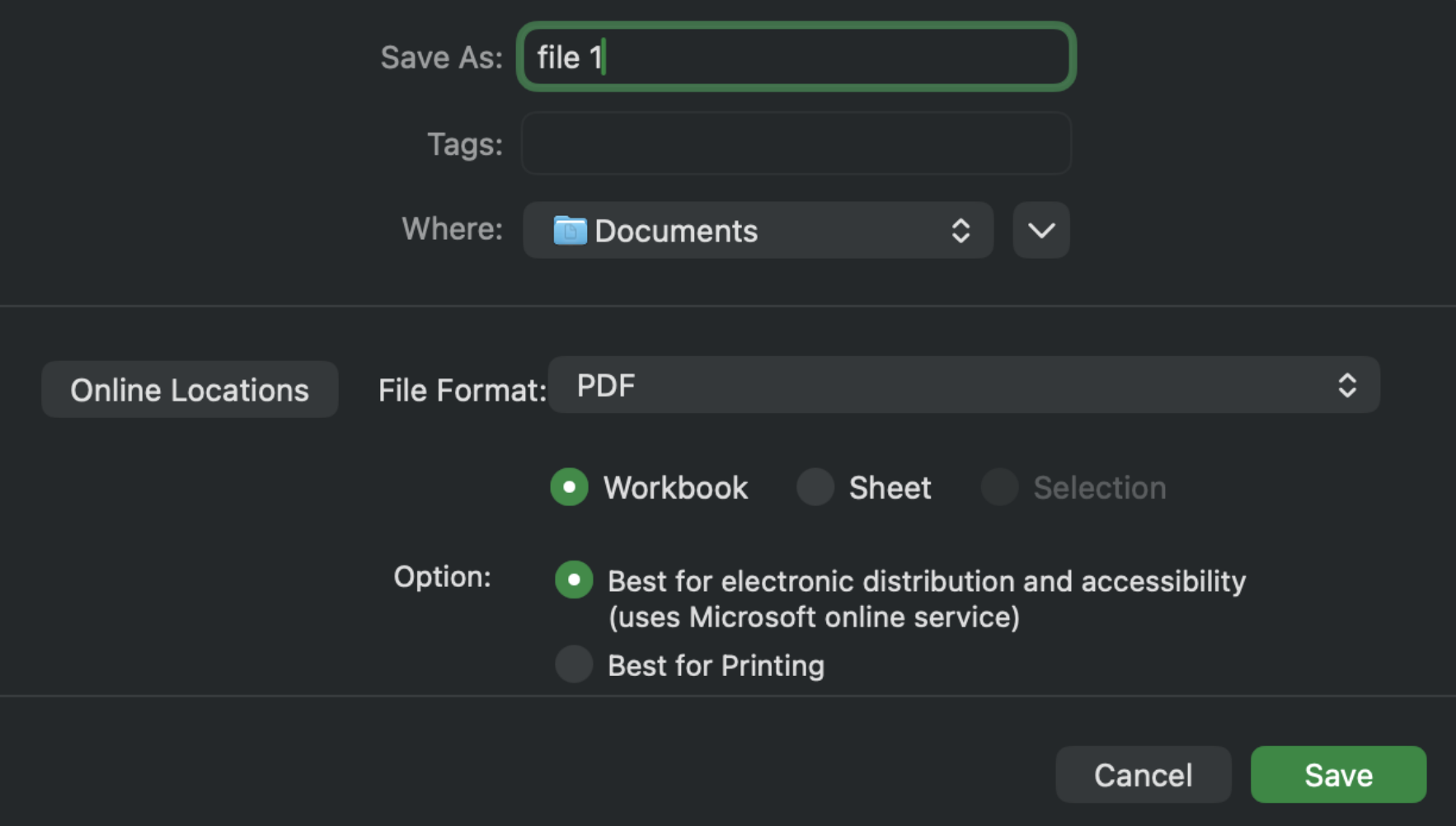
Click “File” in the top-left corner of Excel, then select “Save As”. Choose your destination folder. In the “Save as type” dropdown menu, select “PDF (*.pdf)”.
4. Adjust Quality and Range Settings
Before saving, click the “Options…” button in the Save As dialog. Here you can choose:
- What you wish to publish, i.e., active sheet(s), entire workbook, or a specific selection
- Optimize for “Standard” (high-quality printing) or “Minimum size” (web/email)
Once satisfied, click “Save”.
5. Open and Verify the PDF
Navigate to the folder where you saved the file and open the PDF. Check that:
- All data is visible and not cut off at page margins.
- Charts and images are rendered correctly.
- Page breaks are logical and well-placed.
- The file opens correctly on another device or in a different PDF viewer.
If anything looks off, adjust the print settings in Excel and repeat the conversion.
Excel to PDF Conversion Online Tools
The built-in Excel approach is suitable in most cases; however, online conversion tools also provide fast, hassle-free output.
Example of an Online Conversion Tool
In addition to Excel’s built-in features, there are various online tools available that allow you to convert Excel files to PDF quickly without installing software. These tools are typically browser-based and designed for simple file conversion tasks.
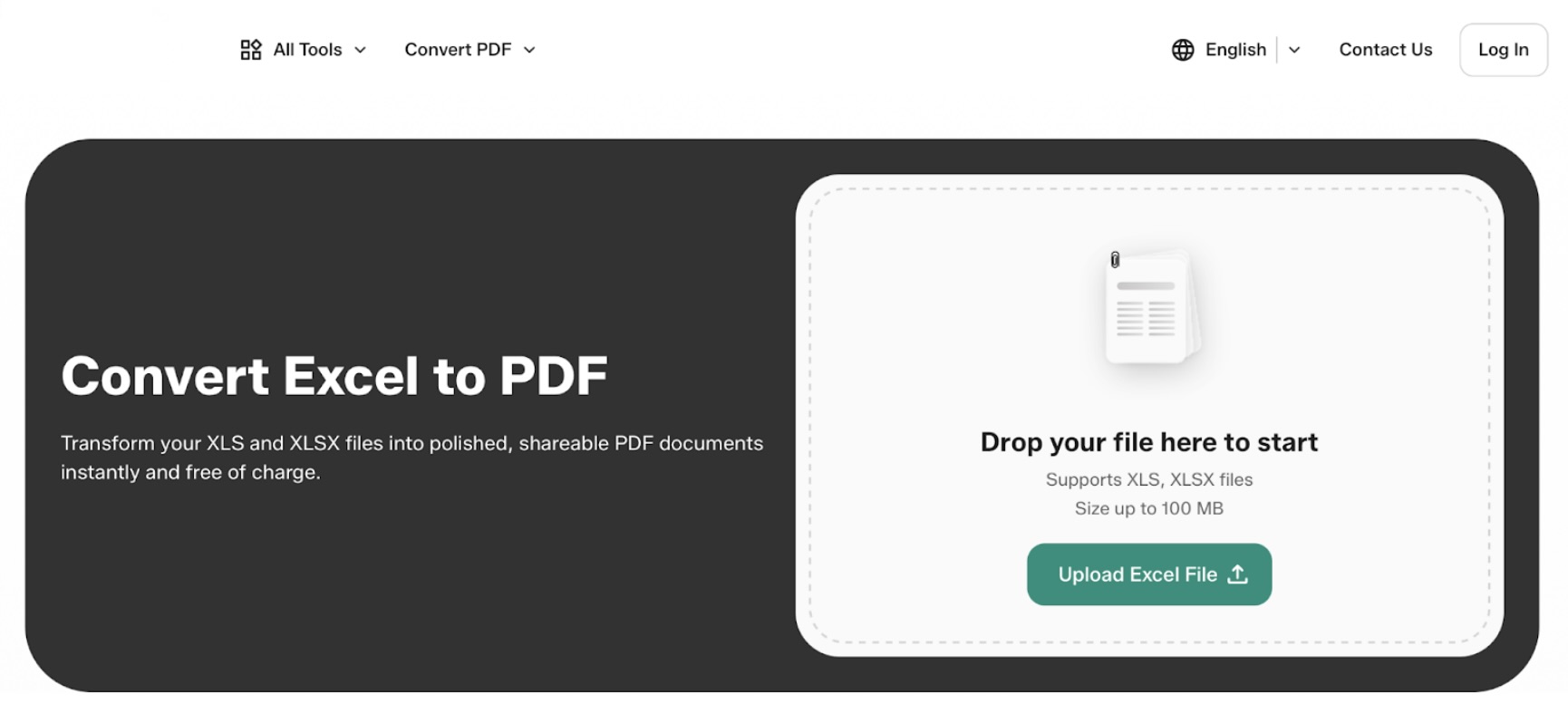
For example, some users search for tools like PDFFly to convert Excel to PDF when looking for simple, browser-based conversion options. Most tools of this type follow a similar process and are commonly used for quick, one-time conversions:
- Open an Excel-to-PDF converter in your browser.
- Upload or drag and drop your XLSX or XLS file.
- Wait for the file to be processed.
- Download the converted PDF file.
While convenient, it is important to review each platform’s privacy policies and ensure that sensitive files are handled appropriately before uploading.
Final Considerations
When you convert Excel into PDF, you're deciding that this is the final version of your document. A PDF ensures that your formatting stays intact, your data can’t be accidentally edited, and your document is accessible to anyone.
The next time you’re preparing to share a spreadsheet, consider how you want it to be viewed. Excel’s built-in “Save As” feature and various online applications, such as PDFFly, can be used to complete the conversion depending on your workflow.
Featured Image generated by ChatGPT.
Share this post
Leave a comment
All comments are moderated. Spammy and bot submitted comments are deleted. Please submit the comments that are helpful to others, and we'll approve your comments. A comment that includes outbound link will only be approved if the content is relevant to the topic, and has some value to our readers.
Comments (0)
No comment