
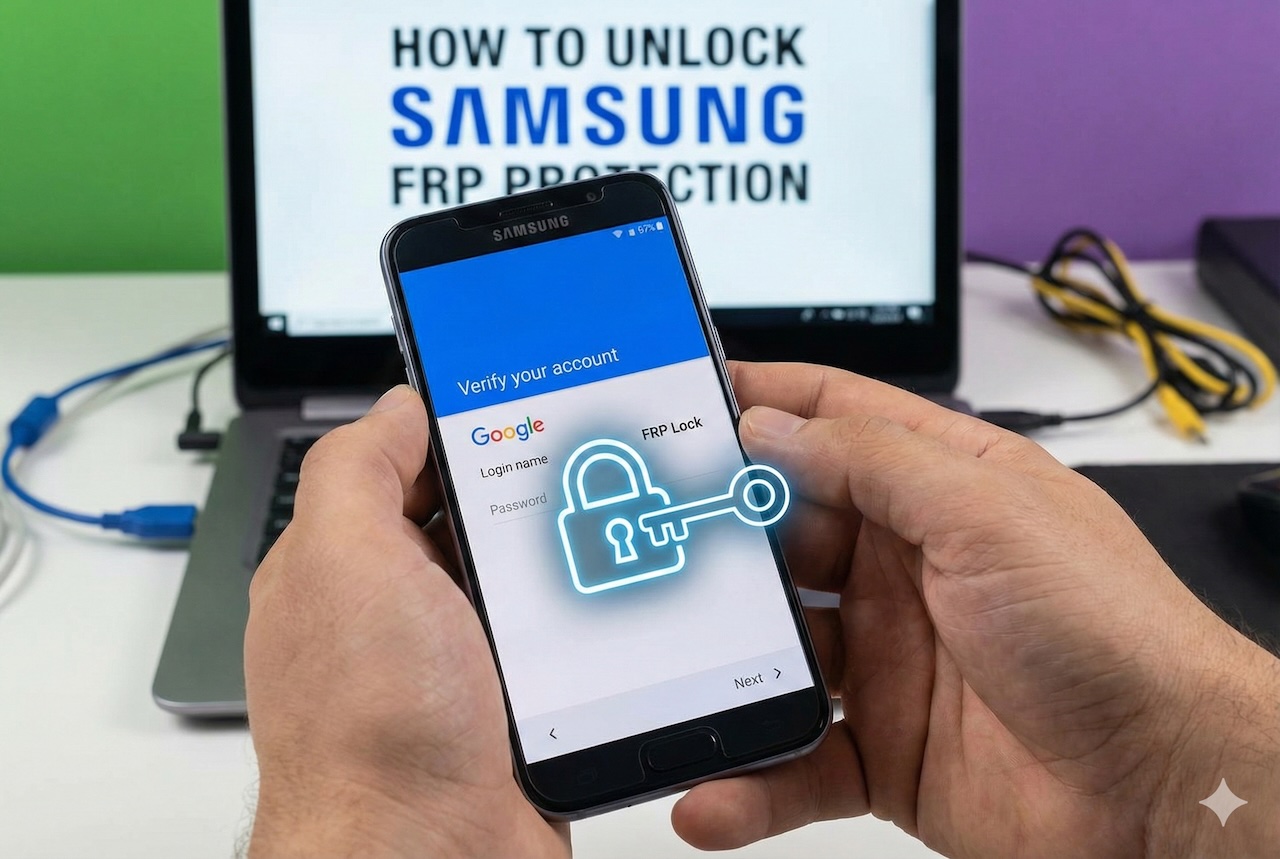
It can be really aggravating to get locked out of your Samsung phone after a factory reset, especially if the device suddenly asks you for the Google account that you don't remember anymore. It's not a bug, but Samsung's Factory Reset Protection (FRP), which is doing what it was intended to do. Here, we explain what Samsung FRP protection does and why it has become harder to bypass on the latest Galaxy phones and security patches.
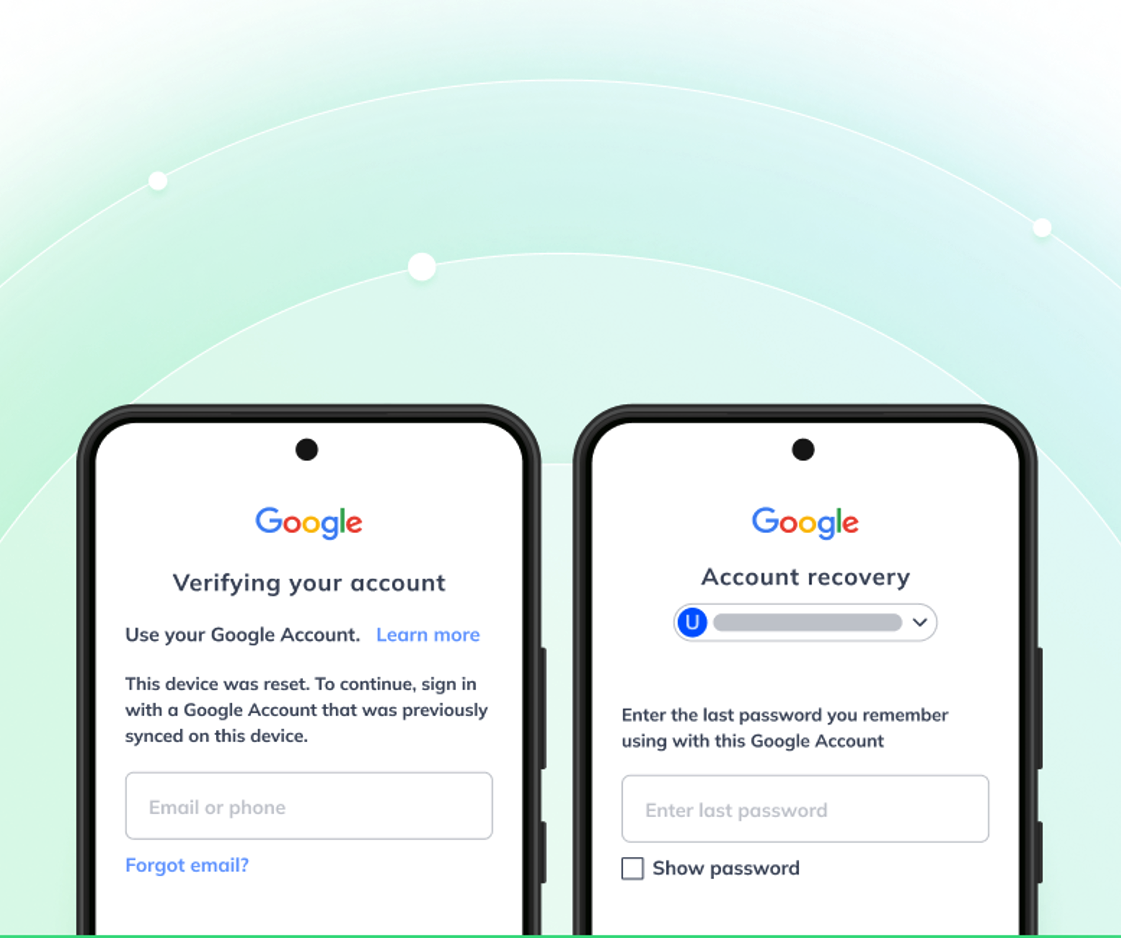
What Is Samsung FRP Protection?
Samsung FRP (Factory Reset Protection) is an Android security feature integrated into the operating system that aims to stop thieves from gaining access to the device after someone does a factory reset. Simply speaking, if someone resets your phone forcibly without your consent, they will not be able to use it unless they log in with the original Google account credentials.
When does Samsung devices' FRP work?
FRP will be triggered on its own if a Samsung phone is factory reset through recovery mode, Find My Mobile, or any other way of bypassing the settings menu normally — while a Google account is still signed in on the phone.
Screen lock vs FRP lock: what's the difference?
A screen lock (PIN, pattern, fingerprint, or face lock) is your phone's first line of defense and protects it when you are accessing it regularly. FRP lock, however, occurs only after the device has been factory reset and thus can be considered as operating at the deepest level. Even if you remove the screen lock, the FRP will still prevent the setup until the account verification has been done.
Why are Google and Samsung making use of FRP mandatory?
In the beginning, Google created FRP as an initiative to curb mobile phone theft, and this is further fortified by Samsung to shield users' data and their devices. Samsung, by default, enables FRP, a way of making devices that are lost or stolen almost useless to thieves, which is, at the same time, a data security measure for legitimate users.
How Samsung FRP Protection Works (Step-by-Step)
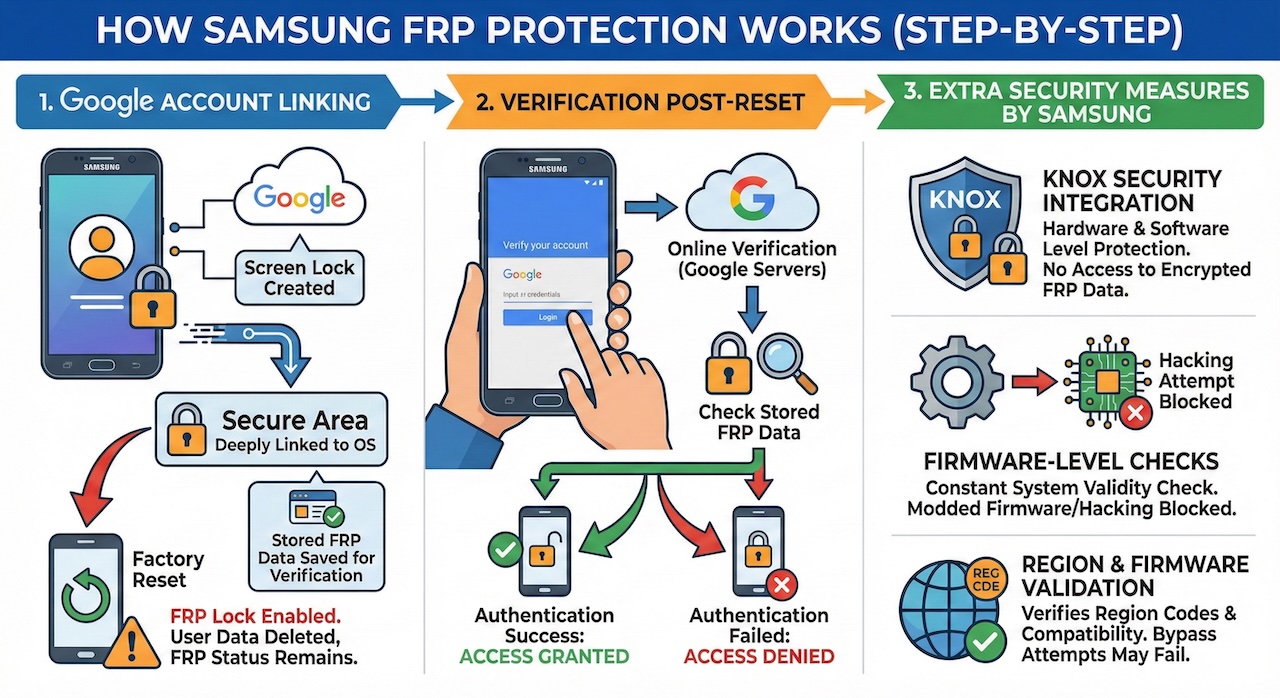
Google account linking
If you sign into a Google account on a Samsung device and create a screen lock, the account becomes deeply linked to the phone at the operating system level. The connection is kept in a secure area, and it is impossible to delete it without the correct Google account signing out first. If the device is reset to factory settings while the account is still linked, FRP lock will be enabled.
At a factory reset, the user data is deleted, but the FRP lock status remains. Samsung deliberately saves this data so the phone can check who the owner is during the next setup.
Verification post-reset
Once the reset is done, Samsung will ask you to input the Google account that was previously synced to finish setting up the device. The requirement serves as proof that the person using the phone is the rightful owner.
Verification is not simply done locally but also online. To verify the credentials, the device contacts Google Servers and checks whether the supplied credentials match the device's stored FRP data. Without authentication success, access will be denied.
Extra security measures by Samsung
Samsung extends the basic Android FRP with several additional layers:
- Knox security integration: Samsung Knox encompasses the device security at both the hardware and software levels, thus it doesn't allow intruders to have access to the encrypted parts where FRP data is kept.
- Firmware-level checks: The device is always checking the validity of the system and in case of detecting a modified firmware or a hacking attempt, it is blocked.
- Region and firmware validation: Samsung verifies the region codes and firmware compatibility. That is why some bypass techniques might work in one country or with one model, but they totally fail in another.
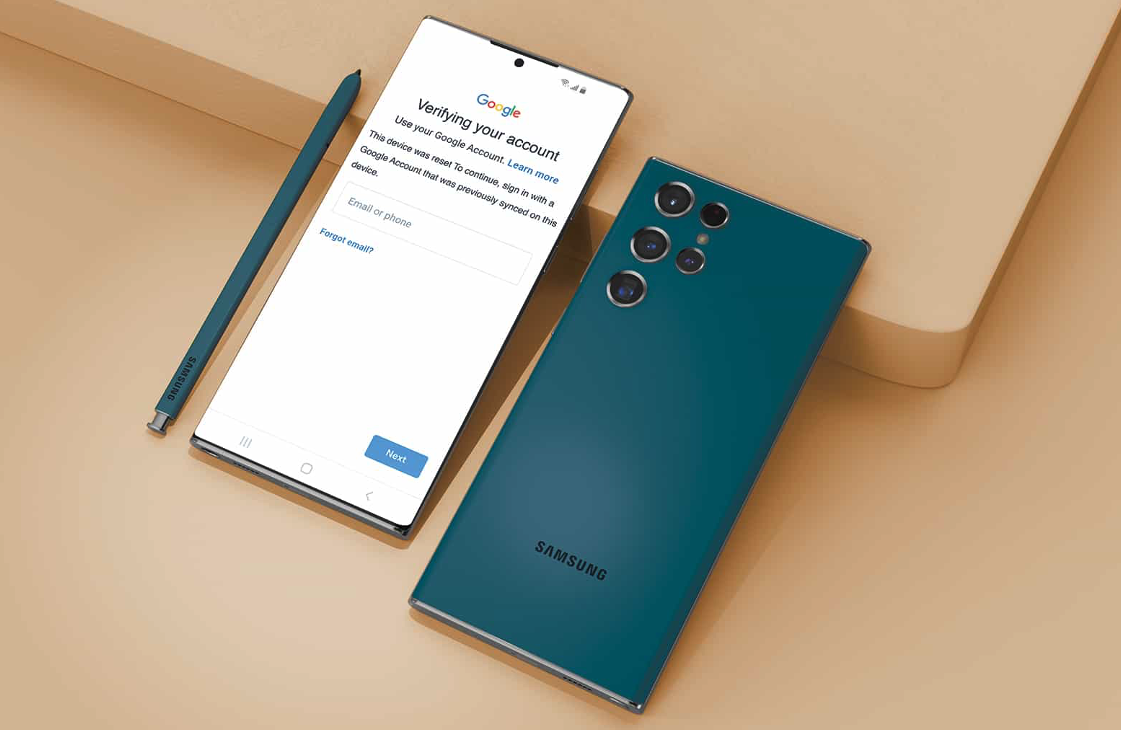
Why Samsung FRP Is Harder to Bypass Than Other Android Brands
Frequently releasing security updates
Samsung keeps on patching security holes, thus making them nearly impossible to exploit for FRP bypass. Also, each new Android version further secures the device activation process, so the old tricks have no effect anymore.
Different models have different restrictions
FRP on one device may behave totally differently on another. The latest Galaxy S and Z series still have the tightest FRP control, both software and hardware-wise, whereas the A series can be more different in terms of model and Android version, so one bypass cannot be applied everywhere.
Samsung Knox features
Knox integrates security via hardware as well as firmware, aiming to prevent an unauthorized hack to the area of the system that normally stores the FRP data.
Region and firmware locking
Every region has different firmware standards; this is the reason why some bypass tools can work in one place and not in another.
Dr.Fone Samsung FRP Removal: A Safer, Low-Friction Solution
Dr.Fone Samsung FRP Removal is a professional, very easy-to-use FRP unlock solution that is specially intended for legitimate users, helping them get access back to their Samsung devices after an FRP lock. Dr.Fone, unlike risky manual tricks or old APK methods, utilizes an AI-powered approach that is compatible with the latest Android versions and Samsung security updates.
One of the main factors that Dr.Fone has is the fact that it is very compatible with Samsung's most recent devices and firmware. It has online support to unlock FRP on all Samsung phones and tablets, including the latest Galaxy models and Snapdragon-based devices; thus, it is one of the most trustworthy picks as FRP protection keeps becoming increasingly sophisticated.
Key features
- AI-powered FRP bypass for Android 16 devices
- Online FRP removal for all Samsung phones and tablets
- Supports latest models, including Galaxy S25 series and Samsung Snapdragon devices
- Removes Google FRP lock without Google account or password
- Works after factory reset and Google verification lock
- Supports 30+ Android brands (Samsung, Xiaomi, Redmi, OPPO, Vivo, Realme, Motorola, Huawei, OnePlus, POCO, HONOR, TCL, and more)
- Beginner-friendly, guided steps—no technical knowledge required
Step-by-step guide on how to remove FRP Lock
Step 1: Get Dr.Fone going and launch Screen Unlock
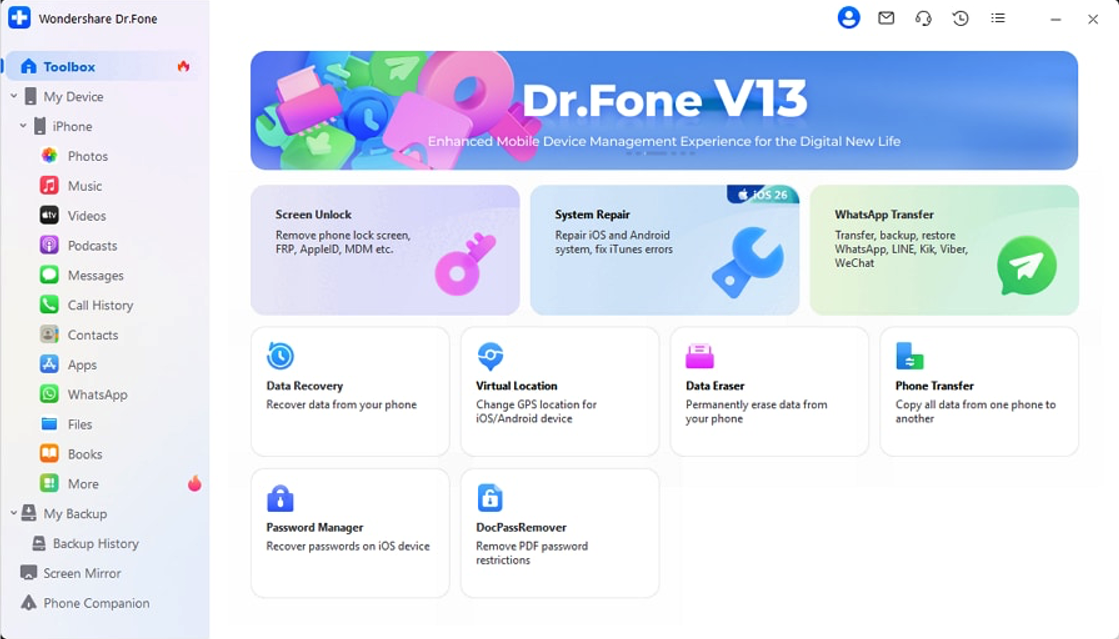
Set up Wondershare Dr.Fone on your operating system and link your Samsung mobile phone or tablet to it through a USB cable. On the main screen, click Toolbox > Screen Unlock to bring up the module for unlocking.
Step 2: Pick Samsung FRP removal
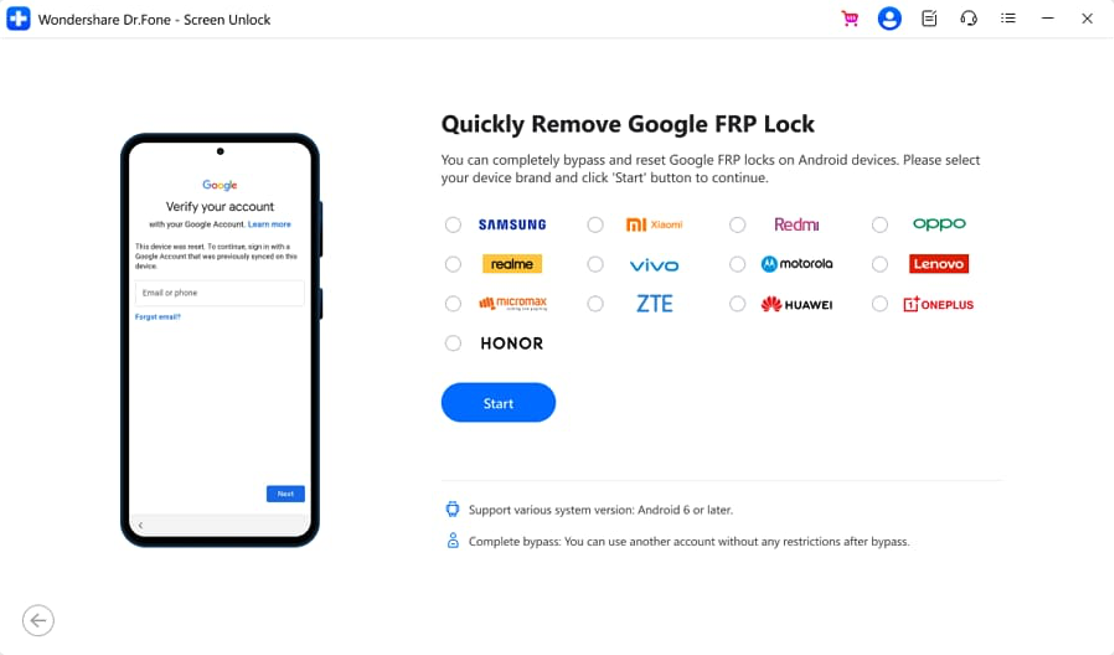
Hit Android first, then tap on Remove Google FRP Lock. Set the brand of your device as Samsung and press Start.
Step 3: Pick Android version (single click option)
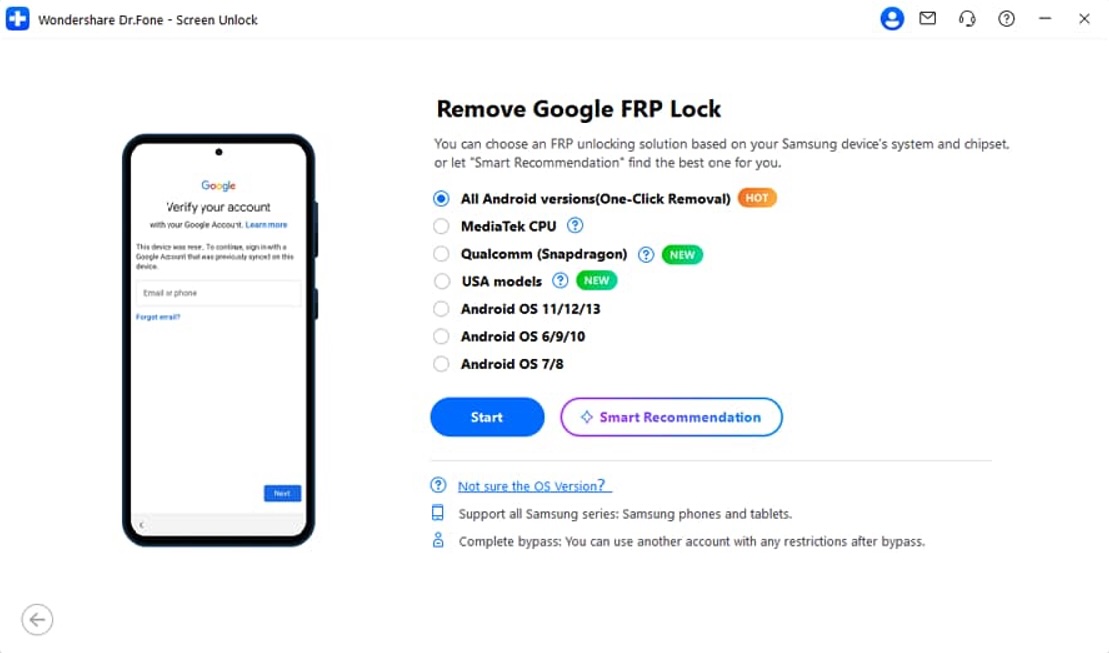
If you don't know the version of your Samsung's Android or you want the quickest way, just click All Android versions (One Click Removal) and go ahead. This alternative will work with a variety of Samsung phones including the latest Android versions.
Step 4: Use the on-screen commands for unlocking
Strictly abide by the step-by-step guidelines given by Dr. Fone - go to Emergency Call screen, dial *0*# in, enable USB debugging and allow authorization.
The application will then remove the FRP lock and will let you know once the operation is done.
Conclusion
Samsung FRP is one of the smartest security features that are a part of layers of protection such as Google account binding, Knox, and frequent updates. Though it complicates the process of bypassing the FRP, it also safeguards the data of the legitimate users. For rightful device owners who get locked out, a trusted solution like Dr.Fone Samsung FRP Removal offers them a safer and more dependable method to get their device back without depending on risky manual methods.
Disclaimer:
This content is for educational purposes only and is intended for legitimate device owners. It does not promote illegal activity or unauthorized access. Readers must comply with all applicable laws and manufacturer policies.
Featured Image generated by Google Gemini.
Share this post
Leave a comment
All comments are moderated. Spammy and bot submitted comments are deleted. Please submit the comments that are helpful to others, and we'll approve your comments. A comment that includes outbound link will only be approved if the content is relevant to the topic, and has some value to our readers.
Comments (0)
No comment