
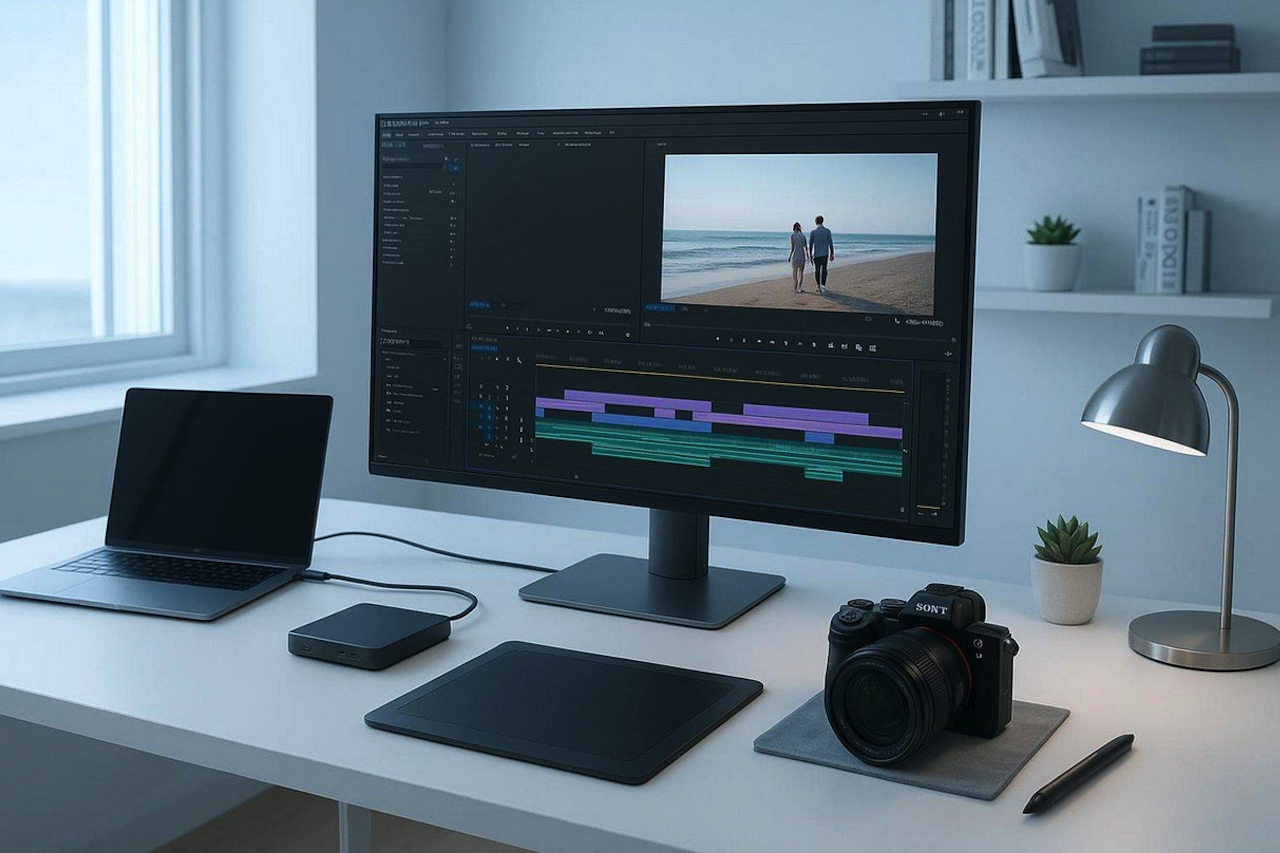
To keep your work safe and easy to reach as a digital creator, you need a layered storage plan that mixes large local drives with encrypted, backed-up cloud services. This setup, often called a hybrid model, lets you access current projects on all your devices, while huge raw archives are protected from hardware problems with local backups.
By following the 3-2-1 backup rule-keeping three copies of your data, on two different kinds of storage, with one copy stored away from your home or office-you build a safety net that protects you from mistakes, theft, and drive failures.
Today’s creative work is more mobile and data-heavy than ever. Whether you are a YouTuber editing 4K video or a photographer handling thousands of high-resolution RAW images, how you store your files affects how long your career can last.
If you are just starting to set up your storage system, free cloud storage services from various providers can provide a basic layer of protection for important documents and smaller projects before you transition to more advanced hardware solutions.
Security and access go hand in hand. Easy access means you can work from a studio, a café, or on the road, but without strong security, that same access can lead to leaks, hacks, or the loss of everything.
As we look more closely at file storage options, we’ll see how to balance both needs without spending too much or turning your workflow into a confusing mess.
Why File Storage Matters for Digital Creators
Risks of Data Loss for Creative Professionals
For a creative professional, losing data is not just a technical issue; it’s a direct hit to your income. Many computer users have accidentally deleted important files at some point. If those files are a client’s wedding photos or a year of music samples, the emotional and financial damage can be huge.
Beyond human error, your work is at risk from fires, floods, power surges, or other physical events that can destroy drives or corrupt file systems.
Hardware failure is another major threat. Hard drives are central to a creator’s work, but they wear out over time. Overheating, bad sectors, or firmware bugs can suddenly make years of work unreadable.
Even high-end Solid State Drives (SSDs) can fail without warning; many creators have seen a drive work perfectly one day and disappear from the system the next. Without a strong storage plan, you are taking a serious risk with your projects and your reputation.
Common File Storage Challenges Content Creators Face
The biggest challenge for many creators is the sheer volume of data they generate. A single 7-minute edited 4K video can take up around 3.4GB of space, while the raw footage and project files for a typical YouTube video often range from 15 GB to 20 GB.
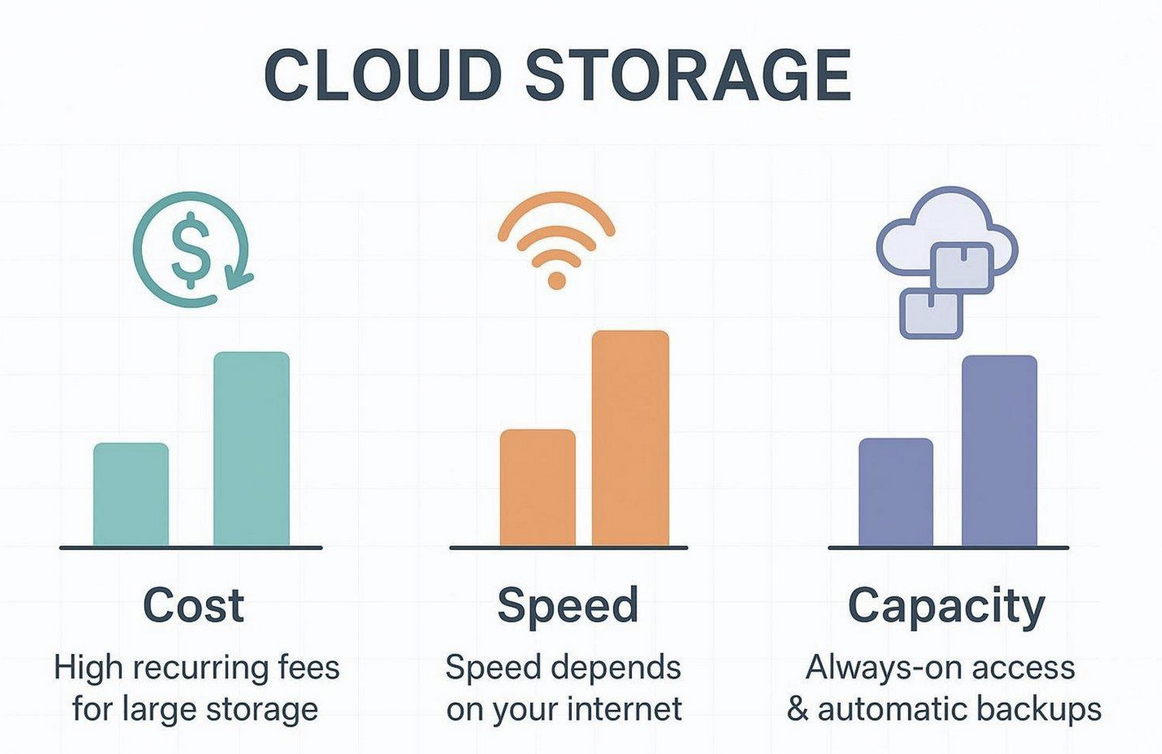
Storing all of this in the cloud becomes extremely expensive once you pass 2TB. For example, 2TB might cost around $9 per month, but moving up to 6TB can jump to $35 per month, adding a high monthly cost for solo creators.
Internet speed is another major limit. Even with a good connection, downloading a large raw video file from the cloud can take over an hour, putting your work on hold. This slow download time is why many video creators find that relying solely on cloud storage does not work well for large editing jobs.
On top of that, you must keep an eye on your local drives; filling more than about 85% of a drive’s capacity can slow it down and raise the chance of file errors.
Benefits of Secure and Accessible Storage Solutions
A solid storage setup gives you 24/7 access from any device so that you can move smoothly from a shoot to the editing room. When your files live in a shared cloud workspace, you can share large files via a link instead of dealing with email attachment limits. This type of access can support faster feedback and collaboration.
Professional storage tools also offer “version history,” which works like a time machine for your projects. If you make a mistake or a file gets damaged while saving, you can jump back to an earlier version almost instantly. This sense of safety lets you focus on your art, knowing your long-term body of work is protected with strong encryption and multiple copies spread across different servers.
Types of File Storage Options for Digital Creators
Cloud Storage: Features, Advantages, and Drawbacks
Cloud storage is very popular for both personal and business use because it is strong and easy to use. Services like iCloud, Google Drive, and Dropbox have changed how people work since the 2000s by making files reachable without a local network.
A key benefit is backup: many providers use redundant storage architectures such as Redundant Array of Independent Disks (RAID) setups so that if one of their drives fails, your files stay safe. For light files and office documents, cloud storage is usually the cheapest and simplest option.
But there are downsides, mainly cost and internet dependency. Cloud storage only works if you have a good connection. When you are on the road or in places with poor internet, your files might as well not exist. High-capacity plans also come with recurring fees that can eat into your income.
For creators working with terabytes of raw data, cloud storage often works best as backup or for finished videos, not as the main location for heavy, unfinished projects.
External Storage Devices: HDDs, SSDs, and Flash Drives
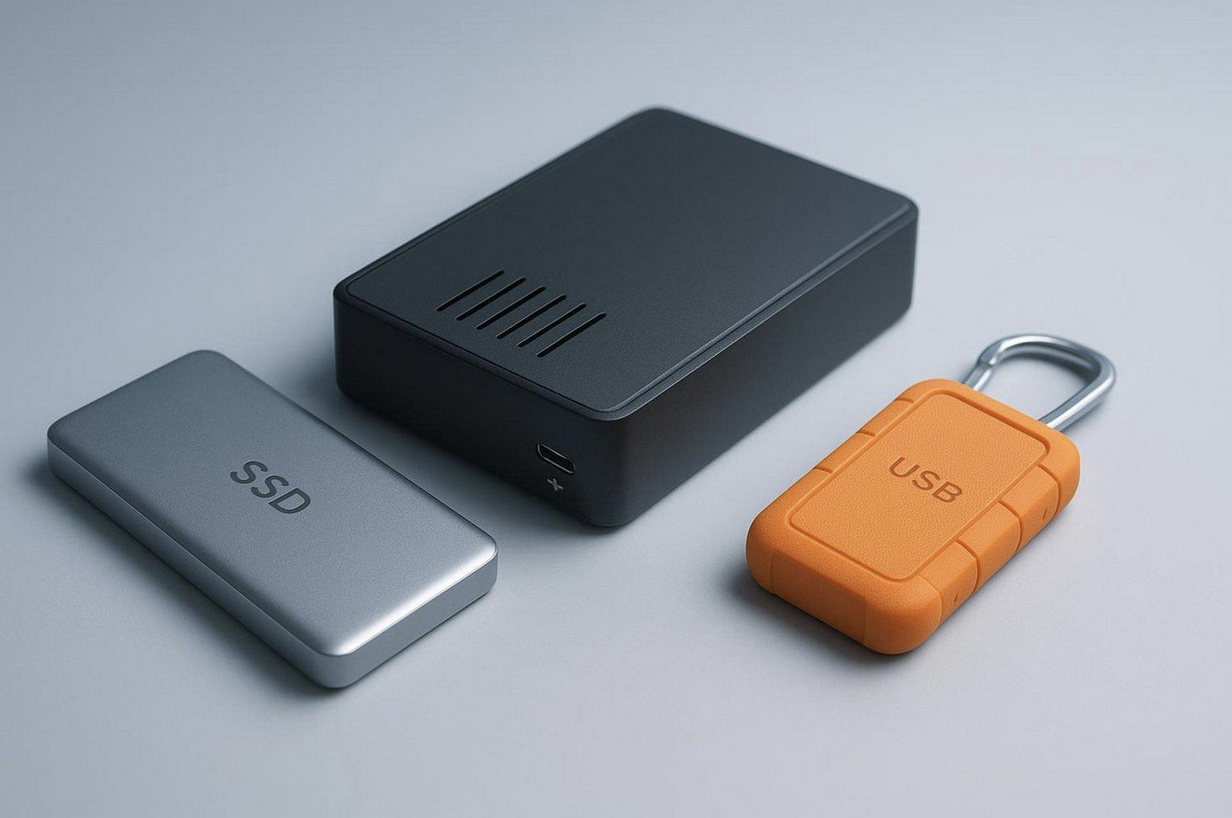
External drives are still a main tool for people who handle 4K video and large photo libraries. Hard Disk Drives (HDDs) are the cheaper option, offering lots of space at around one-third the price of SSDs.
A 4TB HDD might cost around $100, making it a smart choice for long-term storage. Solid State Drives (SSDs), at about $370 for 4TB, cost more but give much higher speeds (around 400-500MB/s), which is important if you want to edit directly from the drive without lag.
Flash drives and hardware keys, such as the PUFido Drive Clife Key, give mobile creators a small, rugged option. These devices often combine storage with security features such as FIDO2 login. Their solid, sealed designs often carry IP68 ratings, so they can withstand dust, water, and daily wear, making them suitable for people who work on the move.
While they do not hold as much as desktop HDDs, they are perfect for carrying important contracts, slide decks, and backups of your most critical files.
Network Attached Storage (NAS): Collaboration and Data Management
Network Attached Storage (NAS) is like having your own cloud server at home or in your office. A NAS automatically copies files across several drives to keep your data safe, even if one drive dies. For serious photographers and YouTubers, a NAS offers both local network speed (often over 100MB/s) and cloud-like access.
Your whole team can open the same scripts and design files at the same time, without dealing with the delay of sending files over the public internet.
The main issue with NAS is the upfront cost. A two-disk 4TB NAS setup can cost around $700 or more, which is over three times the price of a simple external HDD. Even with this higher cost, many professionals see NAS as the best choice when they need large, reliable local storage that all their devices can reach easily.
Local vs. Remote Storage: Which Approach Fits Your Workflow?
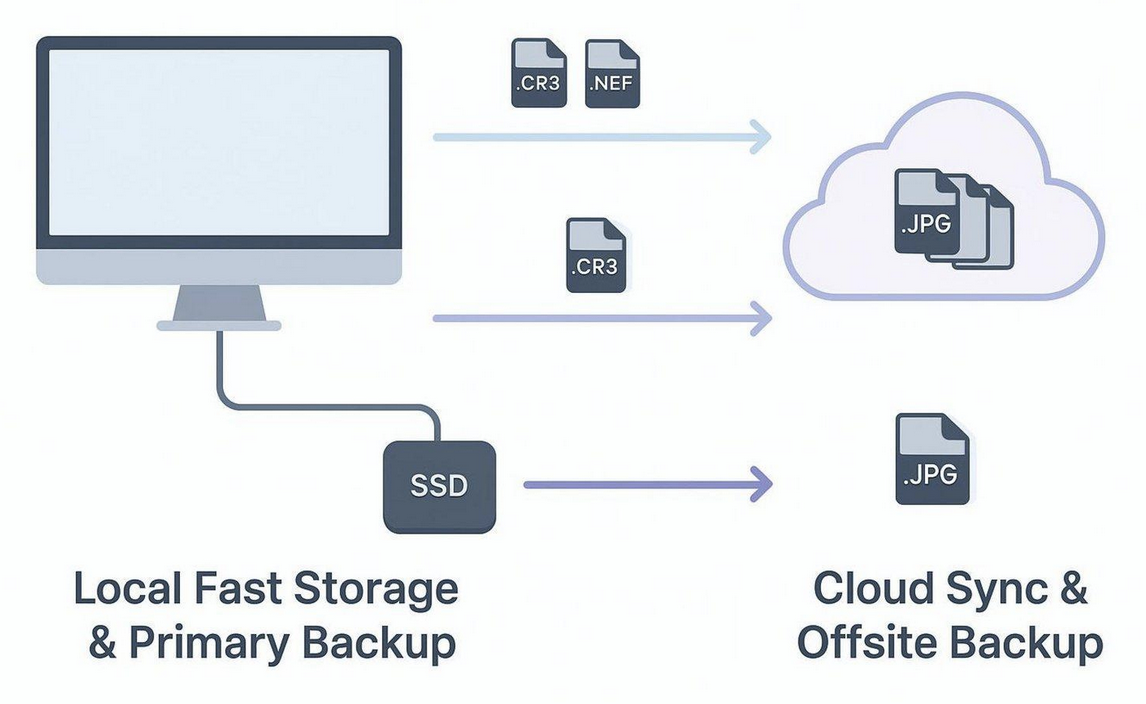
Choosing local or remote storage depends largely on what you create. If your work is mostly light files like blog posts, PDFs, or social media graphics, cloud storage is usually best because it’s simple and syncs in real time. If you make films or other heavy media, a “local-first” setup is often necessary. Editing a 10GB project stored only in the cloud is significantly slower, while working from a local SSD or HDD feels almost instant.
You also need to think about how you archive your work. Local storage is often used as a long-term library, a home for raw photos and old projects that you don’t open often. Remote storage is better for “live” files you want to reach from your phone, tablet, or laptop at any moment.
Knowing this difference helps you split your budget wisely between physical drives and cloud services.
Hybrid Storage Models: Balancing Security and Convenience
Many successful creators use a hybrid setup. They keep important and frequently used files (business records, contracts, finished exports) in the cloud for easy access and reliability, and store heavy assets like raw footage and current editing projects on local drives with backups. This gives them fast local performance and RAID-like safety at home, without paying for huge cloud storage plans every month.
In a hybrid setup, tools like Carbon Copy Cloner can copy your main local drive to a backup drive on a schedule, so if one drive fails, you have a fresh duplicate. This “mirroring” method gives you the speed of local storage and the long-term safety of cloud backups for your core collection of work. It’s a practical way to manage thousands of 50MB RAW photos without waiting hours for uploads or downloads.
Comparing Popular File Storage Solutions for Creators
Cloud Storage Providers: Collaboration, Speed, and Reliability
When you compare providers, price per gigabyte is only one factor.
Ci Media Cloud, for example, is aimed at media professionals and offers very fast upload and download speeds that reduce the slowdowns common with services like Dropbox or iCloud. It supports advanced media asset management, including quick previews and detailed tagging. For those working with Sony tools or Adobe Premiere Pro, its tight integration makes it a strong option for serious production work.
French-based Drime is another strong choice for creators who care about teamwork features. It offers a fully shared workspace with tools like PDF editing and e-signatures built right into the browser. For European users, their policy of keeping data stored inside Europe means full GDPR compliance, which matters if you handle private client data or sensitive creative work.
These platforms keep files safe using distributed server systems that split and store data pieces across many data centers.
Real-Time Collaboration Features
Collaboration is an area where modern cloud services really stand out. Platforms like Suite use a file system that supports “transactional file writes.” This means an upload either finishes correctly or leaves the file unchanged; a bad connection can’t leave you with a half-broken file. This promise of clean writes is very important for teams handling complex film edits or 3D projects, where a single damaged file can waste hours of work.
Some platforms also improve teamwork through flexible workspaces. Several people can edit the same document at once, which removes the chaos of sending “v1finalfinalREAL” versions back and forth by email. Built-in comment tools let directors or clients mark notes directly on frames in a video or areas of a design, making review cycles much smoother and faster.
Media Management Capabilities and Integration
Good digital asset management (DAM) is more than dropping files into random folders. Professional tools let you tag, group, and search files with smart filters so you can find a specific clip from years ago in seconds. Many professional platforms support rich metadata, which becomes very important when your library grows to tens of terabytes. Being able to search by tag, date, or category, rather than only by file name, saves a lot of time.
Linking your storage to your creative apps is the final step. Pulling files straight from the cloud into Adobe Premiere Pro or Final Cut Pro without manual downloads keeps you in the flow.
Many of these links include “smart sync” features that upload files in the background with one click, free local disk space, and still show the files inside your project so you can bring them back when needed.
How Security Risks Impact File Storage for Digital Creators
Threats: Hacking, Ransomware, and Unauthorized Access
The same easy access that makes the cloud useful also attracts attackers. Stolen login details and unwanted access are among the most common risks today. A weak or reused password can open the door to your whole portfolio, your client agreements, and even your financial accounts.
Ransomware is another serious issue; once it infects a system, it can encrypt both local files and synced cloud folders and demand payment before restoring control.
Large cloud services are usually well-protected, but problems can still occur. More often, the danger comes from sending data over unsafe networks. Uploading private work over public Wi-Fi without encryption can allow others to capture it. Influencers and well-known YouTubers are especially tempting targets, as attackers may try to hijack their accounts to spread scams or steal valuable assets.
Data Encryption: How It Protects Creative Work
Encryption is one of the strongest ways to protect your files. It makes your data unreadable to anyone without the key, so even if someone steals a drive or intercepts your files, they only see scrambled data. Most serious providers use AES 256-bit encryption, the same level used by banks. With today’s computers, breaking this kind of encryption by brute force is not realistic.
Look for services that protect data both “at rest” (while stored on servers) and “in transit” (while moving across the internet). Some advanced tools also let you keep control of your encryption keys, so even the service provider cannot open your files. This is especially valuable if you work on unreleased material or sign strict NDAs with well-known clients.
Password Security and Alternatives
Passwords are often the weakest point in a creator’s security. They can be guessed, stolen, or leaked from hacked websites. Because of this, many professionals are moving to hardware security keys. Devices such as FIDO2 hardware security keys use physical authentication to replace passwords. To log in, you plug in the key and touch it, verifying that a real person is present and authorized to access the account.
If you still use passwords, a password manager that creates unique, complex passwords for every site is a must. Combine this with Multi-Factor Authentication (MFA) for extra safety. Even so, many experts now favor hardware keys because they block phishing attempts and remote attacks that can sometimes bypass SMS codes or simple app-based MFA.
Why Offline Storage Is Still Important
Offline storage gives you a complete break between your data and the internet. When your most sensitive files-such as financial records or unreleased creative work-live on a device that never goes online, they cannot be reached by remote attackers. For this reason, many studios store their main archives on offline HDDs kept in padded, anti-static cases in secure locations.
Offline storage also matters when you travel. On a plane, at a remote shooting location, or at an event with bad WiFi, having your songs, slides, and contracts on a flash drive or portable SSD means you can keep working. Local copies give you direct access at any time, offering independence that the cloud alone cannot match.
Proven Strategies to Keep Creative Work Accessible and Safe
3-2-1 Backup Method and Redundancy Practices
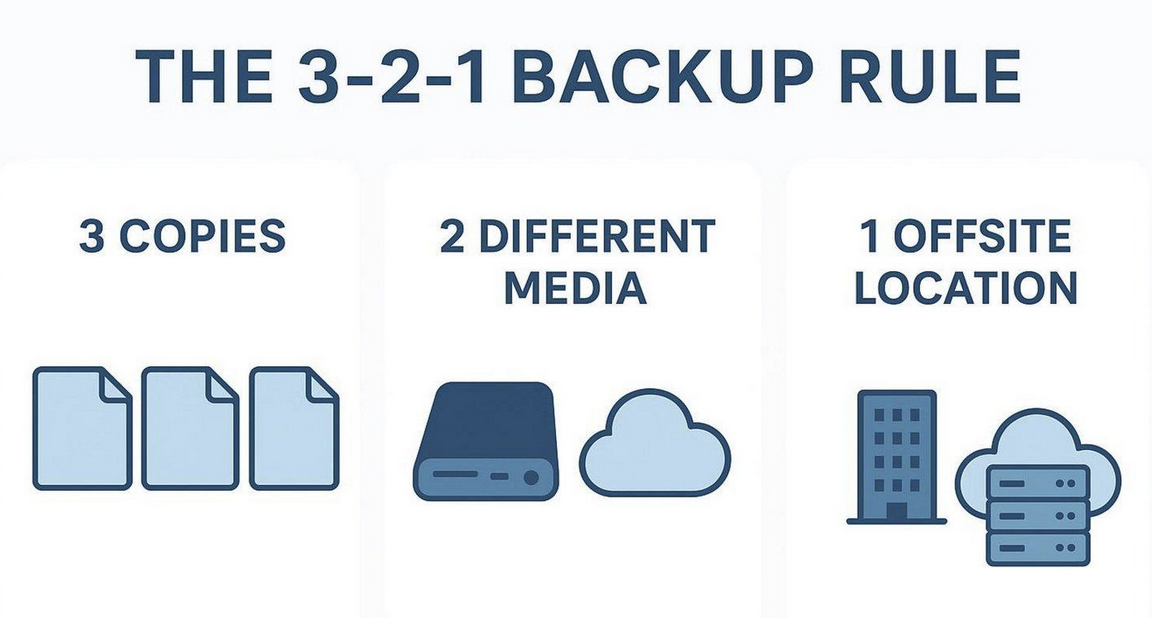 The 3-2-1 backup method, created by photographer Peter Krogh, is still one of the best ways to keep data safe.
It says you should have three copies of your files: the original plus two backups. These should be stored on two different devices, such as an internal SSD and an external HDD.
Finally, keep one copy away from your main working location, usually in the cloud. This approach protects your work even if your office is destroyed or several drives fail at once.
Local redundancy is just as important. A RAID 1 setup, where two drives mirror each other, means that if one drive fails, you can replace it and your data will rebuild from the remaining drive. Software like Carbon Copy Cloner can automate this process, keeping your backup drive as an exact copy of your main drive, with checks to spot file corruption before the job finishes.
Limiting Over-Storage and Regular File Curation
Good storage use means cleaning up regularly. Keeping every blurry image or bad take from a shoot will quickly fill your drives and push up cloud bills. Building a habit of “data housekeeping” means reviewing and sorting your files so you always know what you have and what you truly need. Deleting old junk files not only saves space but also reduces the number of potential targets if your system is ever attacked.
Creators should also watch the 85% capacity guideline. Once a drive is nearly full, it slows down, and the risk of errors increases. Moving old projects to a separate archive drive (such as an inexpensive 3.5-inch desktop HDD) keeps your main working drives fast and stable. Using cleaning tools to remove temporary files and emptying the recycle bin are simple steps that extend the life of your storage devices.
Configuring Collaboration Tools and Permissions
When you work with a team, detailed access control is key. Avoid giving full edit and delete rights to everyone. Instead, give clients and outside partners “view only” access and keep editing rights for trusted core team members. Many platforms show who accessed which file and when, giving you a clear record of activity.
Protecting shared links is also very important. When you send a preview to a client, add a password and set an end date. That way, if someone forwards the link, your content is still protected. Some services even let you block downloads, so viewers can only stream or preview your work, not save it locally, keeping you in control of how your files spread.
Monitoring Storage Health and Device Maintenance
Don’t wait for scary clicking noises from a drive before you act. Tools like CrystalDiskInfo or DriveDx can read S.M.A.R.T. (Self-Monitoring, Analysis, and Reporting Technology) data from your drives and give you a health score. This lets you move data to a new drive before things fail.
Basic physical care also matters. Plug desktops and external drives into surge protectors to guard against power spikes. If you use several external drives, label them clearly and keep them in anti-static, shock-resistant cases to avoid damage and mix-ups. If a drive starts to fail, stop using it right away; continuing to run a damaged drive can worsen the problem and make professional recovery much harder or even impossible.
Best Practices for Organizing Digital Assets
Folder Structures and Naming Conventions
A messy drive wastes time and causes mistakes. Professionals often use fixed naming conventions to make files easy to find. A common pattern is YYYY-MM-DDProjectNameFileNamev01. This keeps files in date order and makes it simple to see which version is which. Avoid names like “finalvideo.mp4,” because you will end up with several different “final” files before long.
Your folder layout should be clear and consistent across projects. For a video job, you might create top-level folders like “RawFootage,” “Audio,” “Assets” (logos, overlays, music), and “Exports.” Using the same structure every time means you can jump into any project and find what you need right away. Any assistant or collaborator can also understand your setup without a long explanation.
Tagging, Search, and Metadata Options
Metadata is “information about your files.” By using tagging features in tools like Ci Media Cloud or Drime, you can add keywords like “Outdoor,” “Drone,” or “Client_X” to your videos and photos. Later, you can search by tag across your whole library and find every matching file in seconds, instead of digging through endless folders.
For photographers, EXIF data (camera, lens, shutter speed, and more) is already embedded in each image, but you can add copyright and creator information when you import files. This data travels with the file when you share it, helping protect your rights.
Some newer cloud tools even use AI to turn notes into structured information, summarizing briefs and pulling out important details from text documents so you can stay on top of projects more easily.
Using Version Control for Creative Files
Version control is a strong safety net for creative work that changes over time. Instead of constantly saving over the same file, version control systems, or “Time Machine” style tools in apps like Suite, keep all versions. If a client decides they like an earlier edit better, you can roll back the project to that point instead of trying to undo many changes by hand.
Many creators keep a live project, project syncing for teamwork, but use true backups for final versions. Syncing is two-way: delete a file on your laptop, and it disappears from the cloud, too. A backup, on the other hand, is a fixed snapshot that does not change. Using syncing for current work and backup snapshots for long-term storage is a key part of a strong digital asset plan.
Key Takeaways for Secure and Accessible File Storage
As we move further into a digital future, remember that cloud storage is backed by real hardware in large data centers that use a lot of energy. As creators, we can reduce our impact by deleting junk files, using cleanup tools, and keeping personal, non-shared files on local drives when possible. A tidy, well-organized storage system is not just safer; it also uses less space and puts less strain on devices.
Artificial intelligence is starting to change how we work with stored files as well. Tools like Drime Notes go beyond basic note-taking apps by creating task lists and pulling key points from your text, turning your storage into something closer to a searchable knowledge base. Getting used to these tools early can help you work faster and stay organized. Still, AI tools and cloud features should never replace the basic 3-2-1 backup rule. Technology moves fast, but hard drives and SSDs can still fail without warning.
In the end, the best storage setup is the one that stays simple in daily use and lets you focus on creating. By running a RAID system or mirrored drives at home, using fast professional cloud platforms for sharing and teamwork, and guarding your accounts with hardware keys, you build strong protection around your work. This lets you choose your favorite work setting-studio, film set, or a remote mountain trail-knowing your files are safe, easy to reach, and under your full control.
 FAQs
FAQs
No. Relying only on cloud storage is risky, especially for high-resolution video and large media files. While the cloud is great for access and lighter content, it can be slow and expensive for large raw archives. Depending on a single provider also exposes you to outages, account issues, or policy changes. A mix of locally backed-up hardware and cloud storage is safer and usually more cost-effective over the long term.
You should back up files as often as they change. For active projects, real-time sync services such as iCloud or similar platforms can copy each save to the cloud automatically. For local drives, many creators schedule daily or weekly backups based on their workload. Automating these tasks with backup software is essential to ensure they run even on busy days.
The most secure approach combines offline and encrypted online storage. Keep your most sensitive master files offline on drives that are not connected to the internet. Store active projects in cloud services that use AES 256-bit encryption to protect against unauthorized access and hardware failure. Using a FIDO2 hardware security key for important accounts adds another layer of protection.
Yes. Encryption is essential because your files represent valuable intellectual property. Even if the data does not seem sensitive, it still has value to you and your clients. Encryption protects your work if a device is stolen, a drive is lost, or a cloud account is compromised. Leaving data unencrypted today creates avoidable financial and reputational risks.
Share this post
Author

Leave a comment
All comments are moderated. Spammy and bot submitted comments are deleted. Please submit the comments that are helpful to others, and we'll approve your comments. A comment that includes outbound link will only be approved if the content is relevant to the topic, and has some value to our readers.
Comments (0)
No comment