

Privacy, Online Tools, Security
How to Block YouTube on Android, iPhone, Windows, and Mac
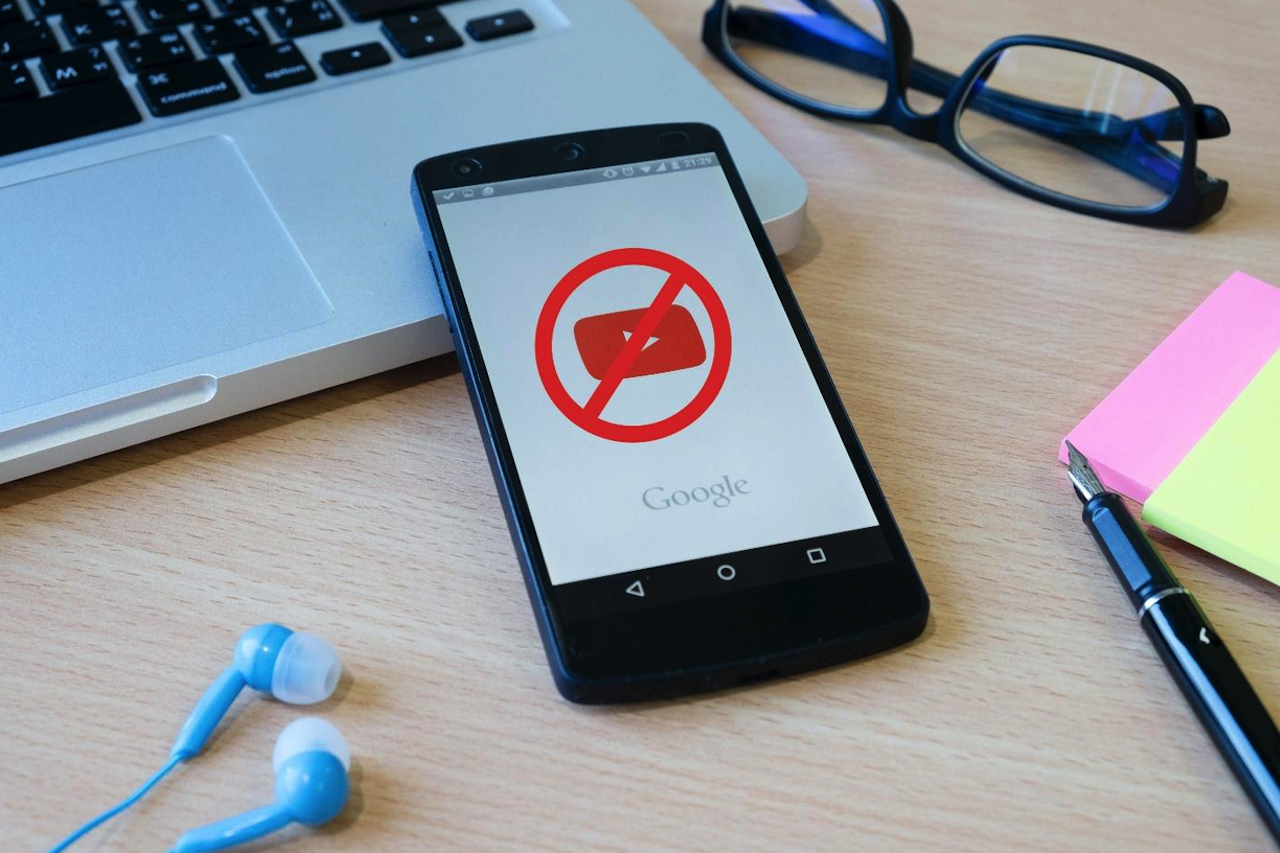
YouTube needs no introduction today because it has made a name for itself. However, the popularity is exactly why it is a concern for parents since about seven in ten U.S. teens use the app daily.
Therefore, many have decided over the years that a reliable approach is to block the app entirely. But how reliable it is and how it can be done need a more detailed discussion. This guide touches on the best methods for restricting YouTube access.
What Makes YouTube Difficult to Put Down?
YouTube is designed to keep people watching, which is why a short visit can easily turn into a much longer session. Many of its features contribute to users’ app screens.
- After one video ends, YouTube immediately suggests several related options, which makes it easy to continue watching without actively deciding to stay.
- When autoplay is enabled, the next video begins automatically. As a result, even if a child intends to watch one clip, they may remain on the platform for much longer.
- YouTube Shorts are quick and easy to scroll through. Because each clip lasts only seconds, users often lose track of how much time has passed.
- When watching YouTube in bed, kids can get carried away because new content keeps popping up.
Why Is Blocking YouTube Sometimes Necessary?
Blocking YouTube may become necessary when voluntary rules no longer work. For example, a child may repeatedly watch videos during homework and disregard the screen time limits entirely.
To add to this, 500 hours of video are uploaded to the app every minute. Therefore, the extent of content posted makes it unrealistic for parents to review every video before their child watches it.
Not only that, but simply uninstalling the YouTube app does not solve the problem either, because access may still be possible through:
- Web browsers
- Shared and embedded links
- Alternate addresses
- App reinstallation
How to Block YouTube on Android
Digital Wellbeing is a built-in Android feature that shows parents how much time a kid spends on individual apps and lets them set daily usage limits.
To restrict YouTube through this feature, parents can use the "App Timer." Once they have set the timer and assigned specific limits to YouTube, time spent on the app is tracked, and once the daily allowance expires, it is paused.
For complete app blocking, parents can even set YouTube allowance to zero.
In my experience, Digital Wellbeing is easy to configure and works well when the goal is to reduce excessive viewing. However, I do not consider it a complete YouTube block since Digital Wellbeing primarily limits the installed apps. Therefore, a child may still open YouTube through Chrome or another browser.
For that reason, I recommend this method for younger, cooperative children or only for parents who mainly want to control daily viewing time.
Steps to Block YouTube With Digital Wellbeing
- Go to Settings and then open Digital Wellbeing and parental controls.
- Open Dashboard and locate App limits.
- Tap YouTube to view its usage settings.
- Choose zero where supported, or the lowest available time.
How to Block YouTube on iPhone
Screen Time is Apple’s system for tracking how an iPhone is used. It allows parents to limit apps, prevent new downloads, restrict website access, and protect those settings with a separate passcode.
Blocking YouTube is more effective than simply deleting the app because it can address both reinstallation and browser-based access.
Overall, the method works in two stages. First, the YouTube app is removed, and app installation is disabled so the child cannot download it again from the App Store.
Second, YouTube’s main web addresses are added to Screen Time’s “Never Allow” list, helping prevent access through Safari, search results, shared links, and direct YouTube URLs.
In my experience, Screen Time is an easy built-in parental control for families to manage because all the important settings are grouped in one place. Once correctly configured, the restriction applies immediately and does not require a separate application.
Nonetheless, before relying on it entirely, parents should test it across all blocked sessions after setup, since I sometimes found it lacking when not properly configured.
Steps to Block YouTube With Screen Time
- Delete YouTube from the child’s iPhone.
- Open Settings, then Screen Time, and configure it for the child.
- Use a code that the child cannot guess to lock settings.
- Set Installing Apps to Don’t Allow under iTunes & App Store Purchases.
- Select Content Restrictions, tap Web Content, and then Limit Adult Websites.
- Add youtube.com, www.youtube.com, m.youtube.com, and gaming.youtube.com under Never Allow.
How to Block YouTube on Windows
Microsoft Family Safety on Windows does not block YouTube at the operating-system level. Instead, it functions at the account level by connecting the child's Windows to a supervised Microsoft Family account.
Parents can then apply website rules to control browsing through Microsoft Edge.
To begin, YouTube needs to be added to the blocked-sites list. Once done, Edge compares every requested address with the saved restrictions. If the address matches a blocked YouTube domain, instead of returning the loaded website, it displays a restriction page.
However, when I tried this method on my own, I realized quickly that the rules are only tied to the managed Microsoft account and can therefore be evaded through a guest profile, unmanaged account, etc.
Another key hindrance, as per my experience, is the browser choice. If parents have left Chrome, Firefox, Brave, etc., available to the child, the Edge-centered website filtering will fail.
For more dependable YouTube website blocking, I therefore blocked YouTube’s main domain and also restricted browsers that were not covered by the family settings.
Steps to Block YouTube With Microsoft Family Safety
- Add the child to your Microsoft family group and connect the device.
- Select the child. Open Content filters and then Web and search.
- Turn on the website and search controls for Edge.
- Add youtube.com, www.youtube.com, and m.youtube.com to the Blocked sites.
- Use Apps and games controls for Chrome, Firefox, or alternatives.
How to Block YouTube on Mac
On a Mac, YouTube can be blocked by editing the hosts file, i.e., a small system file that helps macOS decide where a website address should connect.
Therefore, by adding YouTube’s main YouTube files and redirecting them to the Mac itself, the browser cannot reach YouTube’s actualYouTube's
Because the hosts file operates at the system level, the restriction can apply across Safari, Chrome, Firefox, and other browsers installed on the computer.
Overall, parents may find this approach useful when they want a browser-wide block without paying for additional software or configuring each browser separately.
In my experience, the method works best when the correct domains are added and the Mac’s DNS cache is cleared afterward. The block usually becomes active once the browsers are restarted, although older tabs or cached pages may need to be closed before the change is visible.
But as is the case with all methods, this, too, comes with certain limitations. First of all, YouTube uses several domains, which is why blocking only the main website addresses may not stop every alternate link and app-based connection. Not only that, but executing the method requires a high level of technical knowledge that may not be feasible for all parents.
Steps to Block YouTube Using the Hosts File
- In “Applications,” "o to Terminal"
- Enter
[sudo nano /private/etc/hosts]and type the requested password. - Add the following host file entries on separate lines: 127.0.0.1 youtube.com, 127.0.0.1 www.youtube.com, and 127.0.0.1 m.youtube.com.
- Press Control-O, Return, and Control-X.
- Clear the cache by running
[sudo dscacheutil -flushcche], then[sudo killall -HUP mDNSResponder].
How to Block YouTube on a Child’s Smartphone
Many parental control and child monitoring apps allow parents to block or unblock YouTube, along with other apps, from a centralized dashboard. For example, Xnspy is one of several parental control apps designed to help parents monitor device activity and manage access to apps such as YouTube.
After installing and setting up a compatible parental control app on the child's phone, parents can typically access a web dashboard or mobile app to review YouTube-related activity and manage app restrictions.
Depending on the service, available insights may include:
- Time spent using YouTube
- Search terms entered within the app
- Videos watched, liked, shared, or saved (where supported)
- Uploaded content and channel activity (if applicable)
Features and reporting capabilities vary between providers, and some activity may not appear immediately if the child's device is offline or has limited internet connectivity.
Because monitoring tools can collect sensitive information, parents should use them responsibly and have age-appropriate conversations with their children about online safety and digital boundaries whenever possible.
Before installing any parental control app, review its device compatibility, subscription terms, privacy policy, data handling practices, and ensure its use complies with applicable laws and your family's expectations.
Steps to Block YouTube Using a Parental Control App
- Confirm that the child's device is compatible using the provider's compatibility checker or system requirements.
- Install and configure the parental control app on the child's device, enabling only the permissions required for the features you intend to use.
- Sign in to the app's dashboard to review YouTube activity and available controls.
- Use the app management or blocking feature to restrict or restore access to YouTube as needed.
Depending on the device and the level of control required, parents can use built-in operating system features or third-party parental control apps, such as Xnspy, to help manage YouTube access.
YouTube Blocking Methods at a Glance
| Device | Selected method | Controls | Main limitation |
|---|---|---|---|
| Android | Digital Wellbeing | YouTube app time | Browser access may remain |
| iPhone | Screen Time | Installation and listed websites | May not block all alternate YouTube domains or apps |
| Windows | Microsoft Family Safety | YouTube in Edge | Can access YouTube through other browsers |
| Mac | Hosts file | Listed domains system-wide | Users with administrator access can reverse it |
| Smartphones | Parental control app | Remote app blocking | Paid setup on compatible devices |
Note: For the best results, parents should close each method’s known bypass routes and use a multi-layered approach to YouTube blocking, where possible.
Conclusion
More than one billion hours of content are viewed on YouTube each day, which helps explain why informal limits can be difficult for parents to maintain.
Blocking YouTube can be an effective way to support healthy screen-time habits, but the best approach depends on the device and the level of control required. Built-in parental controls may be sufficient for some families, while others may prefer dedicated parental control apps. Resources such as the Xnspy guide can also provide examples of how app-based blocking and monitoring features work in practice.
Whatever method you choose, it works best when paired with clear family expectations, regular conversations about online safety, and age-appropriate guidance.
 FAQs
FAQs
Yes. On Android, you can use Digital Wellbeing to set an app timer for YouTube. Once the daily time limit is reached, YouTube is paused without requiring you to uninstall the app.
Your child may still be able to access YouTube if the restriction only covers the app or a single browser. Configuration errors or alternative access methods, such as other browsers or embedded videos, can also make blocking less effective.
Yes. You can schedule time-based limits using Screen Time on iPhone or Digital Wellbeing on Android. Many parental control apps also offer scheduled app blocking during specific hours, such as bedtime.
Not always. Children can access YouTube through the app, web browsers, shared links, and embedded videos. Combining app restrictions with website or browser blocking provides more comprehensive protection than relying on a single method.
Related Articles
July 1, 2026
How Manifest V3 Is Reshaping the Browser Extension Ecosystem in 2026
Manifest V3's shift from dynamic filtering to declarative rules weakened Chrome ad blockers and pushed filtering to network-level tools and alternative browsers by 2026.
Read More
June 27, 2026
7 Best Parental Control Apps for Families in 2026
Qustodio handles screen-time and web filtering well but lacks messaging visibility. Here are seven alternatives that address that and other gaps.
Read More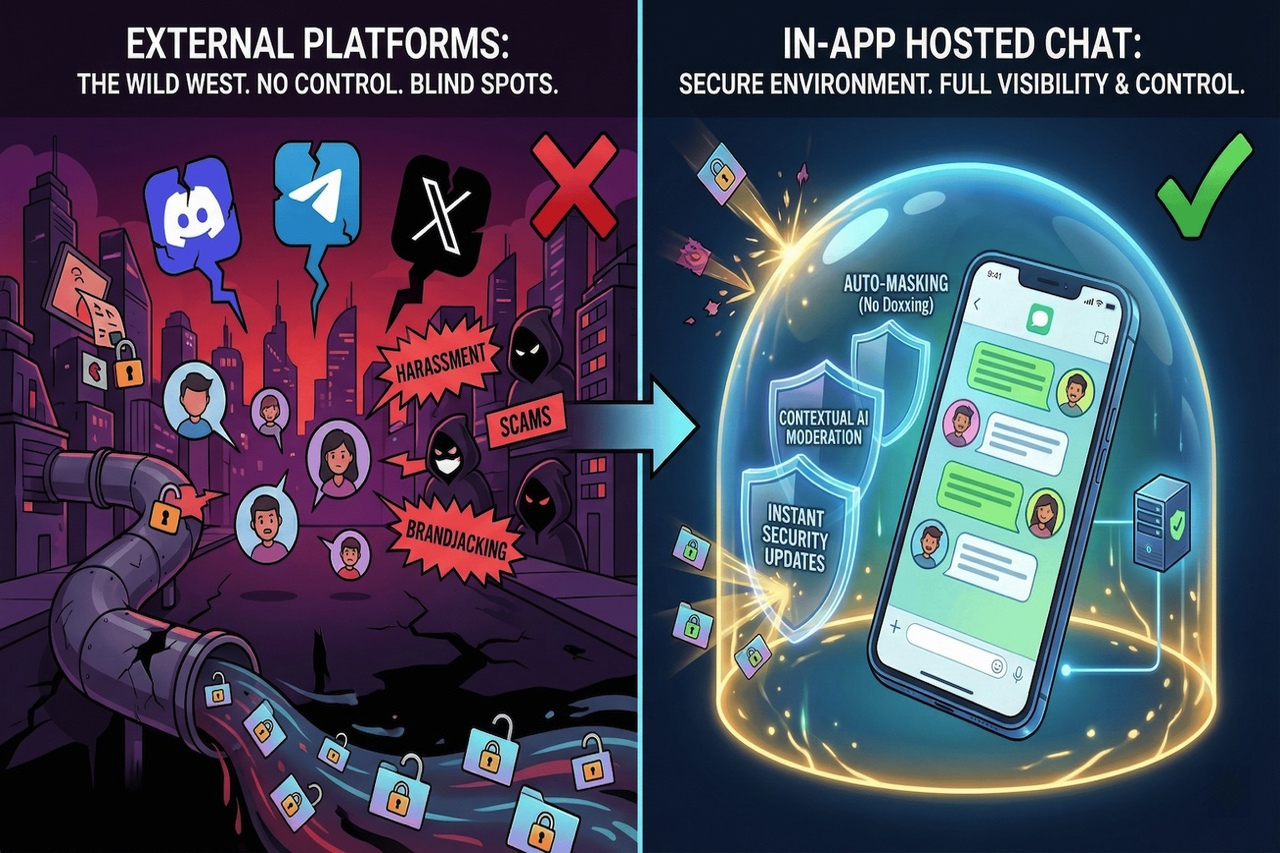
January 12, 2026
Community Security: Why In-App Hosted Chats are Safer than External Platforms for User Data Privacy
The answer to community-building over the last five years was, “Just create a Discord server or a channel on Telegram.” This is everything you could want as a shortcut—not to w...
Read More
Comments
Comments are available to signed-in users and are moderated to keep the discussion useful and respectful. Spam, automated submissions, and low-value promotional comments are removed. Outbound links may be approved when they are relevant and genuinely helpful to readers, but they are displayed as plain text rather than clickable hyperlinks.
No comments have been published yet.
Please sign in to submit a comment.