
iCloud backups help store iPhone data for future recovery needs. However, Apple’s default restore process often requires resetting the entire device first. Many users only need selected files instead of restoring the full backup. This limitation makes selective recovery from iCloud backups more complex.
Specialized tools provide alternative methods to access backups without a full reset. For example, tools like Dr.Fone data recovery software are often used to extract selected data from iCloud backups. This guide explains how backup extraction works without affecting existing device data. It also highlights common scenarios and key checks before starting recovery.
Why Users Avoid iPhone Reset for Single-Item iCloud Recovery
Many iPhone users avoid resetting their devices when only a small amount of data is missing. Apple’s default recovery method requires a full restore, which replaces current data with older content. This process can remove recently saved photos and other important files.
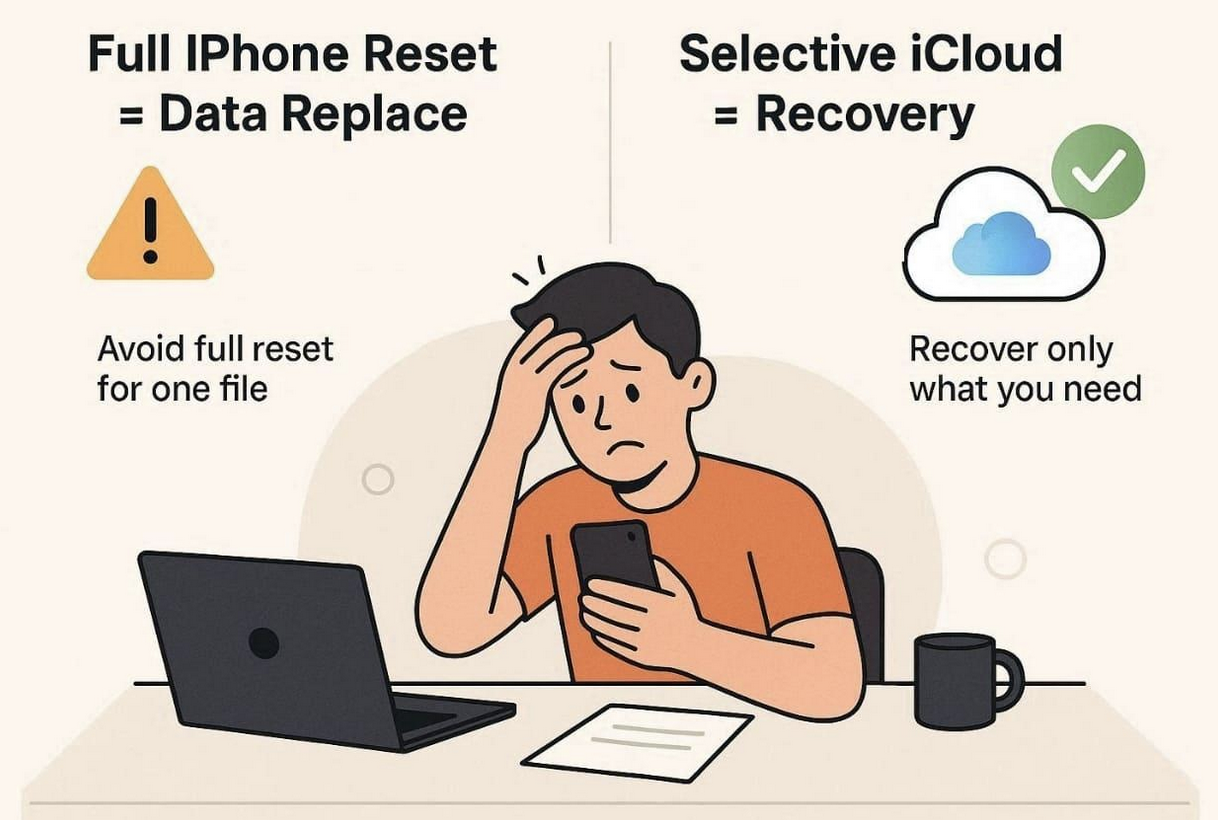
Therefore, the need for targeted recovery becomes more relevant when only a single file is required. In such cases, users often explore alternative methods, including iPhone data restore software, that allow selective access to backup data without replacing existing content. This approach helps minimize the risk of overwriting current data.
Data Types Recoverable from iCloud Backups Using iOS Software
iCloud backups store different types of data that can be retrieved when needed. Many users look for ways to recover deleted photos, messages, or contacts from backups. Various recovery tools can extract multiple categories of data stored in the cloud.
| Data Type | Description | Recovery Availability |
|---|---|---|
| Photos | Images stored in camera roll and albums | Available from iCloud backup or photo library |
| Messages | SMS, iMessage, and chat conversations | Recoverable from backup files |
| Contacts | Saved phone numbers and details | Easily restored from backup data |
| App Data | Information from installed applications | Depends on app backup support |
| Videos | Recorded and saved video files | Available if included in backup |
| Notes | Saved notes and text entries | Recoverable from iCloud backup |
| Call History | Logs of incoming and outgoing calls | Available in backup records |
| Web Data | Bookmarks, browsing history, shortcuts | Available if Safari sync or backup is enabled |
How iOS Recovery Software Simplifies iCloud Backup Extraction
Modern tools provide alternative ways to access stored backup data within platform limitations. These solutions allow users to log into their cloud account and view available backup content.
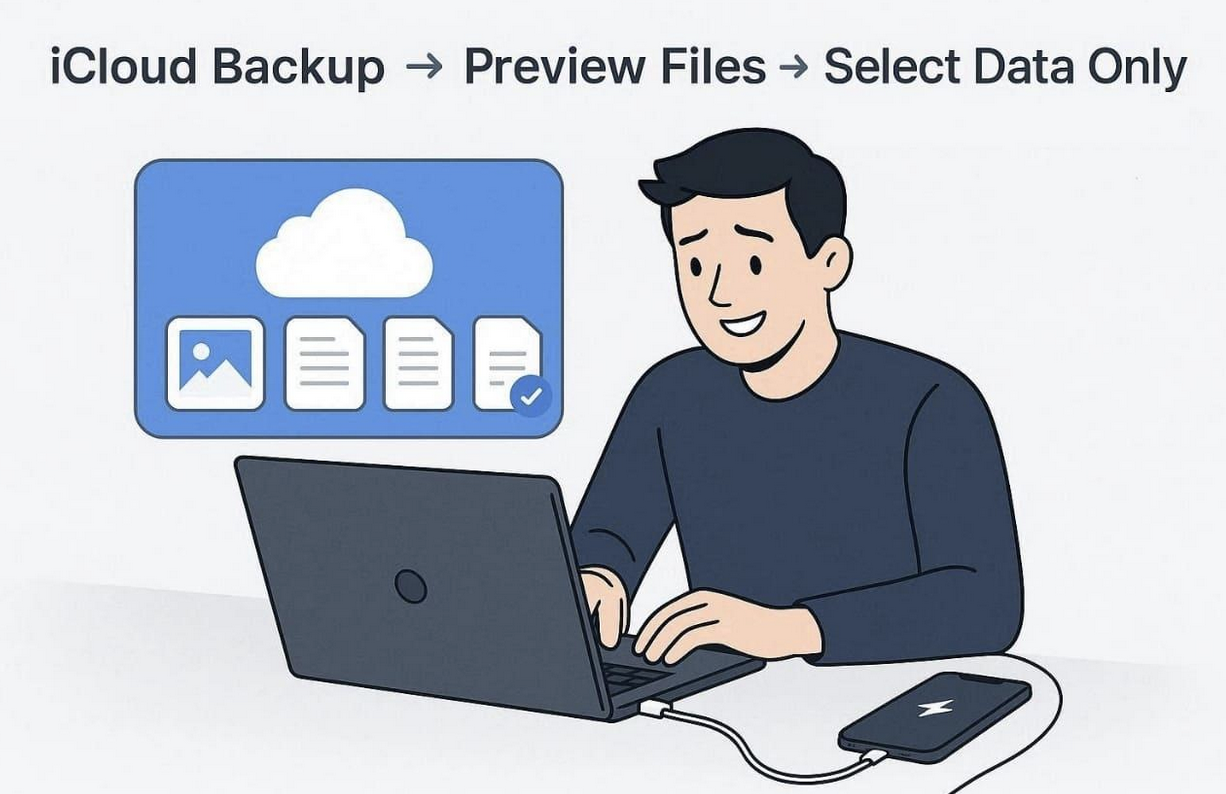
After accessing the backup, the system scans and displays recoverable items. Users can then preview and select specific files instead of restoring the entire backup. This process removes the need for a full device reset and simplifies what would otherwise be a more complex procedure.
iCloud Backup Recovery vs Direct Device Scanning Scenarios
Different recovery methods apply depending on the situation. Choosing the right approach depends on device condition and how the data was lost.
| Scenario | iCloud Backup Recovery | Direct Device Scanning |
|---|---|---|
| Device Lost | Data can be restored from cloud backups | Not possible without the device |
| Device Replaced | Old data can be extracted from backups | Cannot access old device storage |
| Deleted Data | Backup may contain older versions | Scans for recently deleted files |
| No Backup | Not useful without backup | Useful for direct recovery |
| Device Damage | Works even if device is not functioning | Limited if device cannot respond |
| Data Selection | Allows selective file recovery | May require full storage scan |
5 Key Checks Before Starting iCloud Backup Data Recovery
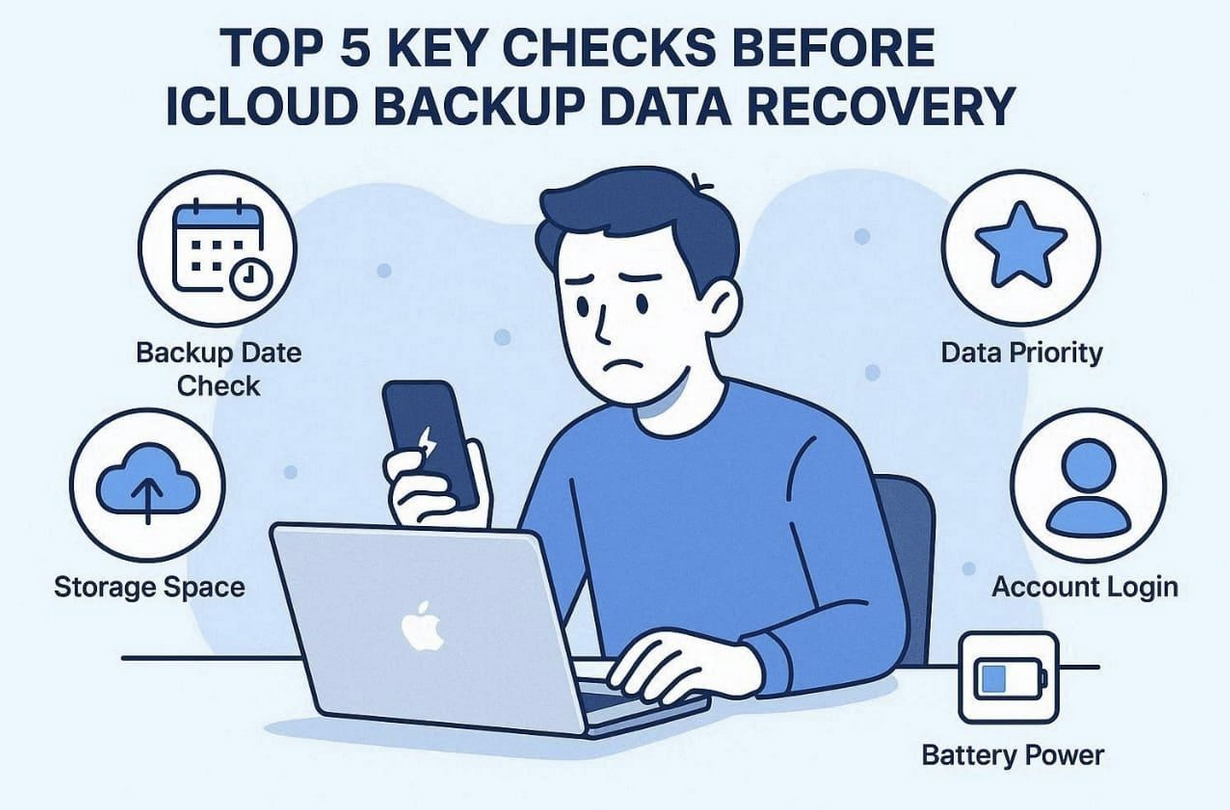
Preparation helps reduce errors during the recovery process. The following checks improve the chances of successful extraction:
- Backup Version: Confirm the backup date to ensure it contains the required data.
- Data Priority: Identify which files are needed to avoid unnecessary extraction.
- Account Details: Ensure correct login credentials for accessing backups.
- Storage Space: Verify sufficient space on your computer for extracted files.
- Battery Power: Maintain a stable power supply to avoid interruptions.
Proper preparation helps reduce the risk of incomplete recovery or data corruption.
Conclusion
Cloud-based recovery allows users to retrieve lost or deleted data from backups without resetting their device. This selective approach helps preserve existing settings and data.
Using alternative recovery methods enables users to access only the files they need, avoiding unnecessary full system restoration. This makes the process more efficient while reducing the risk of data loss.
Disclaimer
This article is provided for informational purposes only and does not constitute technical, legal, or professional advice. Data recovery methods, software performance, and results may vary depending on device condition, iOS version, and individual circumstances. Users should verify all information and follow official guidelines from Apple or their service provider before proceeding with any recovery process.
Any third-party tools or services mentioned are provided as examples only and do not imply endorsement. Users are responsible for evaluating the suitability, security, and terms of any software they choose to use.
iplocation.net is not liable for any data loss, device damage, or other issues that may arise from the use of the information or external links referenced in this article.
Share this post
Leave a comment
All comments are moderated. Spammy and bot submitted comments are deleted. Please submit the comments that are helpful to others, and we'll approve your comments. A comment that includes outbound link will only be approved if the content is relevant to the topic, and has some value to our readers.
Comments (0)
No comment