

If you're tired of juggling a dozen tools and want all your workflows in one place, you're not alone. Many teams feel overwhelmed by the endless array of platforms available — one for communication, another for tasks, another for documents, and yet another for automation. This guide covers what an AI workspace actually is, how to pick the right one, and how to get set up without second-guessing yourself.
What Is an AI Workspace and Why Do You Need One?
An AI workspace is a single digital platform where you unify communication, project management, documentation, and automation tools — all in one place. This integration matters because it reduces the chaos of switching between disconnected apps and keeps your team focused. Instead of hopping between various tools, an AI workspace gives everyone access to what they need from one central hub, making it easier to manage work and collaborate effectively.
Here's a quick look at the different types of AI workspaces available:
| Workspace Type | Core Focus | Best For |
|---|---|---|
| Automation-Driven | Automating repetitive tasks | Teams looking to optimize workflows |
| Collaboration-Focused | Enhancing team interaction | Remote teams needing seamless communication |
| All-in-One Suites | Comprehensive toolsets | Businesses wanting a holistic solution |
Each type offers unique benefits tailored to specific needs. Automation-driven workspaces excel at eliminating repetitive manual work, while collaboration-focused options keep distributed teams connected. Understanding these differences helps you select the right workspace for how your team actually operates.
How Do You Choose the Best AI Workspace for Your Needs?
Start with a clear understanding of your specific needs and priorities. Evaluate these key criteria: integrations, automation capabilities, budget, security, and team size. Use the following decision tree to guide your selection:
1. What's your primary need?
- If you need integrations with existing tools, look for workspaces that support a wide range of applications.
- If automation is your focus, prioritize platforms with a robust no-code automation builder.
2. What's your budget?
- If you're on a tight budget, explore free or low-cost options that still meet your essential needs.
- If you have more flexibility, consider premium options that offer advanced features and dedicated support.
3. How important is security?
- If data security is a top concern, choose workspaces with strong security features and compliance certifications — or on-premise deployment options.
- If compliance is less critical, you might prioritize ease of use and collaboration features instead.
4. Do you work alone or with a team?
- If you're a solo operator, simpler and more streamlined workspaces may suffice.
- If you're part of a team, look for platforms that support multi-user collaboration and permission controls.
Take the time to evaluate these criteria against your actual workflow requirements. This structured approach will help you make an informed choice that fits your team's specific needs — not just what looks good in a product demo.
What Are the Top AI Workspaces in 2026?
Here's a curated list of the top AI workspaces for 2026, designed to cater to different needs — whether you're a solo operator, part of a small team, or an organization looking to consolidate your entire tool stack.
TL;DR Summary
- Notion AI: Ideal for individuals and small teams focused on documentation.
- ClickUp: Best for teams needing structured project management.
- Zapier: Perfect for automation-first workflows across multiple apps.
- Airtable: Great for data-heavy teams needing flexible databases.
- Trello: A simple visual option for straightforward task management.
- BridgeApp: Best for teams ready to replace multiple tools with one AI-native platform.
1. Notion AI
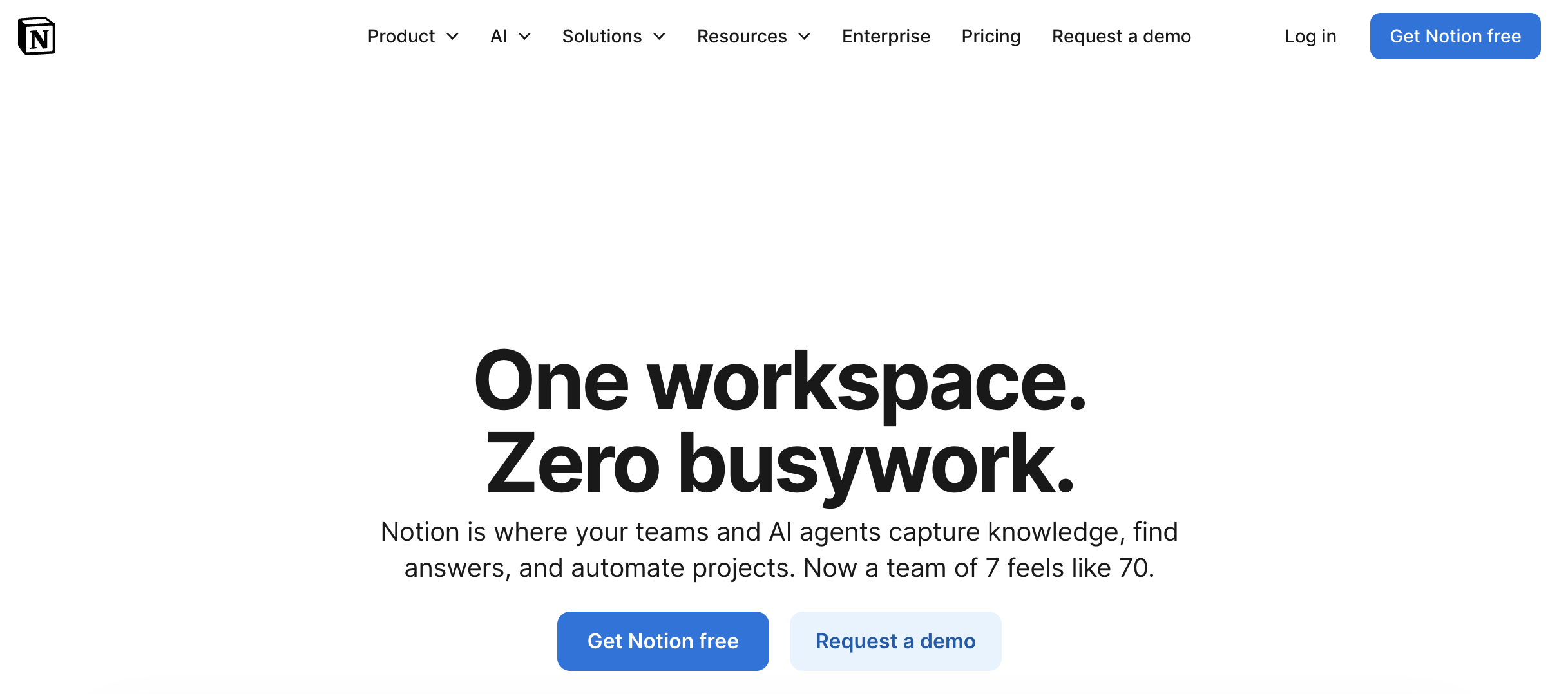
Notion AI is well suited for individuals and small teams who want a flexible workspace for documentation, notes, and light project management. Pricing starts free with premium plans at $10/month. Its flexible organization lets users customize structure easily, though the learning curve can be steep for new users. Ideal Use Case: Small team managing knowledge bases and project documentation.
2. ClickUp
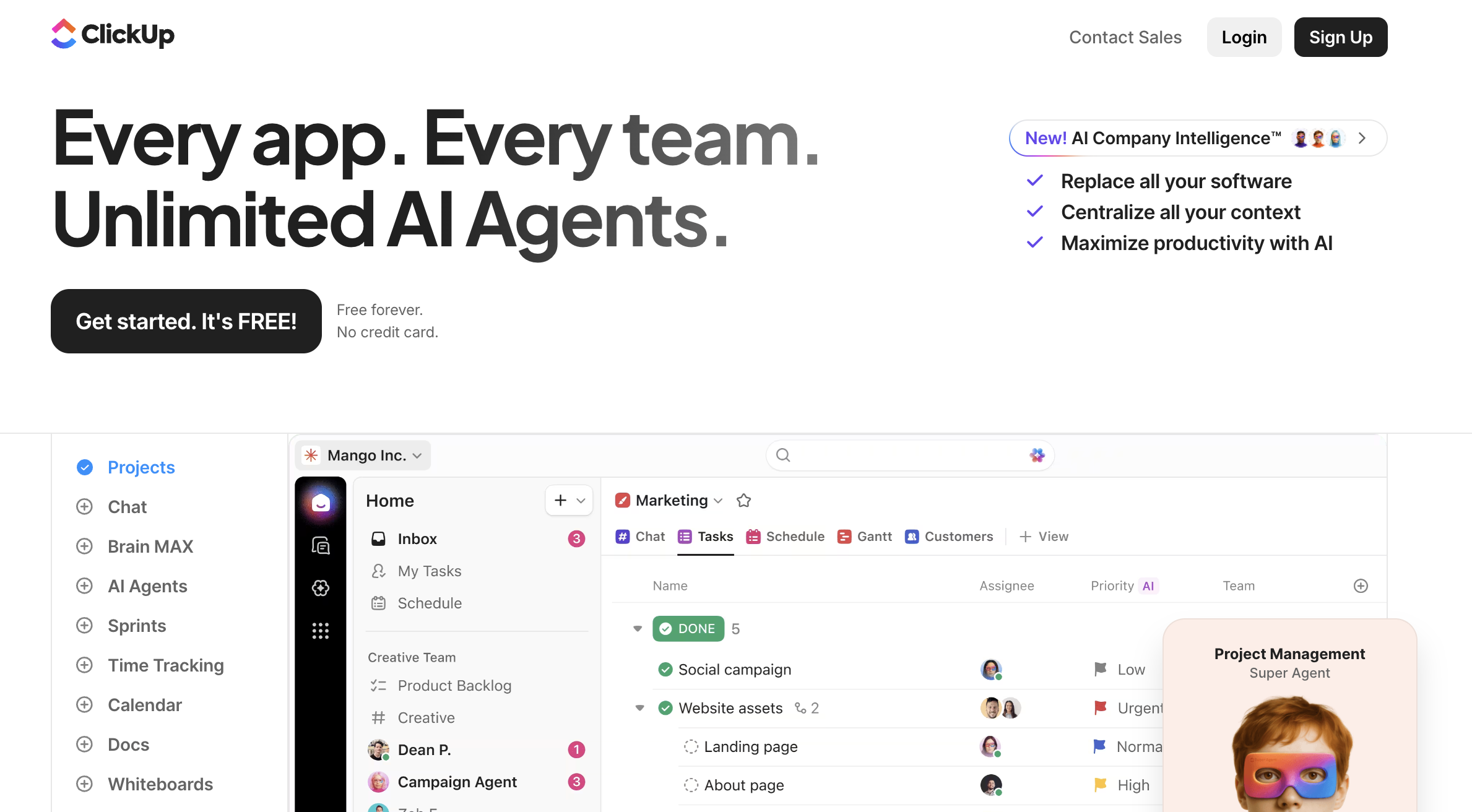
ClickUp is designed for teams that need structured project management and collaboration in one place. Starting free, with paid plans from $5/month, it integrates tasks, docs, goals, and chat. The major drawback is the sheer volume of features, which can feel overwhelming at first. Ideal Use Case: Team managing client workflows and cross-functional projects.
3. Zapier
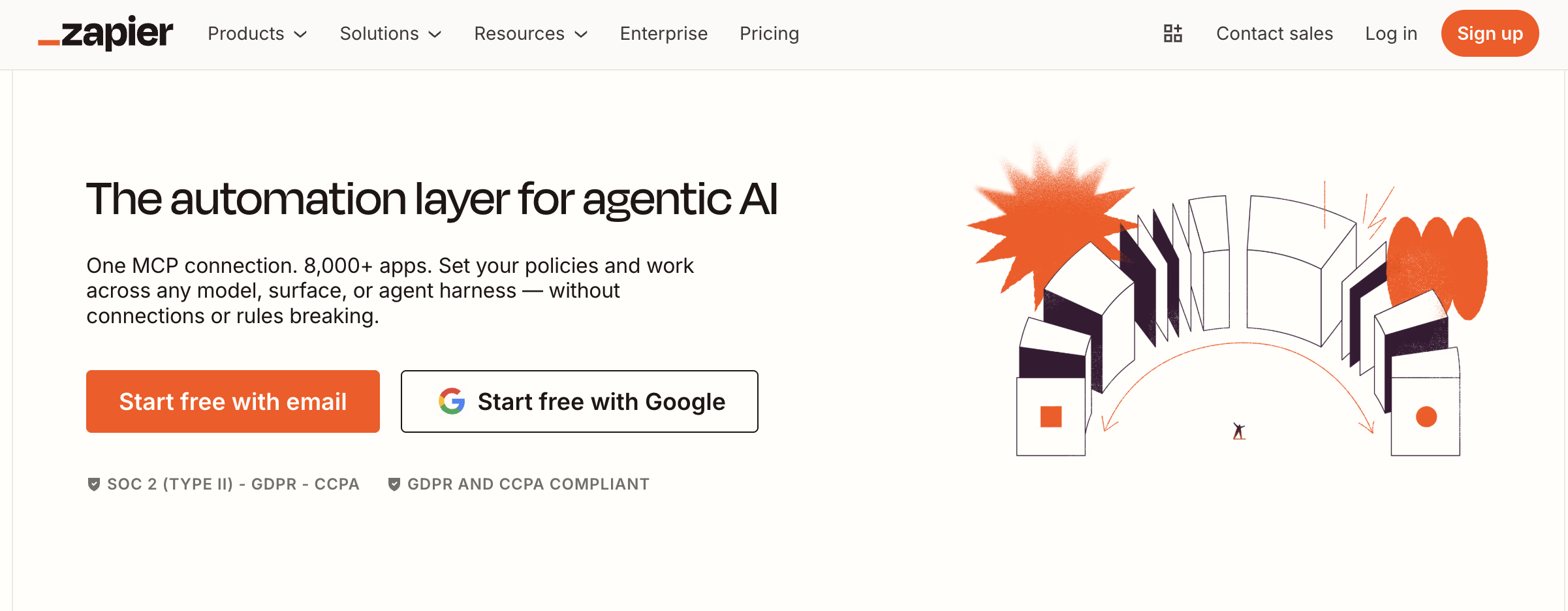
Zapier is built for teams that want to connect existing apps and automate repetitive tasks without writing code. Pricing starts at $0, with premium plans from $19.99/month. Its strength is creating complex multi-step automations across tools. The free version has limits on the number of active automations. Ideal Use Case: Teams automating handoffs between existing tools.
4. Airtable
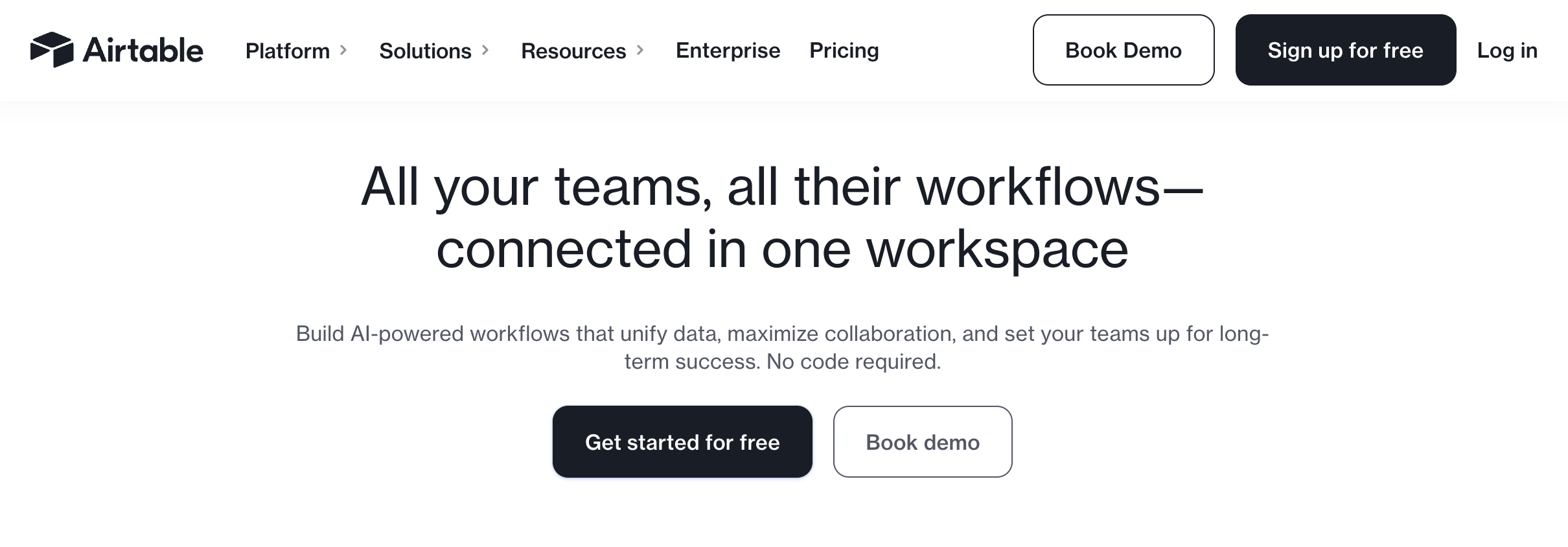
Airtable works well for teams that need flexible database functionality with a visual interface. With a free tier and paid plans from $10/month, it combines spreadsheet familiarity with relational database power. Advanced features can be confusing for new users. Ideal Use Case: Teams managing structured data across projects with integration needs.
5. Trello
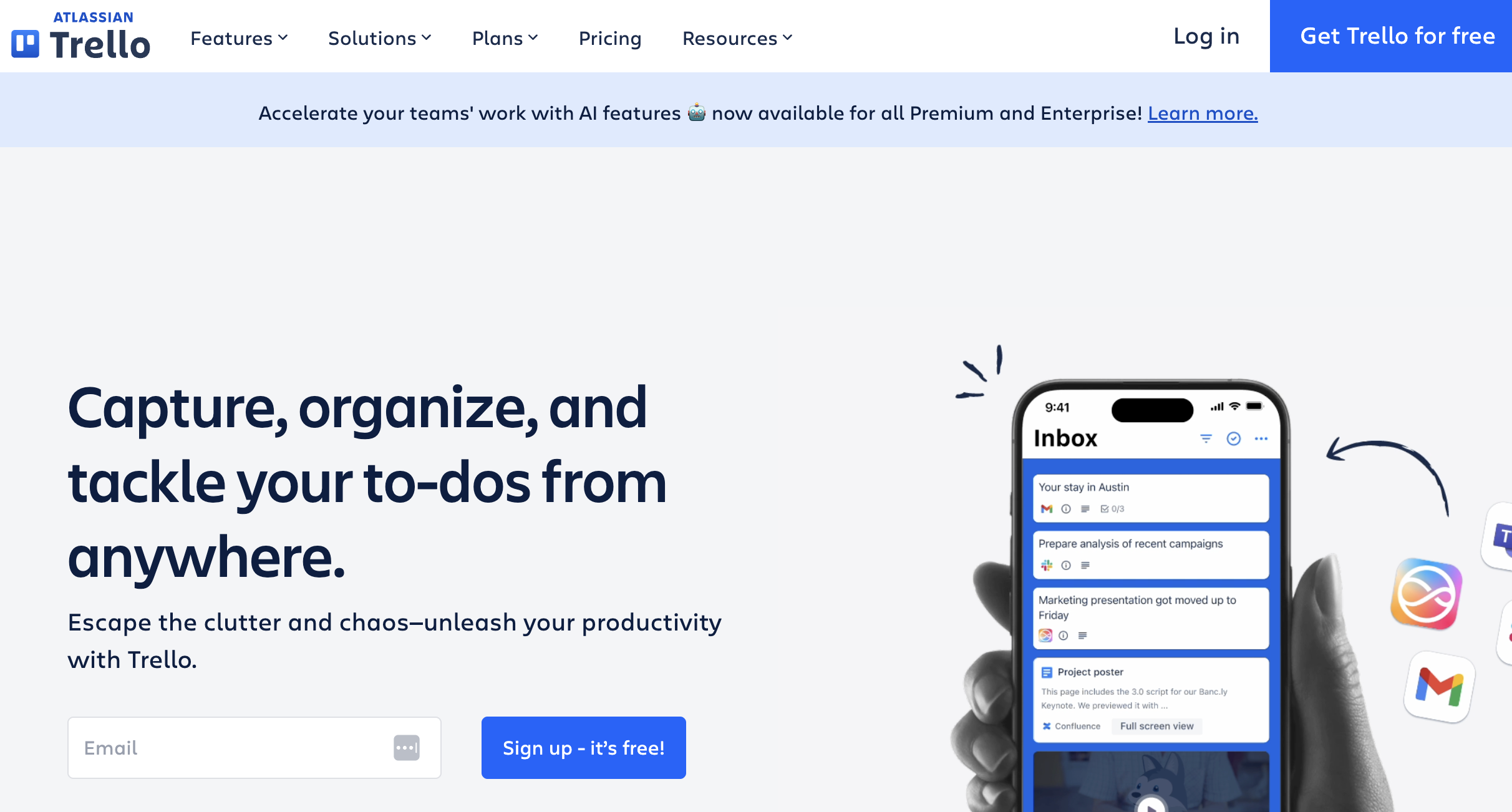
Trello is a straightforward visual task manager built around Kanban boards. It offers a free version with basic features and paid plans from $5/month. The drag-and-drop interface is intuitive, but it lacks depth for teams with complex workflows. Ideal Use Case: Small teams or individuals needing simple visual task tracking.
6. BridgeApp
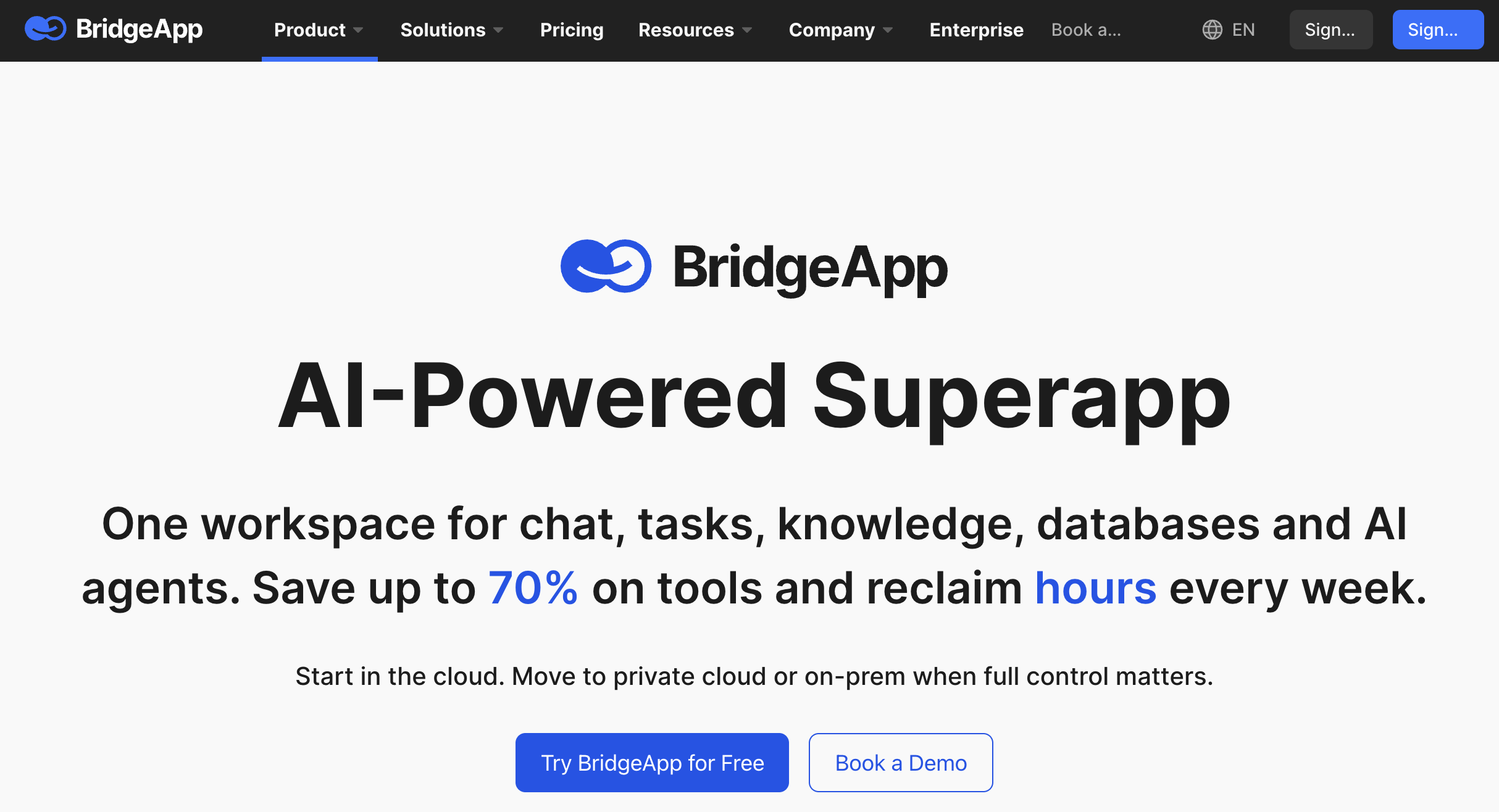
BridgeApp is built for teams that have outgrown the patchwork approach — using Slack for chat, Notion for docs, ClickUp for tasks, and separate tools for automation. Instead of connecting all of those, BridgeApp replaces them with a single AI-native platform: channels, task tracker, collaborative documents, custom databases, and a visual no-code AI agent builder, all in one place.
The AI agents work with your actual company context — chats, tasks, knowledge bases — so they can create tasks from conversations, generate reports, populate databases, and summarize threads automatically.
Teams using this approach save up to 4.6 hours per employee per week on routine work. BridgeApp also supports cloud, on-premise, private cloud, and hybrid deployment — making it one of the few options for organizations with strict data sovereignty requirements.
Ideal Use Case: Teams replacing 5+ tools with one unified AI workspace, or organizations that need on-premise deployment with custom AI automation. BridgeApp offers a free plan to get started, with paid tiers available as your team scales. Unlike platforms that lock core features behind paywalls, the free version gives teams access to the essential building blocks — communication, tasks, documents, and databases — so you can evaluate the full workflow before committing.
How Do You Set Up Your First AI Workspace? (Step-by-Step)
Sign up for a platform that matches your needs, connect your existing tools, and set up automations to handle the repetitive parts of your workflow. Here's how to do it in five steps.
Setup in 5 Steps
- Choose Your Workspace Platform
- Create Your Account
- Integrate Essential Tools
- Set Up Automations
- Complete Your First Task
Step 1: Choose Your Workspace Platform.
Start by selecting a workspace that fits how your team actually works. If your team is spread across multiple tools for communication, documentation, and task tracking, an all-in-one platform will save more time than adding another integration layer.
Step 2: Create Your Account.
Go to the platform's website and sign up. Most require an email address and password. Many offer a free tier so you can test the core features before committing.
Step 3: Integrate Essential Tools.
Head to the integrations section and connect the tools your team already uses — file storage, calendars, communication channels. The goal is to centralize resources so nothing gets lost between platforms.
Step 4: Set Up Automations.
With your tools connected, build automations for the tasks your team repeats most. Good starting points: turning chat messages into tasks, summarizing long discussion threads before standups, or routing incoming requests to the right project automatically. The more your automation understands your company's context, the more time it saves.
Step 5: Complete Your First Task.
Test the setup with something real — draft a project brief, assign tasks to teammates, or build a simple workflow. Seeing a concrete output early helps the team understand what the workspace can do and builds buy-in.
What Are the Most Common Mistakes When Picking or Using an AI Workspace?
Most workspace regrets come from these avoidable mistakes:
- Choosing Based on Features You Won't Use: Focus on what directly supports your team's actual workflow, not the longest feature list.
- Ignoring Integration Needs: Check compatibility with tools you already use before committing. A workspace that doesn't connect to your stack creates more friction, not less.
- Not Mapping Actual Workflows: Identify how your team works today before selecting a platform. The best workspace fits your process, not the other way around.
- Paying for Unused Features: Choose a plan that matches your actual usage. Upgrading later is always an option.
- Skipping Security Checks: Review deployment options and data handling policies, especially if your team works with sensitive client or internal data.
Mistakes to Avoid Checklist
- Focus on practical features over trends.
- Verify compatibility with existing tools.
- Map your workflows before evaluating platforms.
- Match your plan to actual usage, not aspirational usage.
- Review security and deployment options thoroughly.
Which Features Matter Most in an AI Workspace? (And Why)
Must-Have
- Integration Support: Connects with tools your team already uses.
- Automation Builder: No-code tools to eliminate repetitive tasks.
- Multi-User Collaboration: Real-time editing, comments, mentions.
- Data Privacy Compliance: Clear policies on where your data lives.
Nice-to-Have
- Advanced reporting dashboards
- Customizable templates
- Mobile access
- White-labeling options
In 2026, integration support, automation, and data privacy are table stakes. Any platform missing these will create problems as your team scales. Prioritize these before evaluating anything else.
How Much Does an AI Workspace Cost? (Free vs Paid Options)
AI workspaces range from free to $100+/month depending on team size and feature requirements. Most teams start on a free or low-cost tier and upgrade as their needs grow.
| Plan | Monthly Cost | Ideal For | Features Unlocked |
|---|---|---|---|
| Free | $0 | Individuals or small teams | Core features, limited integrations |
| Mid-tier | $10–30 | Growing teams | More automations, expanded storage |
| Paid Tier | $30+ | Larger teams or enterprises | Advanced automation, admin controls, priority support |
Watch for hidden costs: add-ons, per-seat pricing at scale, and premium integrations can significantly raise the monthly total. Always evaluate the full cost at your expected team size, not just the entry price.
Share this post
Leave a comment
All comments are moderated. Spammy and bot submitted comments are deleted. Please submit the comments that are helpful to others, and we'll approve your comments. A comment that includes outbound link will only be approved if the content is relevant to the topic, and has some value to our readers.
Comments (0)
No comment