

IP Address, Cybersecurity, Web Hosting
WordPress and IP Addresses: How to Block Attacks, Protect wp-admin and Read Visitor Locations Correctly
AI tools have made it much easier to build and run a WordPress site yourself. Here is what owners should know about the IP addresses reaching their site, and how to use them without locking out customers, blocking Google, or leaving wp-admin open.
AI tools now write the copy, suggest the plugins and walk owners through setup step by step. As a result, more small businesses run their own WordPress sites instead of hiring a developer. They choose the hosting, install the security plugins and switch on Cloudflare themselves, often for the first time.
Security is where many of them get caught out, and much of it comes back to one piece of data: the IP address. Get it wrong, and the mistakes are costly. Real customers get locked out, Google gets blocked, or wp-admin stays open to every bot on the internet.
Every request to a WordPress site comes from an IP address. It shows up in your server logs, your security plugin, your comments and your WooCommerce orders. Used well, it helps you spot attacks, block bad traffic and show visitors the right currency. Used badly, it can also leave you storing personal information you do not need.
This guide covers how WordPress uses IP addresses and how to put them to work safely.
Where WordPress records IP addresses
WordPress and its plugins collect IP addresses in more places than most owners realize:
- Comments: WordPress saves the IP address of every commenter in the database, alongside the comment.
- WooCommerce orders: Each order stores the customer's IP address, which payment and fraud tools use.
- Form plugins: Many contact form plugins save the sender's IP address with each entry by default.
- Security plugins: Wordfence, Solid Security, Limit Login Attempts Reloaded and similar tools log the IP address of failed logins and blocked requests. WordPress does not log login attempts on its own.
- Server logs: Your host's access and error logs record the IP address of every request, including ones WordPress never sees.
Knowing where this data sits matters for two reasons. It is where you look when something goes wrong, and it is what you need to manage under privacy law.
Reading an attack by IP address
Most attacks on small WordPress sites are automated. Bots scan large numbers of sites for known weaknesses and try common passwords. They leave patterns that are easy to read once you know what to look for.
Brute-force logins
Repeated POST requests to wp-login.php from the same address, or from many addresses in the same range, are a password-guessing attack. A security plugin's login log shows this directly. In raw server logs, look for hundreds of requests to wp-login.php within a few minutes.
XML-RPC abuse
The xmlrpc.php file lets apps talk to WordPress remotely. It also lets an attacker test many passwords in a single request. If you do not use the WordPress mobile app, Jetpack, or another tool that needs it, disable XML-RPC with a security plugin or block the file at the server.
Bad bots and scanners
Requests for files that do not exist on your site, such as old plugin paths, .env files or phpMyAdmin, come from scanners looking for weaknesses. So do bursts of requests at speeds no person could manage.
Looking up an IP address
When an address keeps appearing, look it up. An IP lookup tool shows the country, the network owner, and whether the address belongs to a hosting company, a mobile carrier, or a home broadband provider. Traffic from a data center trying to log in to your site is rarely a customer. Traffic from a local mobile network often is.
Be careful with bots that claim to be Google. Anyone can put "Googlebot" in a user agent. To confirm, run a reverse DNS lookup on the IP. A real Googlebot address resolves to a hostname ending in googlebot.com or google.com, and a forward lookup on that hostname returns the same IP.
Blocking by IP: the options compared
Once you know which traffic is bad, you can block it at several levels. The earlier the block happens, the less load it puts on your site.
| Method | Where it runs | Good for | Limits |
|---|---|---|---|
| Security plugin (Wordfence, Solid Security) | Inside WordPress | Quick setup, login limits, blocking from the dashboard | Runs after WordPress loads, so blocked requests still use server resources |
| .htaccess or Nginx rules | Web server | Blocking IPs or ranges before WordPress loads; protecting wp-login.php | Manual edits; a typo can take the site down |
| Host firewall | Hosting account or server | Network-level blocking, often with malware rules | Depends on the plan; entry-level hosting may not include it |
| Cloudflare or another CDN firewall | Before traffic reaches your server | Country rules, rate limiting, bot filtering, hiding your server IP | Needs real visitor IP set up on the server |
Table 1: Where to block traffic by IP address on a WordPress site.
On Apache hosting, a block in the .htaccess file looks like this:
<RequireAll>
  Require all granted
  Require not ip 198.51.100.23
  Require not ip 203.0.113.0/24
</RequireAll>
The first rule blocks a single address. The second blocks a range of 256 addresses using CIDR notation. The addresses in these examples are reserved for documentation, so replace them with the ones you want to block. On Nginx, the deny directive does the same job.
Why blocking one IP rarely ends an attack
Attackers rotate addresses. A botnet can send each login attempt from a different IP, and blocking them one at a time never catches up. Single-IP blocks are useful for a persistent scraper or a known bad actor. For automated attacks, rate limits, login limits, and firewall rules do more.
There is also a risk in the other direction. Mobile carriers often put many customers behind shared IP addresses, a setup known as carrier-grade NAT. Block one of those addresses, and you can block everyone sharing it.
Restricting wp-admin to your own IP addresses
If only a few people log in to your site, you can allow access to the login page from their IP addresses only. Everyone else gets a 403 error before WordPress loads.
<Files wp-login.php>
  Require ip 203.0.113.10
  Require ip 198.51.100.0/24
</Files>
This is one of the most effective protections for a small site. It also backfires in predictable ways:
- Home broadband IPs: Many home broadband plans assign dynamic IP addresses unless you pay for a static IP. When your address changes, you may be locked out.
- Mobile and travel: Logging in from a phone, café, or hotel may use a different IP address.
- Staff and contractors: Each person's IP address must be added to the allowlist and removed when access is no longer needed.
- admin-ajax.php: Many themes and plugins use /wp-admin/admin-ajax.php for front-end features such as filters, carts, and forms. If you restrict the entire wp-admin directory, make sure this endpoint remains accessible where needed, or those features may stop working for visitors.
Keep a way back in. Your hosting control panel or file manager lets you edit .htaccess if your address changes. If IP restrictions are too fragile for how you work, two-factor authentication on every admin account gives most of the protection without the lockouts.
Geo-blocking: when it helps and when it hurts
A local plumber or dental clinic gets almost no genuine inquiries from other countries. Blocking login attempts from other countries, or all traffic from countries that only send attacks, can cut bot traffic sharply.
Before you block a country, check what you would lose:
- Search engines: Search engine crawlers may access websites from IP addresses associated with different countries. Blocking entire regions can prevent crawlers from accessing your content and affect search visibility.
- Customers on VPNs: Some customers, and many businesses, route traffic through VPNs that exit in another country.
- Customers abroad: Local customers traveling abroad, and overseas buyers for an online store.
- Payment and service callbacks: Payment gateways, shipping tools, and uptime monitors often connect from overseas servers.
A safer approach is to block or challenge other countries on the login page and wp-admin only, and leave the public site open. Cloudflare's firewall rules and most security plugins can do this.
Getting the real visitor IP behind Cloudflare
Putting Cloudflare or another CDN in front of WordPress is one of the most useful steps an owner can take. It also causes the most common IP mistake I see.
Once traffic goes through a proxy, your server sees the proxy's IP address, not the visitor's. The visitor's real address travels in a header: CF-Connecting-IP for Cloudflare, or X-Forwarded-For for most other proxies. If your server and plugins are not set up to read it:
- Your security plugin blocks or rate-limits Cloudflare's addresses, which can block many real visitors at once.
- Login limits lock out everyone coming through the same Cloudflare data center.
- Comment, form, and order records all show Cloudflare's IPs.
- Analytics and geolocation show the wrong location.
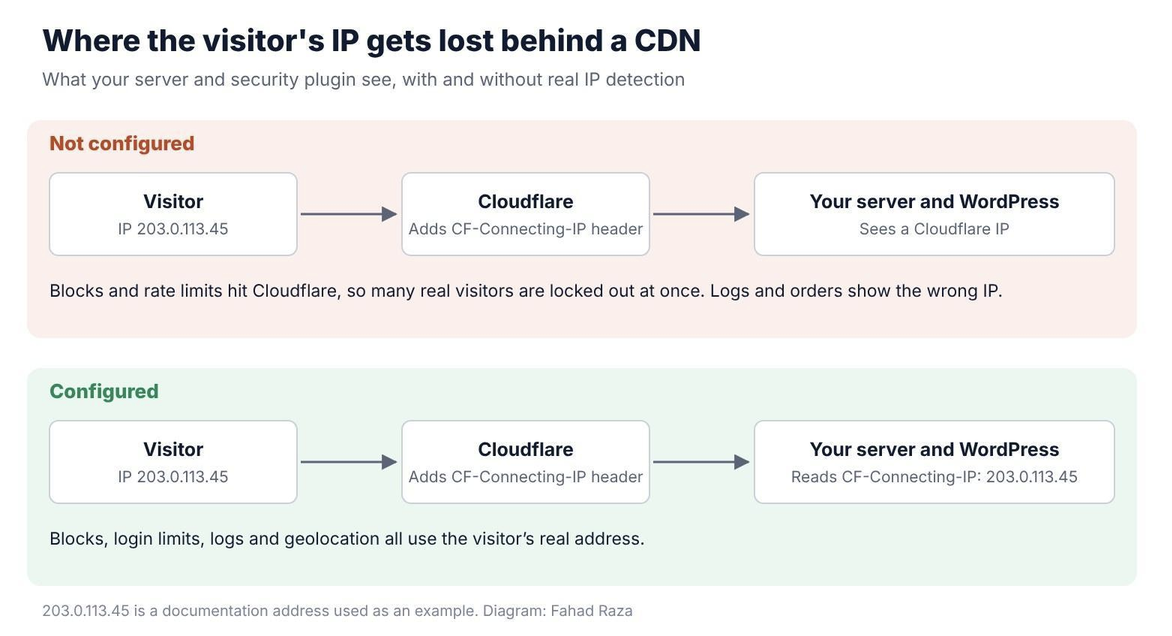
Figure 1: What your server and security plugin see, with and without real IP detection.
Fix it in two places:
- At the server: On Apache, mod_remoteip replaces the proxy IP with the real visitor IP, as long as you list Cloudflare's published IP ranges as trusted proxies. On Nginx, the real_ip module does the same job. Many hosts will set this up if you ask. If yours will not, a WordPress developer can configure the server and the security plugin together, so both read the same visitor IP.
- In your security plugin: Wordfence and similar plugins have a setting for how to detect visitor IPs. Choose the option that matches your setup, such as the CF-Connecting-IP header for Cloudflare.
Only trust these headers when they come from your proxy. Anyone can send a request with a fake X-Forwarded-For header. If your server trusts it from any source, an attacker can pretend to be any IP address, including one on your allowlist.
While you are there, close the back door. If your server still accepts traffic directly, attackers who find its real IP can go around Cloudflare. Ask your host to accept web traffic only from Cloudflare's IP ranges, and check that old DNS records, such as a mail or FTP subdomain, do not point at the same server and reveal its address.
Rate limiting without locking out customers
Rate limits slow down anyone making too many requests in a short time. They are the main defense against attacks that rotate IP addresses. Settings that work for most small sites:
- Login limits: Lock an IP out for a period after a handful of failed logins, with longer lockouts for repeat offenders.
- Tight limits on wp-login.php and xmlrpc.php: Neither has a reason to receive dozens of requests a minute.
- Loose limits on public pages: Customers browsing products or reading articles should never hit a limit.
- Challenges before blocks: For borderline traffic, a challenge such as Cloudflare's managed challenge or a CAPTCHA stops bots without turning away people.
Test after every change. Log out, then log in from your phone over mobile data. Submit your own contact form. If a WooCommerce checkout fails or a form stops sending, check the security plugin's log first.
Using IP geolocation on your site
IP addresses are not only for security. WordPress sites use geolocation to show the right currency, shipping options, tax, and local content.
WooCommerce has this built in. In its general settings, the default customer location can be set to geolocate visitors, using a MaxMind GeoLite2 database that needs a free MaxMind license key. If your site uses page caching, choose the option for geolocation with page caching support. Otherwise, one visitor's location can be cached and shown to everyone.
Know the limits of the data:
- Country is usually right. City and suburb often are not, especially in regional areas.
- Mobile networks can route traffic through a city hundreds of kilometers away.
- VPN users appear wherever their VPN exits.
- Business networks may show the location of a head office or data center.
Treat geolocation as a starting guess and let visitors change it. A shipping estimate should ask for a postcode before it is final. A fraud check that uses IP location, such as comparing an order's IP country with its billing address, should flag orders for review rather than cancel them automatically.
IPv6 and WordPress
A growing share of traffic uses IPv6, the newer, longer address format. Cloudflare and many hosts serve IPv6 by default. If your blocks, allowlists, and rate limits only cover IPv4, IPv6 traffic walks past them.
Check that your security plugin and server rules handle IPv6.
Add your own IPv6 address to any allowlist. Your connection may use it without you knowing.
Block IPv6 by range, not by single address. A connection usually gets a large block of addresses, often a /64, so an attacker can switch addresses without changing networks.
Require not ip 2001:db8:1234:5678::/64
IP addresses and privacy
An IP address can be personal information. Many privacy laws treat it that way when it can identify someone, for example when it is linked to a name or an account. The EU's GDPR treats IP addresses as personal data, and laws such as California's CCPA and Australia's Privacy Act can cover them too.
Which laws apply depends on where your business and your customers are, and on your business size. Either way, a few habits keep your site on the right side:
- Collect only what you use: If your contact form does not need the sender's IP, turn off IP storage in the form plugin.
- Set a retention period: Security logs older than 30 to 90 days are rarely needed. Most security plugins let you set how long logs are kept.
- Clear old comment IPs: WordPress keeps commenter IPs indefinitely. A privacy plugin or a scheduled database clean-up can remove them after a set time.
- Check your analytics: Google Analytics 4 does not store IP addresses, but other analytics tools and plugins may.
- Say what you collect: Your privacy policy should mention IP addresses, why you collect them, and who you share them with, such as Cloudflare, your analytics provider, and your payment gateway.
- Use the built-in privacy tools: Under Tools, WordPress can export or erase a person's data when they ask.
This is general information, not legal advice.
A monthly IP security checklist
- Review your security plugin's login and block logs for repeat IPs and ranges.
- Look up any address that keeps appearing, and block by range if it belongs to a hosting network.
- Update WordPress, plugins and themes, and delete anything inactive.
- Confirm your wp-login.php allowlist or two-factor authentication still works from your phone.
- If you use Cloudflare, check that visitor IPs in your logs are real addresses, not Cloudflare's.
- Check that your rules cover IPv6 as well as IPv4.
- Test your contact form and checkout over mobile data.
- Delete logs and stored IPs older than your retention period.
When to hand it over
Most of this is within reach of an owner who is comfortable in a hosting control panel. Some of it is not. Editing server configuration, setting up mod_remoteip, locking a server to Cloudflare's ranges and cleaning up a hacked site are jobs where a small mistake can take the site offline or leave a gap open.
If you would rather have it set up once and checked properly, a developer or your host's support team can configure the firewall, real IP detection and login protection, then hand back a site you can maintain yourself.
Conclusion
IP addresses play an important role in WordPress security, from identifying suspicious login attempts to managing firewall rules and controlling access to administrative areas. However, blocking traffic based on IP addresses alone can create problems for legitimate visitors, search engines, and essential website services.
The most effective approach combines IP monitoring with rate limiting, secure authentication, properly configured firewalls, and accurate visitor IP detection. Regularly reviewing security settings and limiting unnecessary IP data collection can help website owners protect their WordPress sites without compromising accessibility, performance, or user privacy.
Comments
Comments are available to signed-in users and are moderated to keep the discussion useful and respectful. Spam, automated submissions, and low-value promotional comments are removed. Outbound links may be approved when they are relevant and genuinely helpful to readers, but they are displayed as plain text rather than clickable hyperlinks.
No comments have been published yet.
Please sign in to submit a comment.