

Games, Geolocation, Online Tools
Why Your Minecraft Seed Viewer Shows the Wrong Map
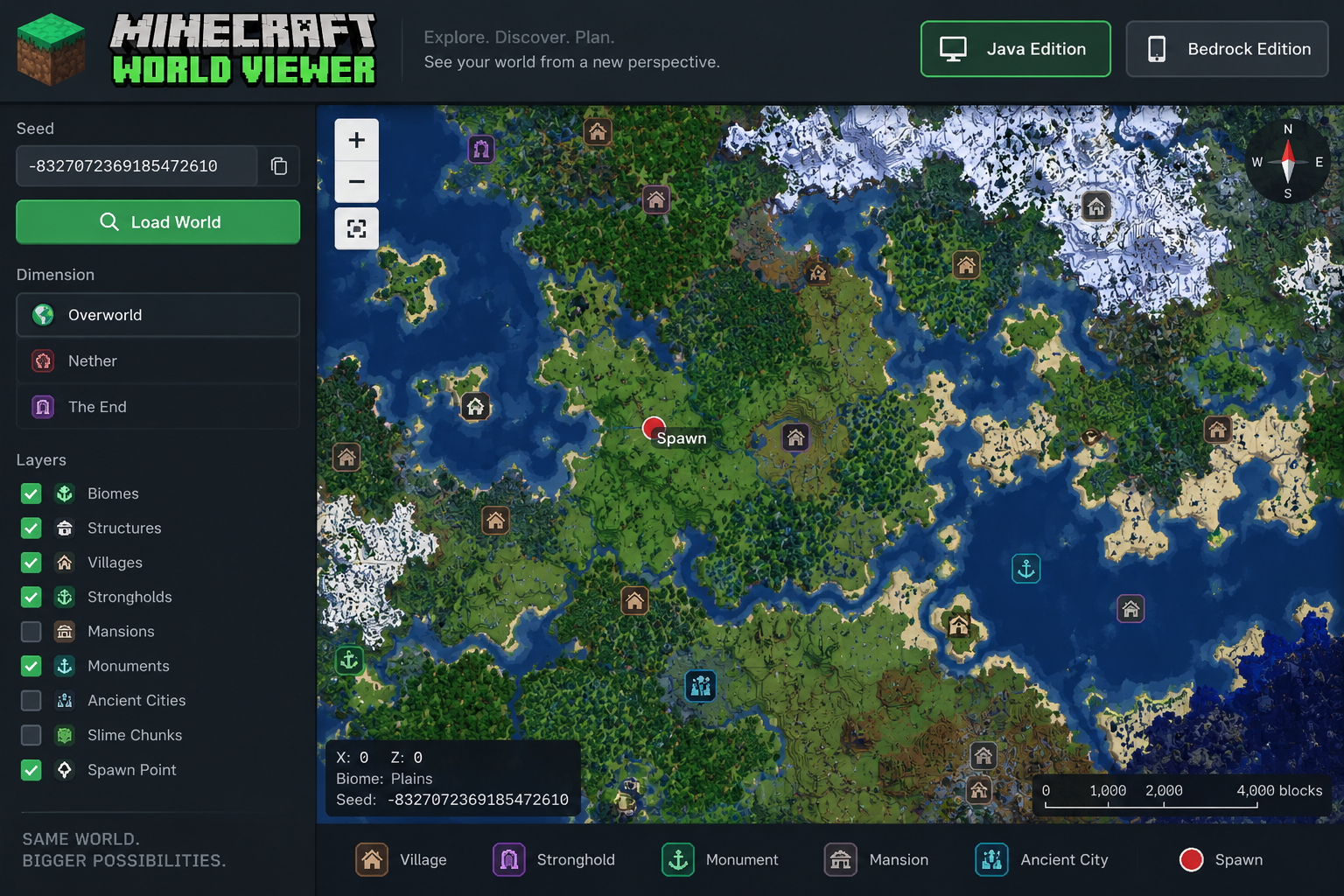
You copy a seed from Minecraft, open a map tool, and something is off. The village isn't where you expected. A biome looks wrong. Maybe the coastline doesn't match at all.
That doesn't always mean the seed is bad.
A Minecraft seed viewer needs the right information to recreate your world correctly. Game edition, version, and even a small mistake in the seed number can change what you see. So before searching for another tool, check the simple stuff first.
Check the Seed Number Again
Start with the obvious one.
Minecraft seeds can be long. Missing one digit or adding a space while copying is enough to send you looking at a completely different world.
Copy the seed directly from the game if possible. Don't type it from memory.
Then compare a few easy landmarks. Spawn near a large river? Look for it on the map. Have a desert beside a forest? Check that too.
A Minecraft map viewer by seed is much easier to check when you already know one or two places in the world.
If nothing matches, don't spend twenty minutes staring at the map. Go back and check the seed again.
Make Sure the Edition Matches
This one's pretty easy to miss. Minecraft has Java and Bedrock, so check the edition in your seed viewer Minecraft tool before trusting what it shows.
Also check the game version.
Minecraft world generation has changed over the years. Terrain from an older world may not align neatly with what a tool expects in a newer version.
That becomes even more noticeable with worlds you've kept for a long time. Areas generated years ago can sit beside terrain created after a later update.
So if your Minecraft world viewer looks right in one place and strange somewhere else, the history of the world may matter.
Test a Landmark You Already Know
Don't try to verify the entire map at once.
Pick something obvious in your existing world. A large mountain works. So does a coastline, desert, snowy area, or another feature that's hard to miss.
Then compare its coordinates with your Minecraft seed viewer.
Check it quickly and you'll probably see the problem. Wrong seed entirely, or just one feature showing up somewhere else.
Here's a simple order to follow:
- Copy the seed again.
- Confirm Java or Bedrock.
- Check the Minecraft version.
- Find a known location in your world.
- Compare its coordinates with the viewer.
- Check another landmark before changing anything.
Two matching places give you much more confidence than one.
Remember That a Viewer Isn't Your Save File
This part matters with older worlds.
A seed describes how Minecraft can generate a world. Your actual save also contains everything that has happened since you started playing.
You've built houses, removed hills, planted forests, and maybe explored areas across several game versions. A Minecraft world viewer based on the seed isn't reading all those changes from your save.
That's why expecting a perfect copy of your current world can cause confusion.
Seed inspection tools, including options from Godlike, can provide information about a Minecraft seed, although it's still worth opening the game when something on the map looks questionable.
The same applies to any seed viewer Minecraft setup. Treat the map as a way to understand the seed, not as a live picture of every block in your saved world.
Conclusion
A wrong-looking map usually has a reason. Check the seed, edition, version, and a couple of known coordinates first. If all that matches, things get a lot clearer. Either the viewer is off, or you're just looking at two different world versions.
Comments
Comments are available to signed-in users and are moderated to keep the discussion useful and respectful. Spam, automated submissions, and low-value promotional comments are removed. Outbound links may be approved when they are relevant and genuinely helpful to readers, but they are displayed as plain text rather than clickable hyperlinks.
No comments have been published yet.
Please sign in to submit a comment.