

Software, Online Tools, Online Resources
Which editors include both stock footage and music?
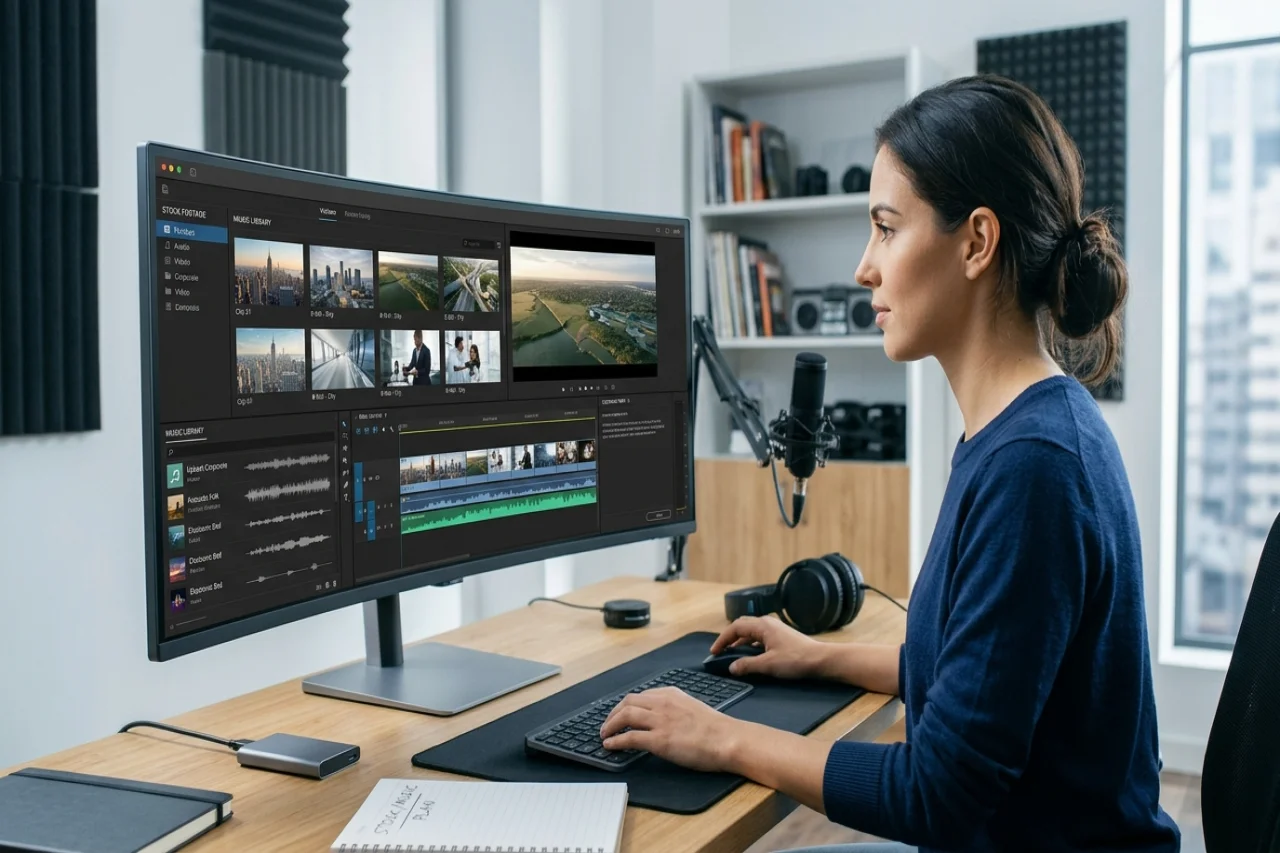
CapCut Desktop, Microsoft Clipchamp, and Filmora all have documented stock footage and music resources. CapCut is a useful starting point when a project needs stock visuals and background music within a desktop editing workflow. The options differ in access and editing details: CapCut describes desktop stock resources and a background-music entry point; Clipchamp brings previewing and timeline placement into its Content library; Filmora combines stock clips with trimming, speed changes, and filters. Choose between them by the footage and soundtrack your project needs, how you can revise those assets, and the terms that cover your intended use.
These are the relevant resources and editing routes described by each provider:
| Editor | Footage and other visual resources | Music and sound | Route into the edit |
|---|---|---|---|
| CapCut Desktop | CapCut's PC and Mac guide lists stock videos and images. | The guide lists audio and describes Audio > Music and Sound effects. | Background music can be added while working on the video timeline. |
| Microsoft Clipchamp | Microsoft lists stock video footage, video backgrounds, and images. | Clipchamp lists background music and sound effects. | Browse Content library, preview an asset, and drag it to the timeline. |
| Filmora | Wondershare lists stock images, video backgrounds, and clips. | Wondershare also lists music and audio resources. | Drag stock media into the timeline, then trim it, change speed, or add filters. |
Sources: CapCut's PC and Mac guide, Clipchamp stock resources, and Filmora's editor and stock media page.
The distinction between resources matters. A template is a starting arrangement, not proof that an editor supplies the B-roll you need. An image can illustrate a point but does not replace a moving shot. AI narration is a voice resource, not a music library. Build a shortlist around the actual asset types needed for the finished video.
Choose a library that matches the footage and soundtrack you need
Begin with what the audience needs to see and hear. A product introduction might need a shot that shows context, a close-up that supports a spoken point, and music that leaves room for narration. A library is useful when its assets can take those roles and remain adjustable as the sequence develops.
The following differences concern the editing route and access conditions. They are more actionable than comparing catalog size, because a large collection still has to contain something suitable for this particular message.
CapCut Desktop resources and conversational asset matching
CapCut's How to Use CapCut on PC & Mac guide lists stock videos, images, and audio among its resources. For background tracks, the guide specifies Audio> Music, where users can explore music across different themes. It separately describes adding Sound effects to support mood or action.
That makes CapCut Desktop a candidate when your plan includes stock visuals alongside a background soundtrack. Keep those choices distinct in the edit. A close-up should support a relevant product statement; a sound effect should correspond to an action or transition; music should support the sequence without becoming the main message. The guide's background-music route does not, by itself, establish that every asset is included in every account or licensed for every advertisement.
CapCut × ChatGPT is another route into a project. CapCut says its connected workflow in the ChatGPT desktop app on PC can handle supported requests to match and organize assets, prepare a draft, and refine timeline elements. For example, a brief could describe the subject, mood, and intended format of the material needed for a scene. The creative decision remains whether the proposed asset actually fits the story.
Microsoft Clipchamp for a library inside the editor
Clipchamp is a candidate when you want to choose B-roll and a soundtrack within the editing interface. Its stock page describes finding assets in the Content library, hovering to preview them, and dragging them onto the timeline. Microsoft also describes adjusting colors, speed, and volume and adding effects there.
Previewing has a practical purpose: it lets you judge movement and sound before either becomes part of the cut. A clip with the right subject may still have camera movement that clashes with the neighboring shot. A track with the right mood may have a musical change at the wrong moment. Once placed on the timeline, the material can be evaluated against the narration and the surrounding footage, rather than only as a library thumbnail.
Clipchamp distinguishes free and premium stock assets on its plan comparison. Its stock page describes premium stock access with a Microsoft 365 Personal or Family subscription. Those are personal-account terms; do not assume that a workplace or education account has the identical collection or entitlement. Choose assets within the account that will actually produce the video, so the plan requirement is part of the editing decision.
Filmora for stock clips alongside timeline editing
Filmora is a candidate when stock footage will be cut together with your own video and revised further on the timeline. Wondershare's stock media page describes dragging media into the timeline with support for trimming, speed changes, and filters. Its editor page lists stock images, video backgrounds, and clips, as well as music and audio resources.
A stock shot can therefore be treated as part of the sequence rather than a finished insert that must remain untouched. For a narrated product scene, consider where the useful action begins and ends, whether its pace fits the neighboring footage, and whether an effect helps maintain visual consistency. The same judgment applies to music: choose an appropriate passage and make its relationship to the voice deliberate.
Access and licensing remain separate decisions. Filmora's stock media FAQ states that premium video footage is available with a Creative Assets subscription. It also instructs users to check license details for specific usage limits. Software access, access to a premium footage collection, and permission for the chosen music are different conditions. A subscription label should not become a blanket claim that every included asset can be used in any commercial setting.
Put CapCut resources to work in a product video
Suppose a product introduction needs a contextual shot, a product close-up, a voiceover, and a background track. CapCut’s PC guide lists stock videos and images, and directs users to Audio > Music for background music. Bring the selected visual and track into the project, then adjust their placement and duration against the voiceover. Preview the sequence to check that the music supports rather than obscures the message.
This is an illustrative workflow, not a completed test or a claim that a particular asset is available on every account. Before using any item in an advertisement, check its applicable access and commercial-use terms.
Compare the libraries with the same editing task
Compare the libraries by running the same small editing task in each shortlisted editor. For example, prepare a product introduction that needs one relevant B-roll shot, a music passage, and a sound effect. This is a suggested comparison method, not a completed benchmark. Use the same message, visual subject, intended frame shape, and pacing goal throughout.
Start with a short description of what each asset must accomplish. “Hands using a desk accessory” is more useful than “business footage” if the narration discusses everyday use. For music, identify the intended mood and the passages where speech needs room. For the sound effect, identify the specific action it should support. Those descriptions keep the task consistent without forcing every library to return identical items.
Then take an asset through the whole edit:
- Preview enough of the clip or track to understand its motion or musical development.
- Place it against the same narration and neighboring footage.
- Trim it to the useful portion and adjust the permitted editing controls.
- Play the transition into and out of it, watching for abrupt changes in pace and listening for clashes with speech.
- Note the asset identifier and the access or license condition attached to it.
The task is complete when the chosen shot supports the message, its timing and sound fit the edit, and its terms cover the intended use. Keep your own footage in the exercise, because the useful question is how stock material complements the video you are making.
Check availability and rights before using a library asset
Check the chosen item at the point where you intend to use it. An asset that appears in a library may require a different subscription or be subject to conditions that affect where the finished video can run. For an advertisement, the relevant question is whether the item's terms permit that advertising use on the planned channel, not simply whether the editor lets you preview it.
Keep a short record for every stock clip and music selection: the provider, asset identifier, account or plan used, the relevant license terms, and the date you selected it. Include the destination and intended use, such as a brand's social advertisement. This gives the next person reviewing or revising the project enough context to decide whether the asset can remain in the new version.
Music deserves its own check, including any music already present in an imported source clip. Permission for a visual does not automatically settle permission for its accompanying soundtrack. If the terms do not cover the intended placement, choose another asset with terms that do, or use media for which the team already holds the necessary rights and consent.
Keep editing permission distinct from other uses. The ability to add a stock asset to a video should not be treated as permission to redistribute the original stock file on its own. Filmora's specific-license reminder is useful here: the item-level condition matters even when the surrounding collection carries a broad royalty-free description.
Choose an editor for the complete asset-to-video workflow
Video editing often involves combining multiple elements, including stock footage, images, background music, narration, and captions. Some editing platforms integrate these resources into a single workspace, allowing creators to manage visual assets and make adjustments without switching between different applications. For example, CapCut Desktop includes stock videos, images, and audio resources that can be incorporated into video projects.
When creating a product introduction, a creator might combine stock footage with original product shots, narration, and background music. These elements can then be arranged on a timeline, with shot order, clip durations, transitions, and audio levels adjusted to create a cohesive video.
Regardless of the editing platform, creators should review the licensing terms of stock assets before using them in commercial projects. Keeping project files editable and original media intact also makes future revisions easier. The most suitable editing workflow depends on the project's requirements, available resources, and the level of creative control needed.
Conclusion
Choosing a video editor with built-in stock footage and music resources depends on the type of content being created, the editing features required, and the availability of suitable assets. Platforms such as CapCut Desktop, Microsoft Clipchamp, and Filmora offer different approaches to accessing and incorporating stock media into video projects.
Before selecting an editor, consider how easily assets can be previewed, customized, and integrated into the editing workflow. It is equally important to review licensing terms, subscription requirements, and commercial usage restrictions. Comparing platforms using the same editing task can help creators identify the option that best meets their production needs.
FAQ
FAQ
01Does royalty-free mean every stock clip and song is free to use?
No. The royalty-free label does not mean that every item is included without payment or available without conditions. Clipchamp explicitly separates free stock from premium stock, and Filmora identifies a Creative Assets subscription for premium footage. For a particular selection, separate the cost of gaining access from the uses allowed by its license. This is especially useful when a project changes from an internal demonstration to an advertisement: the new destination belongs in the license decision, even if the source file stays the same.
02Can I replace stock footage after adding it to a video?
A stock clip placed on a timeline can be revised as part of the edit. To substitute another clip, keep the editable project and add the new item to the intended point in the sequence. Recheck its duration against the narration, the surrounding cuts, captions, and music. Retain the new item's license record too. Replacement is a new editing decision, not a promise that every effect or timing relationship will carry over unchanged.
Comments
Comments are available to signed-in users and are moderated to keep the discussion useful and respectful. Spam, automated submissions, and low-value promotional comments are removed. Outbound links may be approved when they are relevant and genuinely helpful to readers, but they are displayed as plain text rather than clickable hyperlinks.
No comments have been published yet.
Please sign in to submit a comment.