

IP Address, Virtual Private Network, Privacy
What Changes When You Use a VPN? IP Addresses and Privacy Explained
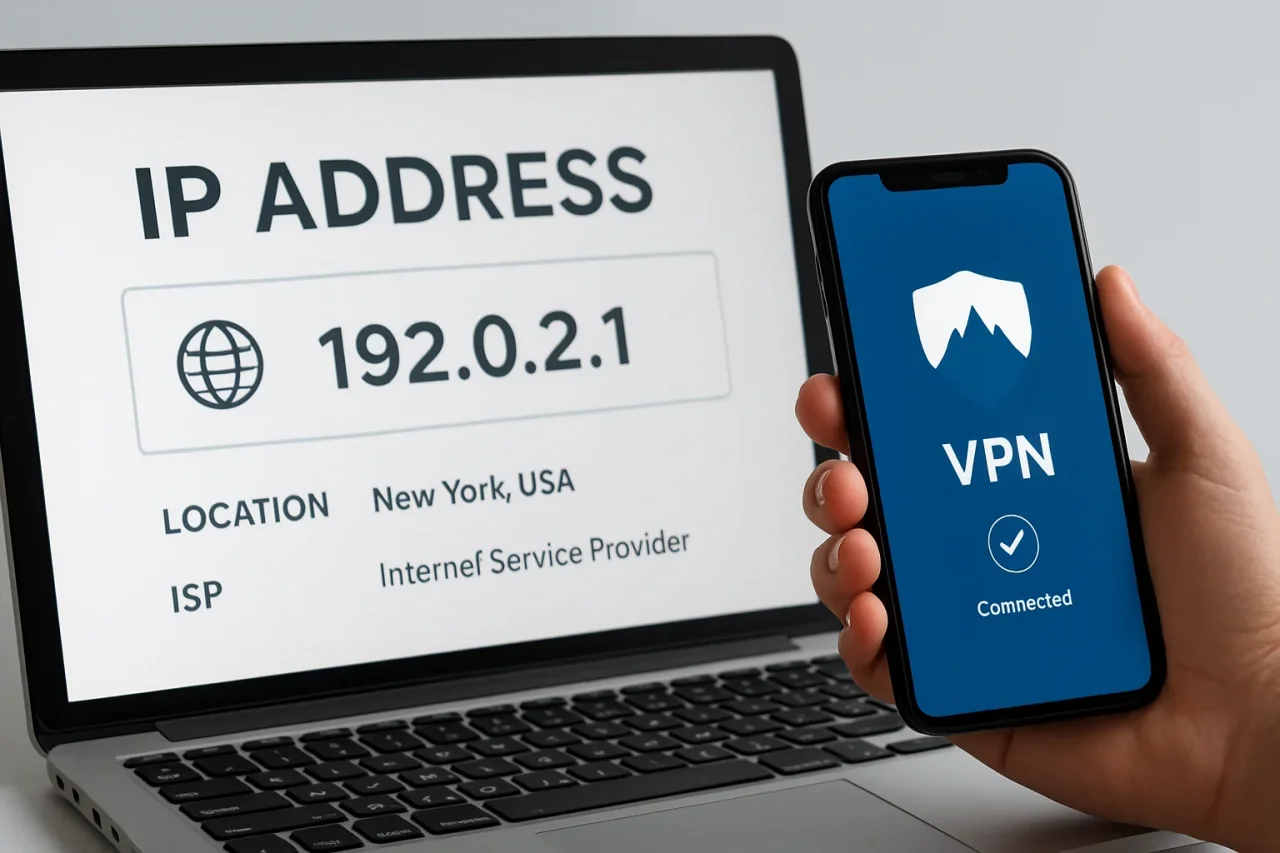
Open an IP lookup website and it can usually display information about your internet connection within seconds. You may see a country, a city, and the name of a network provider. Connect to a VPN, refresh the page, and some of those details change.
That simple comparison is often someone’s first introduction to VPN technology. But what has actually changed? Understanding the answer helps you use a VPN more effectively and interpret privacy claims without expecting the software to do things it was never designed to do.
Your public IP address describes a connection
A public IP address is part of the addressing system that allows information to travel across the internet. Websites receive an IP address associated with the connection reaching them, and lookup services use databases to associate that address with a network and an approximate location.
Those results are not the same as a live GPS reading. A displayed city may reflect the way a provider organizes its network, and different lookup databases can return different results. Seeing a nearby city instead of your own does not automatically indicate a problem.
For a useful comparison, record the actual public IP address before connecting to a VPN. The address itself is a clearer starting point than relying only on the city name displayed beside it.
A VPN changes the route your traffic takes
A consumer VPN creates an encrypted connection between your device and a VPN server. For traffic routed through that connection, websites generally see the server’s outward-facing IP address instead of the address associated with your ordinary connection.
A service such as PlainVPN provides applications for establishing that connection and choosing a server location. The practical result is a different network route and a different public address visible to the websites you visit through it.
This does not mean your internet provider disappears from the process. It still carries the connection to the VPN server. The VPN changes what can be observed along that part of the route and introduces a provider you need to trust.
Location signals do not always agree
Suppose you select a VPN server in another country, but a website continues showing content associated with your usual location. That alone does not prove the VPN is disconnected.
A website may remember a country you previously selected, use information from your account, or rely on location permissions you granted. An IP-based location estimate is only one possible input.
Start by checking the public IP address again. Then review the website’s own region settings and the location permissions in your browser or operating system. Changing a network address does not automatically reset every preference stored by an application.
This distinction is particularly useful when troubleshooting. It prevents you from repeatedly switching VPN servers when the result you are seeing comes from an account setting.
HTTPS still matters
VPN encryption and HTTPS protect different parts of a connection. The VPN tunnel protects traffic between your device and the VPN server, while HTTPS protects the communication between your browser and the website.
Keep using HTTPS websites whether the VPN is connected or not. A VPN does not turn an untrustworthy website into a safe one, and it cannot prevent you from voluntarily submitting information to a fraudulent form.
The same applies to account security. Unique passwords, multifactor authentication, software updates, and careful attention to login prompts remain useful habits alongside a VPN.
Check the application that matters
A browser-based IP check tells you about the connection used for that browser request. It should not be treated as proof that every application on the device is following the same route.
This matters when split tunneling is enabled. If an application is configured to bypass the VPN, it may continue using the ordinary connection even while other applications use the tunnel.
Desktop users can review the controls available in VPN for Windows, including app-based split tunneling and a kill switch. Before changing routing settings, decide which applications you want covered and which, if any, need an exception.
A useful habit is to check your settings after making changes rather than assuming that a connected indicator explains every application’s behavior.
Build a repeatable connection check
You do not need a complicated testing routine to catch obvious mistakes. Begin with the VPN disconnected and note your public IP address. Connect to your chosen location, wait for the application to report success, and refresh the lookup page.
If the address has not changed, check that the browser is not excluded from the tunnel. If the address changes but the location looks unexpected, compare another lookup database before drawing a conclusion. If browsing stops entirely, review the application’s connection status and kill-switch settings.
These checks provide useful observations to share with support: the selected location, whether the public address changed, and which applications are affected. Clear details are much more helpful than simply reporting that the VPN “looks wrong.”
A VPN is easier to use when you understand the connection it changes. Combine that understanding with sensible application settings and everyday account security, and you can make more informed decisions about your online privacy.
Comments
Comments are available to signed-in users and are moderated to keep the discussion useful and respectful. Spam, automated submissions, and low-value promotional comments are removed. Outbound links may be approved when they are relevant and genuinely helpful to readers, but they are displayed as plain text rather than clickable hyperlinks.
No comments have been published yet.
Please sign in to submit a comment.