

IP Address, Privacy, Online Tools
What Actually Happens When You Click “Generate” on an AI Image Tool
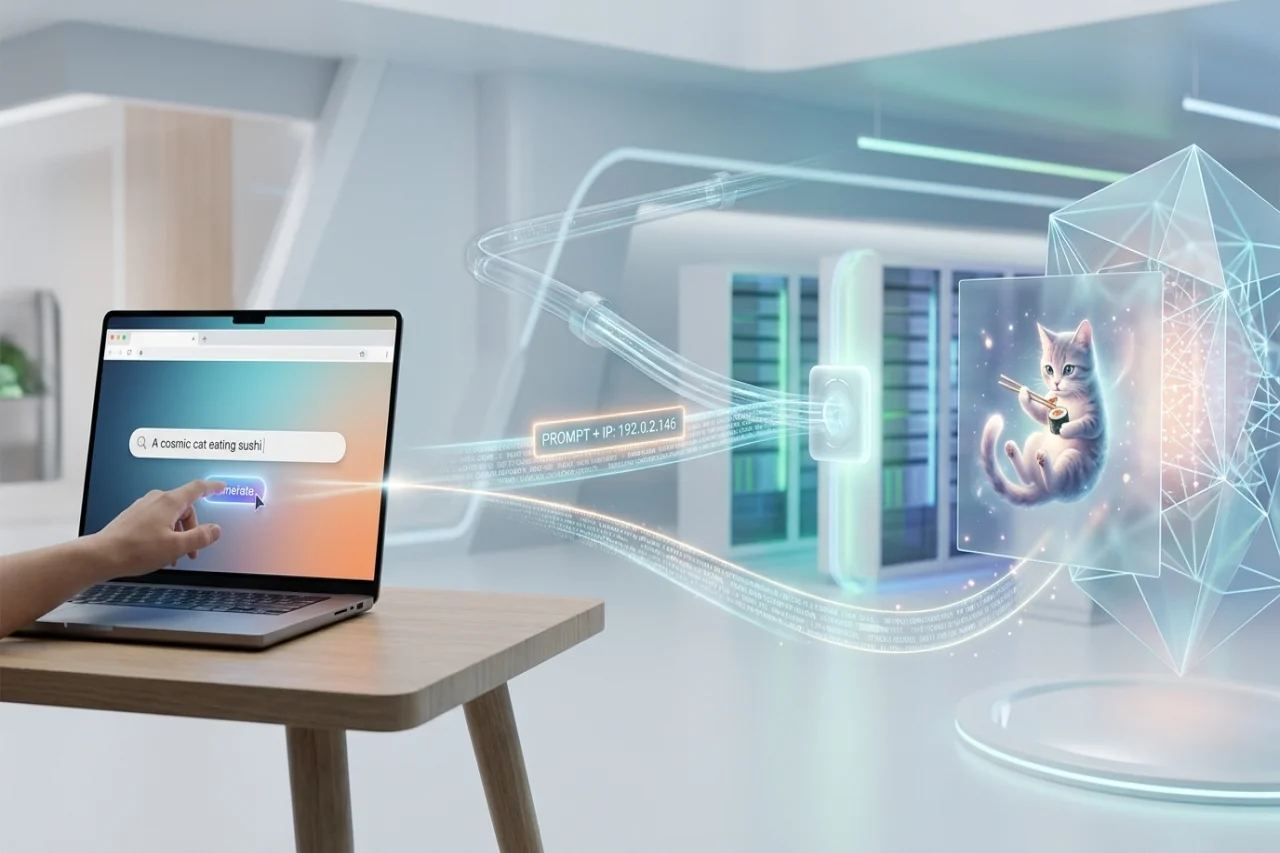
You type a sentence, press a button, and about ten seconds later a picture appears. It feels like one step. It isn’t. Between your click and that image, your request passes through several hands, and understanding the route explains a lot of things people find odd about AI tools: why they’re sometimes slow, why they occasionally fail, and why what you type isn’t as private as it feels.
I got curious about this after building a small image feature for a side project using ToAPIs, a gateway that lets one app talk to a few hundred different AI models through a single connection. Seeing the plumbing up close made me look at every AI tool differently, so here’s the plain-English version.
Step one: your request leaves your device
When you press the button, your browser or phone sends your text to the app’s servers. Along with it travels some ordinary technical baggage: your public IP address, details about your browser, and a rough idea of your network. None of this is unusual. Every website you visit receives it.
Your IP address is worth a quick note here. It can reveal information about your internet connection, including your internet service provider. However, it doesn't directly identify you or reveal your exact physical address. That's why an AI app may recognize certain details about your network without knowing your precise whereabouts.
Step two: the app decides where to send it
The app you’re using usually doesn’t create the image itself. Most of them rely on a model run by someone else, which means the app’s server forwards your prompt on to a model provider through an API.
This is where things get messy for the people building these tools. Each provider has its own format, its own pricing, its own limits,s and its own bad days. Plenty of developers end up supporting several at once so that one outage doesn’t take the whole product down, and that’s the job a gateway handles. The app sends a single standard request, and the gateway determines which model should receive it and what to do if that model is busy.
Step three: the model does the actual work
The image model reads your text and generates a picture, which takes real computing power. This is the slow part, and it’s the reason many image services work in two stages. Instead of keeping the connection open and making you wait, the app submits your job, receives a ticket, and then checks periodically until the result is ready.
If you’ve ever watched a progress spinner and wondered why it sometimes hangs for a moment before jumping to done, that’s usually this: a queue, a job being processed, and a status check.
Step four: the result comes back
The finished image makes the return trip, from the model to the gateway, to the app’s server, and finally to your screen. If anything fails along the way, such as a busy model or a temporary limit, a well-built app will retry or switch to a backup model. A badly built one shows you an error message. That difference is a big part of why two apps using similar technology can feel so different to use.
Why this matters to you
Knowing the route helps you make sense of a few things:
- Why do results vary? Different apps may use different models behind the scenes so that the same prompt can look quite different from one tool to another.
- Why things sometimes break. More moving parts means more places for a hiccup. An error often means a busy provider, not a problem with your prompt.
- Why your prompt isn’t a private diary. Your text and any images you upload pass through systems you can’t see. Handling and retention vary widely across services, so it’s worth reading a tool’s privacy policy before you feed it anything personal, such as photos of family members, documents, or anything you’d be uncomfortable with being leaked.
A few habits worth adopting
- Treat uploads as semi-public. If you wouldn’t be happy for a stranger to see the photo, think twice before putting it into an online generator.
- Don’t assume a VPN makes you anonymous. It can change the IP address a service sees, which helps in some situations, but the app still receives everything you type and upload.
- And be wary of tools that promise wildly different results for free. Running image models costs money, so if the price looks too good to be true, it’s worth asking how the service is funded.
Where the image models fit in
On the developer side, the model you choose shapes what the tool can do. When I was building my project, I used the GPT Image 2 API because it could handle both generating an image from text and editing an existing image using a reference. That second ability is why so many modern tools let you upload a photo and ask for a different style or a cleaned-up background. It isn’t a separate trick, just another way of using the same kind of model.
Conclusion
Clicking “generate” starts a small relay race: your device, the app, a gateway or provider, a model, and back again. Most of the time it works so smoothly you’d never notice. But once you know the route, you can judge these tools more sensibly, which means a bit more patience when they’re slow, a bit more caution about what you upload, and a better sense of what’s actually going on behind that spinner.
Comments
Comments are available to signed-in users and are moderated to keep the discussion useful and respectful. Spam, automated submissions, and low-value promotional comments are removed. Outbound links may be approved when they are relevant and genuinely helpful to readers, but they are displayed as plain text rather than clickable hyperlinks.
No comments have been published yet.
Please sign in to submit a comment.