

Artificial Intelligence, Software, Online Tools
Top 5 Google VEO Alternatives for Video Generation

Google VEO makes strong AI video with sound built in. But it is not the right fit for everyone. Clips are short by default. Full access is pricey. Credits go fast. I pick an AI video generator based on my requirements and the situation. Not on hype.
Why People Look for Google VEO Alternatives
AI video generation is growing fast.
According to Wyzowl's State of Video Marketing 2026 report, 63% of video marketers now use AI tools to create or edit video. A year earlier, it was 51%.
Fortune Business Insights puts the AI video generator market at about $847 million in 2026. It projects $3.35 billion by 2034, at an 18.8% yearly growth rate.
More demand means more tools. More tools means more choice.
That is good news. It also makes picking harder.
This guide is based on published specs, official pricing pages, and independent roundups. Prices were checked in October 2026. They change often, so confirm on each vendor's page before you pay.
What Is Google VEO?
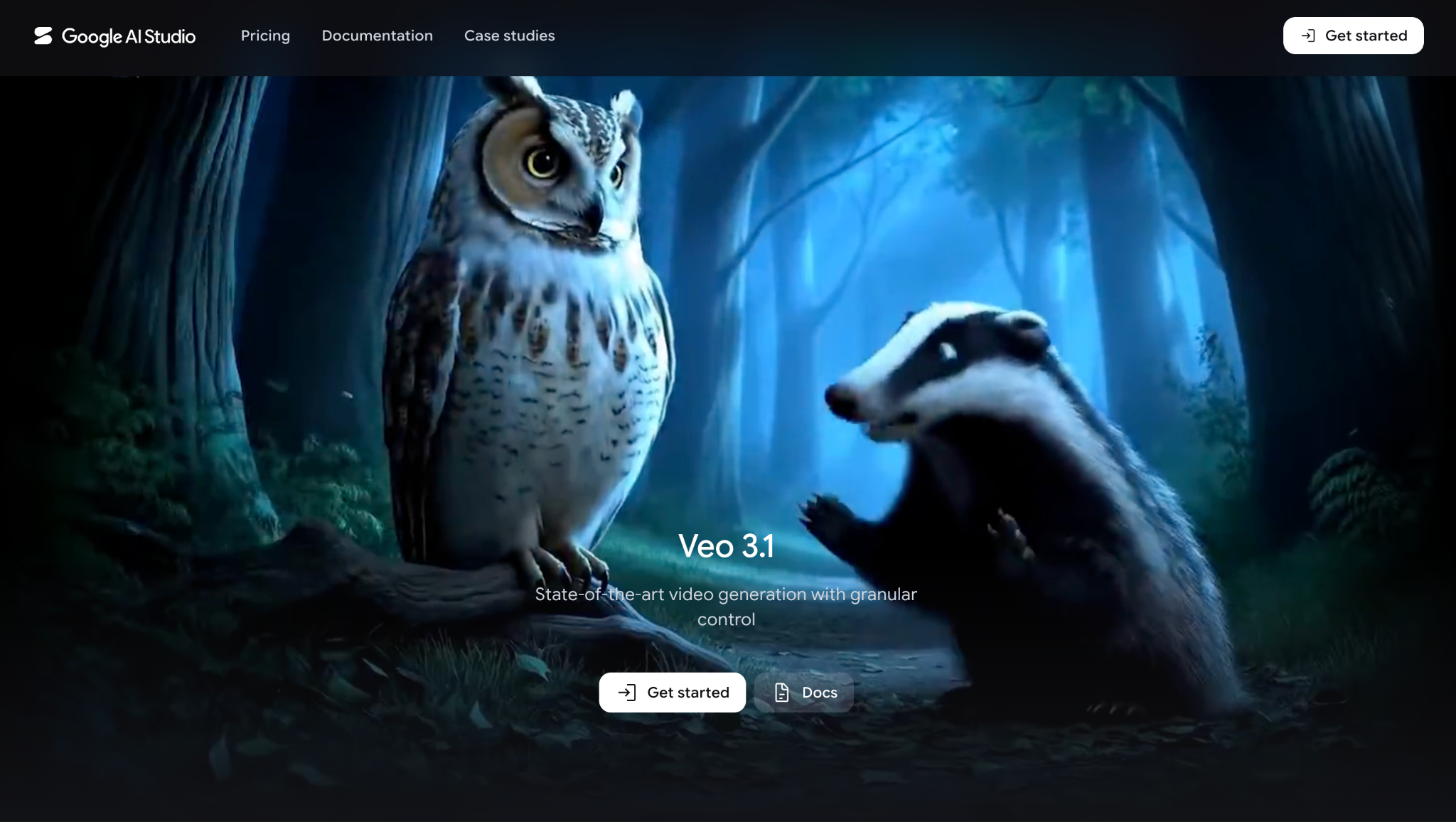
Google VEO is Google DeepMind's AI video model. The latest public version is Veo 3.1.
It can generate a video from a text prompt or from an image. People call these prompt-to-video and image-to-video.
It also creates sound in the same step. That includes speech, background noise, and effects.
You can reach it through Gemini and Google Flow. Developers can also try it through Google AI Studio and the API. What you get depends on your plan and region.
A few facts worth knowing:
- Clips are 8 seconds by default. You extend them inside Google Flow.
- Google AI Pro costs $19.99 a month. It includes trial access to Veo 3.1 Lite.
- Full Veo 3.1 access sits on Google AI Ultra, from $99.99 a month.
- One API host lists Veo 3.1 from about $0.40 per second at 1080p with audio. That is roughly $3.20 for one 8-second clip.
Where it struggles:
OpenArt's review says text inside a shot often comes out wrong. Complex facial expressions are hit-or-miss. Motion can feel floaty.
These are reviewer notes, not lab tests. Try it on your own prompts before you decide.
Common Reasons People Look Elsewhere
- The cost per clip adds up
- 8 second clips are short for stories
- Keeping the same character across shots is hard
- Some teams want editing tools or templates in the same place
- Some teams need clear commercial licensing
- Some people want several models under one plan
How To Choose an AI Video Generator
Ask these six questions first.
- What do you make most? Ads, stories, training videos, or social clips?
- Do you start from words or from a picture? Prompt-to-video and image-to-video need different strengths.
- Do you need sound? Some models make it. Some do not.
- Do you need the same character in many shots?
- What does one finished video cost? Not one plan. One video.
- Is the output safe for commercial work?
Question five matters most. Most tools charge in credits. Credits hide the real price.
The Top 5 Google VEO Alternatives
1. OpenArt AI Video Generator
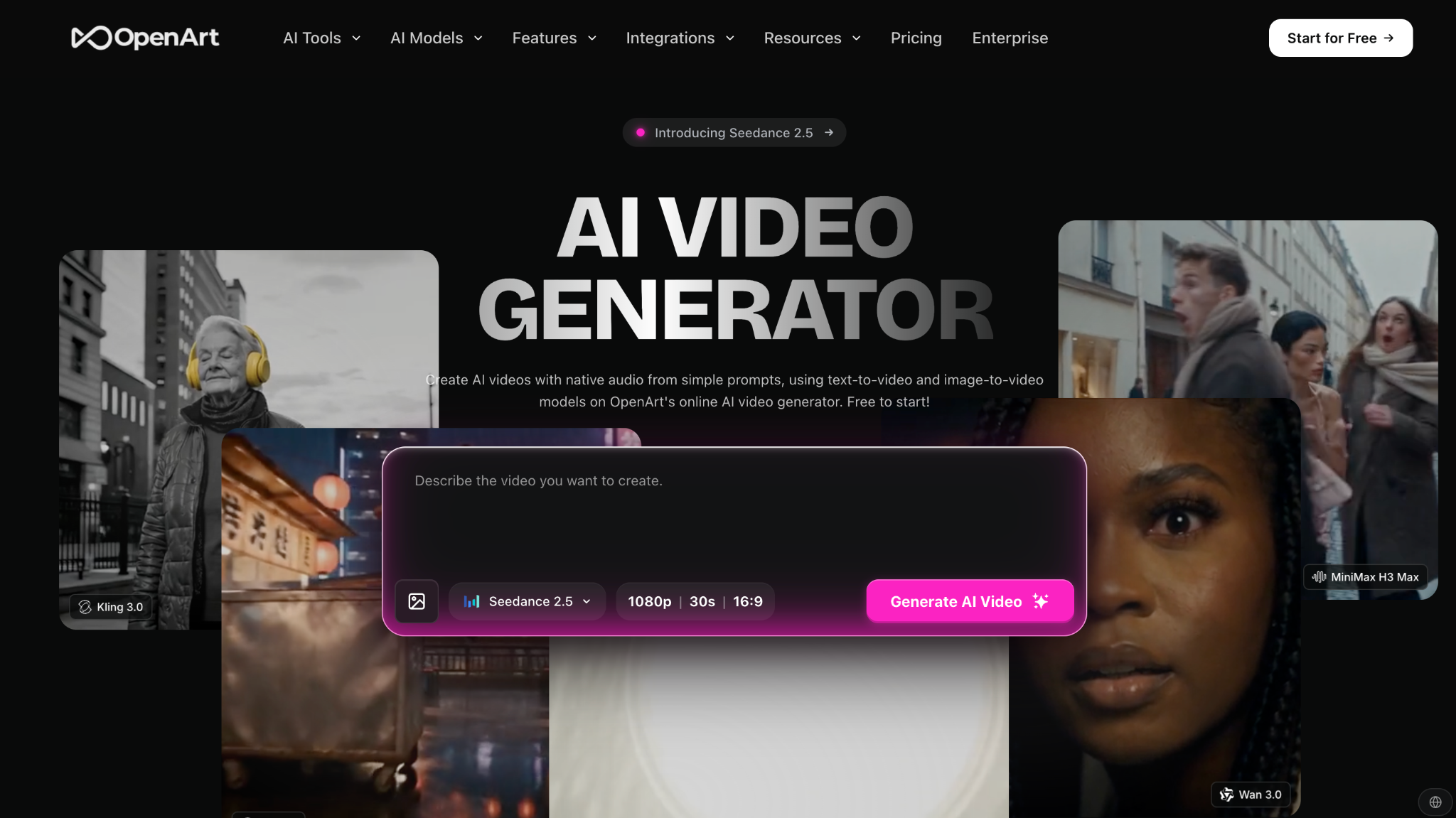
Best for: stories with the same characters across scenes.
OpenArt runs several models in one place. OpenArt says these include Seedance 2.5, Veo 3.1, Kling 3.0 and Wan 3.0.
The OpenArt AI video generator has a Director mode. You give it a prompt, a photo, or a song. It plans the scenes and builds a storyboard.
OpenArt says videos can run up to 5 minutes with the same characters throughout. You can also save a character and reuse it across shots.
Why it works as a VEO alternative: you are not locked into one model. You can even use Veo 3.1 inside it.
Watch out: long videos burn credits. OpenArt's own review says the Starter plan covers about 50 standard clips. Quality also depends on which model you send each shot to.
Price: a 7 day free trial with 40 credits. Starter starts at $14 a month.
These details come from OpenArt's own materials. Test it on your own footage.
2. Higgsfield AI
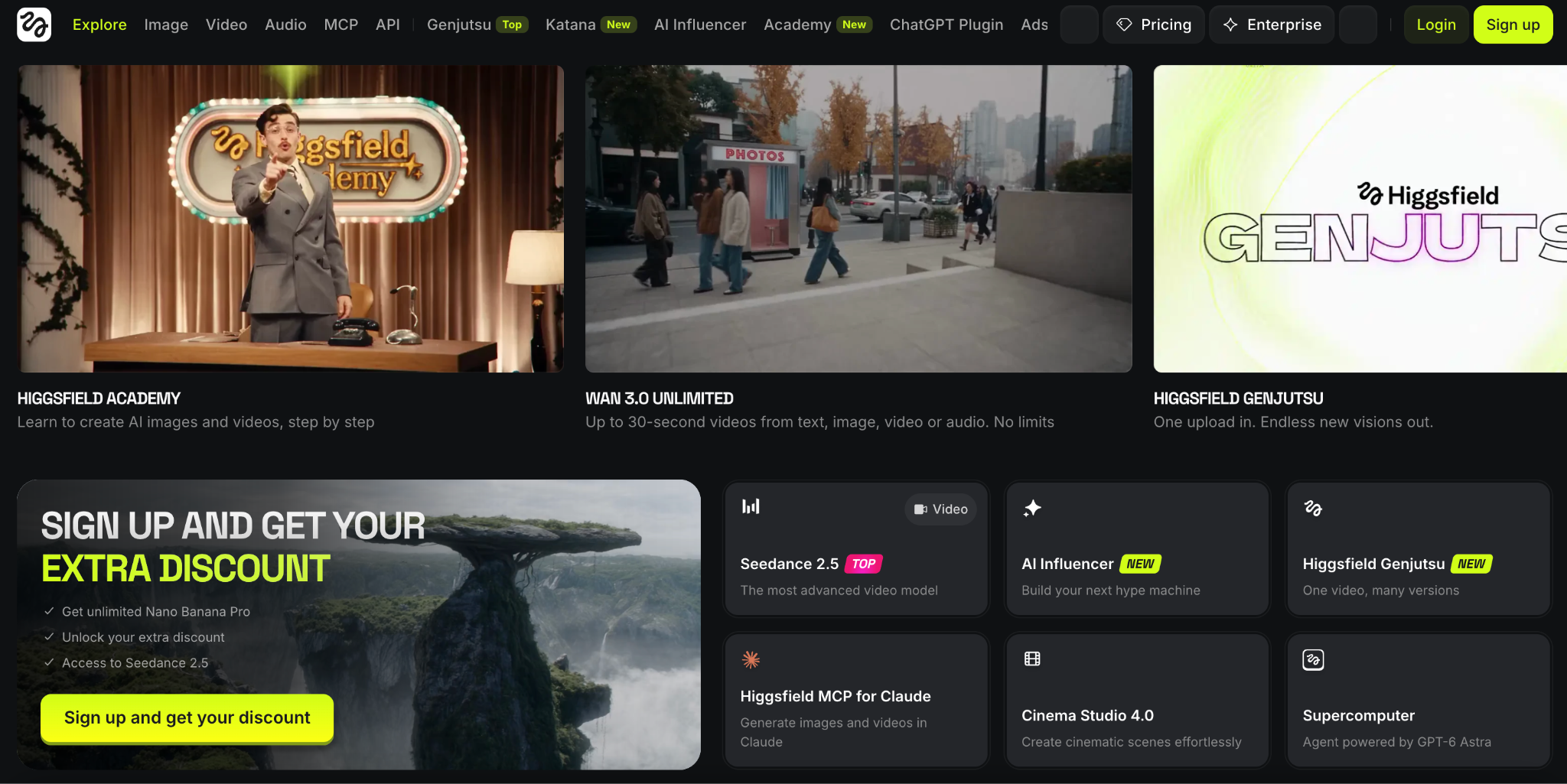
Best for: ads and customer style clips at scale.
According to OpenArt's review, Higgsfield AI packs more than 50 models into one workspace.
Its UGC Builder makes clips that look like a customer filmed them on a phone. Marketing Studio builds product videos from a single URL.
Cinema Studio lets you pick a camera body, lens, and focal length before you generate. That is a nice touch if you think like a filmmaker.
Watch out: Higgsfield changed its plans in 2026 and no longer lists a standing free tier. The Basic plan offers fewer credits per dollar than the Pro plan. Some unlimited perks work only on the website.
Price: Basic is $9 a month for 120 credits. Pro is $43 a month, or $23 billed yearly, for 900 credits.
3. Adobe Firefly
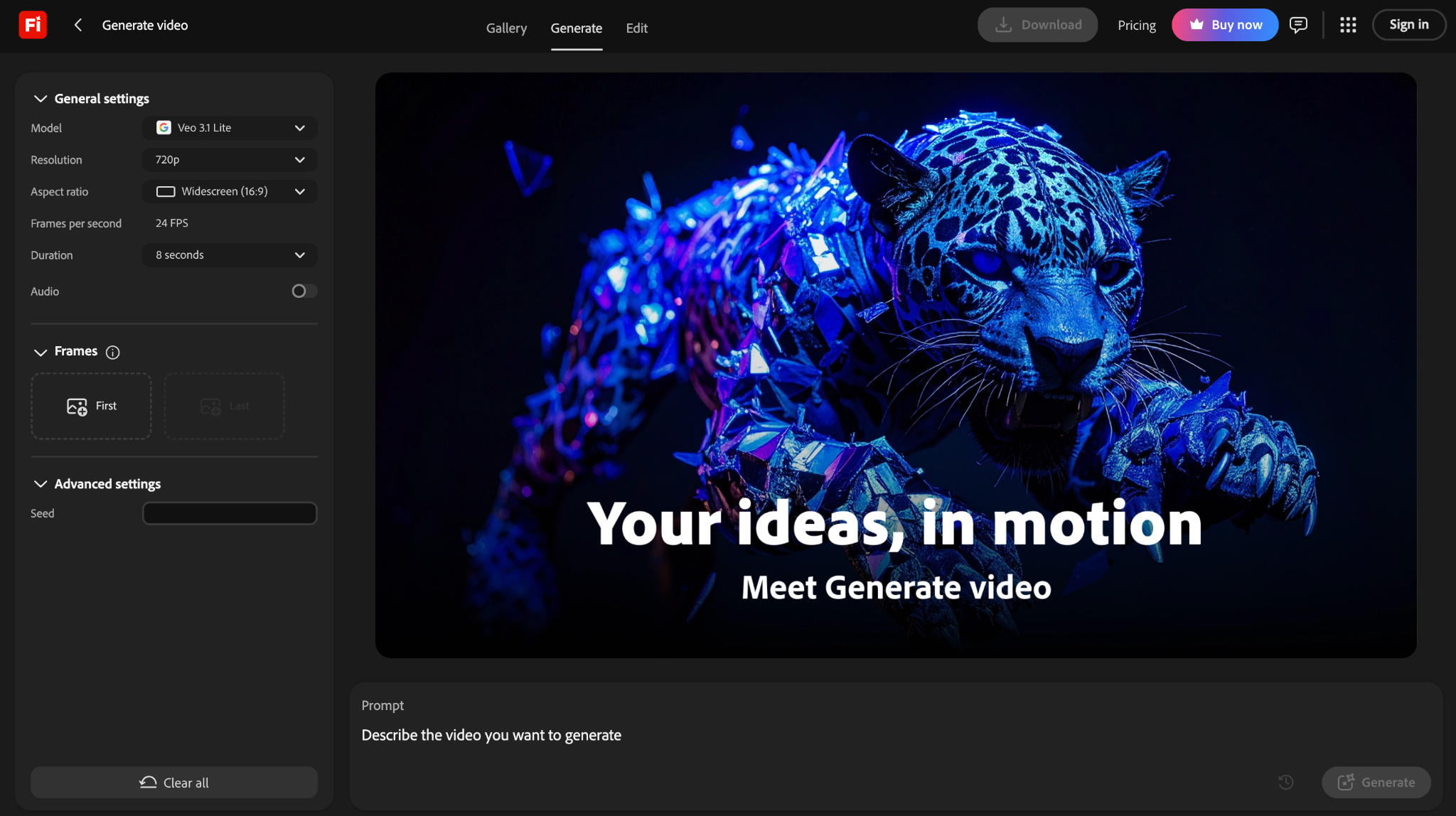
Best for: commercially safe output and Adobe users.
Zapier notes that Firefly was trained on licensed images and public domain content. That is why risk-sensitive teams look at it first.
OpenArt's review adds that Adobe backs the output for paid campaigns. Read your plan's license terms to be sure.
Firefly handles text-to-video and image-to-video. Clips can be polished further in Premiere Pro or After Effects.
Watch out: video credits add up. Per OpenArt, 1080p costs 100 credits per second. One 5-second 1080p clip is 500 credits. Raw picture quality also trails the top models.
Price: Firefly Standard is $9.99 a month for 2,000 credits.
4. Akool
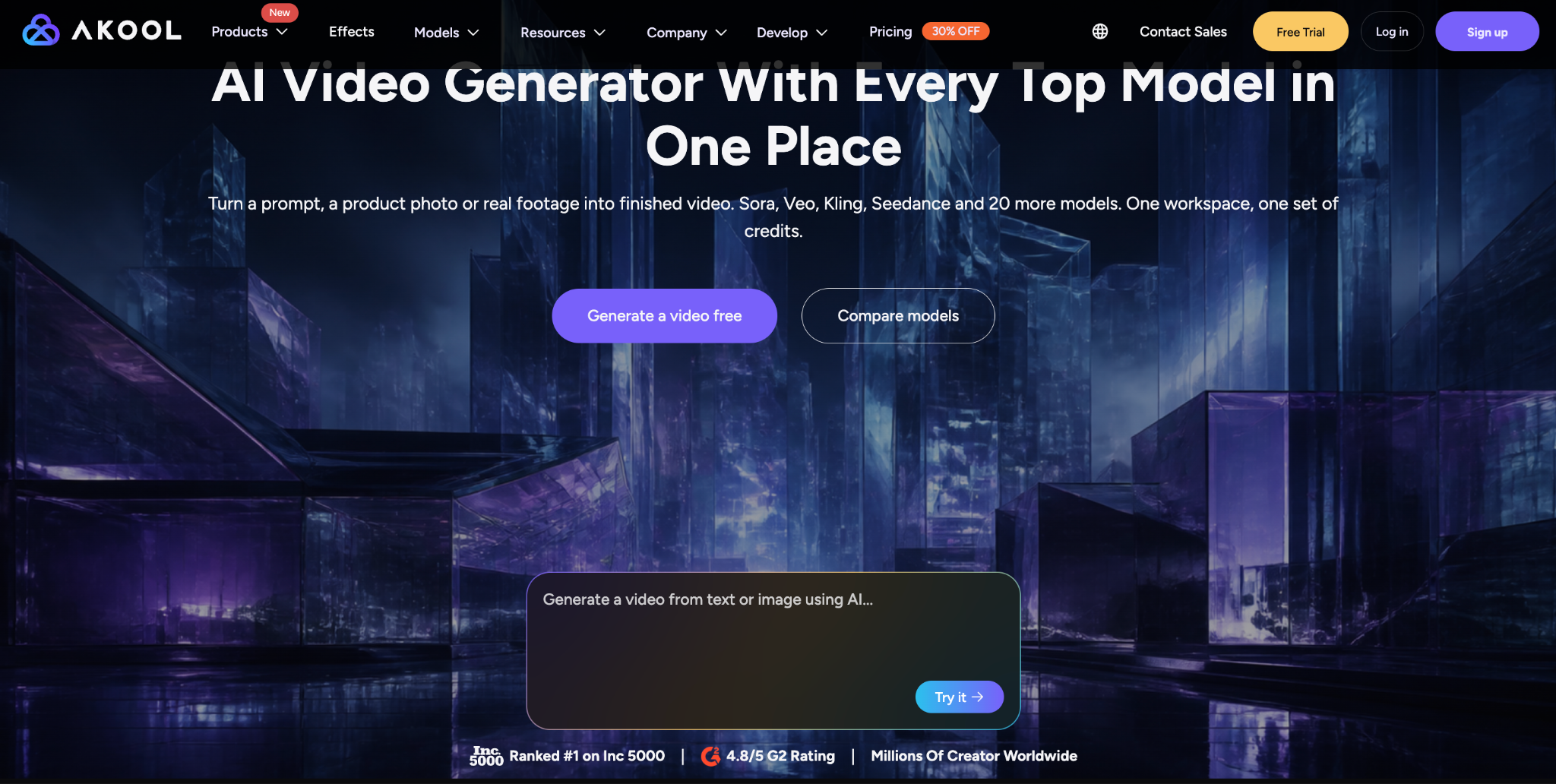
Best for: branded videos, avatars and multi language content.
Akool is an all-in-one platform. The AI video maker by Akool covers text-to-video, image-to-video, avatar video, video translation, and face swap.
Its site also lists outside models like Veo, Kling, Sora and Seedance inside the image-to-video tool.
Akool's own comparison article talks about brand kits, custom avatars, a storyboard editor and team tools. That suits agencies and training teams.
Watch out: the same article admits render times can be longer for high-resolution clips. Lip sync can be uneven for scripts in languages other than English. Advanced features sit on higher plans.
Price: plans change often. Check Akool's pricing page. Its article mentions a free plan with a watermark and export limits.
That article is from July 2025. Features may have moved on.
5. Kling 3.0
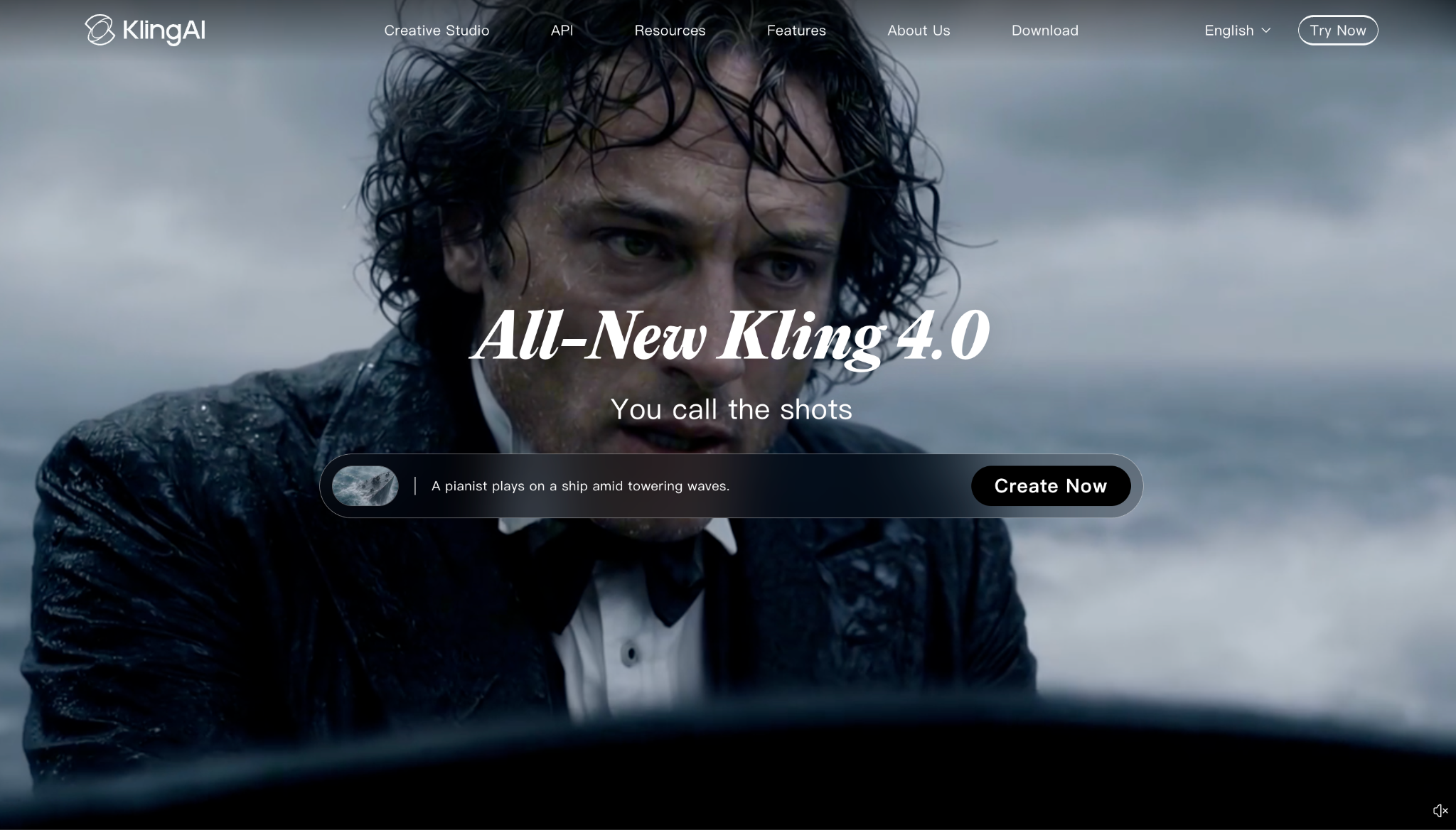
Best for: realistic people and natural movement.
Kling 3.0 is known for lifelike faces and body motion. OpenArt's review says it makes native 4K video with sound.
Its Motion Control feature copies camera moves and body movement from a reference. That helps when you need a believable actor on screen.
Watch out: very long, very detailed prompts can trade accuracy for smoother movement. Credits drain fast at 4K. Free output carries a watermark. Commercial use and watermark removal start on the Standard plan.
Price: there is a free tier with daily credits. Standard lists at $10 a month for 660 credits.
Quick Comparison
| Tool | Best for | Starts at | Main catch |
|---|---|---|---|
| OpenArt | Stories with consistent characters | $14 a month after trial | Credits drain on long videos |
| Higgsfield AI | Ads and social clips | $9 a month | No standing free tier |
| Adobe Firefly | Commercial safety | $9.99 a month | Credits add up, trails top models |
| Kling 3.0 | Realistic people | Free tier, then $10 a month | Credits drain at 4K |
| Akool | Branded and avatar videos | Check pricing page | Slower renders at high resolution |
Where Does Flux Fit In?
Flux comes from Black Forest Labs. It is an image model family, not a video generator.
Zapier lists the current versions as FLUX.2 Max, Pro, Flex, and Klein.
So why mention it here?
Image to video starts with a strong image. Make the still in Flux. Then animate it in any tool above.
You get more control over the look before you spend video credits.
Licensing differs by Flux version, so read the terms first. Akool also lists Flux among its image models.
Prompt to Video vs Image to Video
Prompt to video starts with words. It is great for fast ideas. You get less control over the exact look.
Image to video starts with a picture. It is better when you need a specific character, product, or style. Results are usually more predictable.
A simple workflow:
- Use prompt to video to explore ideas
- Use image to video to lock the final look
Here is a simple prompt formula to generate AI video that looks right: subject, action, setting, camera, light, sound.
Example prompt:
A baker pulls fresh bread from a stone oven at dawn. Slow camera push-in. Warm light through the window. Soft crackle and quiet morning music.
Keep one action per clip. Short and clear beats long and messy.
Mistakes To Avoid
- Picking by plan price instead of cost per finished video
- Ignoring licensing on client work
- Testing with only one prompt. Run the same three prompts on every tool
- Expecting one clip to carry a whole story
- Skipping the watermark and resolution check on free plans
Final Thoughts
There is no single best Google VEO alternative.
The right one depends on what you make.
Stories need consistent characters. Ads need speed and volume. Client work needs clear licensing. Realistic people need strong motion.
Shortlist two or three tools. Run the same prompts on each. Compare the cost per finished video.
Then commit to one and get good at it.
FAQ
FAQs
01Is Google VEO free?
Not fully. Google AI Pro at $19.99 a month includes trial access to Veo 3.1 Lite. Full access sits on Google AI Ultra, from $99.99 a month. Plans change, so check Google's page.
02Can I use Veo in Google AI Studio?
Developers can reach Veo through Google AI Studio and the API, depending on region and plan. Cost is usually per second of video. Check Google's current docs for details.
03What is the best Google VEO alternative for beginners?
OpenArt and Akool are good places to start. Both aim to take you from idea to finished video in one place.
04What is the best option for image to video?
Most tools in this list support it. Pick by your need. OpenArt for consistent characters. Kling 3.0 for realistic motion. Akool for branded work.
05Which option is safest for commercial use?
Adobe Firefly is the usual pick for cautious teams, since it was trained on licensed data. Always read the license for your exact plan.
06Is Flux a video generator?
No. Flux is an image model family. Use it to make stills, then animate them in a video tool.
Comments
Comments are available to signed-in users and are moderated to keep the discussion useful and respectful. Spam, automated submissions, and low-value promotional comments are removed. Outbound links may be approved when they are relevant and genuinely helpful to readers, but they are displayed as plain text rather than clickable hyperlinks.
No comments have been published yet.
Please sign in to submit a comment.