

Business, Productivity, Finance
How to Turn a Year of Bank Statements Into a Simple Cash Flow Report
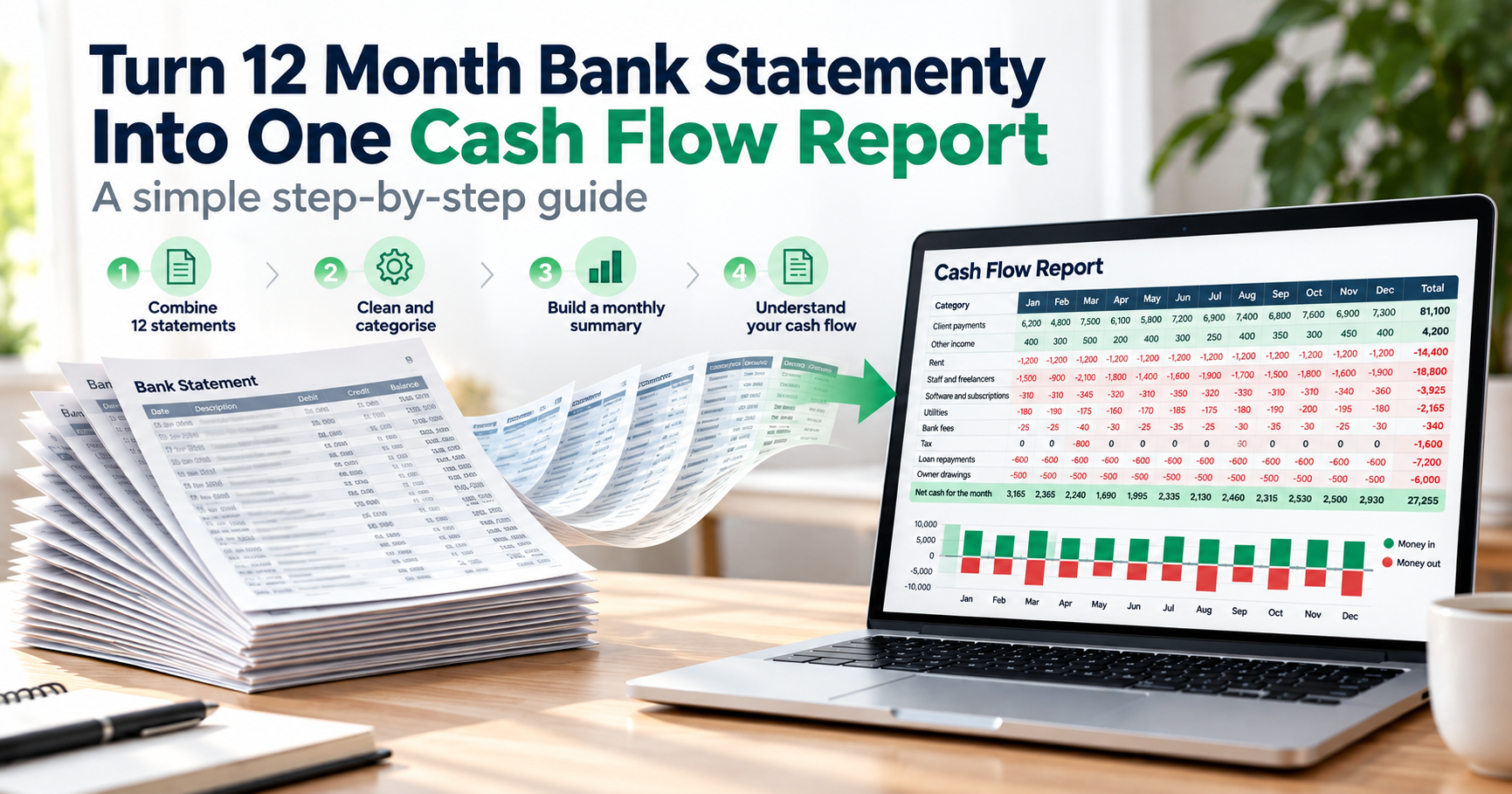
Ask a small business owner what they made last year, and most will have a number ready. Ask which months they actually ran low on cash, and the answer usually turns into a shrug and a long scroll through the banking app.
The second question is the one that a cash flow report answers. No accounting software or a finance degree required. This is because a year's worth of bank statements contain all payments in and out. The problem is, it's in twelve easy-to-read PDFs, which are almost impossible to add up.
What follows is a technique that many bookkeepers employ when they receive a folder of statements and no books from a client. The first time will take an afternoon. Then it's approximately 1/2 hour per month.
What a simple cash flow report actually shows
Strip away the jargon, and a cash flow report is a grid. Months run across the top, categories run down the side, and each cell shows how much moved in or out. The bottom row, money in minus money out, is the one people end up checking most.
Here's how the first three months might look for a small design studio. The figures are invented, but the shape is typical:
| Category | Jan | Feb | Mar |
|---|---|---|---|
| Client payments | 6,200 | 4,800 | 7,500 |
| Rent | -1,200 | -1,200 | -1,200 |
| Software and subscriptions | -310 | -310 | -345 |
| Freelancers | -1,500 | -900 | -2,100 |
| Bank fees | -25 | -25 | -40 |
| Net cash for the month | 3,165 | 2,365 | 3,815 |
Notice what's missing. There's no depreciation, no accruals, nothing about invoices still waiting to be paid. It's simply what hit the bank. That's the whole appeal: when the question is whether the business can afford a new hire in May, the money actually in the account is the number that matters.
Step 1: Gather all twelve months
Pull every statement for every account the business touched during the year. That usually means the current account, a savings account, any card used for business, and the second bank account someone opened for one big client and then forgot about.
Then comes the dull check that saves the most grief. Line the months up and compare each opening balance with the previous month's closing balance. They should match to the last digit. When one doesn't, a month is missing or a PDF download stopped partway through.
If the business runs on a financial year that isn't January to December, use that instead. A report that lines up with the tax return is far more useful than one that doesn't.
Step 2: Get every transaction into one spreadsheet
The first instinct is to copy the table out of the PDF and paste it into Excel. It almost never works, and the reason is technical. A typical bank statement PDF doesn't contain a table at all. It stores small pieces of text along with their positions on the page, so the neat rows and columns a person sees are just text that happens to line up. Paste it, and Excel gets a stream of words with no idea which number belongs in which column.
There are several ways to extract transaction data from bank statements. Some banks offer CSV downloads through online banking, allowing transactions to be imported directly into a spreadsheet. For PDF statements, a bank statement converter can help organize transaction details into structured columns, including dates, descriptions, deposits, withdrawals, and balances. Regardless of the method used, the extracted data should be reviewed for accuracy, as some formats may omit running balances or contain formatting inconsistencies.
Stack all twelve months into one sheet, with a single header row at the top and no blank lines between months. With more than one account, add a column saying which account each row came from. One long list covering the whole year is what every later step builds on.
Step 3: Clean the data before adding anything up
Skip this step and the report will be wrong in ways that are hard to spot later. Five quick fixes handle most of it:
- Combine money in and money out into one Amount column, positive for money coming in and negative for money going out. If money in sits in column C and money out in column D, =C2-D2 does it.
- Make sure Excel sees the dates as dates. Text dates hug the left edge of the cell while real ones sit on the right, and sorting the column shows the difference straight away.
- Before filtering out any transactions, reconcile each account’s balances. The closing balance for each month should equal the opening balance plus the sum of all transactions during that month. Any discrepancy may indicate missing transactions, duplicates, or incorrectly recorded amounts.
- Tag transfers between the business’s own accounts as “Transfer.” For example, moving $2,000 from savings to a checking account creates two transactions: a $2,000 withdrawal and a $2,000 deposit. Although these transactions cancel each other out, including them in the cash flow summary artificially inflates total inflows and outflows. Excluding internal transfers provides a clearer picture of the business’s actual cash activity.
- Check for duplicate transactions. Statements with overlapping date ranges may contain the same transactions, causing them to be counted twice when combined into one spreadsheet. Compare transaction dates, descriptions, amounts, and account details before removing duplicates.
Step 4: Sort transactions into a handful of categories
Categories are where the report starts to mean something, and also where people overdo it. Forty categories turn the summary into a wall of tiny numbers. Ten or twelve is plenty. For a small service business, something like this works:
- Coming in: client payments, loans received, money the owner put in.
- Going out: rent, staff and freelancers, suppliers, software, utilities, bank fees, tax, loan repayments and money the owner took out.
Add a Category column next to the transactions. With a few hundred rows, sorting by description and filling it in by hand is quick enough. Past that, a small rules sheet saves hours: one column of keywords that appear in descriptions, such as ADOBE, RENT, or a regular supplier's name, and a second column with the category each keyword belongs to. A single formula then fills in the categories:
=IFERROR(LOOKUP(2,1/ISNUMBER(SEARCH(Rules!$A$2:$A$30,B2)),Rules!$B$2:$B$30),"Uncategorized")
Here, B2 contains the transaction description, while column A of the Rules sheet contains keywords and column B contains their corresponding categories. The formula searches the description for matching keywords and assigns the appropriate category. If multiple keywords match, the last matching rule takes priority. Transactions without a match are labeled “Uncategorized” for manual review. Keep the keyword range limited to populated cells, as blank keywords may produce unintended matches.
Step 5: Build the monthly summary
Once the data is clean and tagged, the summary is the quick part. Add a Month column first, so Excel has something to group by. With the date in cell A2, =TEXT(A2,"yyyy-mm") turns 14 March 2026 into 2026-03, which also sorts in the right order.
Then build a PivotTable:
- Click anywhere in the master sheet and choose Insert, then PivotTable, placing it on a new sheet. Microsoft's guide to creating a PivotTable covers this screen step by step, including the reminder that the data needs a single header row and no empty rows.
- Drag Category into Rows and Month into Columns.
- Drag Amount into Values. It should show as "Sum of Amount".
- Filter out the "Transfer" category so money moving between the business's own accounts doesn't count.
- Turn on Grand Totals for columns, which gives the net cash figure for each month along the bottom.
Google Sheets has the same tool under Insert, then Pivot table, and the steps barely change. Anyone who'd rather avoid pivots can build an identical grid with SUMIFS, adding up the Amount column for each Category and Month pair.
Step 6: Read what the report is saying
Twelve months on one page and patterns emerge which are not noticed beat by beat.
Start with the bottom row. Seasonal dips will be a run of negative months at the same time each year, and it will be much easier to plan around them if they're written down. Then read the rows to find something that crawls. Bank fees and subscriptions aren't likely to increase all at once. They are adding a little each quarter until a year's worth of growth becomes significant.
Income needs a second look as well. If one-third of the money a person earned during a year came to him in one month, he was partly spending the money in the remaining eleven months. If the month appears healthy on the books due to a loan or an owner's additional deposits, it was not self-supporting for the business.
One additional calculation can provide useful insight into financial stability. Divide the business’s available cash balance by its average monthly cash outflows. For example, a business with $18,000 in available cash and average monthly expenses of $6,000 has approximately three months of cash coverage if no additional money comes in. This simplified calculation helps business owners assess how long existing funds could support operations during a period without revenue.
Keeping it going
The hard part is the first build. After that, each new month means converting one statement, pasting it under the existing rows, letting the rules fill in the categories, and refreshing the PivotTable. It usually takes well under half an hour, and from then on the report starts answering questions before anyone has to ask.
What this report can't tell you
A cash flow report built from bank statements is honest about one thing: money that actually moved. It won't show invoices customers still owe, bills that haven't been paid yet, or what the business is worth. It isn't a tax return either. For tax filings or a loan application, it works best as the starting point to take to an accountant, who can turn it into proper accounts.
Comments
Comments are available to signed-in users and are moderated to keep the discussion useful and respectful. Spam, automated submissions, and low-value promotional comments are removed. Outbound links may be approved when they are relevant and genuinely helpful to readers, but they are displayed as plain text rather than clickable hyperlinks.
No comments have been published yet.
Please sign in to submit a comment.