

IP Address, Privacy, Geolocation
How to Spoof iPhone Location Safely and Responsibly
Spoofing an iPhone location sounds simple, but the technology behind it is often misunderstood. Many users assume that a VPN, Apple ID region change, or privacy setting can make an iPhone appear somewhere else. In reality, these methods affect different layers of location data.
If you want to spoof iPhone location, you first need to understand the difference between GPS location, IP-based location, and account-based region settings. This distinction is important for privacy, app testing, travel planning, and general location management.
This guide explains how iPhone location works, what common methods can and cannot do, and how a desktop-based virtual location tool such as Fonelora Location Changer can be used in a controlled and responsible way.
What Does It Mean to Spoof iPhone Location?
To spoof iPhone location means to make apps or services read a different location from the one where your device is physically located. In most cases, users are trying to change GPS coordinates, not just their IP address.
An iPhone can use multiple signals to estimate location, including GPS, Wi-Fi networks, Bluetooth, cellular towers, and device sensors. Some apps may also consider your IP address, Apple ID region, SIM region, or past location history. That is why location spoofing is not the same as simply turning on a VPN.
A VPN may help a website see a different IP address, but it does not automatically change the GPS coordinates reported by your iPhone. If an app depends on device-level GPS, it may still show your real position even when a VPN is active.
GPS Location vs. IP Location vs. Apple ID Region
Before choosing a method, it helps to separate three common location concepts.
GPS location is the physical location reported by your device. It is used by maps, navigation apps, local discovery tools, delivery apps, fitness apps, and many location-based services.
IP location is based on the public IP address used by your internet connection. Websites, analytics platforms, and security systems may use IP location to estimate your general area. However, IP geolocation is usually approximate and does not replace device GPS.
Apple ID region is related to Apple services, billing, subscriptions, and App Store availability. Changing it does not move your iPhone on a map.
This is where many users make a mistake. They change their VPN server or Apple ID region and expect GPS-based apps to follow. When the app still displays the real location, they assume the method is broken. In reality, they changed the wrong type of location signal.
Can You Spoof Location from iPhone Settings?
iPhone Settings allow you to manage Location Services, but they do not provide a built-in option to manually choose a virtual GPS location.
You can turn Location Services on or off, allow or deny app access, choose when an app can use location, and disable Precise Location for certain apps. These privacy controls are useful, but they are not designed to let you set your iPhone to another city or country.
For example, turning off Precise Location may allow an app to see only an approximate area instead of your exact coordinates. That improves privacy, but it does not let you select a custom location. If your goal is to test an app in another region or simulate movement, you need a different approach.
Common Ways People Try to Spoof iPhone Location
There are several methods discussed online, but they are not equal.
- A VPN changes your network route and IP address. It can be useful for IP-based websites, but it usually does not change GPS data.
- Changing Apple ID region may affect App Store availability and billing, but it does not change your live device location.
- Jailbreak tweaks may provide deep system control, but jailbreaking can weaken device security, cause instability, and create compatibility issues with modern iOS versions.
- Random “fake GPS” apps from unknown sources may be risky, especially if they request profiles, certificates, account login details, or unusual permissions.
- Desktop-based virtual location tools are often more practical for non-technical users because they do not require a jailbreak and can provide a guided workflow from a computer.
When Is Spoofing iPhone Location Useful?
There are legitimate reasons to manage a virtual iPhone location.
Developers may need to test location-based app behavior in different areas. A privacy researcher may want to understand how apps respond to location changes. A digital marketer may need to preview local search, maps, or app experiences from another market. A traveler may want to check nearby services before arriving at a destination.
Location spoofing can also help users understand the difference between GPS privacy and IP privacy. For example, checking a website’s IP location is different from checking a phone’s GPS location in a native app. Knowing this difference can prevent false assumptions about privacy protection.
However, spoofing should not be used for fraud, harassment, bypassing legal restrictions, manipulating platforms, or violating app terms. The responsible approach is to use it for testing, privacy education, travel planning, and legitimate personal use.
A Practical Option for Changing GPS Location
For users who need a guided, no-jailbreak workflow, desktop-based virtual GPS tools provide one way to manage an iPhone's reported location from a Windows PC or Mac. These tools are designed to apply a virtual GPS location to a connected device for testing and other supported use cases.
For example, Fonelora Location Changer is one such desktop-based tool. Like similar applications, it focuses on modifying the GPS location signal used by compatible apps rather than changing the device's IP address.
Virtual GPS tools can be useful for testing app behavior, simulating routes, previewing map-based experiences, or understanding how GPS-based services respond to location changes. They should be used responsibly and in accordance with the terms and policies of the apps and services involved.
How to Spoof iPhone Location with a Desktop Tool
The exact interface may vary by software version, but the general workflow is usually similar.
Step 1: Confirm your purpose
Before changing location, decide why you need to do it. App testing, privacy learning, travel planning, and internal business testing are reasonable use cases. Avoid using spoofing for deceptive, abusive, or prohibited activities.
Step 2: Prepare your computer and iPhone
Install the virtual location software on a Windows PC or Mac. Make sure your iPhone is charged and use a stable cable for the first connection. If the iPhone asks whether to trust the computer, confirm the prompt on the device.
Step 3: Connect the iPhone
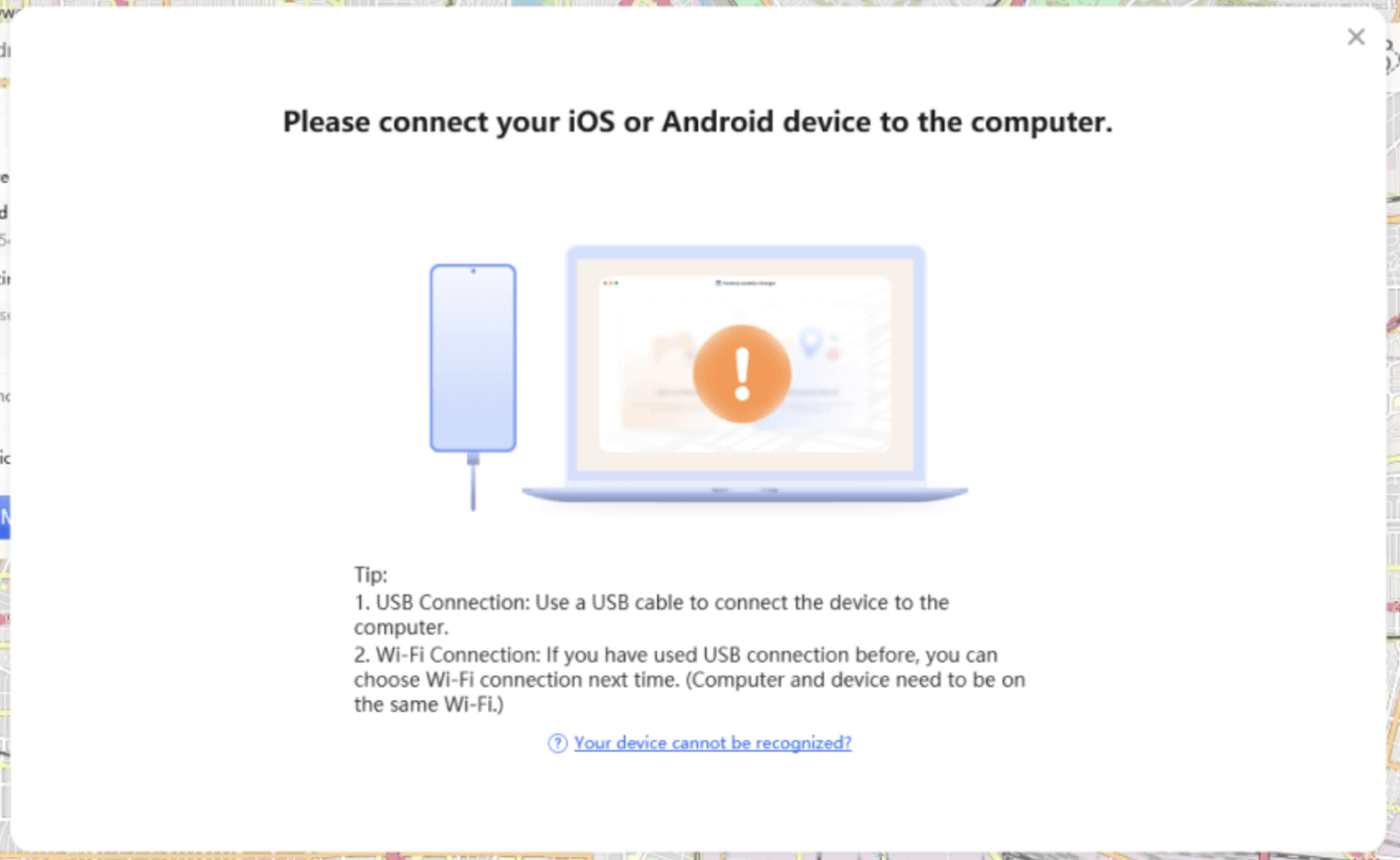
Open the software and connect your iPhone. Some tools may allow Wi-Fi connection after the first USB setup, but USB is usually more stable for initial configuration.
Step 4: Choose a location mode
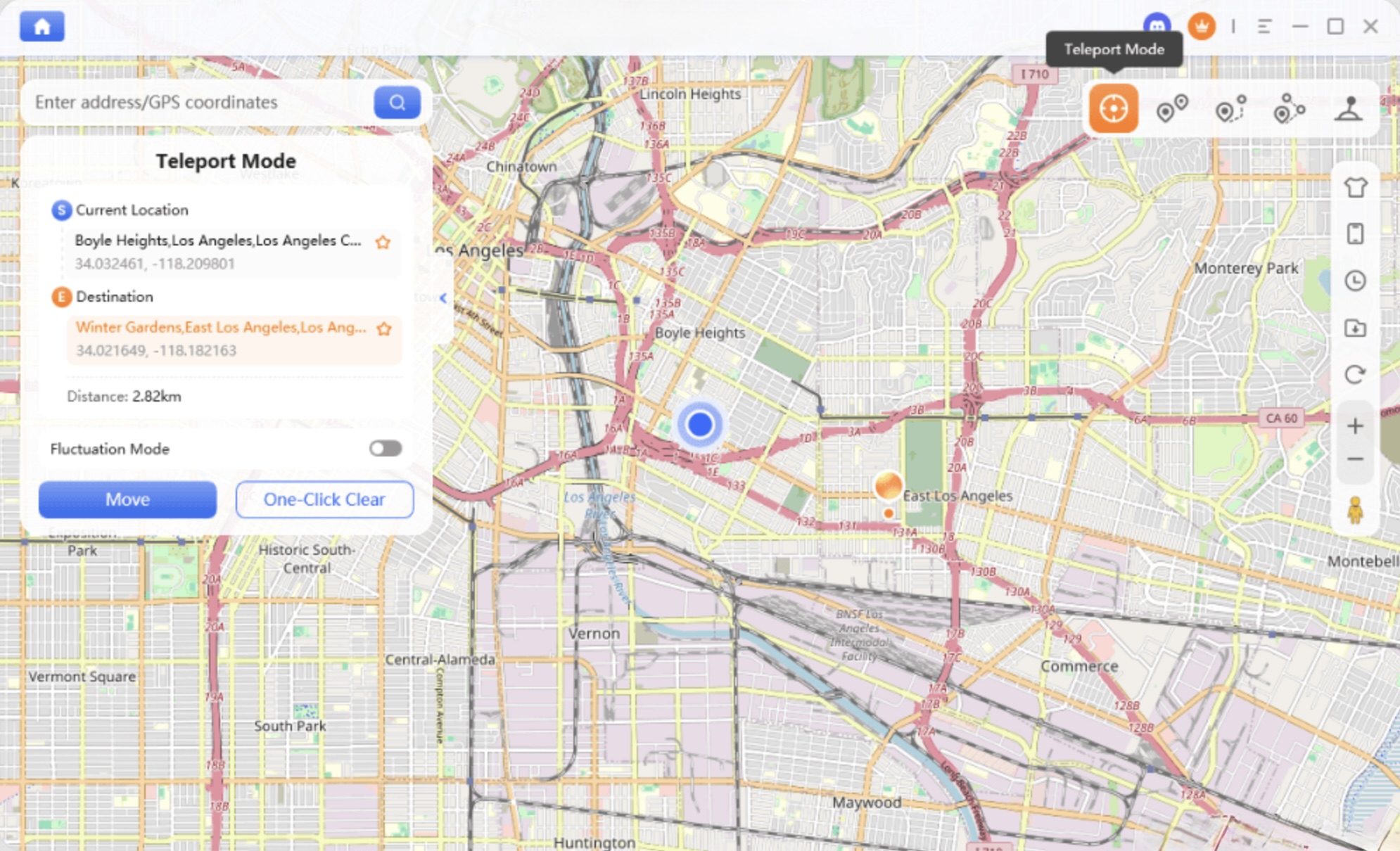
Most virtual location tools provide different modes. Teleport mode sets the device to one selected location. Joystick mode allows manual movement. Route mode lets you simulate travel between two or more points.
For simple app testing, teleport mode may be enough. For testing movement-based behavior, route simulation is more appropriate.
Step 5: Search for a target location
Enter an address, landmark, or GPS coordinate. Check the map carefully before applying the change. This helps avoid setting a location that is too far away or irrelevant to your test.
Step 6: Apply the virtual location
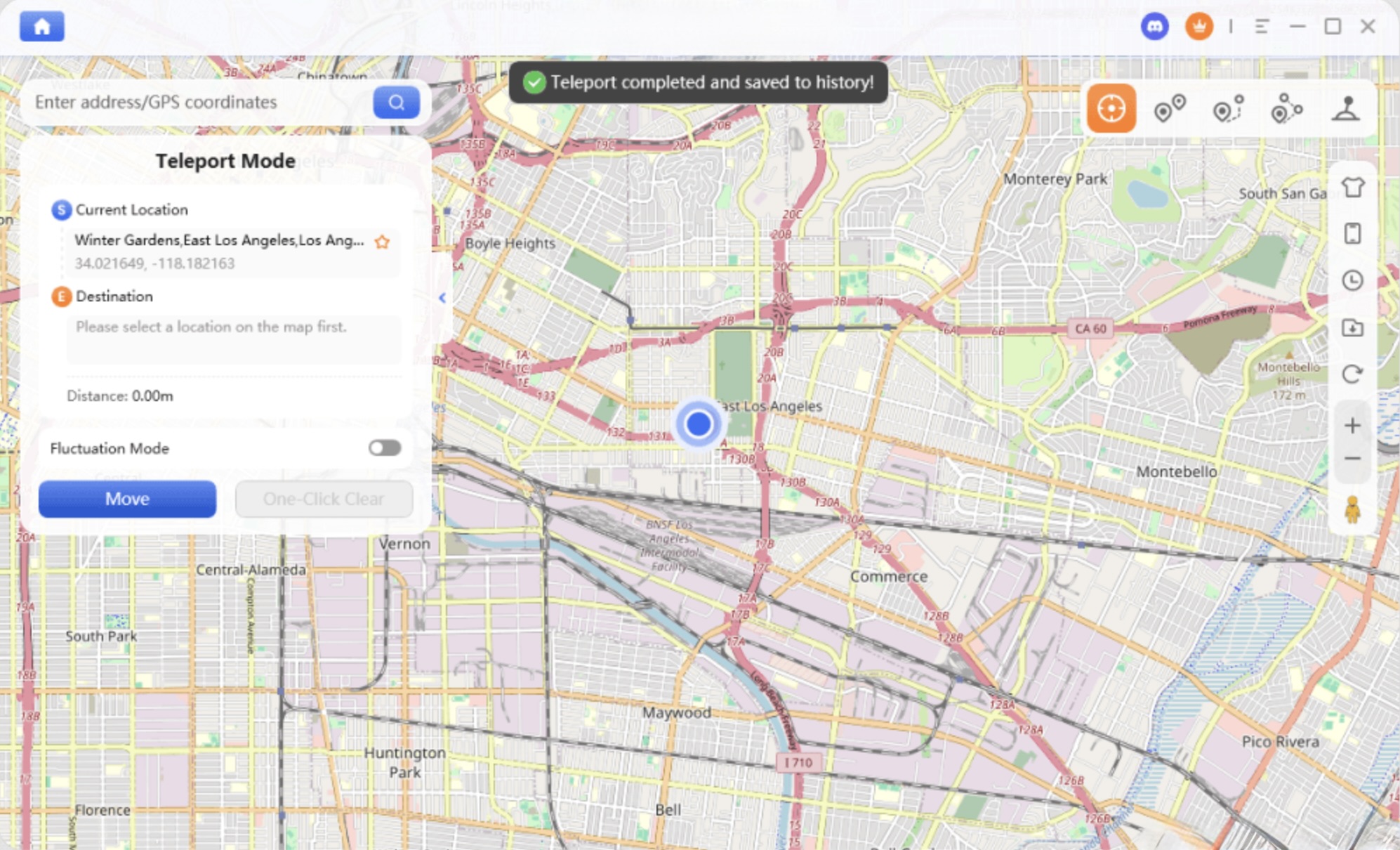
After confirming the target, apply the change. Open a map app or the app you are testing to verify whether the location has updated.
Step 7: Avoid unrealistic movement
If you need to move, use reasonable speed and nearby points. Jumping repeatedly between distant places may look abnormal to apps that use risk detection.
Step 8: Restore your real location
When finished, stop the virtual location in the software or restart the iPhone. Then open a map app to confirm that the real location has returned.
Privacy and Security Checklist
Before using any location tool, follow a basic safety checklist.
- Use software only from trusted sources.
- Avoid tools that ask for unnecessary account credentials.
- Do not install unknown configuration profiles unless you understand what they do.
- Avoid cracked apps or unofficial builds.
- Read the terms of any app you plan to test.
- Keep your iPhone and computer updated.
- Disconnect the tool when you are finished.
- Remember that GPS spoofing does not hide your IP address, device identity, account history, or other identifying signals.
- If privacy is your goal, treat GPS management as only one part of a broader privacy strategy.
Common Mistakes to Avoid
- Assuming that a VPN changes everything. It usually changes IP location, not GPS.
- Expecting iPhone Settings to provide a fake GPS option. Location Services can control access, but not create a virtual route.
- Using jailbreak or unknown apps without understanding the risks. These methods may create security, stability, or account problems.
- Forgetting to restore the real location. If a virtual location remains active, Maps, Reminders, Photos, Weather, and other apps may show unexpected results.
- Using location spoofing in ways that violate the terms or policies of a platform. Responsible use matters.
Final Thoughts
Spoofing iPhone location is not just a trick. It is a technical process involving GPS data, IP address location, privacy settings, app permissions, and sometimes desktop-based tools.
For most users, the safest starting point is to understand what kind of location they need to change. A VPN may be enough for IP-based websites, but it will not reliably change GPS-based apps. iPhone Settings can improve privacy, but they cannot manually set a virtual GPS point.
If you need a no-jailbreak way to manage GPS location for testing, travel planning, or privacy education, a desktop virtual location tool can provide a more structured workflow. Use it responsibly, verify the result, avoid unrealistic movement, and always restore your real location when finished.
Disclaimer
This article is provided for general informational purposes only and does not constitute legal, technical, cybersecurity, or professional advice. iPhone features, operating system behavior, application functionality, location spoofing methods, and platform policies may change over time, and the information presented may not reflect the latest updates.
Before using any location spoofing tool, review the applicable laws, the terms of service of the apps and platforms involved, and the guidance provided by Apple and the relevant software developer. Use location simulation tools only for lawful and legitimate purposes, such as testing, research, privacy education, or other permitted activities.
References to third-party software are provided solely as examples and do not constitute an endorsement or recommendation by IPLocation.net. IPLocation.net is not responsible or liable for the content, accuracy, availability, security, functionality, policies, products, services, or practices of any external websites or third-party software linked from this article. Any use of third-party tools or external resources is solely at your own discretion and risk.
Comments
Comments are available to signed-in users and are moderated to keep the discussion useful and respectful. Spam, automated submissions, and low-value promotional comments are removed. Outbound links may be approved when they are relevant and genuinely helpful to readers, but they are displayed as plain text rather than clickable hyperlinks.
No comments have been published yet.
Please sign in to submit a comment.