

Privacy, Software, Online Tools
How to Open a File When You Don't Have the Right App
Sooner or later, it happens to everyone. A colleague sends a Pages document, and you're on Windows. A relative emails photos from an iPhone that your laptop won't show. An attachment arrives as winmail.dat, a download comes as a RAR file, or a designer shares a Photoshop file when all you wanted was a quick look.
The usual fix is to search for the file type and click an online viewer or converter that comes up. That works, sort of, but it can come with privacy and security risks. Some of these sites upload your file to their servers before they show you anything, so your contract, family photos, or client's design may end up on a computer you know nothing about. Others display ads, require registration, or add watermarks to converted files. In March 2025, the FBI warned that some free file converter sites were being used to spread malware.
A Better Way to Open Unfamiliar Files
Before installing another application, it helps to understand what kind of file you're dealing with. File extensions such as .pages, .heic, .rar, and .psd indicate the format and can help identify compatible software. Some files can be opened with applications already installed on your device, while others require specialized viewers or conversion tools.
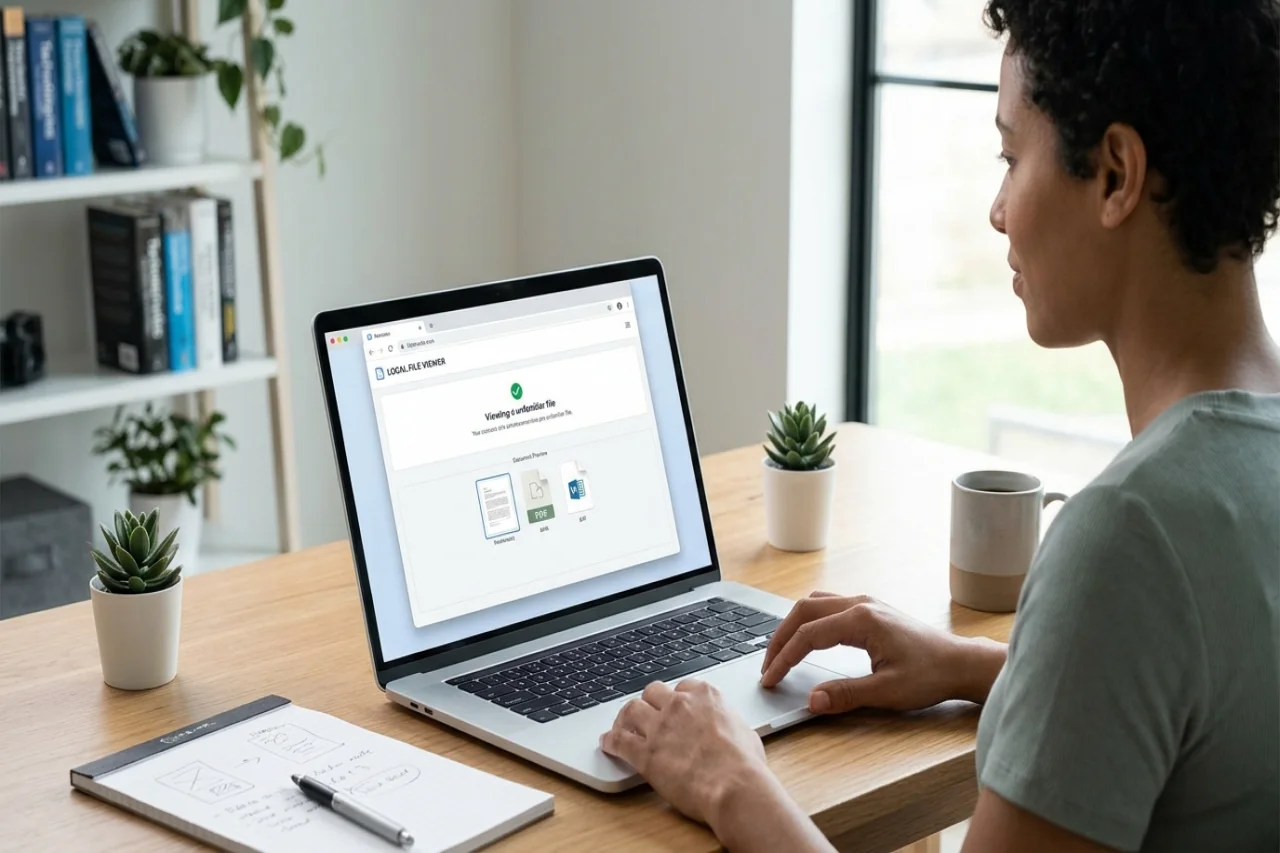
Browser-based file viewers offer another approach. Instead of installing software for every unfamiliar format, you can open supported files directly through a web browser. Some services process files on remote servers, while others handle file processing locally on your computer or phone.
For example, Filepeek is a browser-based file viewer that describes its approach as processing files locally rather than uploading their contents to a server. It supports a range of formats, including photos, videos, music, PDFs, Office documents, and less common file types. Other browser-based viewers may provide similar functionality, although supported formats and privacy practices vary.
Common File Formats That Can Be Difficult to Open
Some file formats are easy to recognize but difficult to open without the right application. iPhone photos, Apple's Pages and Keynote files, Outlook attachments, Photoshop files, AutoCAD drawings, and RAR archives are common examples.
Different tools handle these formats in different ways. Some viewers display documents and images without allowing edits, while others support archives that open like folders, allowing users to extract individual files without unpacking the entire archive. Certain file identification tools can also help determine what an unfamiliar file contains and which applications may support it.
When choosing a viewer, check whether it supports the specific format you need. A tool that opens PDFs and images may not necessarily support complex design files, proprietary document formats, or compressed archives.
More Than Just Viewing Files
Some file viewers also handle the small jobs people usually install an app for. Depending on the tool, you may be able to save a photo as a JPEG, convert a video to MP4, or export audio as an MP3.
Document tools may also allow users to sign a PDF, fill in forms, or rearrange pages. Image utilities can crop and resize pictures or remove location metadata stored in photos before sharing them.
Browser-based tools may combine viewing and basic file-processing features in one interface. However, not every viewer supports the same operations, and some conversions may require server-side processing or additional software.
When modifying files, it is generally safer to save changes as a new file rather than overwrite the original. This preserves the source document in case the conversion changes formatting, removes metadata, or produces an unexpected result.
Privacy and Security Considerations
Opening unfamiliar files is not only a compatibility issue. It can also introduce privacy and security concerns, especially when the files contain personal information, financial records, contracts, or confidential business documents.
One important distinction is whether a viewer processes files locally or uploads them to a remote server. With local processing, file contents can remain on the user's device during supported operations. Server-based tools, on the other hand, may require files to be transmitted and temporarily stored for processing.
Some browser-based viewers are designed to perform file operations locally without requiring software installation or account registration. However, local processing does not automatically guarantee complete security. Users should still consider the website's reliability, browser vulnerabilities, file-handling methods, and any data the service collects.
Files can also contain potentially harmful elements, including malicious macros, embedded scripts, or specially crafted content designed to exploit software vulnerabilities. A viewer that does not execute embedded code may reduce certain risks, but it should not be considered a complete defense against malicious files.
Before opening sensitive documents, review the service's privacy policy, confirm whether files are uploaded, and avoid unfamiliar tools that request unnecessary permissions or personal information.
Choosing the Right File Viewer
The right tool depends on the file format, the device you're using, and whether you simply need to view the contents or make changes.
For common formats, built-in applications may already provide everything you need. Operating systems often include basic viewers for images, PDFs, videos, and compressed files. For specialized formats, dedicated applications or compatible browser-based viewers may be necessary.
Compatibility also matters across devices. A file that opens easily on one operating system may require additional software on another. Some web-based viewers work across Chrome, Edge, Firefox, and Safari, making them convenient for computers, tablets, and phones.
Before selecting a service, consider its supported formats, processing methods, privacy practices, and available editing features. For sensitive files, tools that process data locally may offer privacy advantages over services that require uploading documents to remote servers.
Conclusion
When a file won't open, installing another application isn't always necessary. Browser-based viewers, built-in operating system tools, and dedicated file converters provide different ways to access unfamiliar formats. Services such as filepeek.io are examples of browser-based tools designed to open supported file formats without requiring dedicated desktop software.
The important part is choosing a method that supports your file type without introducing unnecessary privacy or security risks. Understanding whether a tool processes files locally or uploads them to a server can help you make a more informed decision.
With the right approach, opening unfamiliar documents, photos, archives, and design files can be straightforward without compromising the original file or exposing sensitive information unnecessarily.
Disclaimer
The information provided in this article is intended for general educational and informational purposes only. File compatibility, functionality, privacy practices, and security features may vary depending on the software, browser, or online service used. Readers should independently verify the reliability and security of any file viewer or conversion tool before uploading, opening, or processing sensitive files.
External tools and services mentioned in this article are provided as examples for informational purposes only and do not constitute an endorsement or recommendation. iplocation.net is not responsible or liable for the accuracy, functionality, security, privacy practices, or reliability of any third-party websites, software, or services referenced in this article, or for any loss, damage, or data exposure resulting from their use.
Comments
Comments are available to signed-in users and are moderated to keep the discussion useful and respectful. Spam, automated submissions, and low-value promotional comments are removed. Outbound links may be approved when they are relevant and genuinely helpful to readers, but they are displayed as plain text rather than clickable hyperlinks.
No comments have been published yet.
Please sign in to submit a comment.