

How to Enhance Portraits Using Presets
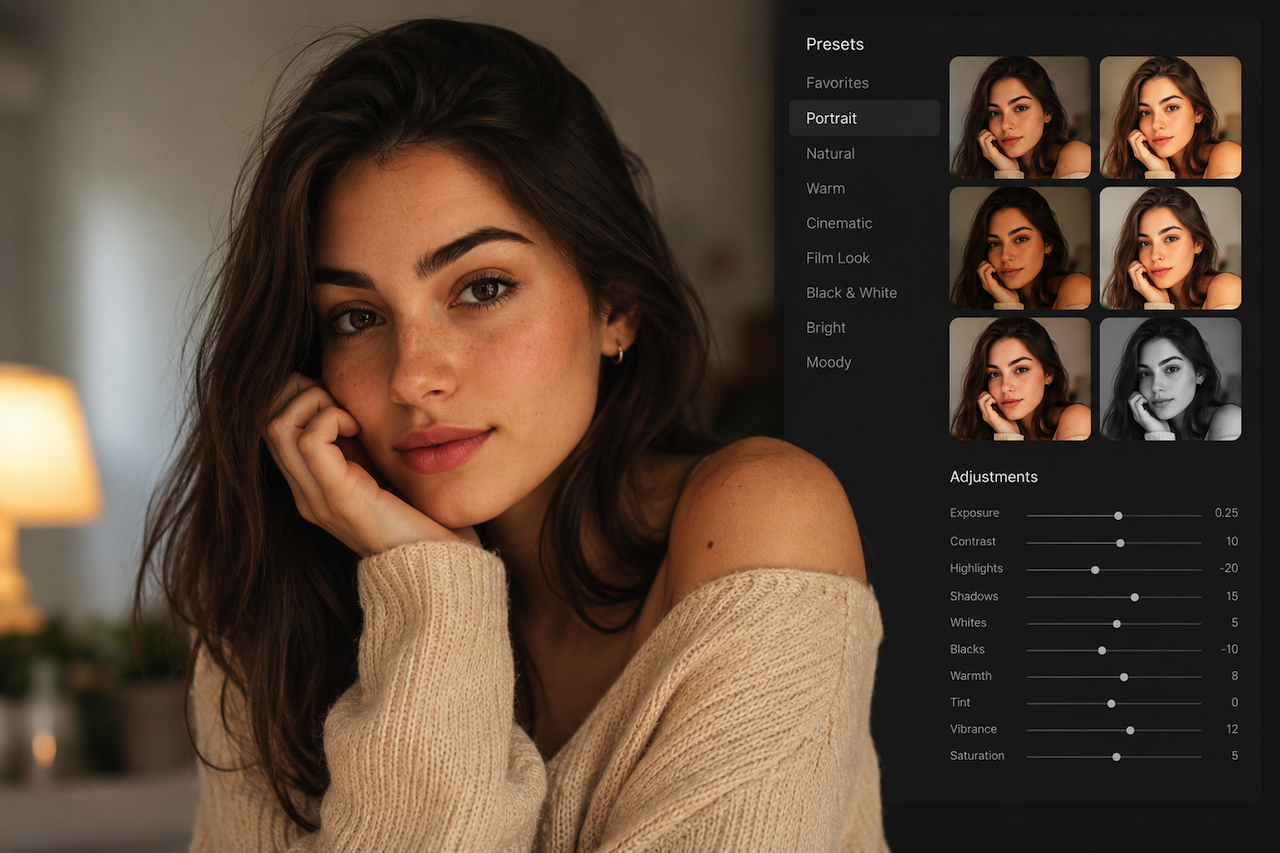
A good portrait does not always need long editing. Sometimes, it only needs a clear mood, balanced color, and a few careful changes that help the person in the photo feel more present. Many photo editors, such as Luminar Neo, include extensive preset libraries to handle this task without sacrificing your creative intent or naturalness.
This guide explains how to use presets to edit portraits while keeping the final result polished, natural, and personal.
Step 1: Choose a Preset
How do presets work? Simply speaking, they apply a saved group of adjustments to a photo at once. For portraits, they may affect warmth, contrast, shadows, highlights, skin tone balance, color mood, and overall softness.
Start by importing the image you would like to edit and browsing the available presets, such as Luminar Neo presets designed for portraits. Narrow the selection to presets that do not fight the light, pose, or emotion of the person in front of the camera. The right preset should support the intended mood without overpowering it. The wrong preset can make skin appear too orange, shadows too heavy, or eyes overly sharp. This is especially noticeable in close-up portraits, where even small adjustments can affect facial details.
Open the portrait, test several preset options, and compare how each one changes the overall look. Most editing programs allow users to browse preset collections, preview suggested looks, and apply adjustments with a single click.
Step 2: Apply the Preset and Check the First Results
If the editing process feels overwhelming at first, many modern photo editors now include AI-assisted suggestions to help simplify portrait editing. AI tool such as Luminar Neo is a creative partner that can guide you through the process, even if you don't know how to edit portraits.
Start with suggested adjustments if you want quick direction. Apply them and examine the model’s face carefully. Check the skin, eyes, lips, and shadows under the chin. If the person still looks natural and the image feels easier to refine, the preset is likely moving in the right direction.
Step 3: Fine-Tune the Look
Presets and filters for portrait photography can inspire and guide the creative choices, but the final result should be under your control. Editing software should support the photographer’s vision rather than replace it.
Open the adjustment tools and check what exactly has changed when you applied a particular set of adjustments. Start with light. If the face looks too dark, lift the exposure slightly. If the forehead, cheeks, or nose look too bright, reduce the highlights.
Then check the colors. Skin should feel healthy and natural. If it is yellowish or grayish, adjusting the white balance and color temperature will help you empirically find the right shade. Before moving on, ensure the image looks better without being unrecognizably different.
Step 4: Match the Adjustments with the Lighting
For indoor portraits, watch the warmth. Lamps, walls, and curtains can already add yellow or orange tones to the skin. Choose a cleaner look first, then add warmth only if the face still looks natural.
Check the shadows and green tones if the picture was taken outdoors. Parks, trees, and grass can reflect color onto the skin. After applying adjustments, look closely at the neck and cheeks. If they look too green or too dark, reduce the effect or adjust the color.
Studio shots require subtlety and precision. The light is already controlled and directed, so portrait presets only add a creative touch rather than reshape the whole picture to prevent a visual disaster. A small change in contrast or color is usually enough.
Step 5: Save Your Own Preset
Ready-made presets can be useful, but personal editing styles often come from smaller custom adjustments. If you want to create a consistent look across multiple portraits or client galleries, saving your preferred settings can help speed up future edits.
Once the portrait feels balanced and complete, save the adjustments as a custom preset if the editing software supports it. Over time, building a small library of personalized portrait presets can make future editing more efficient and visually consistent.
Conclusion
Portrait presets can help simplify the editing process while still maintaining a natural and personalized result. When used carefully, they can improve efficiency without removing the emotion or individuality from the image. With thoughtful adjustments and consistent practice, it becomes easier to develop a recognizable editing style that enhances each portrait naturally.
Featured Image generated by ChatGPT.
Related Articles
November 17, 2025
Portraits in Shadow and Bright Sun: Tips for Natural Skin Tone Adjustment
Capturing a face in perfect lighting is a constant challenge. Shadows can make skin appear dull or uneven, while harsh sunlight often washes out natural tones. Skin tone editors, s...
Read More
June 27, 2025
The Best Online Tools to Support Your Exercise Routine in 2025
Nowadays, when the world is dominated by technology, every person can afford a regular workout plan without a personal trainer or the subscription of a fitness center. An increasin...
Read More
January 15, 2025
How A Bird Feeder With Camera Can Enhance Your Backyard Experience?
Have you ever sat in your backyard, hoping to notice more small creatures entering your garden? Perhaps you have seen a squirrel, a butterfly, or something similar, but you could n...
Read More
Comments
Comments are available to signed-in users and are moderated to keep the discussion useful and respectful. Spam, automated submissions, and low-value promotional comments are removed. Outbound links may be approved when they are relevant and genuinely helpful to readers, but they are displayed as plain text rather than clickable hyperlinks.
No comments have been published yet.
Please sign in to submit a comment.