

IP Address, Network, Cybersecurity
How to Check Device IP Addresses and Avoid Security Breaches
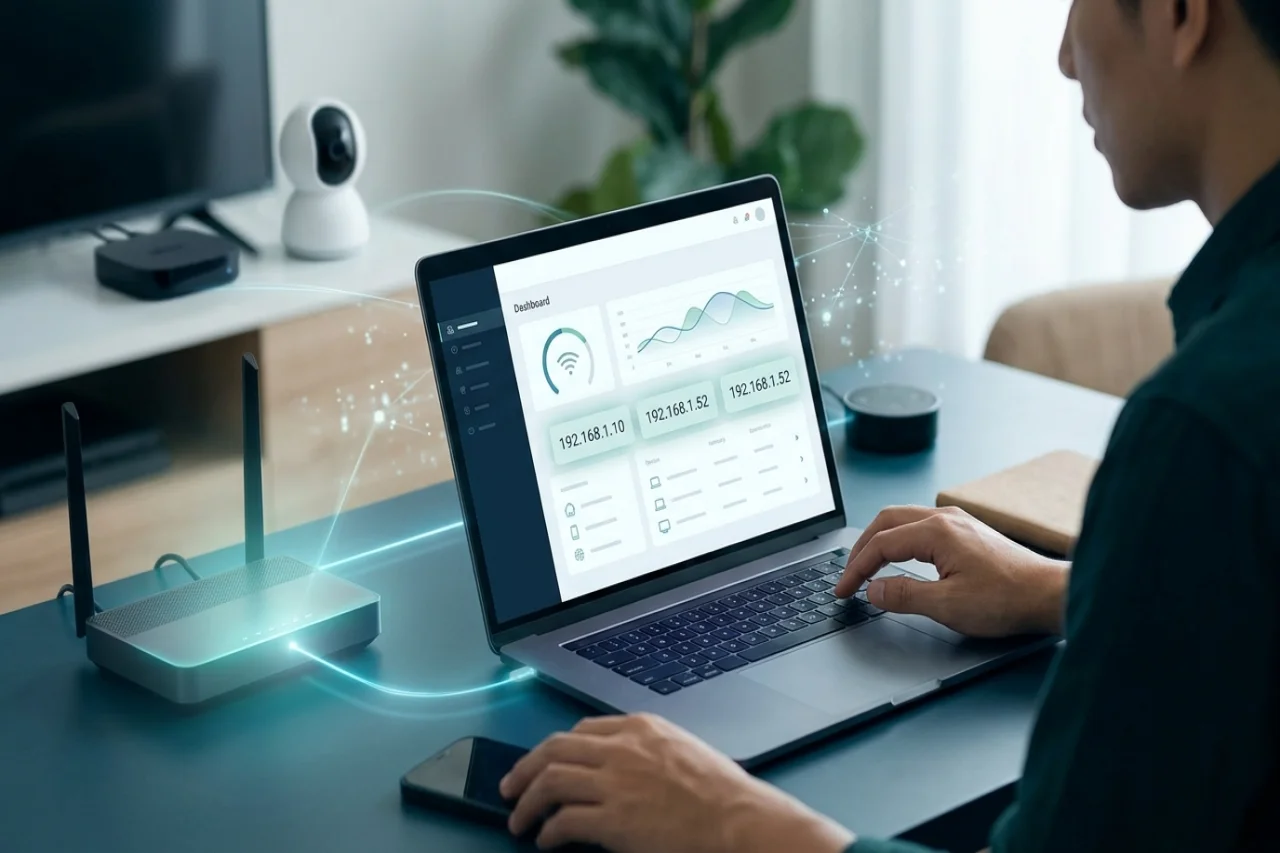
Cybersecurity is a serious thing, and even a compromised Wi-Fi network can bring serious trouble at times. Knowing if someone is using your Wi-Fi without permission is essential. It helps avoid security breaches and maintain a safer smart home.
Checking the IP addresses on your network can help you identify connected devices. Your router not only manages internet connections but also keeps a record of devices connected to your network. Checking the list and identifying unfamiliar devices can help you detect potentially unauthorized connections.
Doing so can help keep your home or private network safe. Whether you're using smart home devices like Xiaomi cameras, smartphones, or other connected equipment, understanding how to check IP addresses can help you monitor network activity and improve cybersecurity.
Why Does Your Device IP Address Matter?
Every device connected to a network uses an IP address, which works like an identity for the device on that network. When you connect a device to your home network, the router typically assigns it a local IP address that works within your private network.
At the same time, your internet connection uses a public IP address. Whenever you visit a website, the website generally sees your public IP address rather than the local IP assigned to your device.
Whenever an unfamiliar device connects to your Wi-Fi network, it may appear in your router’s connected-device list. You can check the IP addresses on the router and compare them with your known devices.
However, an unfamiliar IP address does not necessarily indicate unauthorized access. Devices may receive different local IP addresses over time, so checking device names and MAC addresses can help identify them.
Keeping an eye on unfamiliar connections is an important part of maintaining a secure private network.
How Do You Check IP Addresses on Different Devices?
Every device shows its IP address in a slightly different place. Here is where to look.
Smartphones
Most smartphones allow you to check your local IP address through their Wi-Fi settings.
On Android devices, go to Settings > Wi-Fi and select your connected network. Depending on the device, you may see your IP address alongside the signal strength and security type.
Some Android devices also display network information under Settings > About phone > Status.
On iPhones, go to Settings > Wi-Fi and tap the information icon next to your connected network. Your local IP address will appear under the IPv4 Address section.
Menu names can change depending on the device manufacturer and operating system version.
Routers
The router is one of the most important devices on your home network because it manages connections between your devices and the internet.
Open a browser and enter your router’s local IP address. Common addresses include 192.168.1.1 and 192.168.0.1, although the exact address varies by manufacturer.
Sign in using the administrator credentials configured for your router.
You can usually find the router’s local IP address and network configuration under LAN settings or Network settings.
To see connected devices, look for a section labeled Device Management, Connected Devices, or Client List.
This section typically displays device names, local IP addresses, and MAC addresses.
Smart Cameras
Smart cameras do not always display their IP addresses directly.
Open the camera’s companion application and look for Network Information or Device Settings.
Some applications display the camera’s MAC address rather than its local IP address.
If this happens, find the same MAC address in your router’s connected-device list. The corresponding IP address will help you identify the camera on your network.
The exact process varies depending on the camera manufacturer and application.
Smart TVs and Streaming Devices
On many smart TVs and streaming devices, you can check the IP address under Settings > Network or Network & Internet.
Select the connected network to view its details.
If your device uses a different menu structure, you can also identify it through your router’s connected-device list.
How Can You Avoid Security Breaches on Connected Devices?
Checking IP addresses is only half the job. Once you find something unusual, you need to investigate it and take appropriate action.
Block Unknown Devices
Start with any device you do not recognize.
Open your router’s connected-device management section and review the device name, IP address, and MAC address.
If you confirm that a device is unauthorized, many routers allow you to block it through a blacklist or access-control feature.
However, blocking a device alone may not be enough if someone already knows your Wi-Fi password.
Change your Wi-Fi password and reconnect your authorized devices to help prevent unauthorized access.
Set a Strong Admin Password
Many people use the same password for Wi-Fi and the router’s administrator account. It is better to keep them separate.
The Wi-Fi password allows devices to connect to the wireless network, whereas the administrator password controls access to the router’s configuration.
You can usually change the administrator password through the router’s management interface under Administration, Security, or Account Settings.
Use a strong, unique password that is difficult to guess.
Use WPA3 or WPA2 Encryption
Newer routers often support WPA3, which provides stronger wireless security protections.
Older models may use WPA2, which remains an acceptable option when configured with AES encryption and a strong password.
What you should avoid is an open network or outdated encryption methods such as WEP.
Check the wireless security settings through your router’s administration page.
Keep Firmware Updated
Firmware updates are essential because they can address security weaknesses discovered in previous software versions.
Manufacturers may release updates to fix vulnerabilities, improve stability, and introduce additional security features.
To check for router updates:
- Open your router’s administration page or companion application.
- Navigate to Firmware Update, System Update, or a similar section.
- Check whether a newer firmware version is available.
- Follow the manufacturer’s instructions to install the update.
For smart cameras and other connected devices, open the corresponding application and look for Firmware Update under Device Settings.
Keeping firmware updated helps reduce exposure to known security vulnerabilities.
Control Camera Sharing and Privacy
Remember that sharing access to a smart camera may allow another person to continue viewing its feed until that permission is removed.
If you previously shared camera access with a relative, technician, or another person, review the sharing settings periodically.
Open the camera’s companion application and look for Shared Devices, Device Sharing, or Privacy Settings.
Remove access for anyone who no longer needs it.
Some cameras also provide privacy modes, recording schedules, or physical lens covers that can help control when recording takes place.
Check Your Connected Accounts and Devices
Many smart home devices are connected to a central user account.
Review the list of devices associated with that account and remove any devices you no longer own or use.
For example, a phone that was sold or replaced should no longer have access to your smart home account.
Also, keep your recovery email address and phone number updated.
Where supported, enable two-factor authentication to provide additional account protection.
Additional Ways to Improve Smart Home Security
Beyond checking IP addresses and updating firmware, there are several ways to improve the security of connected devices.
Review Device Security Features
When evaluating smart cameras and other connected devices, consider the security and privacy features they provide.
Some smart cameras include:
- Night vision capabilities
- Motion and activity detection
- Physical lens covers
- On-demand privacy modes
- Encrypted data transmission
- Recording schedules
These features serve different purposes. For example, a physical lens cover can provide visual confirmation that the camera is not recording, while encryption helps protect transmitted data.
Security features vary between manufacturers and models, so reviewing technical specifications and privacy policies is important.
Separate Smart Home Devices From Personal Devices
Some routers allow users to create guest networks or separate network segments.
Keeping smart home devices on a separate network can help limit access to personal computers and other sensitive devices if a connected device becomes compromised.
However, the effectiveness of this approach depends on the router’s network isolation settings.
Monitor Network Activity Regularly
Reviewing your router’s connected-device list periodically can help you identify unexpected changes.
Keep a record of devices you recognize, including their names and MAC addresses.
If an unfamiliar device appears, investigate before assuming it represents a security breach.
Conclusion
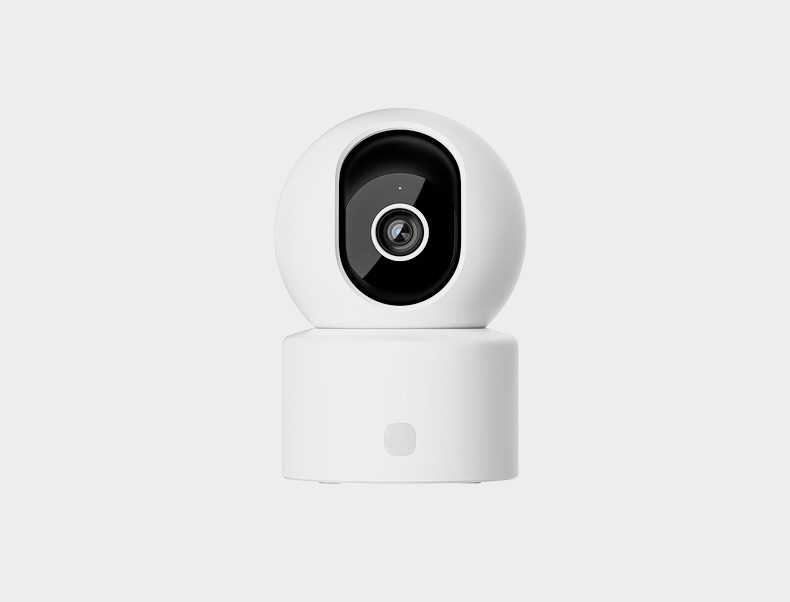
Checking IP addresses and monitoring connected devices are practical steps toward maintaining a more secure home network. Routers, smartphones, smart cameras, including models from manufacturers like Xiaomi, and streaming devices generally provide ways to view network information, although the exact process varies by manufacturer.
Combining regular device checks with strong passwords, updated firmware, secure Wi-Fi encryption, and careful account management can help reduce the risk of unauthorized access. Maintaining network security requires ongoing attention rather than relying on a single setting or security feature.
FAQ
FAQs
01What Is the Default IP Address for a Router?
Common router IP addresses include 192.168.1.1 and 192.168.0.1, although some manufacturers use different addresses.
If neither address works, check your device’s network settings for the default gateway address or consult the router’s documentation.
02How Do I See Who Is Using My Wi-Fi?
Open your router’s administration page or companion application and navigate to Connected Devices or Device Management.
You will usually see a list of devices currently connected to your network.
If you find an unfamiliar device, compare its details with your known devices. If you confirm unauthorized access, block the device and change your Wi-Fi password.
03Can Someone Hack My Smart Camera?
Yes, internet-connected cameras can be vulnerable to unauthorized access, particularly when accounts use weak passwords or devices have outdated firmware.
Keep firmware updated, remove unnecessary shared access, use strong passwords, and enable two-factor authentication where available.
Cameras with physical privacy covers can also provide additional control over when the lens is exposed.
Comments
Comments are available to signed-in users and are moderated to keep the discussion useful and respectful. Spam, automated submissions, and low-value promotional comments are removed. Outbound links may be approved when they are relevant and genuinely helpful to readers, but they are displayed as plain text rather than clickable hyperlinks.
No comments have been published yet.
Please sign in to submit a comment.