

Artificial Intelligence, Software, Technology
How Seedance 2.5 Uses Text, Images, and References in One Video Workflow
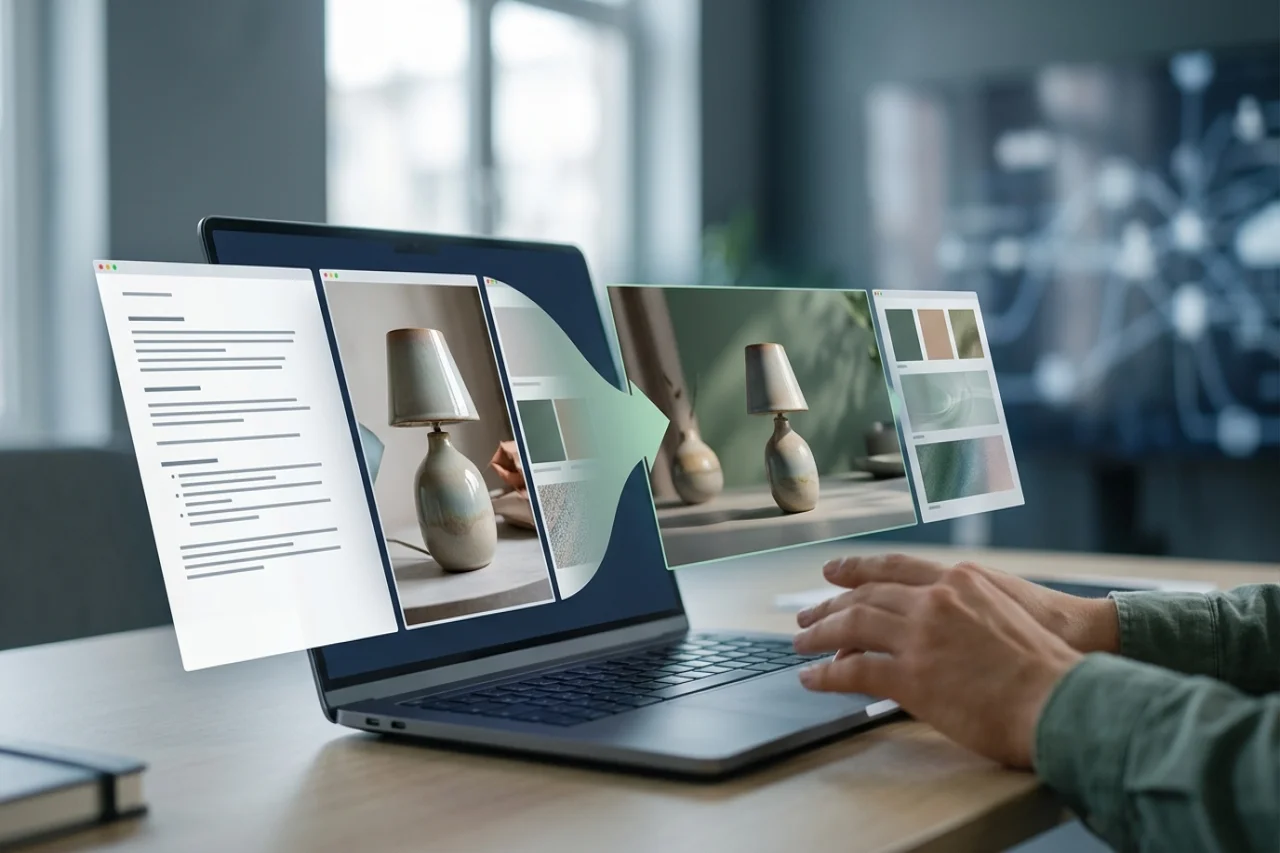
A video brief often contains information that is difficult to express in a single paragraph. The subject’s appearance may be defined by a photograph, the desired movement by a rough sequence, and the atmosphere by a color reference. When those materials disagree, adding more detail can make the project harder to direct.
Seedance 2.5 is an AI video generation model developed by ByteDance. It may also be accessed through independent services, including third-party Seedance 2.5 AI video platforms. The specific interface, supported inputs, and available controls can vary depending on the service used.
A video project using Seedance 2.5 can benefit from assigning a clear role to each input. Text explains what should happen. Images establish visual details. Other supported references can help communicate a style or motion intention. Check the available input modes in the selected service before preparing files.
Let Text Describe the Action and Priorities
Use written instructions to define the subject, setting, action, camera behavior, and ending. State which details must remain recognizable.
For a hypothetical example, imagine a studio creating a short concept clip for an original ceramic lamp. The text might ask for a fixed three-quarter view, a gradual change in the room’s ambient light, and a stable lamp silhouette.
Avoid turning the prompt into a list of unrelated visual wishes. “Minimal, ornate, futuristic, rustic” describes several competing directions. Choose the qualities that serve the intended message and leave decorative alternatives for separate tests.
Use Reference Images to Establish Appearance
A clear reference image can show the lamp’s proportions, shade, base, and material. Choose a view where those features are visible rather than hidden by strong shadows or an elaborate background.
If multiple views are available, check that they represent the same design. Different prototypes may appear similar at first but have different bases or surface finishes.
Check the upload panel of the service you are using for supported formats, file-size limits, and the number of reference assets you can add before preparing your files.
Explain What Each Additional Reference Contributes
Multimodal video generation is easier to direct when the creative team can explain the purpose of every reference. A color image may establish warm neutral tones; a storyboard may explain shot order.
Do not expect an input to communicate more than it visibly contains. A mood image with a lamp in the background may show lighting well but offer little guidance on the lamp itself.
Where the interface supports several reference types, assign each one a specific job: product appearance, room lighting, or movement direction. Describe those roles in the prompt or project notes, using any reference labels provided by the interface.
Resolve Conflicts Before Generating
Suppose the product photograph shows a matte ivory lamp, while the moodboard includes reflective gold objects. Decide whether the gold relates to the room’s accents or the product’s finish.
Put the governing choice into the brief: “Keep the lamp matte ivory; use warm metallic accents only in the background.” That makes a later review more specific.
If the result changes the finish anyway, simplify the references and retest. Adding another image without removing the conflict may create more uncertainty.
Treat the First Output as a Draft
Watch the clip for overall readability, then inspect the lamp’s outline, base, and surface across several frames. Check whether shadows move plausibly and whether the room changes unexpectedly.
The hypothetical clip’s success depends on preserving the product while showing a lighting idea. A dramatic camera move may be attractive but still miss that assignment.
Record the defect before revising. “The base becomes narrower near the ending” is a useful observation. “It looks wrong” does not identify what to change.
Finish With a Publication Review
Edit the chosen output for pace and framing. Add essential wording in an editor when exact text matters, and check the finished export in the intended channel.
Verify that the product image and other references were authorized for use. If the visual depicts a concept rather than a real product behavior, make that clear in the accompanying communication.
The materials should work together toward one understandable result. Keep the brief, reference roles, and review notes with the project so the next revision can build on deliberate choices.
Comments
Comments are available to signed-in users and are moderated to keep the discussion useful and respectful. Spam, automated submissions, and low-value promotional comments are removed. Outbound links may be approved when they are relevant and genuinely helpful to readers, but they are displayed as plain text rather than clickable hyperlinks.
No comments have been published yet.
Please sign in to submit a comment.