

Business, Productivity, Information Technology
Document Version Control | Tips to Avoid Costly Errors
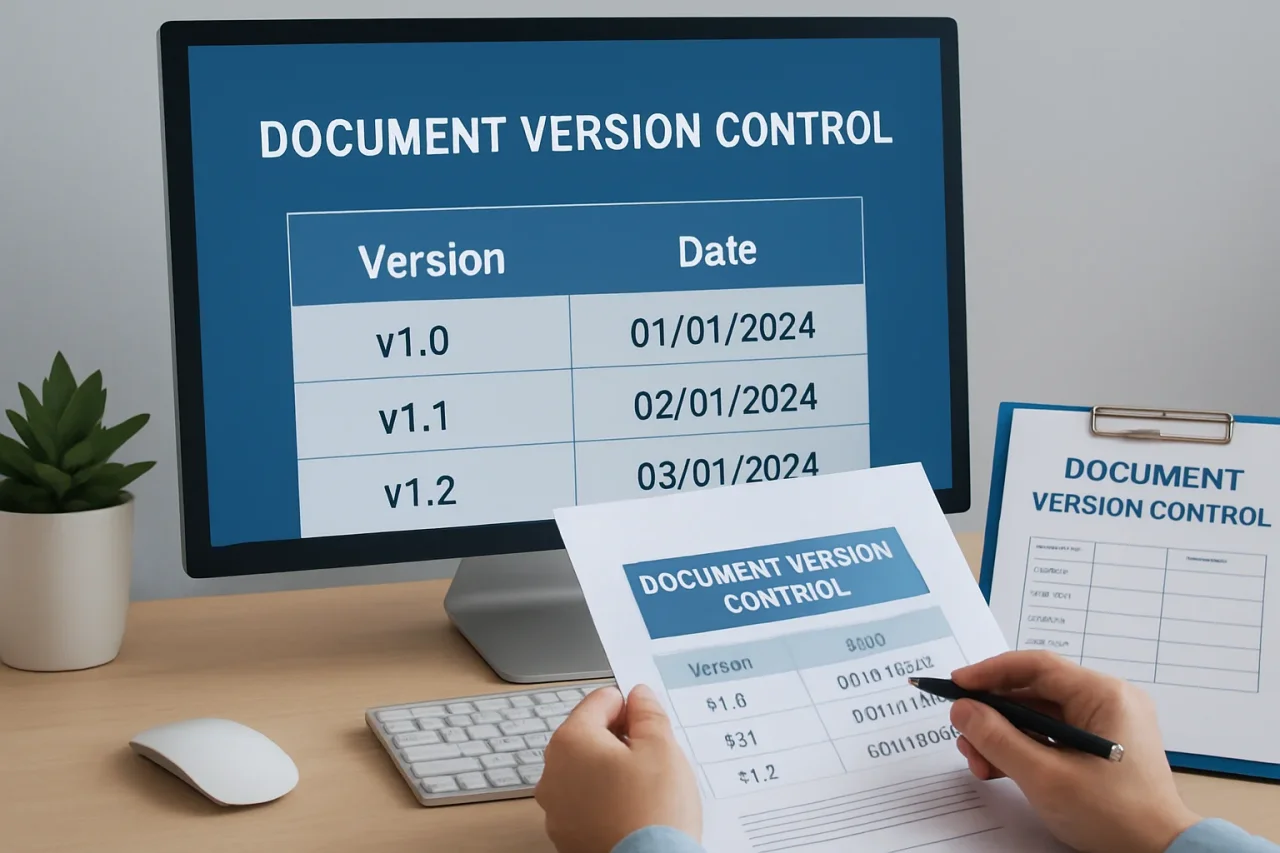
Imagine your team spends days updating a contract for a client. But then, due to internal confusion, it turns out you sent v1.4 of the contract instead of the approved v2.0… And it gets signed.
Without a well-defined document version control system, teams can find it hard to track which document version is the right one. As a result, clients and external stakeholders receive the wrong file.
Mistakes like these cause trust issues, add rework hours, and even trigger legal implications in regulated industries. Luckily, you don’t need expensive software to solve this. Simple approaches usually work just fine. And in this guide, we’ll give you practical steps to implement them.
Why Does Document Version Confusion Happen?
Confusion in the process of document versioning can happen for many reasons:
- When there is no archive, old and new document versions are stored in one active folder. As a result, team members can easily mistake outdated files for new versions.
- When there is no clear naming convention, team members don’t know which file names stand for approved versions. This way, employees can’t tell the difference between different documents. File names like “Proposal,” “Proposal 2,” and “Proposal_FINAL” aren’t descriptive enough.
- When there is no document check-in/check-out protocol, someone can edit a file that another team member already has open. As a result, document editing becomes more error-prone.
All these errors result from poor document habits, such as:
- No file naming standards
- No centralized file repositories/archives
- No assigned ownerships, etc.
These document management errors kill productivity. Apart from version confusion, they cause employees to spend about 3.2 hours a week looking for information they need to complete daily tasks. And these aren’t software problems. These are process problems.
The Hidden Cost of Working From the Wrong Draft
Document version confusion hinders productivity. Catching the wrong-version issue late means hours of rework. And this can negatively impact your plans and deadlines.
Such issues can also cause client trust erosion. When the client receives a document with missing sections, errors, or outdated terms, your company automatically looks less professional in their eyes.
What’s worse, there might also be legal costs for document mistakes. This is especially true in regulated industries, such as the legal or medical sectors.
What Document Version Control Actually Means
Document version control is a document tracking system designed to monitor file changes. And, mainly, to track version updates. It helps teams know which file versions are current and approved, as well as where the master copy lives.
It applies to all business documents. This can include:
- Word docs
- PDFs
- Spreadsheets
- Proposals
- Contracts, etc.
So, it’s not linked solely to code version control.
With its help, teams can easily distinguish the three states of document versions: draft, revision, and final, and hence, eliminate confusion.
Document revision control is another, more formal term. The concept is the same. However, this term is primarily used in regulated industries with stricter process requirements.
How to Build a Simple Document Versioning System
Despite the common belief, version control doesn’t require new, complex software. An effective system is built through four practical steps. And you can implement them today:
Step 1: Build a Consistent File Naming Convention
Clear file names help users instantly understand what document version they are looking at. A common mistake teams make is using filenames like “FINAL,” “FINAL2,” or “reallyfinal.” This is something you want to avoid to eliminate confusion.
Instead, agree on a clean naming format that clarifies all essential document details, such as:
[DocumentName][ClientOrProject]_v[X.Y][YYYY-MM]
Here are some general rules on how to change the file name in the process of revision:
- Begin at v0.1 for initial draft
- When making minor edits, change the number after a period, e.g., v0.1 to v0.2
- After approval, update the version number, e.g., v1.0 to v2.0
Document version control examples:
❌ Proposal_FINAL
✅ Proposal_SmithCorp_v2.0_2026-04
Or
✅ Proposal_SmithCorp_v2.0_A.Lee_2026-04 (for version control in regulated industries that require tracking every edit and approval more meticulously)
Step 2: Create a Document Version Control Table
A version-specific filename, as shown earlier, is typically sufficient for smaller documents under 2 pages. However, for longer documents or files that are edited or approved by multiple people, you might need a more controlled document version history log.
An easy way to create one is to build a simple table like this one:
| Version | Date | Author | Changes |
|---|---|---|---|
| v0.1 | 2026-03-10 | J. Smith | Initial draft |
| v0.2 | 2026-03-14 | A. Lee | Added pricing section |
| v1.0 | 2026-03-20 | J. Smith | Approved by client |
Step 3: Store One Master Version in One Place
To prevent team members from using outdated file versions, make it a habit to store one master version in one place.
First, pick a platform. You need one designated place to store and edit your files. It can be Google Drive, Dropbox, or SharePoint. Encourage all team members to edit files on your selected platform rather than downloading them and editing them with external tools. Additionally, enable built-in version history in Google Drive or SharePoint. This will help you automatically log all changes made within the same file.
Critical caveat: Google Drive only stores a version for 30 days OR until you create 100 newer versions. Manually click “Keep forever” on the relevant version if you don't want to lose it. SharePoint also has limitations. By default, it stores only 500 major versions of a document. However, admins can change this.
Then, create one active and one archive folder for each type of document per client/project. Use similar folder name structures to avoid confusion:
- /Active/Proposals/SmithCorp/ - a place for the latest proposal version for this client
- /Archive/SmithCorp/ - a place for all older versions
Centralized storage prevents conflicting copies in shared folders.
Step 4: Define When a Draft Becomes a Final Version
Another mistake that frequently leads to version confusion is a lack of understanding of when a “draft” becomes an “approved” file. To prevent this, follow two simple rules:
- Assign one person responsible for approving each document type.
- Change the version number in the file name as soon as the designated approver signs the final version.
When the document version is finally approved, you also want to prevent unintentional edits. To do this, you want to lock the final version in a format that allows simple distribution without the possibility of accidental changes, such as a PDF. You can flatten your PDF files and set a permissions password. Such a document is much harder to change than a Word doc.
Before sending your final document to clients or other stakeholders, consider using a tool to compress PDF without losing quality. This helps keep attachments within file size limits while preserving document quality.
Document Version Control Best Practices for Teams
Effective document version control requires a consistent and thoughtful approach. To create it in your enterprise, you must outline the basic rules of document handling and communicate them to everyone involved.
Here are some best practices to set as benchmarks:
- One editor at a time: Two or more people working on the same document simultaneously can create conflicting edits. To prevent this, make it a rule to notify the team before someone opens a shared file for editing, or use features like SharePoint’s built-in "Check Out."
- Store old versions: Sometimes you might need the original version of a document for disputes, audits, and other purposes. Archive and store them in a clearly labeled folder so you can access them when necessary.
- Keep change log notes brief but specific: When you need to track changes made in the document, generic notes like "updated" don't help much. Instead, specify exactly what was changed in your notes.
- Align review cycles with the document type: Not all documents need to be reviewed monthly. For example, SOPs and internal policies may be reviewed quarterly, while proposals and contracts should be reviewed on a per-project basis.
- For regulated industries: Seek industry-specific guidance. Document revision control is much stricter for legal, medical, or engineering sectors. Look for guidance relevant to your specific industry, such as "legal document version control," because compliance requirements vary significantly.
Key Takeaways
Document version control is a must for every business. It helps establish positive document management practices and avoid multiple issues, including legal ones.
As you now know, building a consistent system isn’t hard. It only requires following these document version control best practices:
- Create a consistent naming convention.
- Build a version history table.
- Store one master file in one location.
- Know when the file is finalized, and lock it in PDF to prevent unnecessary edits.
FAQ
FAQ
01What is document version control?
This is a system for tracking document versions and changes. It can be applied to all types of business documents. The goal is to avoid confusion and help teams always use the current files.
02Why is version control important for business teams?
Without version tracking, teams can send outdated documents to clients and external stakeholders. This can result in conflicting edits, rework hours, client trust erosion, and legal implications.
03How does legal document version control differ from standard version control?
In regulated industries, such as legal, engineering, and medical, version control is essential for compliance. Legal document version control often requires a formal audit trail with approval signatures after each stage. This helps avoid fines, litigation, and other compliance issues.
04Can I manage document version control without buying new software?
Yes. Document revision control doesn’t require special software to get started. Teams can implement it instantly using the four-step system described in this guide. It includes creating a consistent naming convention, implementing a control table, storing one master copy in a designated place, and locking the final version in a format that prevents accidental edits, such as a PDF.
Related Articles

June 23, 2026
How Outsourced IT Services Help Small Businesses Scale With Ease
Outsourced IT services provide small businesses with steadier coverage, predictable costs, broader technical skills, and faster recovery—helping them scale without heavy internal h...
Read More
January 27, 2026
Finding the Right Workforce Without the Hiring Headache
Hiring people sounds simple on paper. A role opens up, resumes arrive, interviews happen, and someone joins. In reality, the process is often messy and time-consuming. Work dea...
Read More
September 29, 2025
7 Proven Techniques to Effectively Train SaaS Sales Teams
The SaaS industry is moving at a fast pace, and the competition is tougher than ever. New apps launch every now and then, buyers have high expectations, and the sales playbooks...
Read More
Comments
Comments are available to signed-in users and are moderated to keep the discussion useful and respectful. Spam, automated submissions, and low-value promotional comments are removed. Outbound links may be approved when they are relevant and genuinely helpful to readers, but they are displayed as plain text rather than clickable hyperlinks.
No comments have been published yet.
Please sign in to submit a comment.