

Disabling multiple desktops on Mac
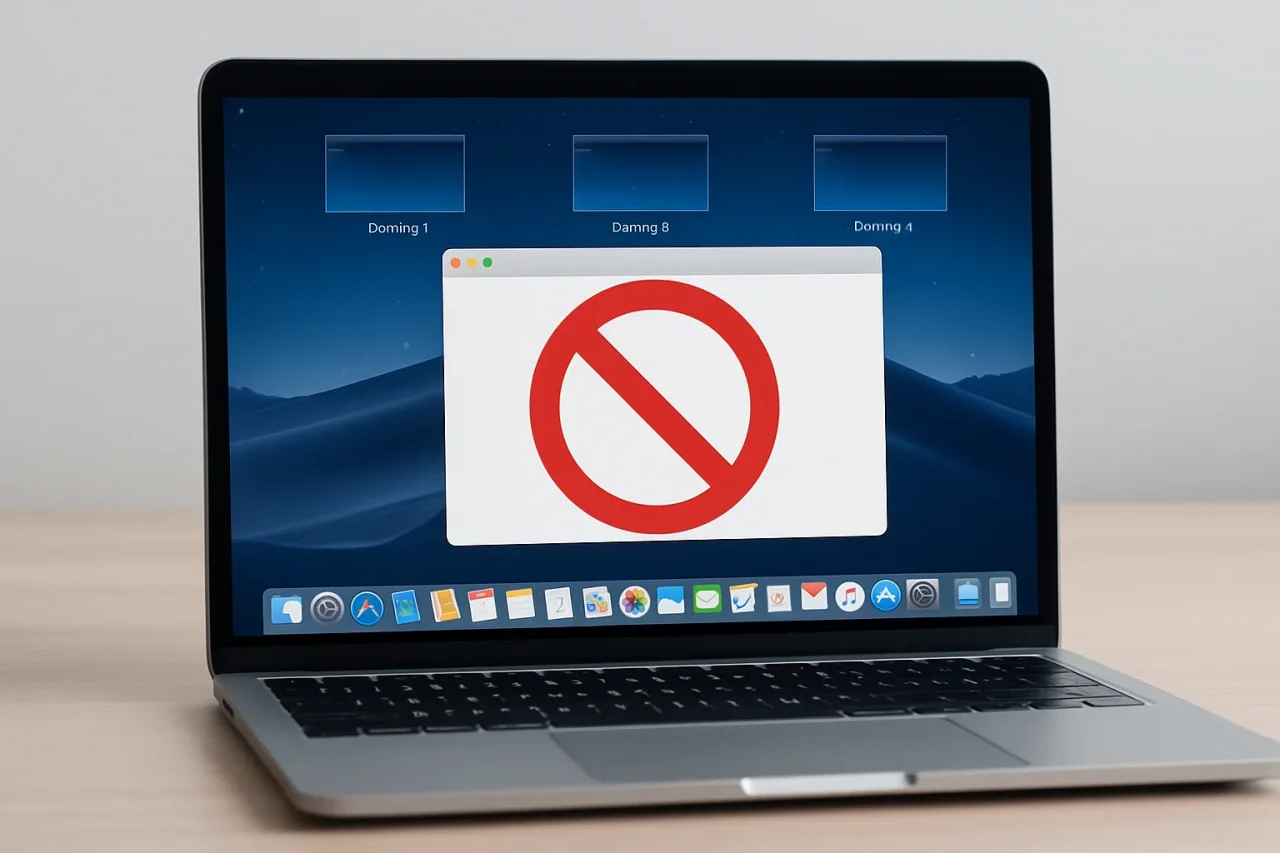
Creating multiple desktops can sometimes be a very useful thing. You want to have a desktop for a specific project, one for personal stuff, and so on. But at some point, you end up with too many, and it becomes more of a hassle than you wanted. So the best approach is to figure out how to implement everything, ensure that it all works effectively, and then solve the potential issue when you can’t find the right desktop to work on.
Deleting the extra desktops
You will need to press F3 on the keyboard, as this will help open the Mission Control feature. And here, you want to move the pointer to the top edge of the screen. In the Spaces bar, hover over the desktop you want to remove, then click the X that appears. It’s a safe and simple approach, and it will allow you to delete any of the extra desktops.
This will not stop the feature completely. But if you want to better manage your multiple desktops, it will help you do that, which is what matters the most. It makes sense to approach this solution first. And then if it still doesn’t work, you may want to try something entirely different.
Stopping your Mac from creating new desktops
The issue that some people face is that their Mac ends up creating new desktops automatically, for various tasks. In those cases, figuring out which is the right desktop that you want to work on is difficult, and it’s exactly why you want to approach it with the utmost attention. That being said, you can enter the Desktop and Dock system settings, and scroll down to Mission Control.
In here, you want to turn off Automatically Rearrange Spaces based on most recent use. And when switching to an application, switch to a space with open windows. It’s not the ultimate solution because it doesn’t turn the Spaces feature off; it just helps you manage the process more smoothly.
Disabling Spaces/multiple desktops
There are no solutions for Mac when it comes to this issue. Simply put, you will need to better manage your desktops and remove those that you don’t need, which is more than enough for most people. Ideally, you want to take your time and narrow down the issues one by one, just to be on the safe side. For most people, disabling multiple desktops could be great, but it seems that Apple is not offering any specific way to do that, which is something you need to keep in mind.
Preventing the creation of new desktops accidentally
That’s the main issue that most people are facing these days. You end up creating new desktops without even wanting to, and it becomes quite an issue in most situations. What we do is we avoid putting apps into full screen unless you want that extra space. A resized window will be fine, because it will alleviate the situation.
Plus, if you feel that your Mac is cluttered, you can use the Smart Care feature from a Mac cleanup tool. That will help you tidy up the general system clutter and ensure that things are working much more smoothly. It’s one of those things that can work extremely well, and it can convey a much better value than you might expect.
Getting back to a single desktop on your Mac
If you want to delete the extra desktops, all you have to do is enter Mission Control and then delete the extra desktops one at a time. It will work well and offer you the much-needed experience you are looking for. Unfortunately, your Mac will create new desktops in various situations.
The best approach is to take a few seconds every week to enter Mission Control and remove any extra desktops that were created. Even if it might not seem like a major issue or thing to deal with, this will only help make things better than expected, and the value here is nothing short of extraordinary, so keep that in mind. We highly recommend avoiding any rush, and once you do that, the outcome can be excellent, which is what you want to pursue here.
Closing thoughts
It’s always handy to have more than a desktop ready, depending on how you use your Mac. But sometimes, that can also become a nuisance. That’s why using features like Mission Control might actually come in handy. You will have more control over how everything works, and you can easily adapt and re-adjust things as you go along. It will work extremely well and deliver the value you’re looking for. And yes, don’t rush; instead, make sure that you are deleting the right desktops. That will help you better control and optimize your workflow, while removing clutter.
Related Articles

February 19, 2024
How do you Optimize Your Windows PC Performance?
PCs have transcended their initial role as exclusive tools for specific tasks, integrating seamlessly into various aspects of everyday life. The notion that only professionals coul...
Read More
December 8, 2023
Troubleshooting Wireless Driver Issues: A Step-by-Step Guide
Having trouble with your wireless connection can be really frustrating. Sometimes, the problem is with something called a wireless driver. This guide will help you figure out what'...
Read More
March 23, 2023
Debugging React.js Applications: Best Practices and Tools
In recent years, React.js has gained immense popularity as a front-end framework that facilitates the creation of intricate and dynamic user interfaces. However, debugging React.js...
Read More
Comments
Comments are available to signed-in users and are moderated to keep the discussion useful and respectful. Spam, automated submissions, and low-value promotional comments are removed. Outbound links may be approved when they are relevant and genuinely helpful to readers, but they are displayed as plain text rather than clickable hyperlinks.
No comments have been published yet.
Please sign in to submit a comment.