

Online Tools, Web Design, Web Development
Design.com vs. Canva: Which Design Platform Is Right for You?
Today, you don’t have to start with a blank canvas or learn complicated design software to create professional designs. Platforms like Design.com and Canva give business owners, marketers, and content creators access to ready-made templates, AI tools, and beginner-friendly editors, making design much more accessible.
While both platforms have similarities, they have different approaches. Design.com specializes in logo creation and overall branding. Meanwhile, Canva is a broader design platform that centers on content creation.
At a Glance
| Category | Design.com | Canva |
|---|---|---|
| Best for | Building a cohesive brand identity | General-purpose design and content creation |
| Templates | 1M+ total design templates | 1.6M+ templates on Free plan |
| Logo library | 500K+ logo templates | Logo templates available |
| AI tools | Strong focus on branding and business assets | Broad AI creation and editing capabilities |
| Brand consistency | Automatic across compatible assets | Brand Kit on paid plans |
| File formats | SVG, EPS, PDF, PNG, JPG, GIF, MP4, and transparent backgrounds — all available without a paid plan | PNG, JPG, PDF, SVG, MP4, GIF; SVG and transparent backgrounds require Canva Pro |
| Collaboration | Lightweight | Extensive |
| Free option | Free logos, templates, AI tools, and publishing tools | 1.6M+ templates, 5GB storage, and limited AI access |
| Pricing | Starts at $9/month or $3/month (billed annually) | $15/month (Canva Pro) |
What are the Key Differences?
Design.com and Canva share many core design capabilities. However, their approaches to AI, branding, customization, file formats, and collaboration differ. Here’s how they compare across each area.
1. AI design tools
Both platforms use AI, but for different purposes.
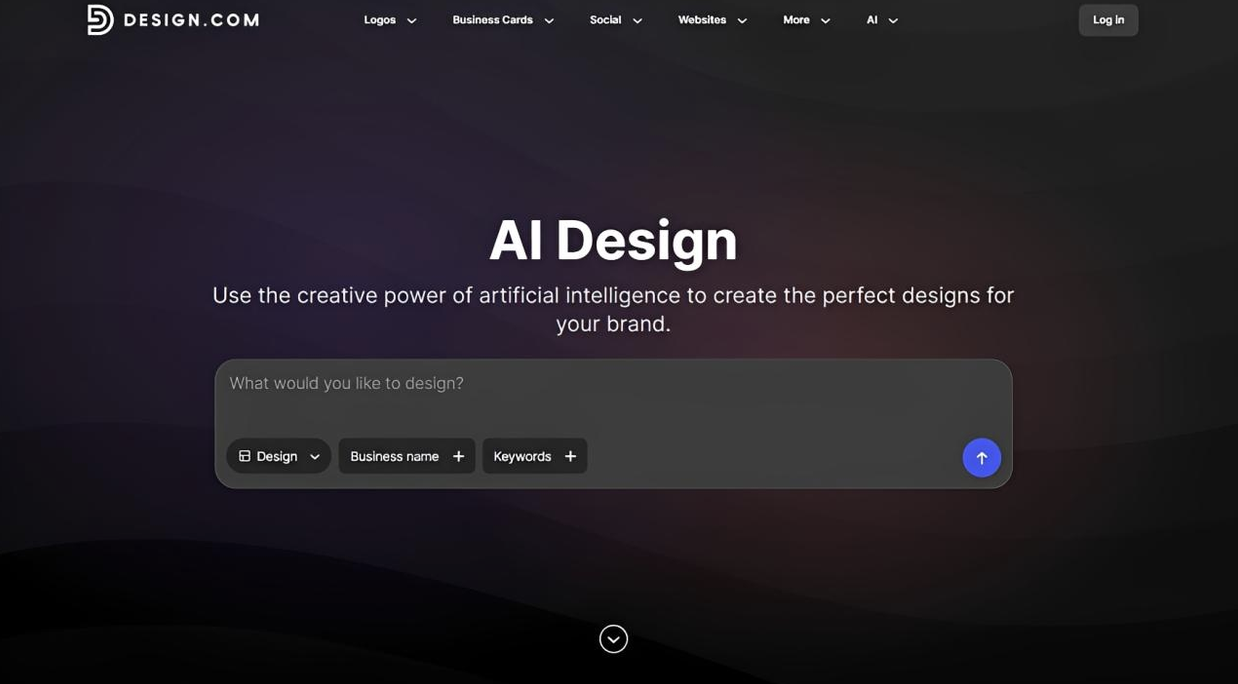
Design.com offers dedicated AI design tools for specific branding and business needs, including:
- Logo generator
- Website builder
- Business card creator
- Flyer and poster creator
- Presentation maker
- Business name generator
- Background remover
Its AI also extends to logo editing, with a chat interface that lets you request changes to your chosen design. In addition, the AI editor is custom-trained to ensure copyright-safe modifications.
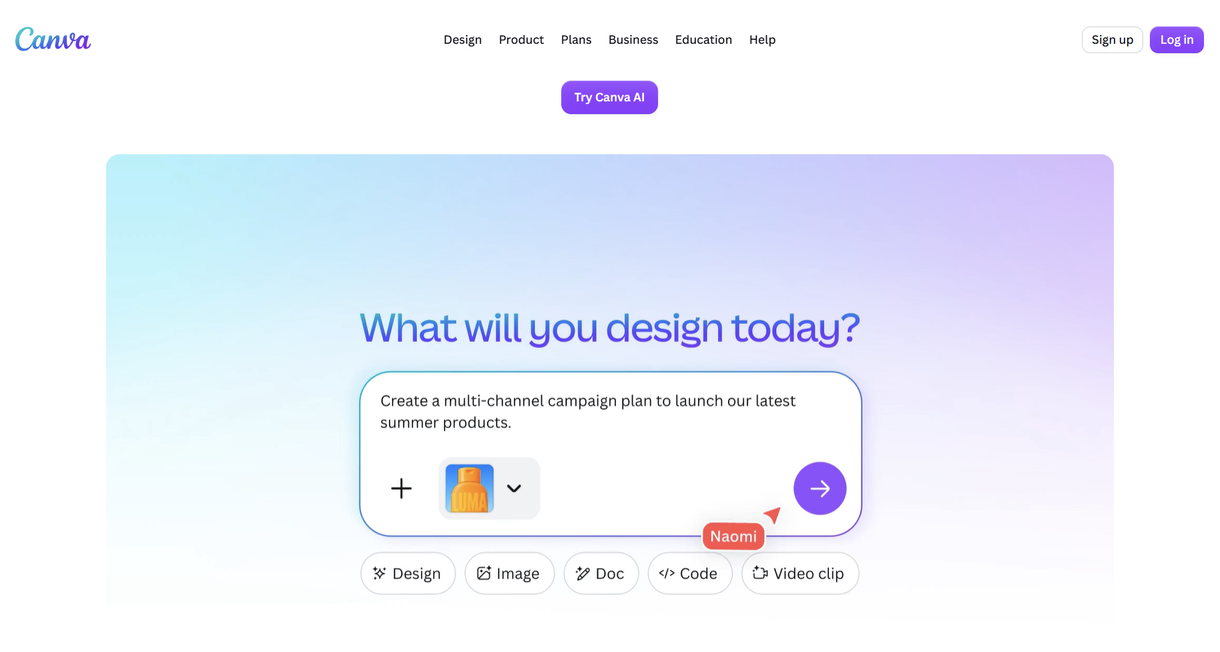
Meanwhile, Canva spreads its AI capabilities across a broader creative workspace. Its tools can generate designs and images, edit visuals, write copy, resize content, translate text, and assist with other creative tasks.
2. Logo Design and Brand Consistency
Design.com is widely known as a top logo maker. It combines AI with its massive library of logo templates to generate thousands of concepts based on your prompt. Once finished, it ensures brand consistency by automatically applying your logo to all available templates — including business cards, websites, social graphics, flyers, presentations, etc.
Canva also has a logo maker, but it sits within its broader design platform rather than being the center of the workflow. However, it can’t automatically integrate your finished logo into other templates. Instead, it has a Brand Kit feature that lets you store logos, colors, fonts, imagery, and other brand elements for reuse across designs, but you’ll need a paid plan to access it fully.
3. Templates and Creative Assets
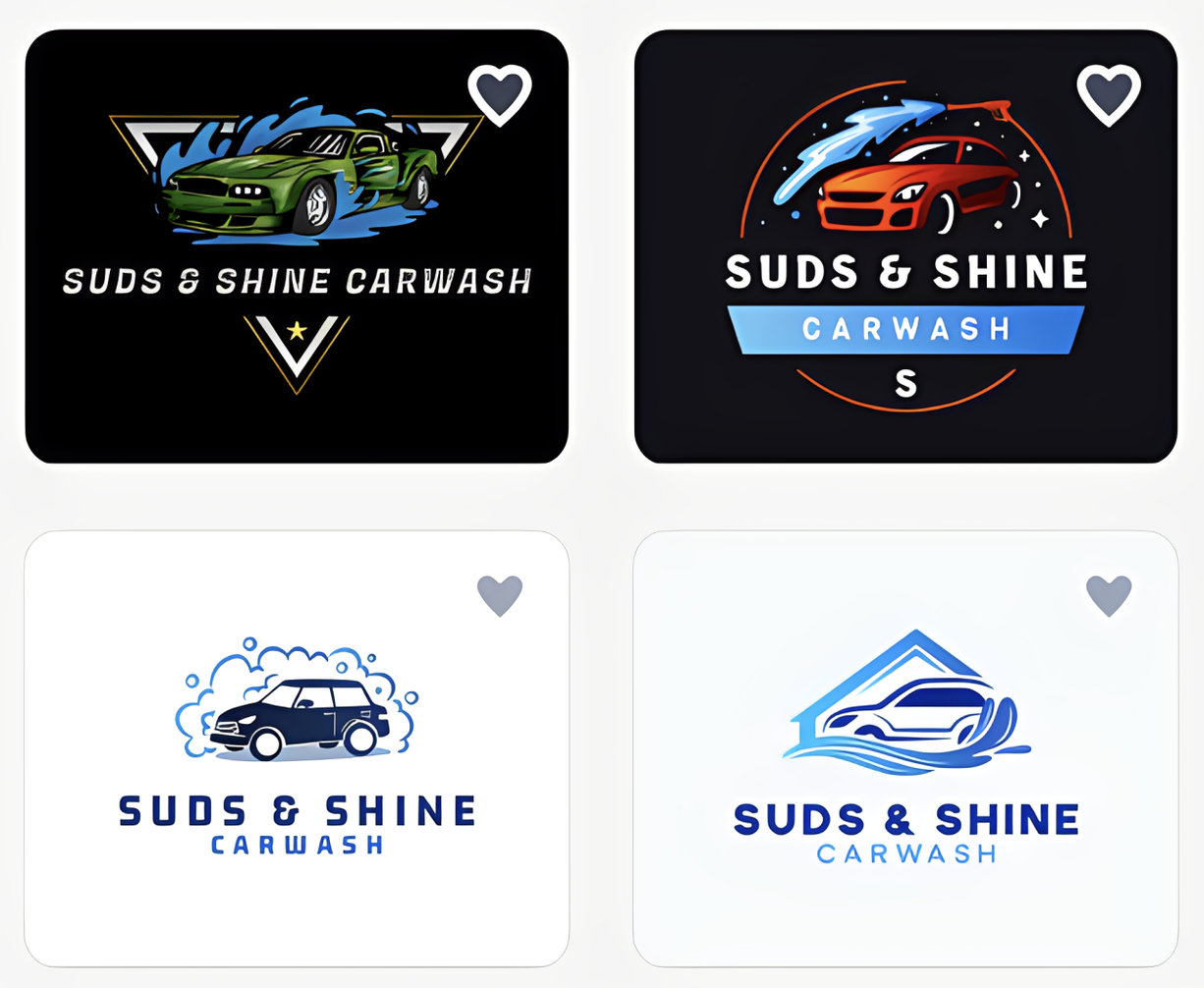
With Design.com, you get more than 1 million total design templates, including 500,000+ exclusive, designer-made logo designs that cover a wide range of industries. You can use the templates to create:
- Business cards and digital business cards
- Social media posts and stories
- Websites
- Presentations
- Flyers and posters
- Letterheads
- Menus
- Email signatures
- QR codes
Here are sample logo templates by Design.com for a fictional carwash business called Suds & Shine Carwash:
However, Canva has a larger design library with more than 1.6 million templates in the free plan. Meanwhile, the Pro plan gives you access to over 140 million premium photos, videos, audio tracks, graphics, and other assets that you can customize and use as logos, on social media platforms, in presentations, in documents, on websites, in print materials, and more.
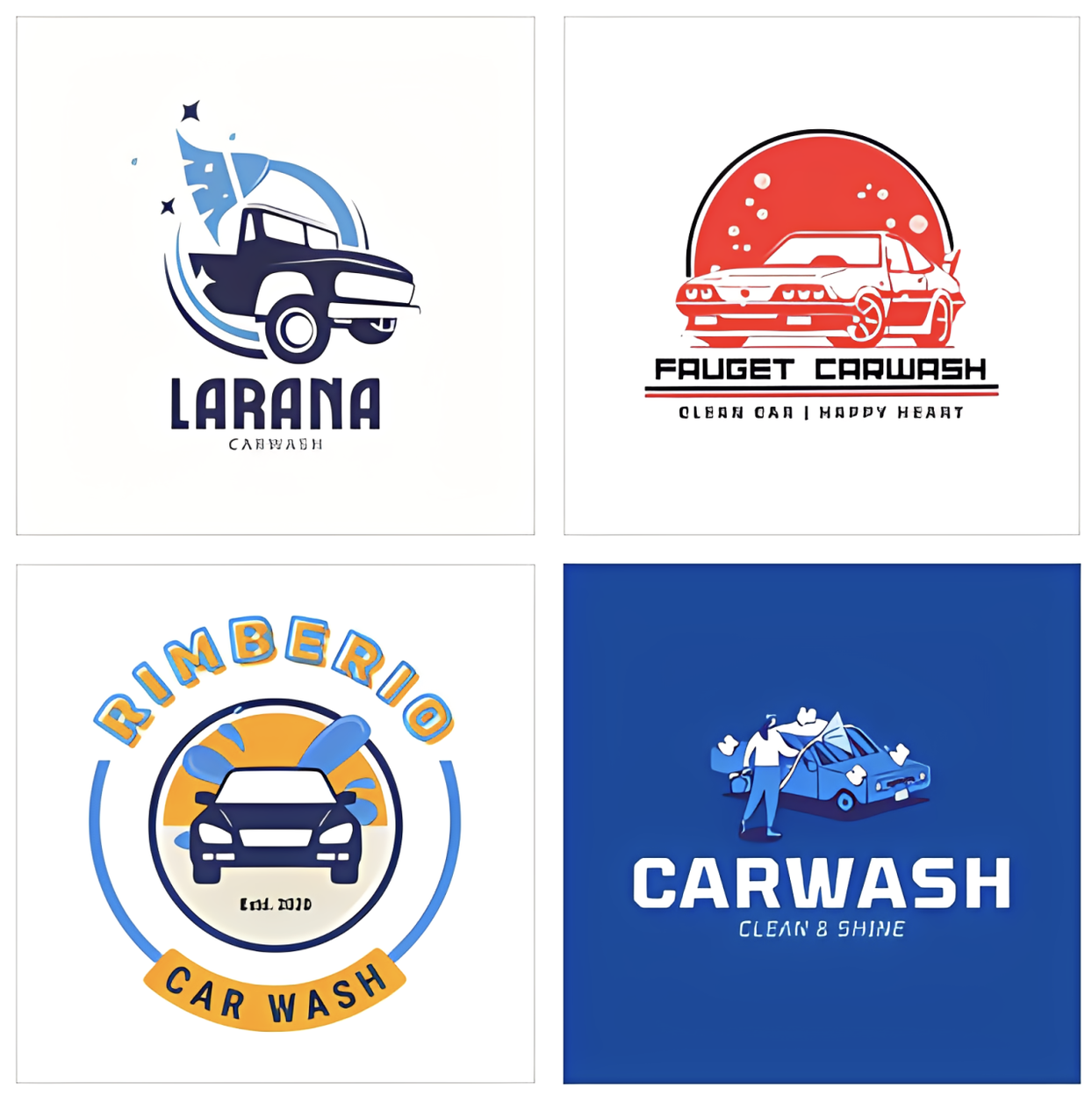
Here are sample logo templates from Canva:
4. Ease of Use and Customization
Both platforms are beginner-friendly, but their workflows differ.
Design.com provides more guidance from the start. Whether you’re creating logos or other branded assets, you start by entering a prompt that mentions your business name and description. The AI then instantly generates thousands of design concepts relevant to your brand and industry.
Once you pick a design, the platform takes you to its drag-and-drop editor where you can customize the colors, fonts, icons, and layouts without any design experience.
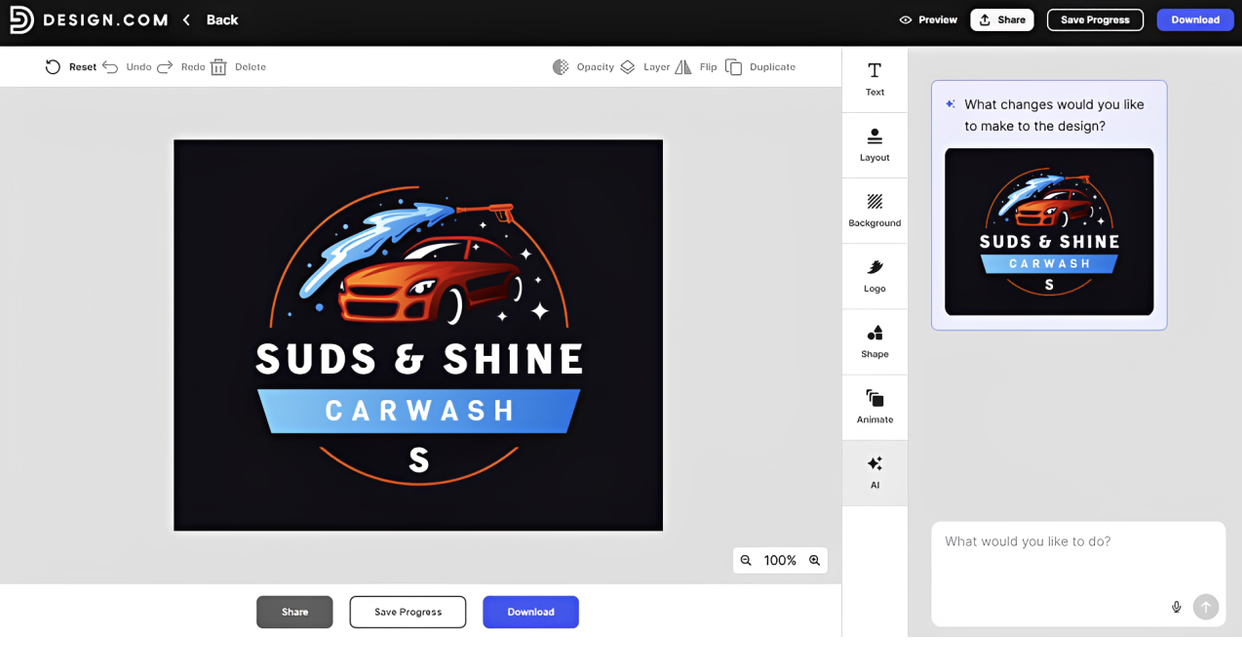
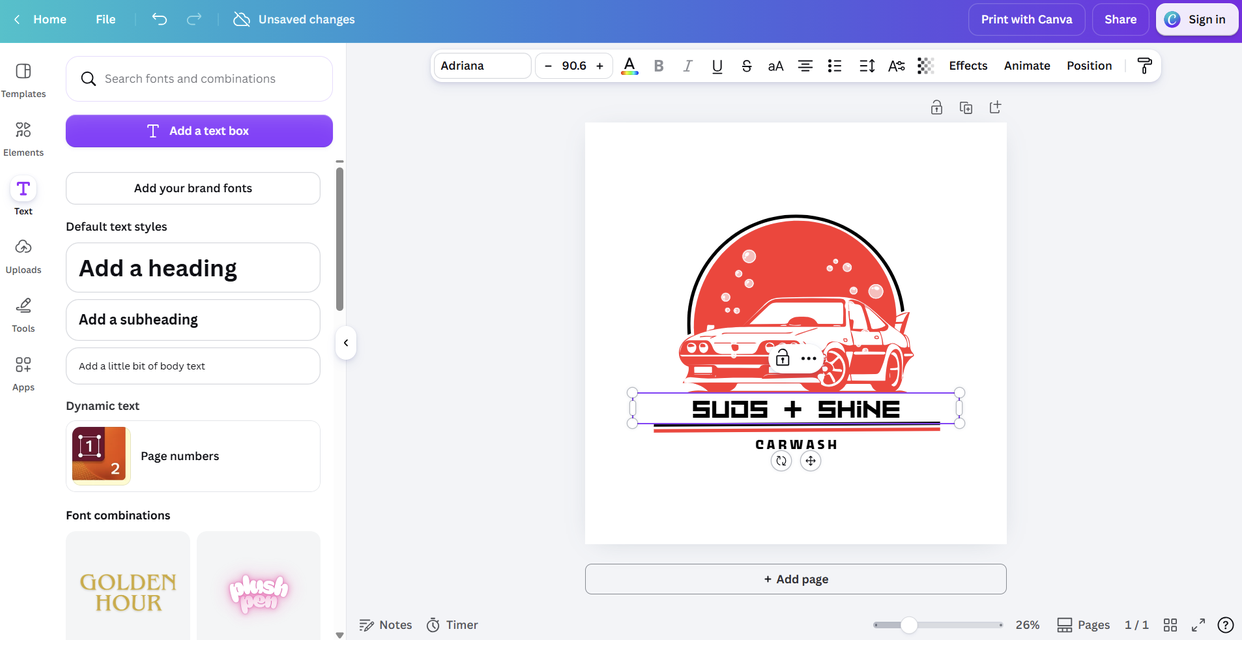
Meanwhile, if you’re using Canva, you have to search through the available tools and choose your preferred template, which you can customize using its drag-and-drop editor. It gives you extensive control over colors, typography, layouts, graphics, animations, and other design elements.
5. File Formats
Design.com and Canva both support multiple download formats. However, Design.com makes its full range of logo download options available for free, while Canva reserves some export features for Pro users.
Design.com provides:
- Vector: SVG, EPS, PDF
- Raster: PNG, JPG
- Animated: GIF, MP4
- Other options: Transparent backgrounds and icon-only versions
Meanwhile, Canva supports PNG, JPG, PDF, SVG, MP4, and GIF. However, SVG downloads and transparent backgrounds require Canva Pro.
6. Collaboration and Support
Canva has more extensive collaboration tools, particularly for teams that create and review content together. Depending on the plan, these include:
- Real-time collaboration
- Comments and feedback
- Shared brand resources
- Brand templates
- Approval workflows
- Administrative controls
Meanwhile, Design.com keeps collaboration simpler. It only lets you save your favorite logo concepts and create voting polls to collect feedback from colleagues, clients, or other stakeholders.
However, Design.com excels at providing support. It offers 24/7 email and live chat support, giving you direct access to assistance when you need it. On the other hand, Canva relies more heavily on its Help Center, with additional support available depending on the plan.
7. Free and Paid Plans
Both Design.com and Canva enable you to create designs for free using free templates and their design tools. Both also let you access their editors and tools without requiring a subscription.
However, there are also differences.
Aside from the file format differences covered above, there are a few important differences between their free plans:
Design.com Free Plan:
- Full access to the design editor — with limits mainly on AI-assisted editing
- Unlimited AI design generation and refinement
- Automatic brand synchronization across compatible designs
- Free background remover
Canva Free Plan:
- Access to the core design editor — with some features reserved for paid plans
- Limited AI generation based on available AI credits
- Full Brand Kit requires a paid plan
- Background remover requires Canva Pro
If you want to upgrade, Design.com starts at $9/month or $3/month when billed annually. This gives you full access to the platform’s premium designs and 50+ design tools. Meanwhile, Canva Pro costs around $15/month and unlocks premium templates and assets, higher AI usage limits, Brand Kit, and other editing and AI tools.
Conclusion
Design.com and Canva are both beginner-friendly design platforms, but they serve different priorities. Design.com is more focused on building a brand. It guides you from logo making to creating a complete brand identity. Meanwhile, Canva is more suitable for general-purpose content creation, with a larger creative library and stronger collaboration features.
But in terms of value, Design.com has the advantage. Its free plan includes unlimited AI generation, automatic brand synchronization, background removal, and a broad range of logo file formats. Its paid plans are also more affordable than Canva.
Still, go with Canva if you need a broad creative workspace and advanced team collaboration. Otherwise, choose Design.com for a more affordable, brand-focused platform.
Comments
Comments are available to signed-in users and are moderated to keep the discussion useful and respectful. Spam, automated submissions, and low-value promotional comments are removed. Outbound links may be approved when they are relevant and genuinely helpful to readers, but they are displayed as plain text rather than clickable hyperlinks.
No comments have been published yet.
Please sign in to submit a comment.