

Combine JPG to PDF: Easiest Ways to Merge Images into One File
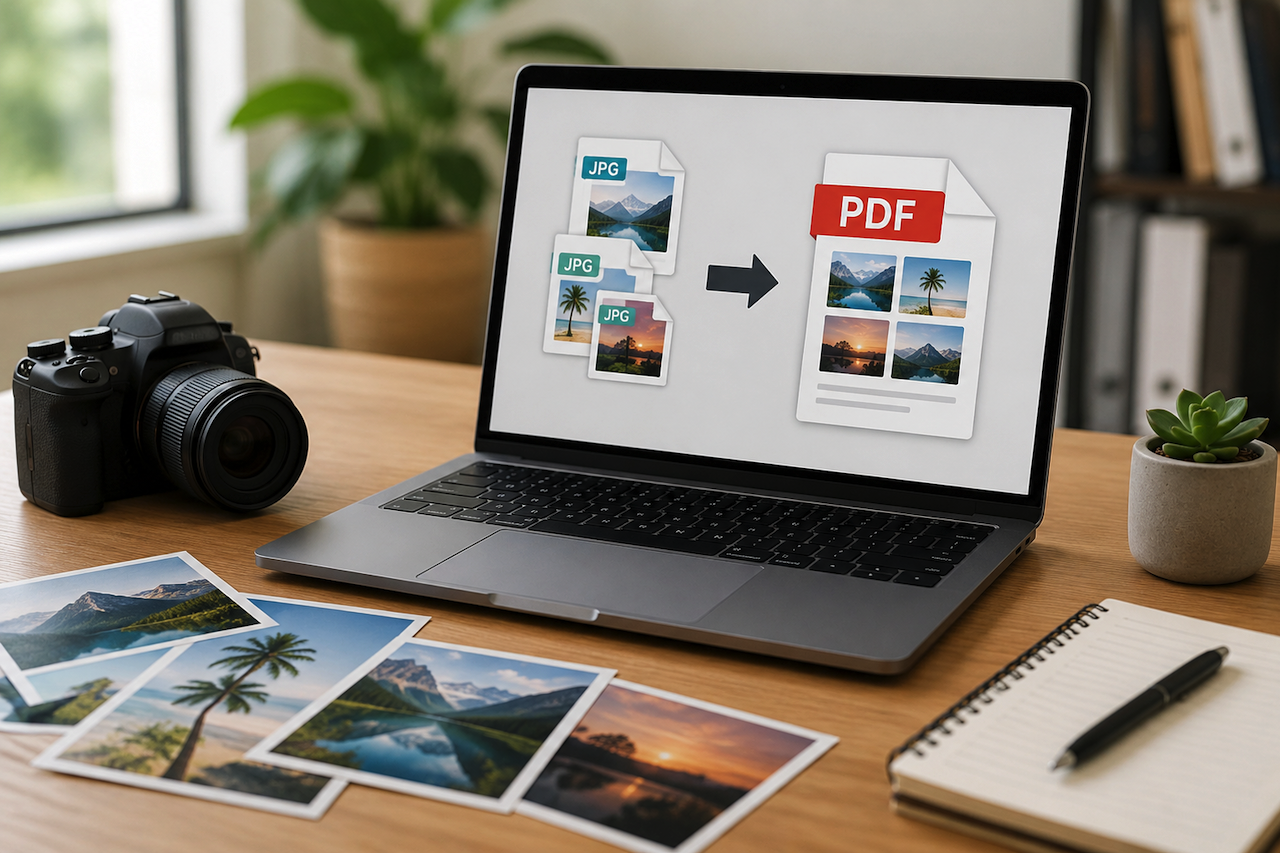
Scattered image files are one of the more mundane frustrations of digital work. You take photos at an event, scan a set of receipts, or save screenshots from a project and end up with fifteen separate files that need to travel together. Sending them one by one is slow, attaching them all to an email is unwieldy, and the recipient still has to open each file individually. The cleaner solution is to combine JPG to PDF, merging all your images into a single, ordered, universally readable document that anyone can open on any device.
There are several ways to do this, depending on whether you are on Windows, Mac, or prefer to work in a browser. This guide covers all three.
Why Combining Images into One PDF Makes Sense
Before getting into the how, it is worth understanding why merging JPGs into a PDF is worth doing in the first place, rather than just compressing images into a ZIP file or sharing them via a cloud folder link.
- One File, One Attachment: A single PDF is far easier to send and receive than a folder of loose images. It loads as one document, downloads in one click, and lands in the recipient’s inbox without confusion.
- Image Order Is Preserved: A PDF locks in the sequence you set. Recipients see images in exactly the order you intended, which matters for anything that tells a visual story, such as event photos, a design progression, or a portfolio selection.
- Universal Compatibility: PDFs open on every device and operating system without requiring specific software. JPGs are similarly compatible, but a multi-page PDF removes the need to open files one by one.
- Print-Ready Out of the Box: A combined PDF can be sent directly to a printer. Printing individual JPGs requires managing paper orientation and sizing for each file separately.
- Easier to Archive: One named PDF is simpler to file and search than a folder of images with camera-generated filenames such as IMG_4821.jpg.
Method 1: Combine JPG to PDF on Windows
Windows includes a built-in option to combine images into a PDF without installing anything. It uses the Microsoft Print to PDF feature, which has been available since Windows 10.
- Open File Explorer and navigate to the folder containing your images.
- Select all the JPG files you want to combine. Hold Ctrl and click each file individually, or press Ctrl+A to select everything in the folder.
- Right-click the selected files and choose Print from the context menu.
- In the Print Pictures dialog, set the printer to Microsoft Print to PDF.
- Choose a layout — one image per page is the cleanest option for most purposes.
- Click Print, then choose a location and filename to save the output PDF.
One limitation is that Windows sorts files alphabetically by filename before printing, and the Print dialog gives limited control over the final order. If the sequence matters, rename your files numerically (01, 02, 03) before selecting them.
Method 2: Merge JPG to PDF on Mac
Mac users can combine photos into one PDF using Preview, which is installed on every Mac by default.
- Open your JPG images in Preview. You can select them all in Finder, then right-click and choose Open With → Preview.
- In Preview, open the sidebar (View → Thumbnails) to view all your images as thumbnails.
- Drag the thumbnails up or down to arrange them in the order you want.
- Go to File → Print (or press Cmd+P).
- In the print dialog, click the PDF dropdown in the bottom-left corner and select Save as PDF.
- Name the file and choose where to save it.
Preview preserves image quality well and gives you direct control over page order before export. It does not offer compression settings or page size controls, but for most everyday uses, it produces clean, reliable output.
Method 3: How to Combine Images into One PDF Online
If you are on a device where you cannot use the above methods, such as a work computer with restricted software, a tablet, or someone else’s machine, a browser-based tool is often the most practical option. Online converters require no installation and work on any operating system.
Knowing how to combine images into one PDF online takes under a minute once you have your files ready:
- Open a browser-based JPG to PDF tool.
- Upload your images — drag and drop them directly into the tool, or click to browse your device.
- Reorder the images using the drag-and-drop interface if the sequence matters.
- Select your page size and orientation preferences if the tool offers them.
- Click Convert or Merge, then download the finished PDF.
If you want to convert your JPGs to PDF with zero hassle, browser-based tools offer a convenient option. Services such as JPGToPDF make it possible to combine multiple images into a single PDF directly from a web browser, eliminating the need for additional software.
Tips for Better Results When You Merge JPG to PDF
Whichever method you use, a few preparation steps make the output cleaner and more useful:
- Name Files in Order Before You Start: Most tools and operating systems sort by filename. Prefixing files with 01_, 02_, 03_ saves time reordering later.
- Crop and Straighten Before Combining: Skewed scans or images with unwanted borders look more unprofessional in a PDF than they do as individual files because the inconsistency becomes visible across pages.
- Check Orientation Consistency: A mix of portrait and landscape pages in one PDF can be jarring. Rotate any landscape images to portrait orientation before combining, or keep the entire document in landscape orientation if the content warrants it.
- Consider File Size Before Emailing: A PDF assembled from twenty high-resolution images can be large. If the output exceeds 10 MB, use a PDF compression tool to reduce the file size before attaching it to an email.
Learning how to create a PDF from multiple images is one of those small skills that saves a disproportionate amount of time once it becomes a habit. Whether you are collating receipts for expenses, sending a selection of photos to a client, or archiving a set of scanned documents, combining everything into a single PDF is almost always the cleaner choice.
Conclusion
There is no single best way to combine JPGs to PDF. The right approach depends on your device, how many images you are working with, and whether you need control over page sizing and image order. Windows and Mac both offer built-in methods that work without additional software. For anything more flexible or cross-device, a browser-based tool can get the job done in a few clicks with no setup. The result is the same either way: one tidy file instead of a folder full of loose images.
Featured Image generated by ChatGPT.
Related Articles
August 24, 2025
From Pixels to Pages: Why Converting JPG to PDF is a Game-Changer
In today’s fast-paced digital world, managing documents efficiently is no longer a luxury — it’s a necessity. Whether you’re a student organizing lecture notes, a business professi...
Read More
March 1, 2025
How to Convert Any File Type with a PDF Maker Online
Navigating the digital landscape often requires converting files into various formats. Due to their compatibility and secure nature, PDFs offer a universal solution for many. Using...
Read More
April 19, 2024
7 Most Compelling Reasons Your Business Needs PDF Merge Tools
There are different compelling reasons for using PDF. A business can increase the efficiency of its operation by merging files with the PDF converter. You can merge multiple files...
Read More
Comments
Comments are available to signed-in users and are moderated to keep the discussion useful and respectful. Spam, automated submissions, and low-value promotional comments are removed. Outbound links may be approved when they are relevant and genuinely helpful to readers, but they are displayed as plain text rather than clickable hyperlinks.
No comments have been published yet.
Please sign in to submit a comment.