
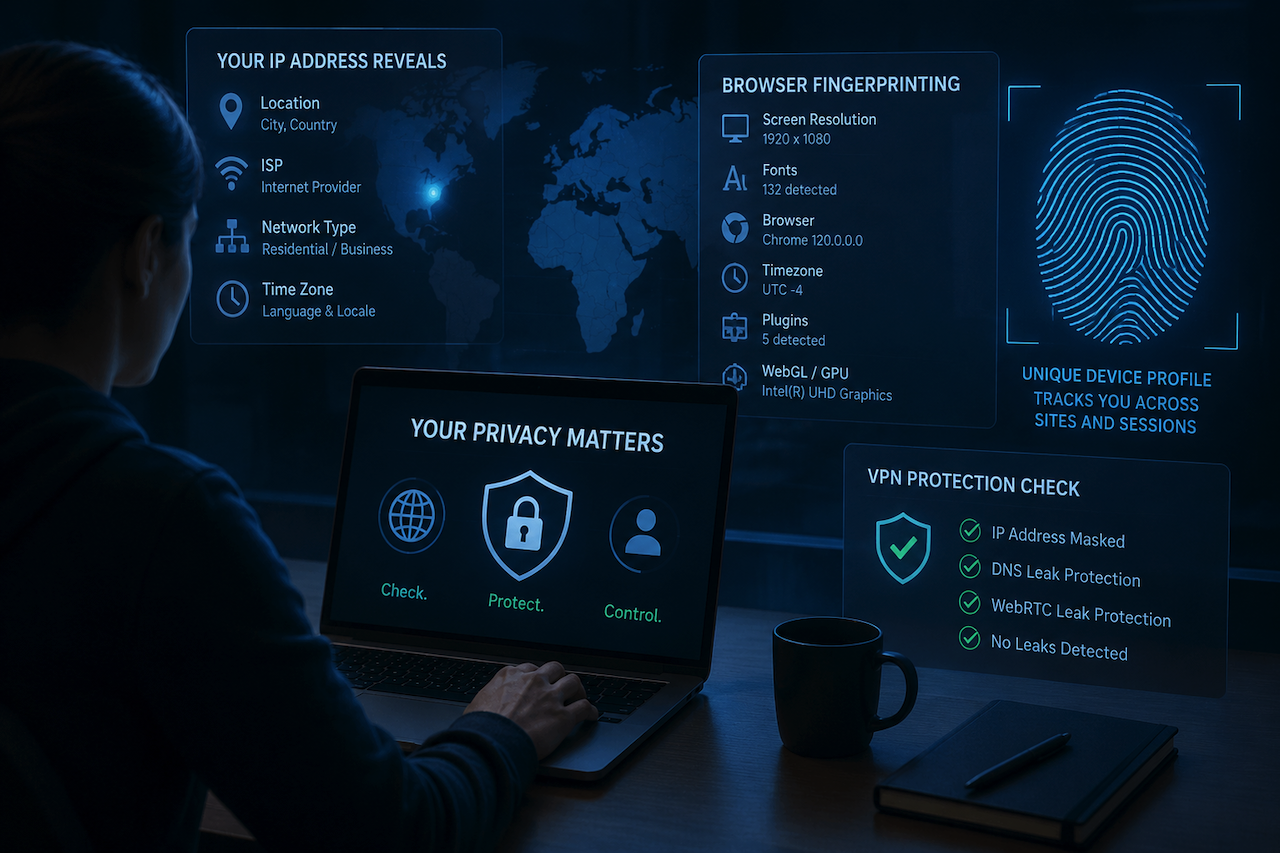
Most people assume their IP address is just a number. It is, technically. But that number tells the internet your approximate location, your internet service provider, and sometimes even which neighborhood you live in. That is more exposure than most people realize, and it is only the starting point.
Key Takeaways
- Your IP address exposes your location, ISP, and network type to every website you visit
- Browser fingerprinting builds a persistent device profile that survives IP changes and VPN connections
- Masking your IP with a VPN does not automatically stop fingerprint-based tracking
- Running a browser fingerprint check shows exactly what your device is broadcasting right now
- Verifying that your VPN has no leaks is a separate step most users skip entirely
What Your IP Address Actually Gives Away
Your internet service provider assigns your IP address. Every website you visit logs it. Every ad network records it. That single number maps to a geographic region, sometimes precise enough to identify your city or postal code.
But the exposure goes further than location. Your IP also reveals your ISP name and connection type (whether you are on a residential, business, or data center network), your general time zone and language settings, and whether your IP has been flagged for spam, bot activity, or past abuse.
Websites use this data for ad targeting, geo-blocking, fraud detection, and rate limiting. In most cases, you never see it happening. It runs quietly in the background on nearly every page you load.
The Part Most People Miss: Browser Fingerprinting
Here is where things get more unsettling. Even if you know your IP address and take steps to hide it, there is another tracking method that does not depend on your IP at all.
Browser fingerprinting builds a profile of your device from the dozens of small signals your browser sends automatically. These include your screen resolution, installed fonts, graphics card behavior, browser version, language settings, plugin list, time zone, and more. Taken together, these signals create a fingerprint that is often more unique than a single IP address.
The uncomfortable part is that this fingerprint can follow you even when you switch networks—change from home Wi-Fi to a coffee shop, and your IP changes. Your browser fingerprint stays the same.
To understand what your own device is broadcasting, you can run a browser fingerprint check and see the full picture in real time. Most people are surprised by how much detail is exposed, and how little of it changes between sessions.
Why Fingerprinting Is Harder to Escape Than IP Tracking
IP addresses change. You get a new one every time you restart your router, switch networks, or connect to a VPN. That is one reason people assume VPNs solve the tracking problem entirely.
Fingerprinting is different. It is tied to your device and browser configuration, not your network. A fingerprinting-based tracker does not need your IP address to recognize you. It just needs the same browser to make a request, and it will match the same profile from any location.
This matters for a few specific reasons. Ad networks, analytics platforms, and certain fraud detection services use fingerprinting as a fallback when cookies are blocked or cleared. Some tracking systems combine fingerprint data with behavioral signals like scroll speed and typing patterns. These combined profiles can persist for months without a single cookie ever being set.
Research from organizations focused on online tracking and surveillance has consistently found that fingerprinting is one of the most underappreciated tracking vectors in modern web browsing. It receives far less public attention than cookies, but it is often more durable and harder to opt out of.
What Changes When You Start Paying Attention
The first step most people take after discovering this kind of exposure is masking their IP. That is a reasonable starting point, and it does address IP-specific tracking. Understanding VPN basics is worth the time, especially for anyone new to routing traffic through an encrypted tunnel.
A VPN works by replacing your real IP address with one from the VPN provider's server. Websites see the server's IP instead of yours. That removes a significant data point from your exposure profile.
But a VPN alone does not stop fingerprinting. This is a common misunderstanding. Your browser still sends the same device signals regardless of whether your traffic is encrypted or routed through a different server. The fingerprint travels alongside every request.
How to Reduce Your Fingerprint Surface
Reducing your browser fingerprint takes more intentional effort than using a VPN. Some of the most effective steps include:
- Using a browser designed for privacy, such as Firefox with strict tracking protection or Tor Browser, which normalizes fingerprint signals across users
- Disabling or limiting JavaScript where possible, since many fingerprinting scripts rely on it
- Avoiding unnecessary browser extensions, which add unique signals to your profile
- Using a standard window size, since custom screen dimensions are a surprisingly strong fingerprint signal
- Keeping your browser updated, since version numbers contribute to a unique identifier
None of these steps eliminates fingerprinting entirely, but they reduce the uniqueness of your profile. The goal is not invisibility. It is making your fingerprint resemble thousands of other people's fingerprints rather than something distinct to you.
The Gap Between Thinking You Are Protected and Actually Being Protected
A lot of people install a VPN and consider the problem solved. That assumption has a practical cost. VPNs can leak your real IP through WebRTC, DNS requests that bypass the tunnel, or misconfigured split tunneling. You may believe your IP is hidden when it is not.
This is why checking your actual exposure after setup matters. Using a VPN check tool lets you confirm that your IP is masked as expected and that no leaks occur. It is the step most VPN guides mention briefly, and most users skip entirely.
The same logic applies to fingerprinting. Running a check once tells you your current exposure. Running it again after making changes tells you whether those changes worked. Without verification, you are operating on assumptions, and assumptions are exactly what tracking systems count on.
What You Actually Control, and How to Use It
The goal of all this is not paranoia. Most people do not need to disappear from the internet. They want their browsing to stop building a permanent dossier of their habits, preferences, and location.
Your IP address was the easy part to track. Your browser fingerprinting your hardware and software configuration is the harder problem, and it is the one that catches most privacy-conscious users off guard. The good news is that awareness is the first real step. Once you can see what your device is broadcasting, you can make informed decisions about how to address it.
Run the fingerprint check. Understand what a VPN actually protects. Verify that protection is working. That sequence closes most of the gaps that leave people more exposed than they assume.
Conclusion
Your IP address and browser fingerprint reveal far more information than most users realize. While tools like VPNs can help reduce exposure, they do not eliminate modern tracking techniques on their own.
Understanding how fingerprinting works, verifying your actual exposure, and taking practical steps to reduce identifiable browser signals can significantly improve online privacy. The most important step is awareness because once you understand what your device is broadcasting, you can make more informed decisions about how to protect it.
Disclaimer
This article is provided for informational and educational purposes only. Online privacy tools, VPN services, browser fingerprinting checks, and related technologies may vary in effectiveness depending on browser configuration, device settings, network conditions, and third-party services.
Readers are responsible for evaluating and using any tools, software, websites, VPN services, or privacy-related resources mentioned in this article at their own discretion and risk.
iplocation.net does not own, operate, endorse, or guarantee any third-party websites, tools, VPN providers, or external services referenced or linked in this article. iplocation.net is not liable for the availability, accuracy, privacy practices, security, content, functionality, or outcomes associated with any external links, third-party platforms, or services.
Featured Image generated by ChatGPT.
Share this post
Leave a comment
All comments are moderated. Spammy and bot submitted comments are deleted. Please submit the comments that are helpful to others, and we'll approve your comments. A comment that includes outbound link will only be approved if the content is relevant to the topic, and has some value to our readers.


Comments (0)
No comment