
Mozilla Thunderbird stores mailbox data—such as emails, contacts, and calendars—in an MBOX file, a container format that Outlook does not support. Because of this, you cannot transfer Thunderbird mail to Outlook directly. The practical solution is to convert the Thunderbird MBOX file into a PST file, which Outlook uses for import and export. In this guide, you’ll learn how to convert the MBOX file into PST format and use a manual workaround to move Thunderbird emails to Outlook safely.
How to Transfer Thunderbird Mail to Outlook Safely
Below are two commonly used methods to transfer or move mailbox items from Thunderbird to Outlook.
Method 1: Convert the MBOX File to PST
The most straightforward approach is to convert Thunderbird’s MBOX file into the PST format. This requires a tool capable of handling MBOX-to-PST conversion. Several utilities exist for this purpose.
This type of software typically supports:
- Converting MBOX files from various email clients
- Previewing mailbox items before saving
- Exporting data to multiple formats such as PST, EML, MSG, or PDF
General Steps to Convert an MBOX File to PST
Note: If you haven’t done so already, export your Thunderbird mailbox data as an MBOX file using the ImportExportTools NG add-on.
- Install and launch an MBOX-to-PST converter tool on your Windows PC.
- Select Thunderbird as the mail client or manually choose the MBOX file.
- Start the scan to load mailbox contents.
- Review the preview of emails and folders.
- Choose Save As PST and select a destination folder.
- After the file is saved, import the PST into Outlook via the Import/Export Wizard.
This method is suitable for users who want to migrate complete mailbox data without losing structure or metadata.
Method 2: Save Thunderbird Emails as EML Files and Move them to Outlook
If you only need to transfer specific emails, not the entire mailbox, you can export messages as EML files and then move them into Outlook.
Part 1: Save Thunderbird Emails as EML Files
- Create a new folder on your PC to store EML files.
- Open Mozilla Thunderbird.
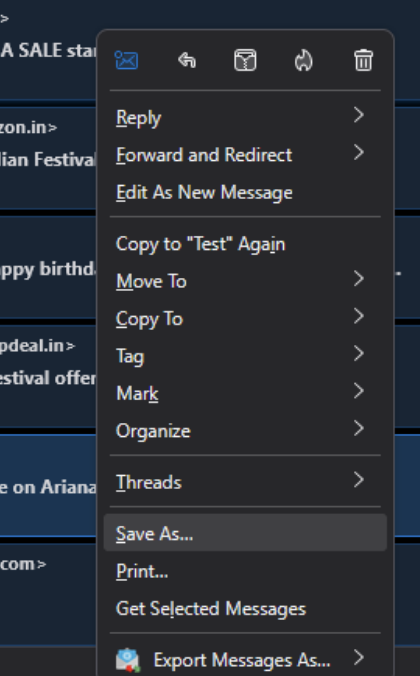
- Hold Shift and select the emails you want to migrate.
- Right-click and choose Save As.
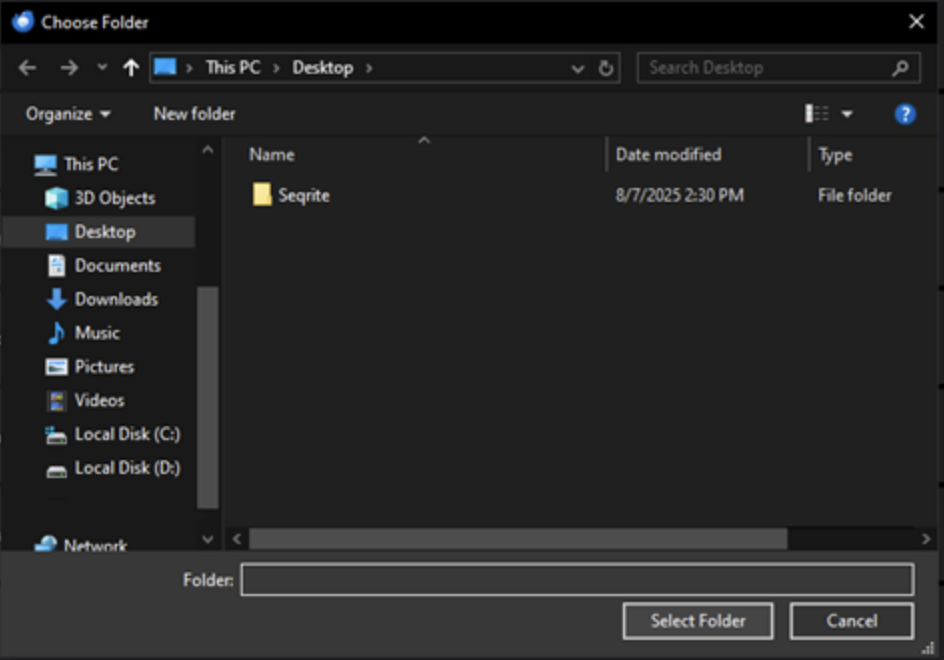
- Select the folder where the EML files should be saved.
- The selected emails will be saved in EML file format.

Part 2: Drag and Drop EML Files into Outlook
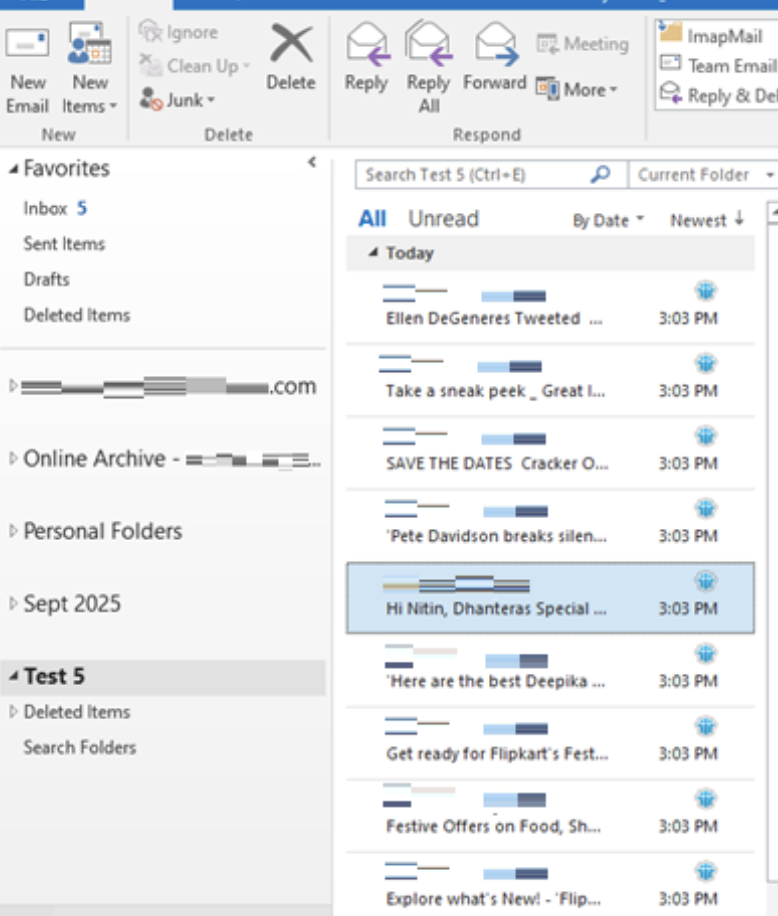
- Open the Outlook desktop application.
- Create a new folder.
- Drag the EML files into that folder.
Outlook will load the emails and make them available in your account.
Limitations of the Manual Workaround
- Works best for transferring a small number of emails
- Time-consuming for large mailboxes
- EML files may not always display full message formatting or attachments
Conclusion
Microsoft Outlook does not support the MBOX file format used by Thunderbird, which prevents direct mailbox transfer. To move Thunderbird data into Outlook, you must first convert the MBOX file using an MBOX to PST converter tool, with Stellar Converter for MBOX being one example, or rely on manual EML export for smaller migrations. After conversion, the resulting PST file can be imported into Outlook using the built-in Import and Export Wizard.
Share this post
Author

Read the latest articles from Mansi Verma
Quick Guide to Recover Deleted Photos on Android

January 8, 2025
Do you love capturing your important or precious moments as photographs on your device? Ever wondered what if these photos get suddenly deleted from your Android phones? Losing precious photos on your Android device can be a painful experience, whether they are deleted due to accidental deletion, formatting, or a [...]
Learn moreBest Methods to Convert OST to PST without Outlook
October 1, 2024
Microsoft Outlook creates two types of data files - Offline Storage Table (OST) and Personal Storage Table (PST) to store the mailbox data. OST files are created when you configure your Outlook account with Exchange Server or IMAP. The OST file, by default, is encrypted with MAPIEntryID GUID key. This means that [...]
Learn moreLeave a comment
All comments are moderated. Spammy and bot submitted comments are deleted. Please submit the comments that are helpful to others, and we'll approve your comments. A comment that includes outbound link will only be approved if the content is relevant to the topic, and has some value to our readers.







Comments (0)
No comment