

Basic Security Tools To Help Reduce Online Threats (Beginner-Friendly Guide)
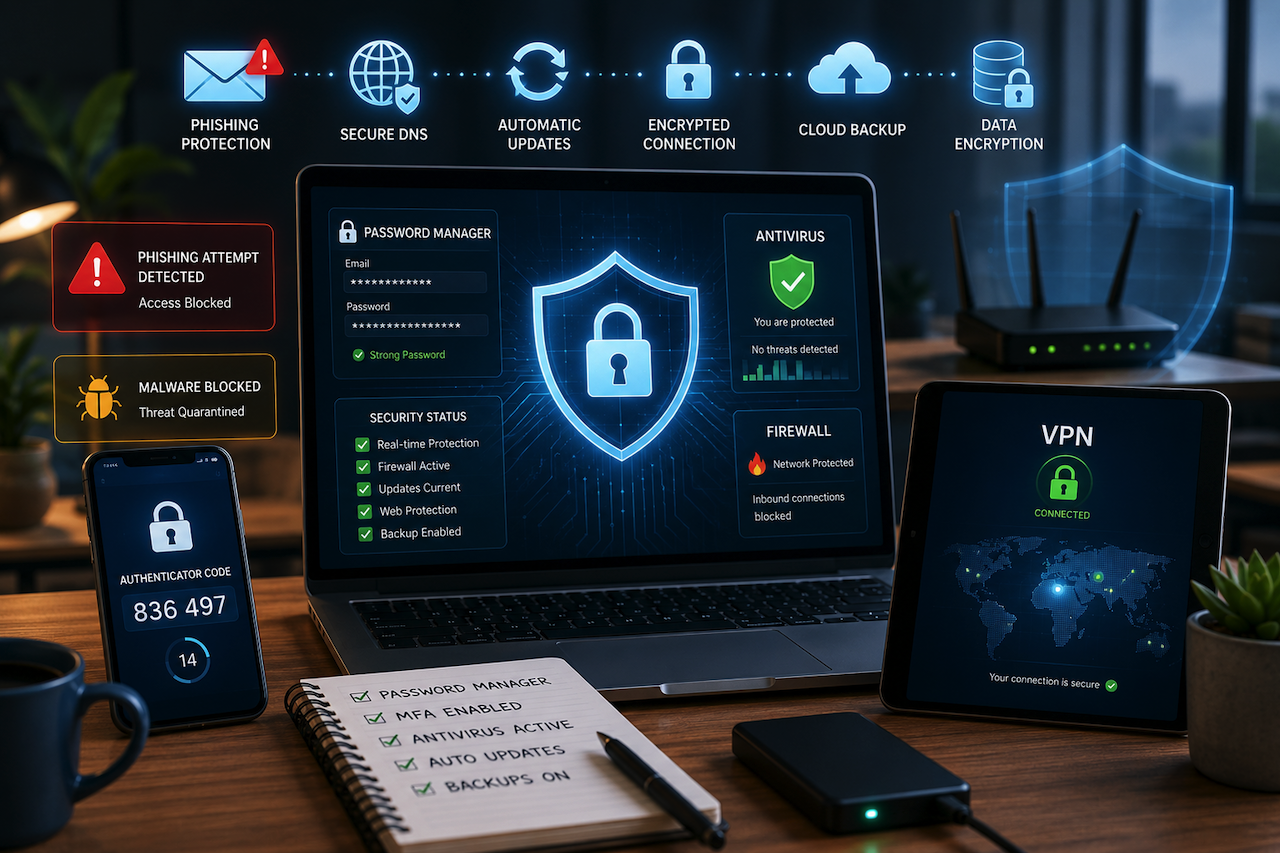
You've probably done it. We all have. Opened that sketchy email, clicked a link without thinking twice, or browsed sites that seemed just a little off. Phishing attacks empty checking accounts overnight. Ransomware holds your family photos hostage. Account breaches expose messages you'd never want public. When you're on public Wi‑Fi at the coffee shop, someone could be logging every password you type.
Downloads you thought were harmless drop spyware that's been harvesting your credentials for months. This isn't some distant nightmare; it's happening to ordinary people right now, on every device you own. The good news is that a handful of basic security tools can help prevent many common attacks before they reach your files, and you won't need any technical background to get started.
Understanding the Threat Landscape Before You Act
Look at the 2024 vulnerability data. Critical flaws represent 57.12% of all vulnerabilities, high-risk issues make up 35.76%, and medium-risk weaknesses account for just 7.12%. What does that mean for you? The holes attackers exploit aren't tiny cracks; they're gaping security failures that hand them total control of accounts, enable ransomware deployment, or let them walk away with everything on your machine. These are live dangers every single time you connect. Now let's connect those dangers to the specific defenses that neutralize them.
Connecting Threats to Protection Layers
Phishing messages bait you into handing over login details on counterfeit pages. Your shield? A password manager that only auto-fills on genuine domains, combined with email screening and browser alerts that catch suspicious URLs. Malware and ransomware slip in through downloads and compromised websites, which means you'll want an antivirus running real-time scans, a hardened operating system, and scheduled backups. Account compromises occur when credentials leak or passwords are too weak. Multi-factor authentication plus breach alerts slam that vulnerability shut. Public Wi‑Fi snooping exposes your entire session unless you route through a VPN and enforce HTTPS everywhere.
Data loss from hardware theft or drive failure demands both backup routines and full-disk encryption. Tracking and identity exposure increase when you reuse the same email and payment information across platforms, but privacy-focused tools and secure DNS reduce that footprint. Every threat has a corresponding countermeasure, and online security tools are most effective when you stack them. Now that the risks are clear, let's look at five essential tools that address the attack vectors discussed above and can be set up in under two hours.
Five Must-Have Tools for Immediate Protection
If you tackle only five tasks today, these will give you the greatest security benefit for the least amount of effort:
- Use a password manager: Replace reused passwords with strong, unique credentials, starting with your email and banking accounts.
- Enable multi-factor authentication (MFA): Protect your primary email account so a stolen password alone cannot grant access.
- Turn on antivirus and anti-malware protection: Enable real-time scanning and web protection features to block threats before they can cause damage.
- Activate automatic updates: Keep your operating system, browser, and applications patched against newly discovered vulnerabilities.
- Set up automatic backups: Follow the 3-2-1 rule: three copies of your data, on two different storage types, with one copy kept offline.
These beginner-friendly security measures typically take only 5 to 20 minutes to configure and significantly reduce your exposure to phishing, malware, ransomware, account hijacking, and data loss. They also form the foundation of a stronger security strategy, making it easier to add additional protections at the network and browser levels later.
Your devices are where malware, ransomware, and rogue applications often make their first move. Let's start by strengthening those endpoints with tools that work quietly in the background.
Real-Time Malware Detection and Removal
Plenty of free options offer these capabilities, and some of the best antivirus solutions provide the core defense most users require without subscriptions or aggressive upselling. After installation, flip on real-time protection right away, schedule weekly full scans, enable PUA blocking to intercept unwanted bundles, and activate ransomware shields or protected folder features if available. Antivirus intercepts threats that land on your machine, but your firewall blocks dodgy connections before malware can even attempt the download.
Consider this. The window from vulnerability announcement to active exploitation now averages just 3.7 days. That's why your antivirus can't be the type that scans once weekly. You need continuous monitoring of every open file, incoming downloads, and launching processes. Essential features include real-time scanning, web protection, ransomware barriers, behavior analysis, and phishing blockers.
Firewalls and App Permission Controls
Most users don't realize a firewall is already baked into their OS; they've just never verified it's running. Navigate to your security panel, confirm the firewall is active, and set it to block unknown incoming traffic by default. Then audit app permissions every 3 months and revoke camera, microphone, or location access from apps that have no legitimate need. Watch for red flags. Flashlight utilities requesting your contacts, casual games demanding location access, or basic tools requesting microphone permissions should raise immediate concerns.
Even an active firewall won't shield you from vulnerabilities lurking in outdated software, which is why automatic patching delivers the easiest security win people routinely miss.
Patching and Update Automation
Flip on auto-updates for everything, including your operating system, browser, PDF viewer, password vault, VPN client, and messaging platforms. Next, uninstall any apps or browser add-ons you haven't touched in months. Each unused piece of software is an unlocked door. Focus your patching efforts on browsers, operating systems, messaging tools, PDF readers, and remote-access software because these are attacker favorites. Securing endpoints matters little if attackers can seize your accounts using stolen or recycled passwords. Here's how to make every login practically bulletproof.
Locking Down Your Accounts
A robust, unique password forms your baseline defense, but multi-factor authentication ensures that even if a password is compromised, your account won't be taken over.
Password Managers and MFA Together
Choose a password manager offering zero-knowledge encryption, cross-platform sync, a built-in generator, encrypted notes, and passkey support. Begin by replacing duplicate passwords for email, banking, and cloud storage. Stash recovery codes safely in the manager's secure notes section. Then activate multi-factor authentication using an authenticator app (superior to SMS), passkeys (ideal), or a hardware token (strongest possible). Secure your primary email first, followed by cloud drives, social profiles, and financial portals. Store backup codes and a secondary authentication method in case your phone goes missing. Even with MFA running, your credentials might already be floating around on dark web forums from a prior breach. Breach monitoring notifies you the instant you need to take action.
Early-Warning Breach Alerts
Activate breach monitoring in your password manager or deploy a standalone scanner to search for your email and phone numbers in leaked credential dumps. When an alert arrives, rotate the password immediately and verify whether any connected accounts were affected. Most account takeovers don't involve sophisticated brute-force cracking; they start with a single deceptive link or compromised site you visited without realizing.
Safer Browsing and Phishing Defense
Your browser neutralizes many threats after they load, but secure DNS filters out recognized malicious domains before they ever hit your screen.
DNS Filtering and Browser Hardening
Turn on DNS-over-HTTPS in your browser or system preferences and select a trusted filtering DNS resolver that blocks malware, phishing attempts, and tracking domains. Next, audit your browser extensions and delete anything unfamiliar or sketchy. Consider using separate browser profiles, one for shopping and banking, another for general browsing. DNS blocks malicious sites at the network layer, but since 90% of cyberattacks originate from phishing emails, you'll need additional defenses directly in your inbox.
Email Scam and Phishing Filters
Activate spam and phishing guards in your mail client, turn off auto-loading of remote images to limit tracking, and use the report phishing function whenever you identify a scam. Before clicking any URL, hover to preview the destination, scrutinize the domain closely, and avoid shortened links unless you expand them first. Securing your browser and email is vital, but the network you're using, especially open Wi‑Fi, can broadcast every move you make online.
Network Security for Home and Travel
A VPN encrypts your traffic on sketchy networks, yet the router in your own house can become the most vulnerable entry point when left with factory defaults.
Router Hardening and Guest Networks
Replace your router's default admin credentials, update the firmware on a regular schedule, enable WPA3 or WPA2 encryption, disable WPS, and set up a guest network for IoT devices. This keeps smart TVs, security cameras, and voice assistants separate from your primary devices. Even a locked-down router can't fully offset insecure IoT devices broadcasting data freely; cameras, smart speakers, and connected TVs require their own isolation layer.
IoT and Smart Device Controls
Place IoT gear on your guest network or VLAN where feasible, turn off UPnP unless necessary, and audit the cloud accounts associated with each device. Enable multi-factor authentication on those accounts and immediately change any default passwords. Network controls shrink your attack surface, but when ransomware hits or a device gets stolen, your final safety net is a solid backup and encryption plan.
Backup and Encryption Essentials
Backups let you bounce back after an incident, while device encryption guarantees that stolen hardware reveals nothing to whoever walks off with it.
The 3-2-1 Backup Plan
Maintain three copies of critical data, store them on two distinct media types, and keep one copy offline or at a different location. Enable automatic backups and run a test restore every quarter to verify everything functions. Encrypted devices safeguard data at rest, yet sharing files through unprotected links or poorly configured cloud folders can unravel all that security in moments.
Secure Sharing and Cloud Hardening
Deploy expiring links, read-only permissions, and password-protected shares whenever you send files. Review shared links quarterly and activate MFA for all cloud storage accounts. You've now got the complete toolkit, but genuine protection comes from execution. Here's a 30-minute action sequence that gets the highest-impact tools running today.
Your 30-Minute Security Upgrade
Spend the first 10 minutes installing a password manager, resetting your email password, enabling MFA for email, and activating automatic updates. During the next 10 minutes, enable secure DNS, turn on browser safeguards, remove risky extensions, and activate breach monitoring. Use the final 10 minutes to confirm your firewall is running, establish a backup schedule, and store recovery codes securely.
Taking Control of Your Digital Safety
Online dangers won't disappear, but you don't need advanced certifications or costly subscriptions to build effective defenses. A short list of basic security tools and internet security tips can block phishing, malware, ransomware, account takeovers, and data loss before they disrupt your digital life. Start with the five core elements including a password manager, MFA, antivirus protection, automatic updates, and backups—then expand outward to DNS filtering, router hardening, and secure file sharing. Small actions add up to meaningful protection, and each layer you implement makes the next intrusion significantly harder to carry out.
 FAQs
FAQs
Begin with a password manager, multi-factor authentication on email, antivirus with real-time protection, automatic OS and browser updates, and a 3-2-1 backup routine. These five address the most dangerous threats and require less than two hours total setup.
From small businesses to large enterprises, understanding the 5 Cs of cybersecurity: Change, Compliance, Cost, Continuity, and Coverage is pivotal. These five components provide a robust framework for safeguarding digital assets and managing cyber risk.
Antivirus software was originally developed to detect and remove computer viruses. Today, most antivirus solutions also protect against malware, malicious URLs, phishing attacks, spam, ransomware, and other online threats.
Featured Image generated by ChatGPT.
Related Articles
March 25, 2026
The Simple Online Security Advice Only the Foolish Would Ignore
Too often, online safety is viewed as a one-time thing by people. But it works better as a habit. Most break-ins still start with a human moment. Someone clicks. Someone types. Som...
Read More
September 19, 2024
What Are the Best Practices for Online Maximum Security?
This has become even more vital in an era where going digital is being considered to offer maximum security. Just as the cyber threat does, so too must our response to it. Turning...
Read More
April 4, 2024
4 Main Data Security Threats in Online Learning
Online learning has its fair share in the education market. The giants like Datacamp or Coursera now provide fully functional online courses with certificates renowned worldwide. D...
Read More
Comments
Comments are available to signed-in users and are moderated to keep the discussion useful and respectful. Spam, automated submissions, and low-value promotional comments are removed. Outbound links may be approved when they are relevant and genuinely helpful to readers, but they are displayed as plain text rather than clickable hyperlinks.
No comments have been published yet.
Please sign in to submit a comment.