

Why SSD Upgrades Still Beat Buying a New Budget Laptop
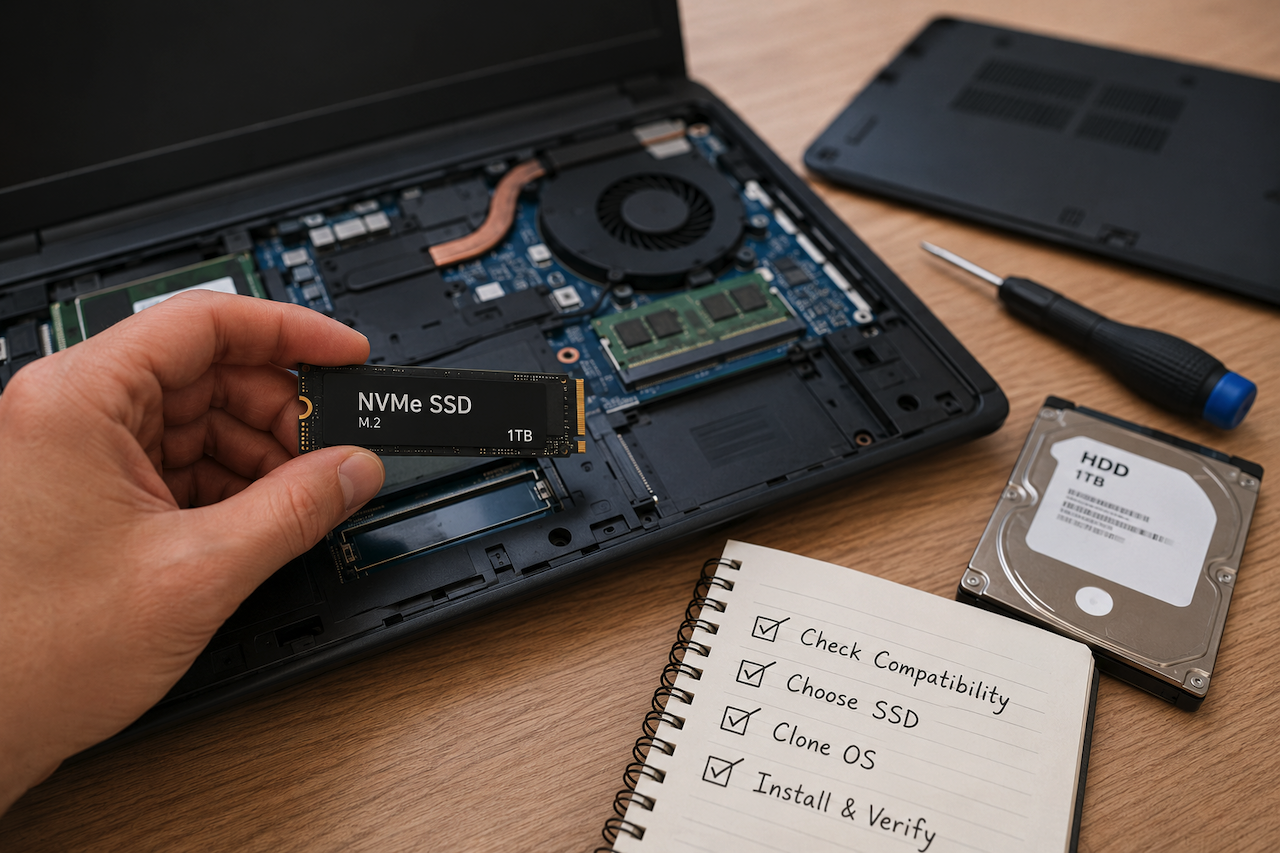
For most everyday users, upgrading to a DRAM-cache SSD can often provide a noticeable improvement in responsiveness compared with purchasing a budget replacement laptop, because storage latency, not CPU clock speed, is what determines how responsive a machine actually feels.
Top Reasons
- Storage latency dominates perceived speed far more than clock speed
- Many budget laptops still ship with slow HDD or eMMC storage
- An SSD swap typically costs far less than a full replacement
Key Takeaways
- Storage latency, not CPU clock speed, is the primary factor governing a laptop's day-to-day responsiveness.
- Many new budget laptops ship with slow eMMC or HDD storage, making an SSD upgrade a cost-effective option in many situations
- A four-step upgrade process covers compatibility checks, choosing a DRAM-cache drive, cloning the OS, and physical installation.
- Random IOPS matter far more for perceived speed than the sequential MB/s figures most manufacturers highlight.
- The 2-year rule holds that if a laptop has at least two years of usable life remaining and is in good condition, an SSD upgrade can provide a significant performance improvement relative to its cost
- Task Manager's Disk column is a reliable indicator of a storage bottleneck when it frequently hits 100% during normal use.
Why a budget laptop can be a lateral move
Spend $300 on a budget laptop and you may end up with exactly the problem you were trying to escape. Responsiveness is governed by storage latency, not clock speed, and upgrading to a DRAM-cache SSD can often improve responsiveness more noticeably than moving to a budget laptop that uses similarly limited storage.
Most budget laptops ship with a spinning HDD or eMMC flash. These are the same storage types that made your current machine feel slow in the first place. Shoppers check CPU and RAM figures, then stop. Storage gets overlooked, yet it is the component that decides how quickly apps open, how fast tabs switch, and how long you spend staring at a desktop that has not finished waking up.
Worse, many budget laptops use soldered, non-upgradeable eMMC. That sluggishness is baked in from day one, and whatever you notice in the shop is what you keep for the life of the device.
The practical check is straightforward. Pull up the spec page for any machine you are considering and confirm whether it uses an HDD, eMMC, or a DRAM-less SATA SSD. A new budget laptop with a spinning drive will often feel no quicker than what you already own. Upgrading a capable existing machine with a quality SSD is, in many cases, a more cost-effective alternative to purchasing a budget replacement laptop.
Before buying a new budget laptop, check its storage type. If it ships with an HDD or eMMC, it is unlikely to feel meaningfully faster than your current machine. Search the model name followed by "storage type" or "full specs" to confirm before you spend anything.
Why storage latency, not clock speed, defines how fast your laptop feels
This comes down to physics. A hard drive must physically move its read heads and platters to fetch small files, introducing delays of 5–15 milliseconds per request. A SATA SSD responds in under a millisecond. NVMe drives go lower still. Because flash storage serves data electronically rather than mechanically, the bottleneck essentially vanishes, and everyday tasks feel noticeably faster as a result.
Modern software is built to assume near-instant data retrieval. When a slow hard drive forces the CPU to sit and wait, a faster processor cannot hide those waits. That is why a brand-new budget laptop with a spinning drive can feel no better than a five-year-old machine, regardless of what the spec sheet claims.
The metric that actually governs responsiveness is random IOPS, not the sequential MB/s figures plastered across product pages. Random IOPS determines app launch times, OS snappiness, and browser tab switching. Sequential transfer rates matter for large file copies but have very little bearing on how a machine feels day to day. DRAM-cache SATA and NVMe SSDs generally perform well in random IOPS benchmarks and can provide a noticeable improvement in day-to-day responsiveness.
Many people are genuinely surprised to discover how much the drive was contributing to the problem. They assumed the CPU was the culprit. In many cases, it is not. To determine whether storage performance may be affecting your system, review the compatibility considerations outlined in the next section before making any hardware changes.
How to vet your laptop and execute an SSD swap
Four steps: verify compatibility, choose a DRAM-cache drive, clone the OS, then install and confirm. Grab your laptop model number and a screwdriver before you start.
1. Verify compatibility
SATA and M.2/NVMe use different connectors and deliver very different performance. Do not assume an M.2 slot accepts NVMe, because some accept M.2-SATA only. Physical clearance matters too: single-sided and double-sided M.2 modules are not always interchangeable within the same chassis.
Check whether your machine uses soldered eMMC storage before ordering anything, since some budget models offer no accessible slot at all. Cross-reference the service manual or a hardware info tool to confirm both the interface type and physical form factor. If compatibility is unclear, consulting the laptop's documentation may help avoid purchasing incompatible hardware. Users who are unsure about the process may wish to consult the device documentation or seek technical assistance before making hardware changes. In some cases, professional SSD upgrade services can assist with compatibility verification and installation.
2. Choose the right SSD
DRAM-cache SSDs handle random IOPS far better than DRAM-less alternatives, and that difference shows up in app launches and tab switching from the very first boot. Lower-cost drives may not deliver the same level of performance as DRAM-cache alternatives, depending on the workload.
Ignore headline sequential MB/s figures. Focus on controller quality, DRAM presence, and stated endurance. SSDs from established manufacturers generally provide documented endurance ratings and detailed specifications that can help buyers compare options. A well-chosen 500 GB DRAM-cache drive cuts daily lag without overspending on capacity you will never fill. DRAM-less drives often perform adequately in synthetic benchmarks but degrade noticeably under sustained load, a gap that rarely appears in the spec sheet.
The NVMe advantage in random IOPS over SATA is real, but SATA remains a worthwhile step up from any spinning HDD or slow eMMC. Confirm your interface first, then buy accordingly, and aim for at least a three-year warranty.
3. Clone the OS
Back up critical files before touching anything. Use a proven cloning tool, or do a clean install if you prefer. Confirm the cloned drive boots correctly, and keep the original drive intact until you are satisfied everything works. Most failed upgrades trace back to skipping this step, not to any fault with the drive itself.
4. Physical installation and verification
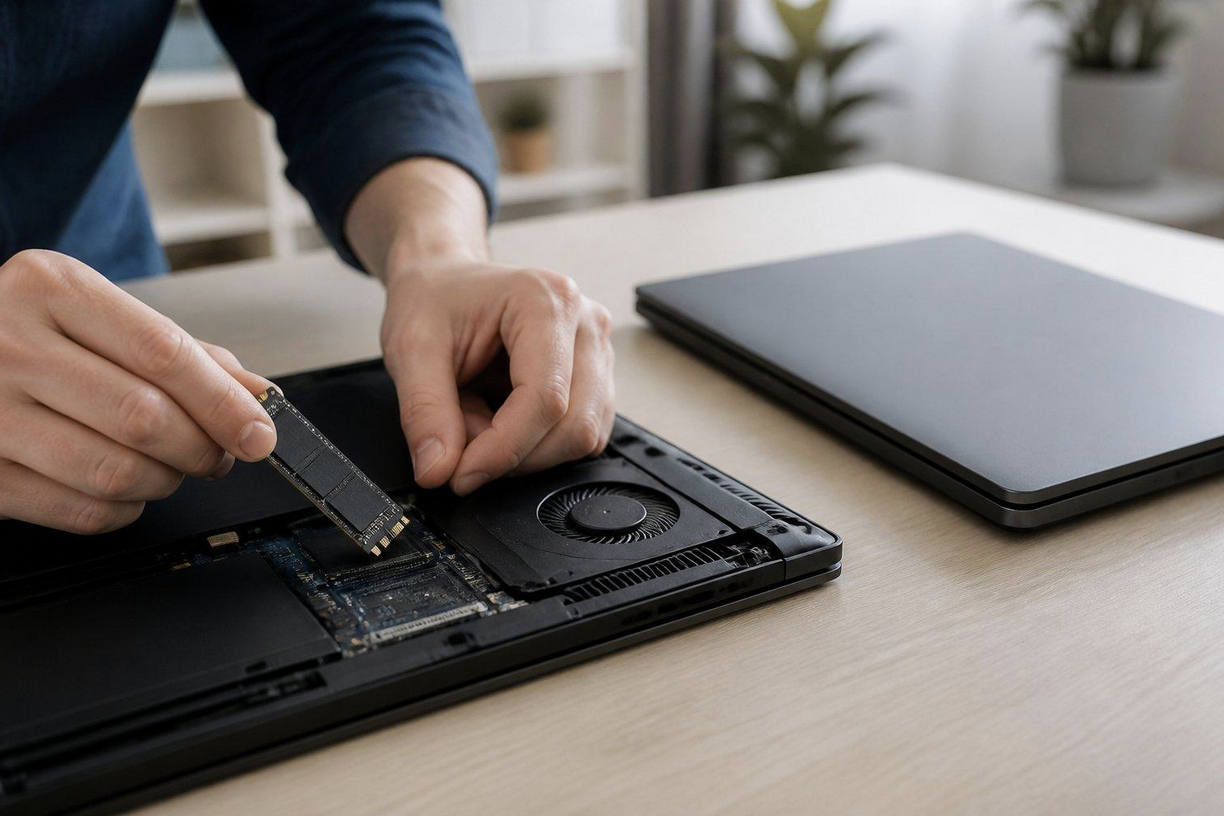
Power off, remove the battery where possible, and discharge static before opening the machine. Consult a teardown or service manual for your specific model rather than guessing. Once the drive is seated, confirm the BIOS/UEFI recognises it, set the correct boot order, then boot into your OS and run a quick disk health check and TRIM verification (fsutil behavior query DisableDeleteNotify). A result of 0 means TRIM is active, which ensures the drive manages deleted blocks efficiently over time.
Starter checks to tell if an SSD will help today
Open Task Manager (Ctrl+Shift+Esc) and watch the Disk column. If it regularly hits 100% during normal browsing or light editing, a storage bottleneck is almost certainly the cause. Before drawing that conclusion, rule out background services such as indexing, Windows Update, or anti-virus scans, which can temporarily spike disk usage without a failing drive being involved.
Cold boot times and app launch speed tell the same story. If Windows stalls at the logo or applications take several seconds to respond, that points to high random I/O latency, not a processor problem. Time a cold boot with a stopwatch to give yourself a hard before-and-after figure once the new drive is in. If disk usage is pegged at 100% while you are doing nothing intensive, an SSD swap will almost certainly fix it.
Advanced moves that pay off for tech-literate owners (NVMe and TRIM)
If your laptop supports NVMe and the motherboard routing allows it, the latency and random IOPS improvement over SATA is real, particularly under heavier workloads. PCMark 10 storage benchmarks illustrate how sharply the storage bottleneck shifts between interfaces. That said, thin laptops with tight thermal and power budgets can quietly absorb those gains before they reach everyday tasks, so workload matters more than the spec sheet.
One thing catches many people out: the M.2 slot shape tells you nothing about whether it supports NVMe or only SATA. Many owners have ordered the wrong drive because the chassis gives no obvious clue. SATA and NVMe SSDs are available in a variety of performance tiers, but compatibility with the laptop’s interface should be verified before purchase.
For longevity, keep SSD firmware current and confirm TRIM is active. On Windows, run fsutil behavior query DisableDeleteNotify: a result of 0 confirms TRIM is enabled. Do this before fitting the new drive, not after. The full command reference is available via.
Systems and tools evaluated
- Mid-range consumer laptops from 2016–2021, spanning HDD-equipped and SATA SSD configurations
- DRAM-cache SATA and NVMe drives alongside DRAM-less budget NVMe drives across several brands
- CrystalDiskMark and AS SSD for baseline and post-upgrade measurement
- PCMark 10 storage benchmark for workload simulation
- Windows Task Manager Disk column for real-world load monitoring
- Battery health tools to rule out thermal and power instability as confounding variables
Common mistakes that turn a smart upgrade into a waste
- Choosing a low-end SSD without reviewing its specifications: Cross-check any budget drive against reviews that measure random IOPS under low queue depth. The difference between a DRAM-cache SSD and a DRAM-less SSD can often be noticeable in everyday tasks, not just in benchmark results.
- Ignoring battery health: Battery degradation is a separate issue that no SSD will fix. Check battery condition before spending anything, as hardware wear elsewhere in the machine will not be resolved by faster storage alone.
2-Year Rule Decision Framework
Simple version: if you expect to use the laptop for at least another couple of years, and the chassis, screen, and keyboard are in reasonable condition, an SSD upgrade is often one of the most cost-effective hardware improvements available It avoids an immediate $300–$500 outlay and delivers real, daily speed gains. Treat it as a practical heuristic, not an absolute rule.
Price a suitable 500 GB DRAM-cache SSD, set it against the replacement laptop you were considering, then check battery and component health. If the SSD costs under roughly a quarter of the replacement price and the hardware is sound, the upgrade may be worth considering. Most budget replacements fail that test before you even look at the storage spec.
Example (illustrative): a 500 GB DRAM-cache SSD typically costs around $55–$70, depending on the manufacturer, model, and current market pricing. Again, against a $300 budget laptop, that puts the drive at roughly 20% of the replacement price, comfortably under the 25% threshold. Check live prices before committing, as both SSD and laptop costs shift regularly.
A new budget laptop does come with a fresh warranty and a healthier battery, and those are genuine advantages. But plenty of budget machines still ship with HDD, eMMC, or a DRAM-less SSD, which means you could spend $300 and land in much the same position you started in. If the new machine uses soldered storage, or the spec sheet is vague about storage type, an upgrade may offer a more practical solution in many cases.
After the swap, the machine will boot faster, handle multiple browser tabs more smoothly, and feel noticeably snappier day to day. Cold boot times in particular can improve dramatically. It will not match a current-generation CPU for heavy video or photo editing, but a realistic outcome is roughly two additional years of useful life, provided thermals and battery health are kept in check along the way.
Users who are not comfortable performing hardware upgrades themselves may choose to seek professional assistance with installation and data migration.
Conclusion
For many users, laptop performance is limited more by storage speed than processor power. While a new budget laptop may appear to be the simplest solution, evaluating the type of storage, upgrade options, and overall hardware condition can help determine whether an SSD upgrade is a practical alternative.
By verifying compatibility, selecting appropriate hardware, and understanding the factors that influence everyday responsiveness, users can make more informed decisions about extending the useful life of an existing laptop or replacing it with a new system.
 FAQs
FAQs
Day-to-day speed is governed by storage latency, not raw processor power. Most budget laptops ship with HDDs or eMMC storage that is sluggish enough to make a brand-new machine feel just as slow as the one you already own. An SSD swap targets the actual bottleneck directly, rather than replacing hardware that was never the problem in the first place.
Open Task Manager (Ctrl+Shift+Esc) and watch the Disk column during normal use. If it sits near 100% during routine tasks, storage is almost certainly the bottleneck. Slow cold boot times and sluggish app launches point to the same culprit. If both symptoms are present, an SSD upgrade is very likely to make a noticeable difference.
It is a simple decision rule: if you plan to keep the laptop for at least two more years and the chassis, screen, and keyboard are all in reasonable shape, upgrading the storage is usually the more cost-effective choice. The one caveat is soldered storage. If the machine is locked to non-upgradeable eMMC, the case for replacement becomes harder to dismiss. Check this before you buy anything.
Choose a DRAM-cache SSD with a documented endurance rating, a reliable controller, and an appropriate warranty period. Random IOPS performance is often a more useful indicator of day-to-day responsiveness than advertised sequential transfer speeds. Models in the 500 GB to 1 TB range typically provide a practical balance between capacity and cost for most users.
Users who are not comfortable performing hardware upgrades themselves may choose to seek professional assistance with installation and data migration. Before proceeding, verify compatibility requirements and ensure important data is backed up.
Disclaimer
This article is provided for informational and educational purposes only. It does not constitute professional technical advice, repair advice, or a recommendation to purchase any specific product or service. Hardware upgrades may vary by device model, configuration, warranty status, and user skill level. Readers should verify compatibility, back up important data, and consult qualified technical support when needed before making hardware changes.
References to third-party tools, benchmarks, software, manufacturers, service providers, or external websites are included for informational purposes only and do not constitute an endorsement by IPLocation.net. IPLocation.net is not responsible or liable for the accuracy, availability, content, products, services, practices, or actions of any external websites or third-party resources linked to or mentioned in this article. Use of any external link, tool, product, or service is at the user's own discretion and risk.
Featured Image generated by ChatGPT.
Related Articles
December 17, 2025
Best Ways to Improve PC Performance: A Practical Guide
Your computer feels slow. Programs take forever to open. Games stutter. Videos lag. You're not alone. Most PC users experience performance degradation over time. Still, the goo...
Read More
August 19, 2024
Laptop Guide: How To Find The Right Laptop
Looking for the right laptop for you? Buying a laptop can be a simple process if you need it for general use. However, as soon as you start needing one for specific uses, not every...
Read More
December 22, 2022
Benefits of using NVMe as your storage type for server
The storage device for your website's hosting is one of the essential factors that contribute to its eventual performance. For the most part of the time, the choice was between eit...
Read More
Comments
Comments are available to signed-in users and are moderated to keep the discussion useful and respectful. Spam, automated submissions, and low-value promotional comments are removed. Outbound links may be approved when they are relevant and genuinely helpful to readers, but they are displayed as plain text rather than clickable hyperlinks.
No comments have been published yet.
Please sign in to submit a comment.