

Software, Data & Database, Information Technology
How to Recover Data from a Lost Partition in Windows
Losing access to a partition on your PC is distressing, especially if it contains valuable data such as photos, videos, or documents. A partition often appears missing or deleted for several reasons, including user error, partition table corruption, formatting issues, malware, or hard drive problems. Fortunately, a lost partition does not always mean that your stored data is forever lost. In many cases, the files remain on the storage drive until they are overwritten by new data.
Using a reliable partition recovery software can significantly improve your chances of restoring deleted files. These user-friendly and versatile tools are designed to recover files from deleted, formatted, inaccessible, or lost partitions on Windows computers. Whether you’ve accidentally removed the partition or it disappeared after a disk error, data recovery software can easily help you restore them safely.
In this guide, we’ll understand in detail about partition loss, its common reasons, and how to use data recovery software to recover data from a lost partition. Let’s get started!
What is a Lost Partition?
A partition is a logical section of a storage device that your device OS recognizes as a separate drive, such as C:, D:, or E:. A partition appears “lost” when Windows can no longer detect or access it, even though the physical storage device is still connected.
Understanding the common signs of a corrupt or missing partition includes:
- The partition no longer exists in File Explorer.
- The drive appears as "Unallocated" in Disk Management.
- Windows asks you to format the drive.
- You lose access to files stored on these partitions.
- The partition letter disappears after a system crash.
Fortunately, in many cases, the data still exists on the drive and can be recovered using specialized partition recovery software.
What Causes Partition Loss on Windows? [Common Reasons]
Understanding the exact reasons for your partition loss can help you determine adequate recovery workarounds. Some common reasons include:
- Accidental Partition Deletion: One of the main reasons for partition loss on Windows is accidental deletion while using Disk Management or third-party partitioning tools.
- Corrupted Partition Table: If the partition table gets corrupt (which usually happens due to software errors, improper shutdowns, etc.), Windows may fail to recognize one or more partitions.
- Virus or Malware Attacks: Malicious programs like viruses or malware can corrupt partition information, hide partitions, or damage the file systems.
- Hard Drive Bad Sectors: With continuous usage over a long time, hard drives develop bad sectors, which can corrupt or delete partitions on your PC.
- Hard Drive Failure: Physical damage to the storage device can also cause partition loss. Common reasons for your failing hard drives include damaged SSD controllers, loose cables, overheating, or electrical issues.
Why Use Professional Data Recovery Software For Partition Recovery?
There are many partition recovery software tools available online that you can use to restore deleted or lost partitions on your PC. Professional data recovery tools offer recovery of files from inaccessible, deleted, and lost partitions without requiring advanced technical knowledge.
Key features of data recovery tools:
- Recover Deleted Files of Various Types: Supports recovery of deleted files of various types, including photos, videos, documents, and other deleted data of various file formats.
- Supports RAW Drive Recovery: Recover data from RAW or severely corrupted drives using signature-based scanning, even when the original file system is damaged or unreadable.
- Preview Before Recovery: Lets you preview the recoverable files before saving them on your PC, helping verify file integrity and select only the required data.
- Deep Scan for Maximum Recovery: If Quick Scan fails to provide you with the required recoverable results, you can perform an advanced sector-by-sector scan to locate those files, even from formatted or severely damaged drives.
- Supports Multiple Storage Devices: Allows you to restore deleted data from HDDs, SSDs, USB flash drives, memory cards, external hard drives, optical media (CD/DVD/Blu-ray), and other internal or external storage devices.
- Wide File System Compatibility: Supports recovery from NTFS, FAT16, FAT32, exFAT, and other commonly used Windows file systems, enabling recovery across a variety of storage devices.
How to Recover Data from Lost Partitions Using Data Recovery Software
Now that you’re familiar with the features of professional data recovery software, it’s time to explore the recovery steps to get your deleted files from a lost partition back. All you have to do is:
- Download and Install Software: Use a safe drive. Download and install the data recovery software on your Windows PC. Do not install the software on the drive containing the lost partition. Installing on the affected drive could overwrite recoverable data.
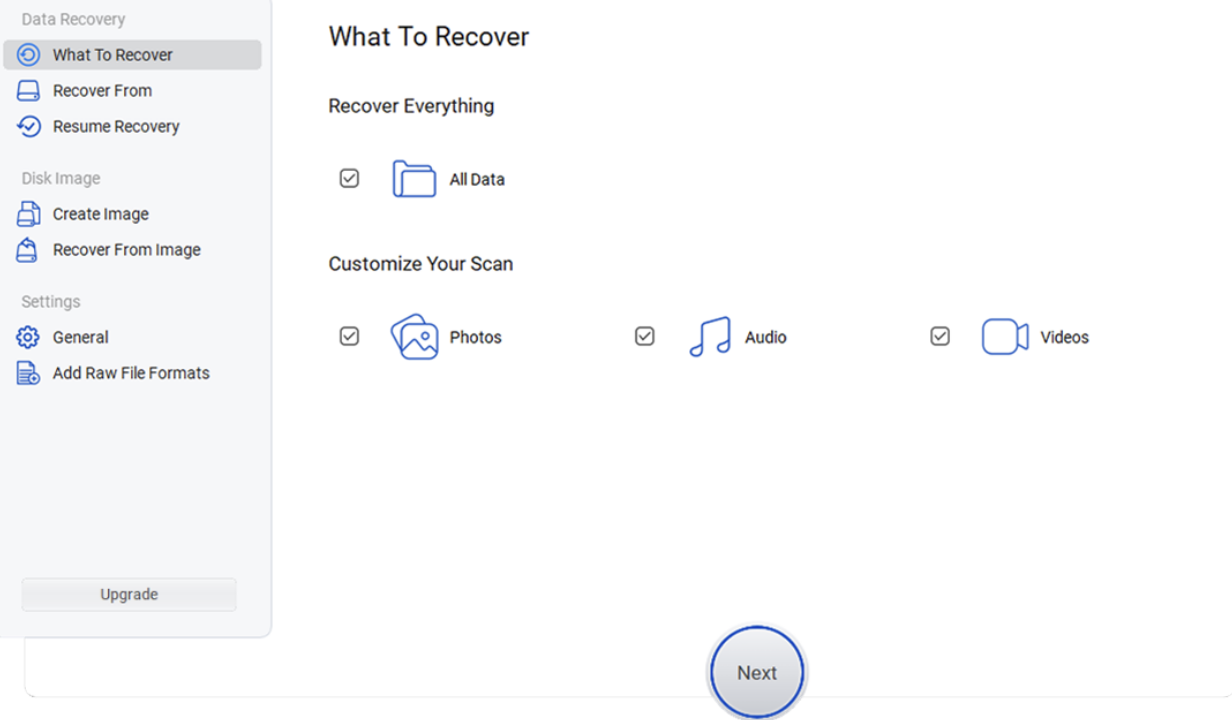
- Select File Types: Launch the data recovery software and choose the type of files you want to restore. If you're unsure which files were stored on the partition, select the option to recover all file types for a comprehensive scan.
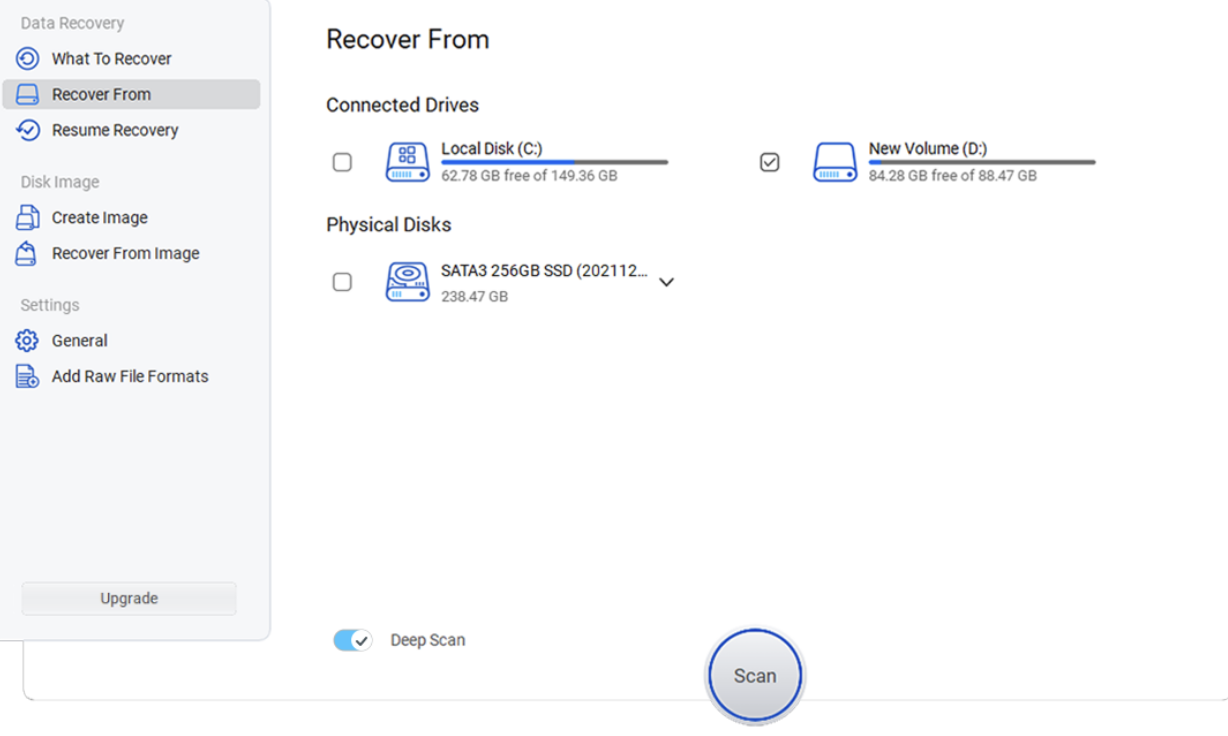
- Select the Drive and Scan: Choose the storage drive that contained the lost partition and start the scan. If the initial scan does not find the files you need, use the software's deep or advanced scan option, if available.
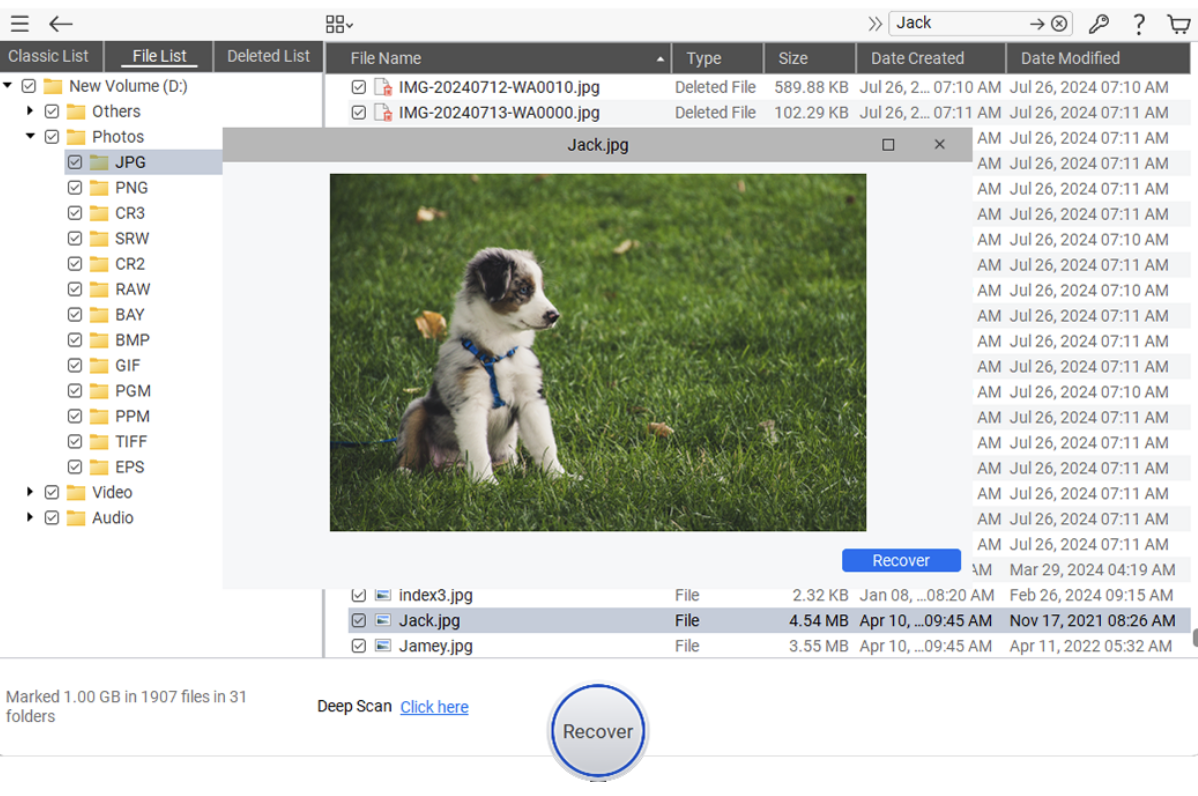
- Preview and Recover Files: Wait until the scanning completes. After that, preview the recoverable files and choose the ones you want to restore. Click Recover to save selected files back to your PC. Avoid saving them back to the same drive or partition you are recovering from, as this could overwrite remaining recoverable data.
Tips for Better Data Recovery from Lost Partition
Follow the precautionary tips below for smooth and successful data recovery from a lost partition on your Windows PC:
- Stop Using the Drive Immediately: Stop using the affected drive immediately because saving new files may overwrite deleted data, significantly reducing the chances of successful recovery.
- Avoid Formatting the Drive: Never format the inaccessible partition before attempting recovery, as formatting modifies the file system and complicates successful data restoration.
- Use a Deep or Advanced Scan if Needed: If the initial scan does not locate your files, use the software's deep or advanced scan option, if available. These modes perform a more thorough search and may recover additional files.
- Recover to Another Storage Device: Always save recovered files to another storage device, preventing accidental overwriting and preserving remaining recoverable data on the original drive.
- Check Drive Health: After recovering your files, check the drive's health for hardware issues and replace failing disks to prevent future data loss.
Conclusion
A lost partition doesn’t necessarily mean that your files are lost forever. In many cases, the data remains intact on the storage device until new information overwrites it. Acting quickly can help you easily restore your lost files without affecting the partition. Professional data recovery software can help you easily restore deleted data from a lost partition. Its ability to search for missing partitions, perform deep scans, preview recoverable files, and restore data to a safe location makes it a practical solution for both beginners and experienced users.
By following the steps outlined above and adopting regular backup practices, you can minimize data loss and recover valuable files when partition issues occur.
Comments
Comments are available to signed-in users and are moderated to keep the discussion useful and respectful. Spam, automated submissions, and low-value promotional comments are removed. Outbound links may be approved when they are relevant and genuinely helpful to readers, but they are displayed as plain text rather than clickable hyperlinks.
No comments have been published yet.
Please sign in to submit a comment.